Shopify checkout validations are safeguards that ensures pre-order items are processed correctly. They’re powered by Shopify Functions and can’t be overridden by other apps.
Available validations #
You can run any combination of these validations, they’re fully compatible with each other.
Pre-order enforcement #
When turned on, if a pre-order variant is detected without a valid Shopify purchase option OR the _preorder line-item property that PreProduct adds, the checkout will be blocked, and the customer will be prompted to return to the product page to select the pre-order option.
Note: This feature is only compatible with setups using charge-later, deposit-upfront, or charge-upfront pre-orders. Products on capture-only pre-order will just be ignored and never fail validation.
Multi-location stores: both validation rules are deliberately cautious for multi fulfilment location selling. A variant is only enforced at checkout when it’s on pre-order across all of your locations. This is because Shopify checkout functions read a single product-level metafield, which holds a flat list of variant IDs with no per-location dimension. Rather than risk blocking a legitimate buy-now, PreProduct only enforces a variant once every location has it on pre-order.
Isolated pre-order cart enforcement #
When turned on, the rule checks the cart and ensures that pre-order items and regular buy-now items are not mixed together.
If the cart addition will result in both types of items, it will be blocked.
Turning on an isolated pre-order redirect is the recommended way to require isolated carts, as it won’t show errors to customers. However, turning on this validation means the policy can not be circumvented.
Note: This feature is only compatible with setups using charge-later, deposit-upfront, or charge-upfront pre-orders. It does not apply to capture-only pre-orders.
Pre-order max limits enforcement #
When turned on, this rule blocks checkout whenever the pre-order quantities in a cart exceed what’s left of a listing’s max limits. It covers the limits you may already be using in PreProduct:
- Variant max limits, the per-variant caps set from a listing’s “Max limits” modal.
- Location-specific max limits, per-variant caps on location-managed listings, applied per shipping/warehouse location.
- Customer limits, the “customer max limit” on a listing, applied per checkout.
PreProduct already enforces these limits in its own buttons and cart. This validation extends that enforcement into Shopify’s own checkout, so a shopper who edits quantities in the native Shopify cart can’t slip past a limit. If a cart exceeds a limit, Shopify shows a message asking the shopper to reduce the quantity, and they can’t proceed until they do.
The shopper is stopped as early as possible: listing-wide limits and customer limits are checked from the cart stage onwards, while location-specific limits are checked at checkout, once the shopper’s shipping destination is known and the right location’s limits can be applied.
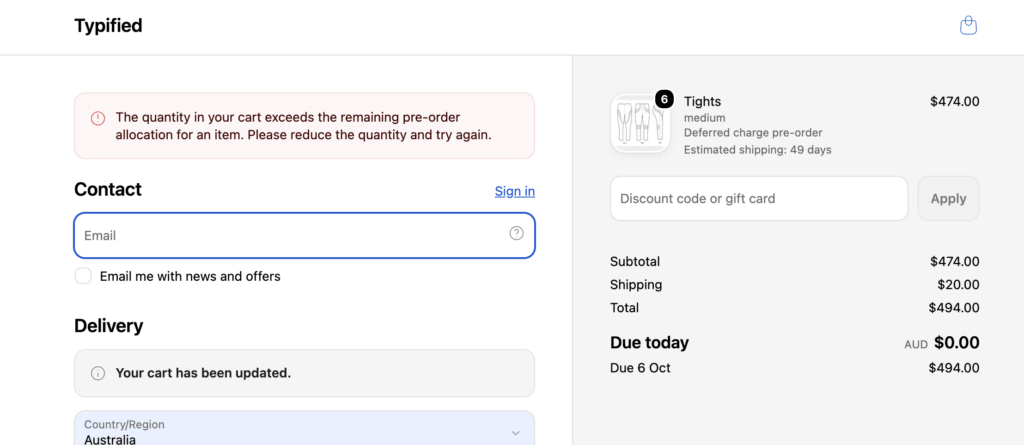
Behind the scenes, PreProduct keeps a running count of how many units are still available to pre-order and shares it with Shopify. After each pre-order, the count updates at most once every 10 seconds.
Note: This rule only applies to pre-orders that are: charge-later, deposit-upfront or charge-upfront. Capture-only listings aren’t affected. Customer max limits are applied per checkout rather than across a customer’s order history. A shopper can’t exceed the limit in a single order, but the full cross-order limit is still enforced by PreProduct’s own storefront flows.
Activating and deactivating validations #
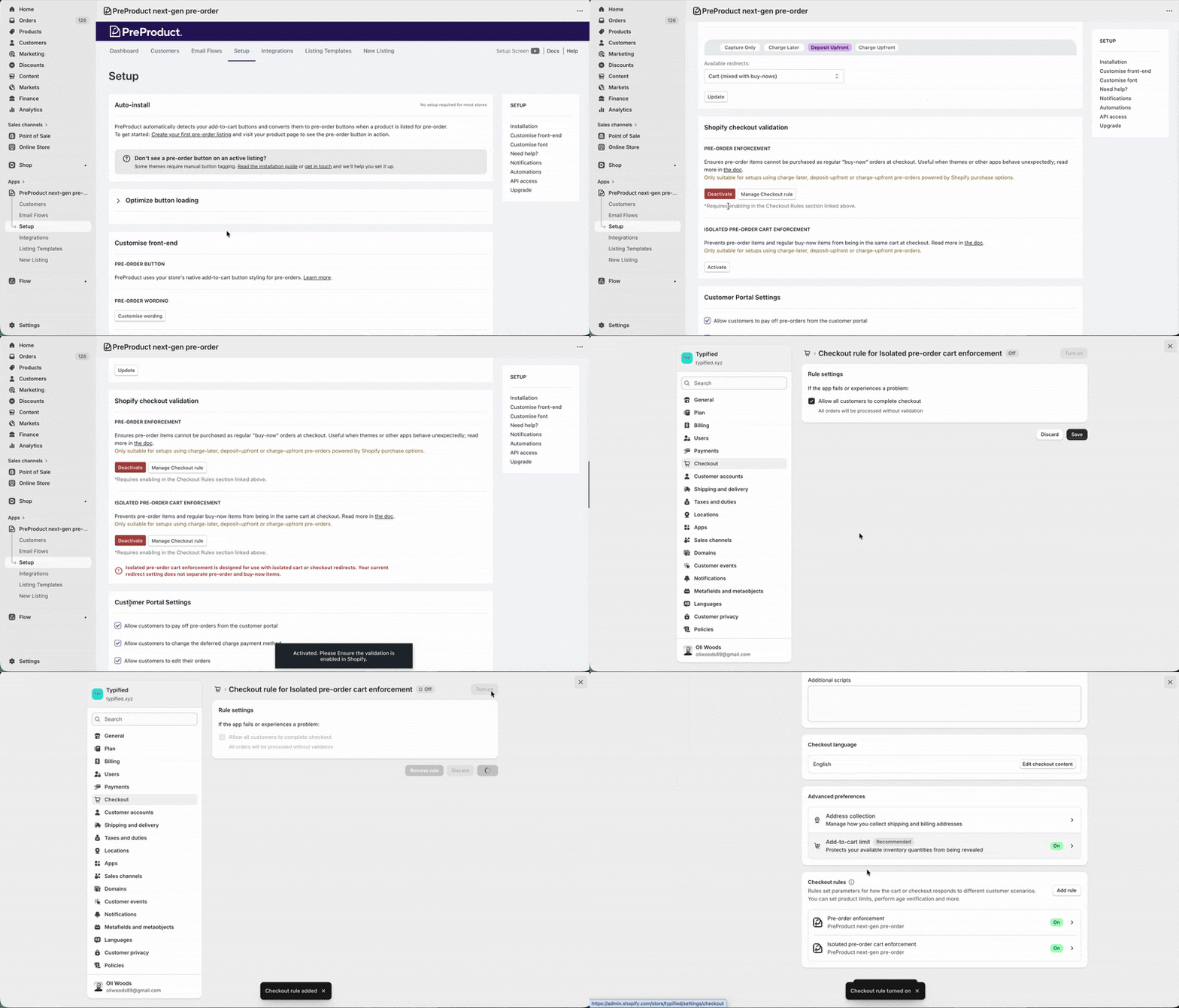
To enable a validation, you must opt-in within both PreProduct and your Shopify admin settings.
In PreProduct:
- Navigate to the Setup screen.
- Scroll down to the Shopify checkout validation section.
- Under the rule that you’d like to opt into, click Activate
After activating a validation, PreProduct will loop through all of your pre-order listings and add special managed metafields in Shopify. Depending on your catalogue size, this can take some time.
To deactivate a validation, simply click the red Deactivate button in the validation’s card.
In the unlikely situation that PreProduct is down, you can always disable validations from Shopify, visit Shopify Settings -> Checkout -> Scroll to the bottom and click the three dots, followed by Delete rule.
Failed validation customer experience #
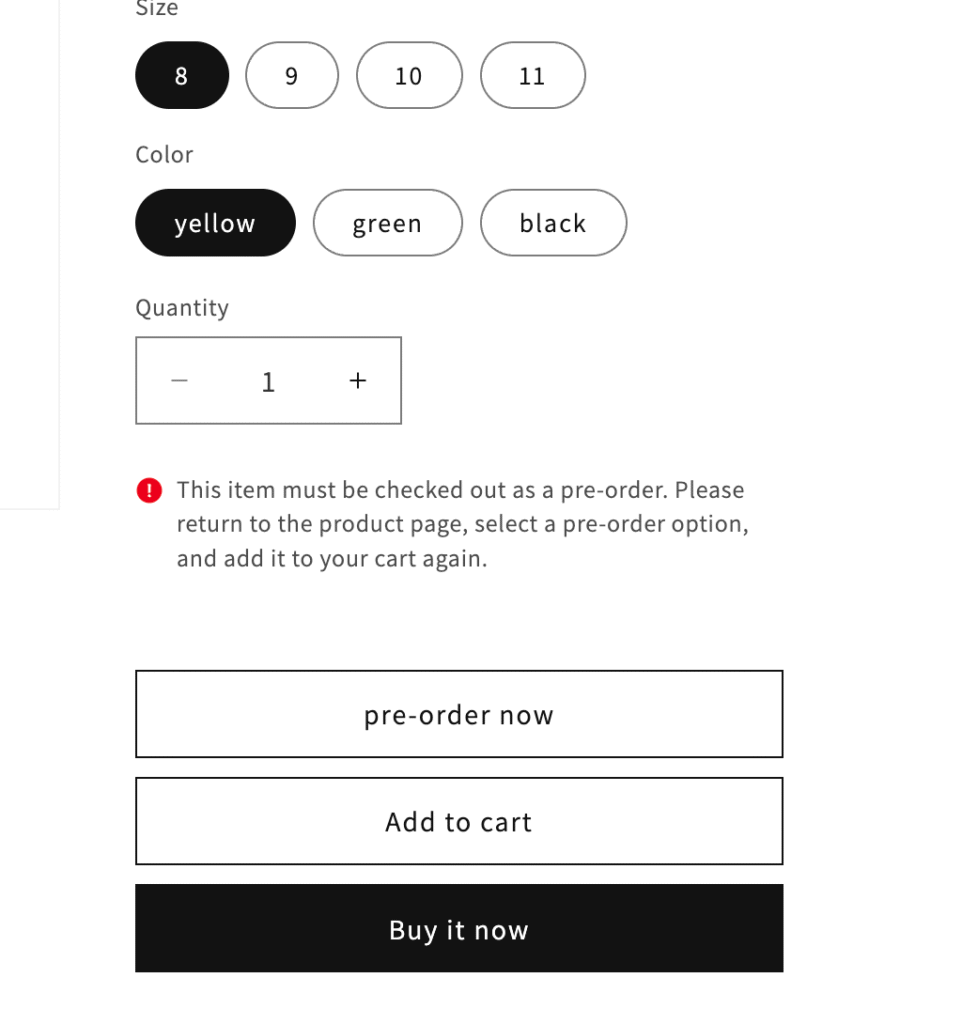
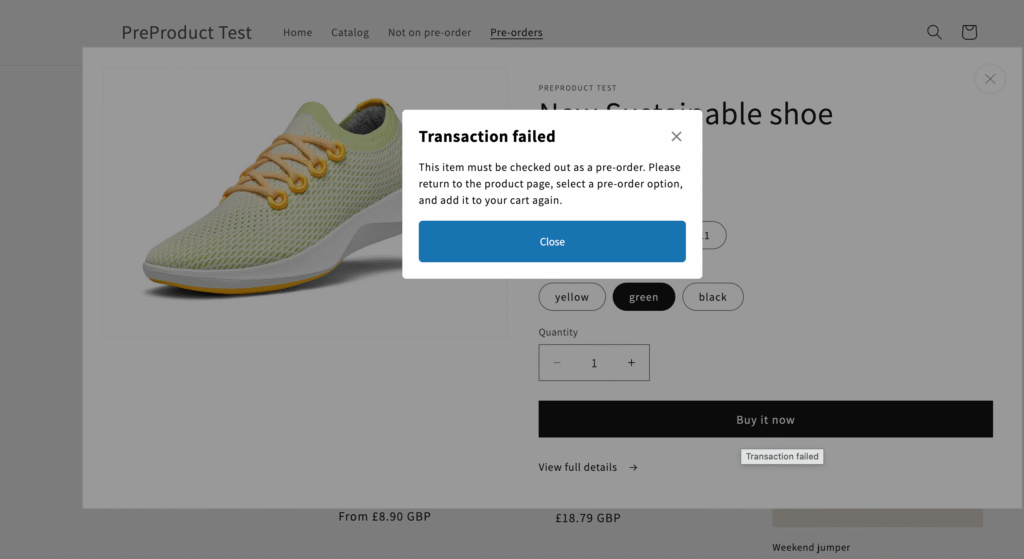
If a customer tries to add a pre-order item to their cart and it doesn’t pass an active validation rule, the item won’t be added. Shopify will also display an error message explaining what went wrong. Depending on your theme, that message may appear in one of the following ways:
1. Inline Error: A warning message directly above the buy buttons.
2. Modal Popup: A “Transaction failed” pop-up explaining the specific pre-order issue.
3. Silent failure: We’ve observed that some older themes don’t surface any error messaging, and instead just stop the item being added to cart.

