The Shopify Shop app handles pre-order products differently depending on the type of pre-order you’re running. Here’s what you need to know as of 2026.
Charge Up Front Pre-Orders #
When a product is on a charge up front pre-order, the Shop app will display a regular “Add to Cart” button — it won’t show any pre-order messaging. This means customers browsing your products through the Shop app won’t know they’re placing a pre-order.
Our recommendation: Use PreProduct’s Sales Channel Manager automation to hide pre-order items from the Shop app entirely. This prevents customers from accidentally purchasing a pre-order product without seeing the proper pre-order context and messaging on your online store.
Deferred Charge Pre-Orders (Deposit or Charge Later) #
When a product is on a deferred charge pre-order — whether that’s deposit-based or charge later — the Shop app behaves differently. Instead of an “Add to Cart” button, it displays a “Purchase at [Store Name]” button that links back to your main online store.
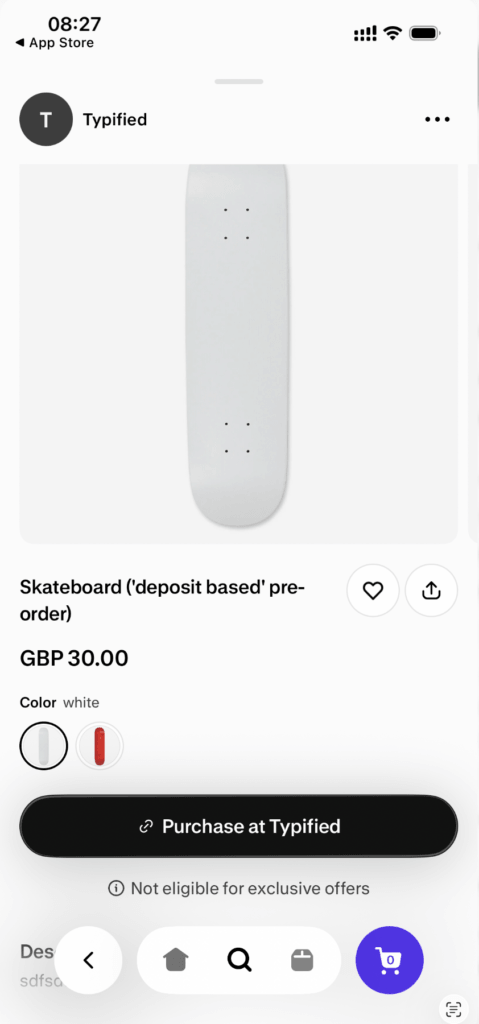
This is actually the ideal scenario. The customer gets kicked back to your online store where they’ll:
- See your full pre-order messaging
- Click the proper pre-order button
- Complete the order through the correct third-party charge flow
This means deferred charge pre-orders work well with the Shop app out of the box — customers are routed to the right place and will have the full pre-order experience.
Summary #
| Pre-Order Type | Shop App Behavior | Recommended Action |
|---|---|---|
| Charge up front | Regular “Add to Cart” button, no pre-order messaging | Hide from Shop app using Sales Channel Manager |
| Deposit up front | “Purchase at [Store]” link back to your online store | No action needed — works great |
| Charge later | “Purchase at [Store]” link back to your online store | No action needed — works great |

