This tutorial requires both JD Auto Schedule and PreProduct to be installed on your Shopify store.
JD Auto Schedule is a great app for scheduling store changes like product drops, BFCM sales and banners. It can be used in combination with PreProduct to schedule product launches that go live on pre-order.
This doc covers how to use JD Auto Schedule (JD) together with PreProduct to plan a pre-order product drop in advance. You start with the product(s) set to a Shopify status of draft, then schedule them to go live at the exact time of your launch.
You can take it a step further by building off the preorder tag that JD adds, using it to activate a PreProduct template whose eligibility criteria include that tag.
The walkthrough below uses both capabilities. If you would rather keep things simple, list the product for pre-order in PreProduct first, set its status to draft in Shopify, then add the schedule in JD.
Tutorial #
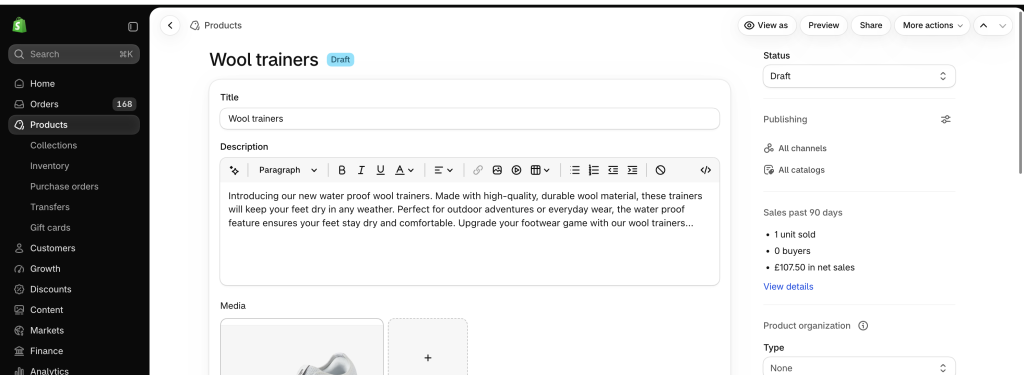
1. Set the product to draft in Shopify #
Start by giving the product a status of Draft in Shopify.
2. Set up the pre-order in PreProduct #
There are two ways to do this, depending on how you manage your pre-orders.
Option 1: If you manage pre-orders manually #
- Open PreProduct and click New listing, then select your product(s), which at this stage will have a Shopify status of draft.
- Select your pre-order terms and settings, then click Create listing.
Option 2: If you use the listing manager automation #
If you use a listing manager automation to manage your pre-order listings automatically:
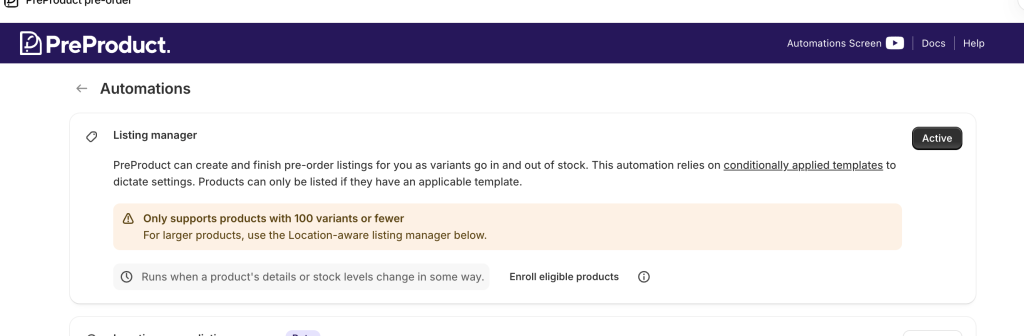
- Open PreProduct and make sure one of the listing manager automations is activated from the Setup → Automations screen.
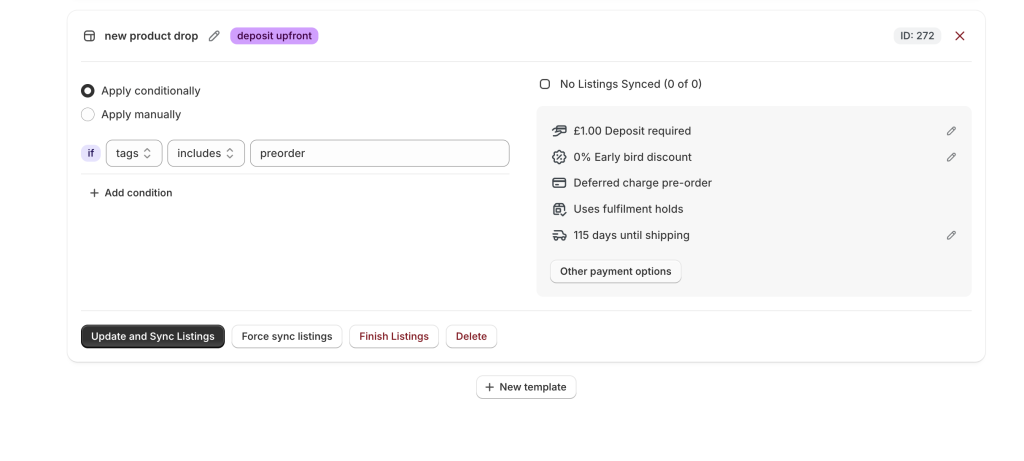
- Go to the Templates screen and add a new template with a condition of tag includes
preorder. Then click through on the right to specify the pre-order terms of the listing.
3. Schedule the drop in JD Auto Schedule #
- In JD Auto Schedule’s main dashboard, under Start with a popular template, select Product pre-order.
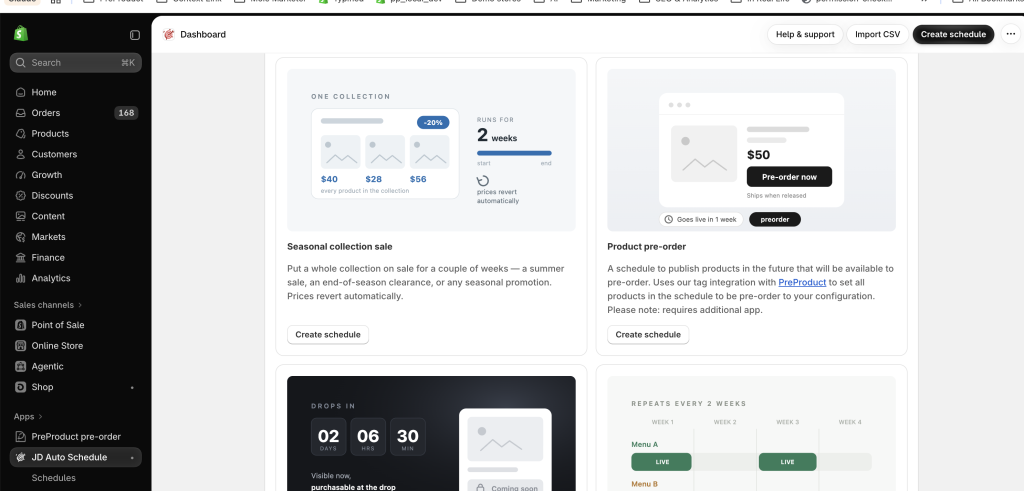
- The schedule will load pre-populated. You just need to:
- Select the product(s) or collections you’d like to target
- Set the start date and time of the launch
- Click to create the schedule
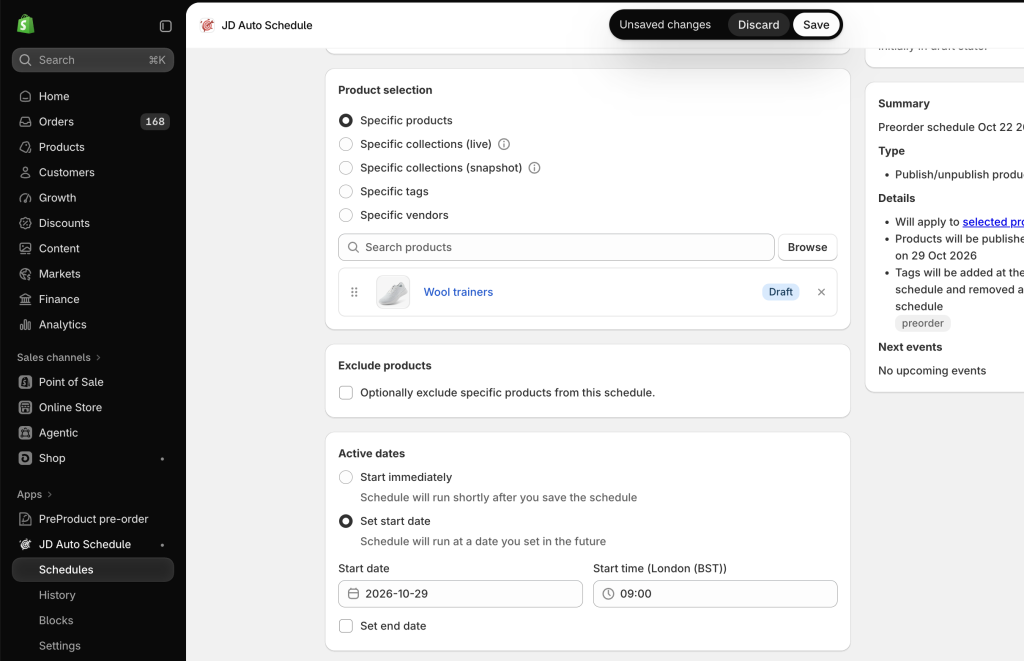
- At the date and time of the launch, JD Auto Schedule will publish the product(s) and add the
preordertag. This triggers PreProduct to list the product for pre-order, so customers can shop and pre-order the new drop.
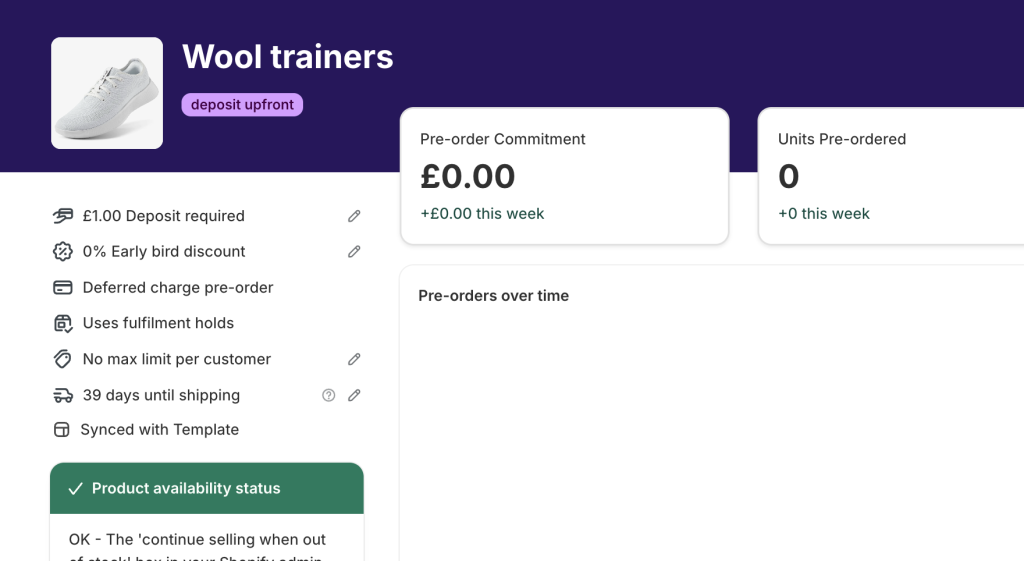
A note on tags #
Don’t use the Shopify tag pre-order (with a dash) in your template or schedule logic. PreProduct manages that tag automatically, adding and removing it whenever a product goes on or off pre-order. Use preorder (no dash), which is the tag JD Auto Schedule adds.

