Table of Contents
Customer profiles give you a single view of a pre-order customer from inside the PreProduct app. Not to be confused with the customer portal, which is the customer-facing page where shoppers manage their own pre-orders. Customer profiles are for you, the merchant.
Opening a customer profile #
You can open a customer’s profile from anywhere you see them in PreProduct, by clicking either:
- their avatar or name, e.g. on the customers screen or a listing’s customer orders tab
- the blue “Customer profile” link, shown when managing a customer’s card, as well as in their order drawer
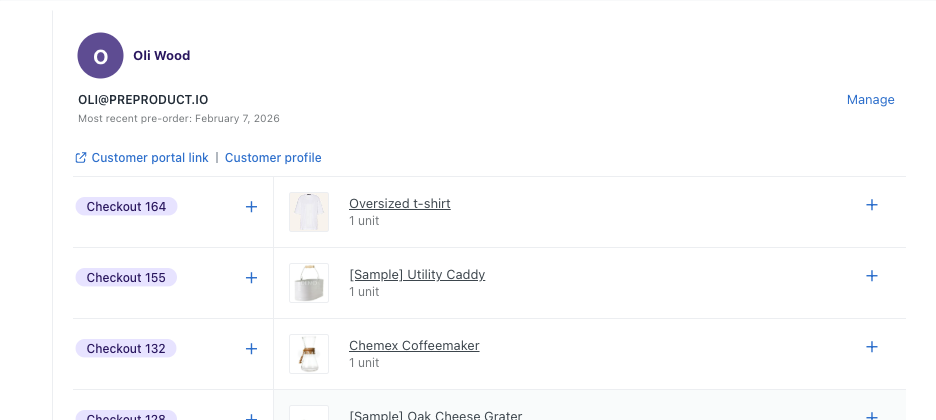
The profile opens in a side drawer, so you won’t lose your place on the screen you’re on.
Customer profile features #
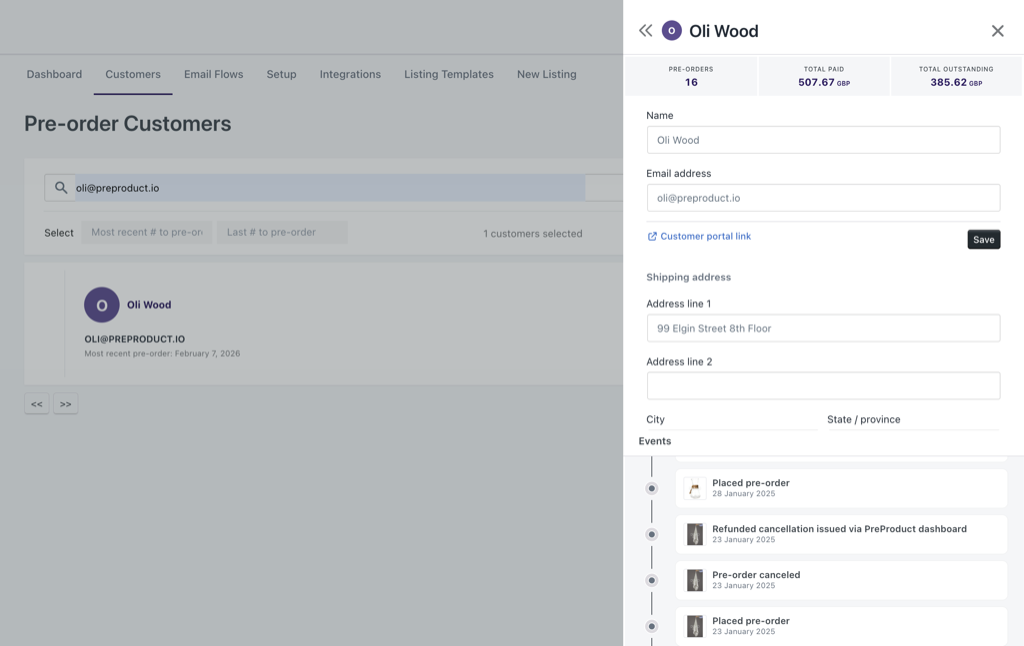
- Lifetime pre-order stats: total number of pre-orders, total paid and total outstanding (in your store’s currency), across every pre-order the customer has placed with your store.
- Update name and email: edits apply to all of the customer’s pre-orders in PreProduct. If you have a payment processor connected, the customer’s payment profile is kept in sync too. For Shopify stores this updates PreProduct’s records only; the Shopify order and customer stay unchanged.
- Update shipping address (non-Shopify stores): edits apply to any of the customer’s orders that haven’t yet been pushed to your ecommerce platform.
- Customer portal link: jump straight to that customer’s portal, the same link the
{{ customer_portal_link }}email variable generates. - Events timeline: the bottom of the drawer shows a full history across all of the customer’s pre-orders, including orders placed, emails sent, charges and payment plan installments, refunds, cancellations, failed charge errors and more.
Good to know #
- Profile edits are logged in the events timeline, so you’ll always have a record of what changed and when.
- If you change a customer’s email address, all of their pre-orders move with them and their portal link continues to work.

