Prefer a video? Click here to watch Oli talk through supporting pre-orders across multiple fulfilment locations.
PreProduct supports multi fulfilment location selling for Shopify stores that fulfil from more than one location. For example, a warehouse in the US and a warehouse in Europe can pre-sell to the customer served by one location while selling as normal (buy now) to the customer served by the other. PreProduct handles the dynamic swapping of buy buttons on the storefront, whether that’s pre-order, buy now, sold out, or “pre-orders are sold out”.
The rule for out-of-stock pre-orders: a customer only sees pre-order when every location that can serve them (per your Shopify shipping profiles) is out of stock. For backorder-style pre-orders, where you’re reselling something that has sold out, everything else follows from that one rule. Limited releases and pre-launch campaigns are a little different, since you sometimes launch with stock already sitting in Shopify, but they mostly follow the same process.
Walk through the cases for a brand with a US warehouse and a UK warehouse:
| Button shown | When it shows |
|---|---|
| Buy now | At least one location serving the customer has stock |
| Pre-order | Every location serving the customer is out of stock, and pre-order limits haven’t been reached |
| Pre-orders are sold out | Every location serving the customer is out of stock, and that location’s pre-order limit has been reached |
| Sold out | The product isn’t available to buy or pre-order for that customer |
Listing multi fulfilment location pre-orders #
There are three ways to create a new pre-order listing in multi fulfilment location mode.
Manually create a single listing #
From PreProduct, select the New listing menu item up top, then select your products from the list. On the new listing screen, click Advanced at the bottom. You’ll notice an “Only list specific variants” checkbox, tick that, then tick the “Select out of stock variants” checkbox.
This starts the listing with only out-of-stock variants on pre-order, in a location-sensitive way. For example, if the US warehouse has size 10 out of stock, that variant goes on pre-order, while the UK warehouse, which still has size 10 in stock, does not. You can then manage the listing going forward from the listings dashboard in PreProduct.
Manually create many listings in bulk #
From PreProduct, select the New listing menu item up top, scroll down, and click Bulk manage listings. On the bulk managed listing screen, select the products you’d like to list for pre-order, scroll down, then tick the “Only list out-of-stock variants” checkbox.
This means only the out-of-stock variants of the products you selected will go on pre-order, much like the example above, where some warehouses can be out of stock while others are in stock (or they could all be out of stock, or all in stock).
Automatically create and manage listings #
From PreProduct, select the Setup menu item up top, then scroll down to Automations and click through. Notice the “Location-aware listing manager” card. Click Activate on the card, then click the blue “Rebuild inventory data” option.
This automation manages your products for you, with no ongoing input. It works via Shopify webhooks, which fire whenever an inventory item, product, shipping location, or stock level changes. Clicking Rebuild inventory data is required to onboard the automation: PreProduct works through your whole catalogue once, making sure any listing that should be on pre-order is, and any that shouldn’t be isn’t.
The automation only touches eligible listings, just like a regular listing manager automation. This means the product must have an eligible template and have at least one variant in one location out of stock. Once turned on, PreProduct will automatically toggle variants on and off pre-order at specific locations as they go out of stock.
This is all dictated by your Shopify location and shipping profile settings. If the US warehouse can ship worldwide, and there’s a UK warehouse which is out of stock but the US warehouse can still serve UK customers, then that variant would not be treated as pre-order and would remain buy now.
Updating multi fulfilment location pre-order listings #
Once a pre-order listing is in multi fulfilment location mode, it surfaces locations in two areas of the listing’s dashboard.
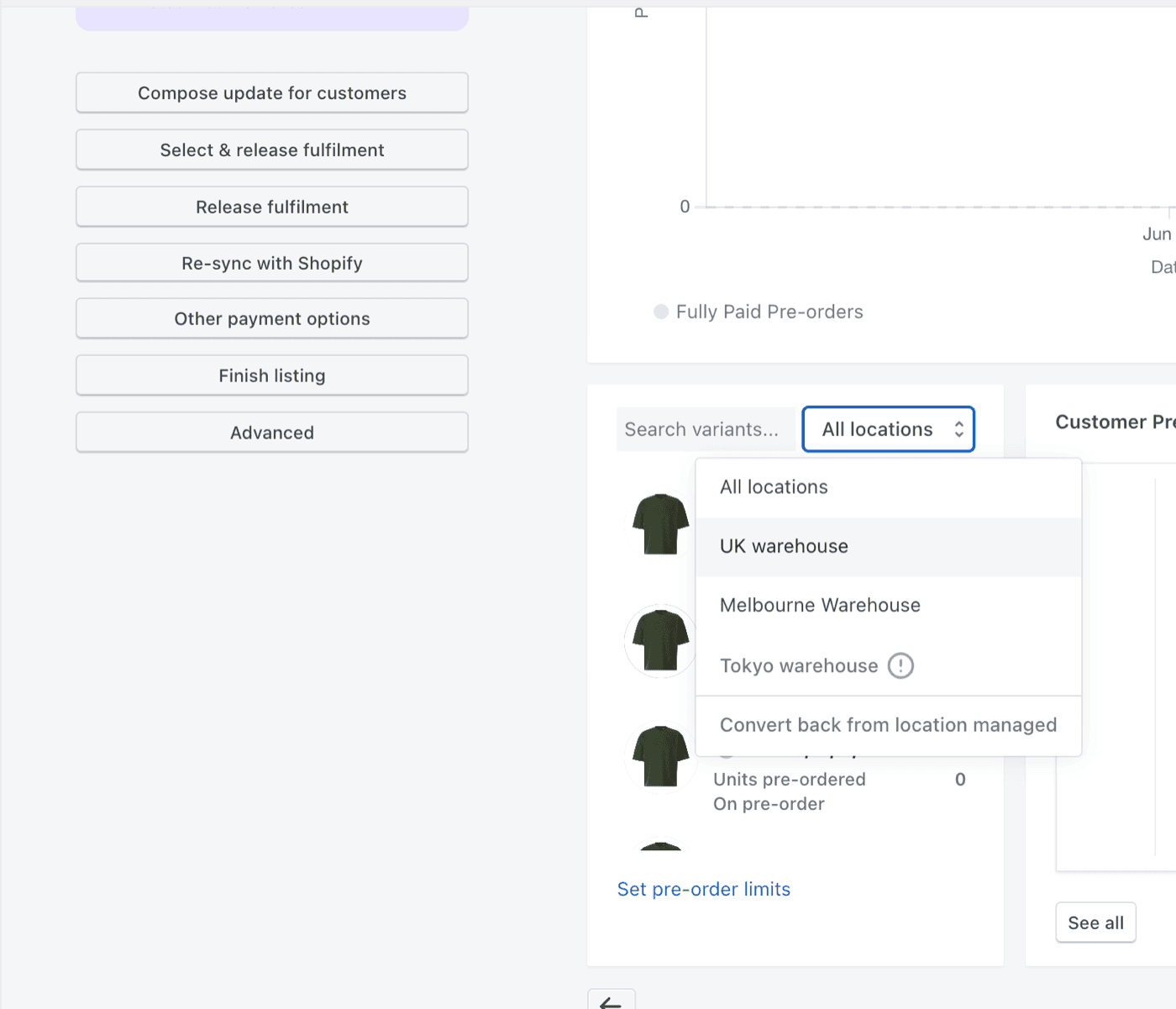
The first is the variants area of the dashboard, down on the bottom right-hand side. Clicking the “All locations” option lets you flick between the variants at each of your locations to see where they’re on pre-order and where they’re not. By default it shows the “All locations” view: variants on pre-order at atleast one location show green, while variants that are buy now in all locations show grey.
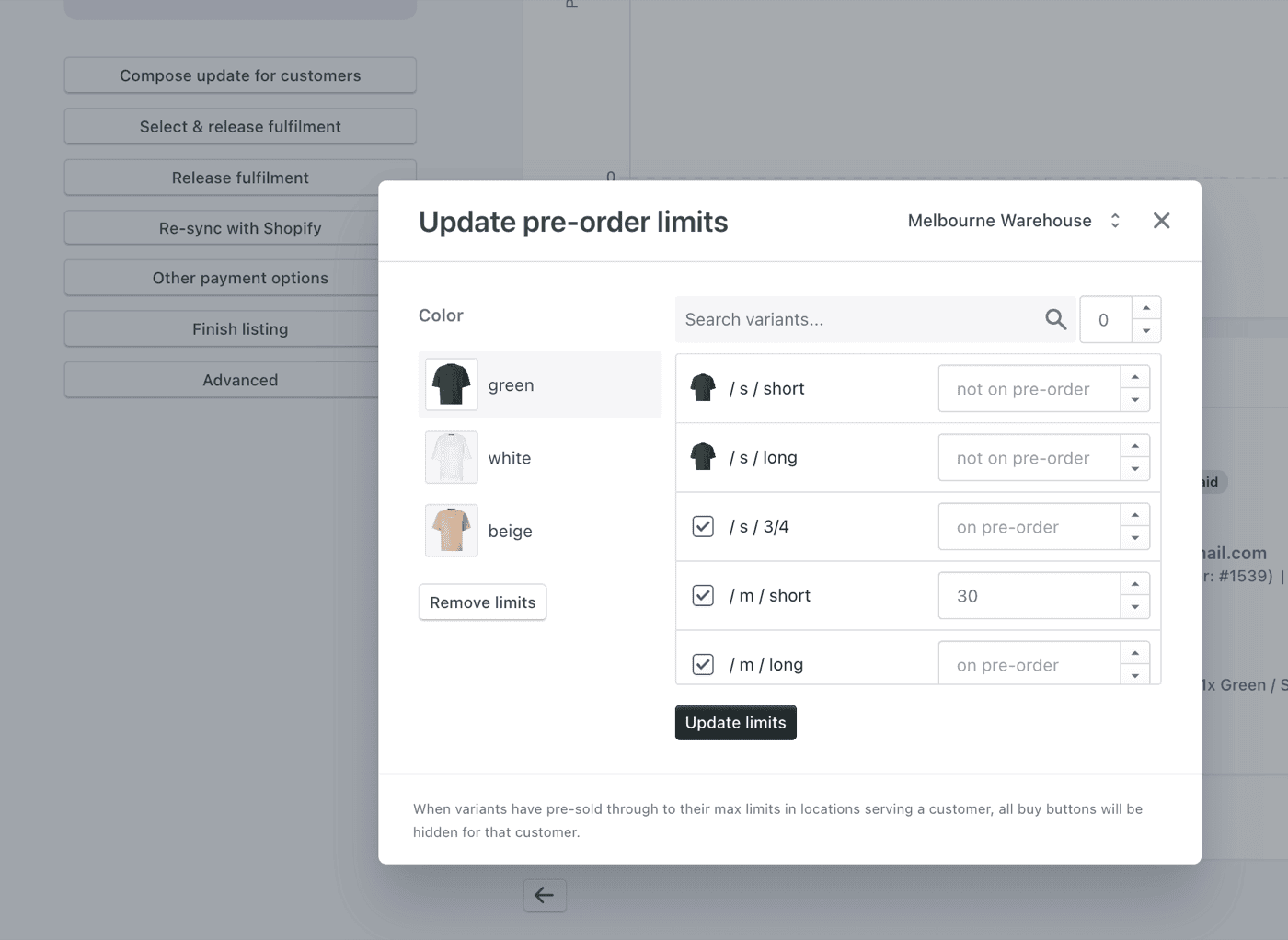
Locations are surfaced a second time via the blue “Set pre-order limits” link in that same variants area. In much the same way, you can view all locations together, or select a specific location from the top right of the pop-up to update max limits and to take variants on and off pre-order at each of your locations.
Finishing a multi fulfilment location pre-order listing is much the same as normal in fact, most of the functionality is identical. It’s only the specific variants and max variant limits that behave differently in multi fulfilment location mode, since they’re in the domain of where something can be sold.
Location-specific pre-order limits #
There are two ways to manage max limits in multi fulfilment location mode.
Setting limits manually #
You can manage max limits by hand, just like a regular pre-order listing. Set them from the listings dashboard, then pick the location from the top right of the pop-up to set limits location by location.
Setting limits by Shopify incoming inventory #
If you activate the “Location-aware listing manager with max limits” automation, each variant’s per-location pre-order limit is set from Shopify’s incoming quantity, and it’s worth knowing exactly when Shopify actually populates that number, since it’s later in the purchase-order flow than you might expect.
First, make sure the variant is stocked at the location. In the product’s Inventory tab, tick the location so it has an inventory row there. Until you do this, the variant has no stock record at that location at all, so it won’t be put on pre-order and won’t get a limit. (Shopify will also warn you about this if you try to receive a transfer for an unstocked variant.)
Then the purchase order flow goes like this:
- Create a purchase order for the variant. Incoming stays at 0, creating the PO alone doesn’t register any incoming stock.
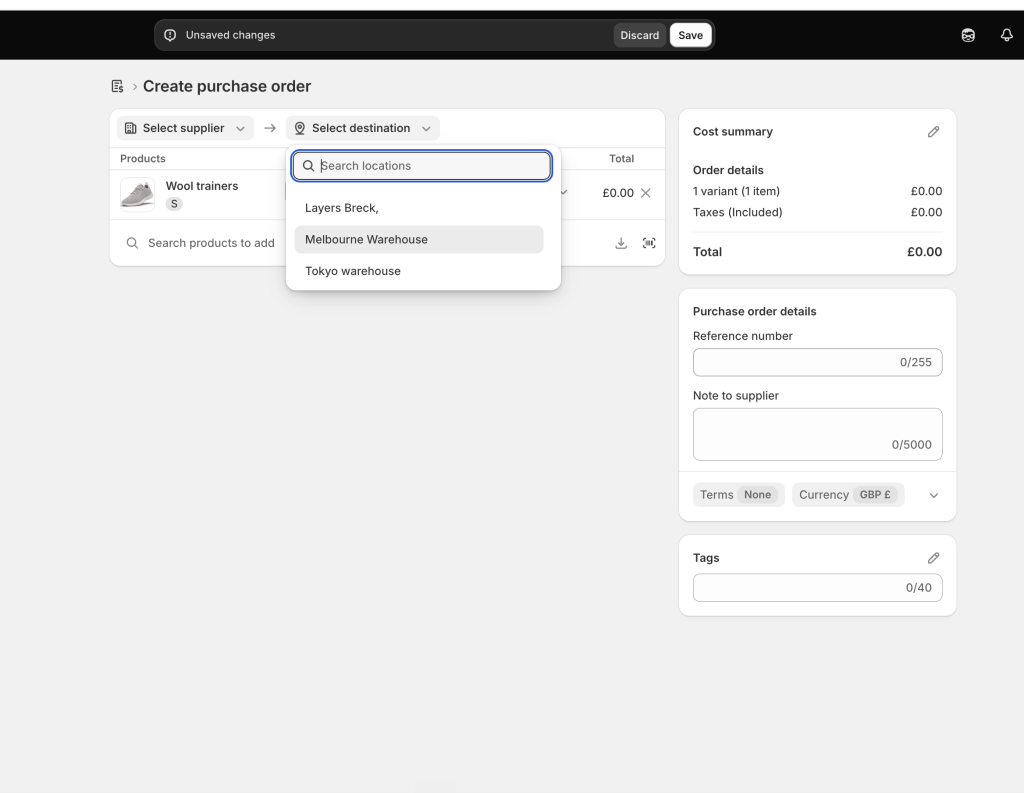
- Even marking the purchase order as “Ordered” doesn’t change it, incoming is still 0.
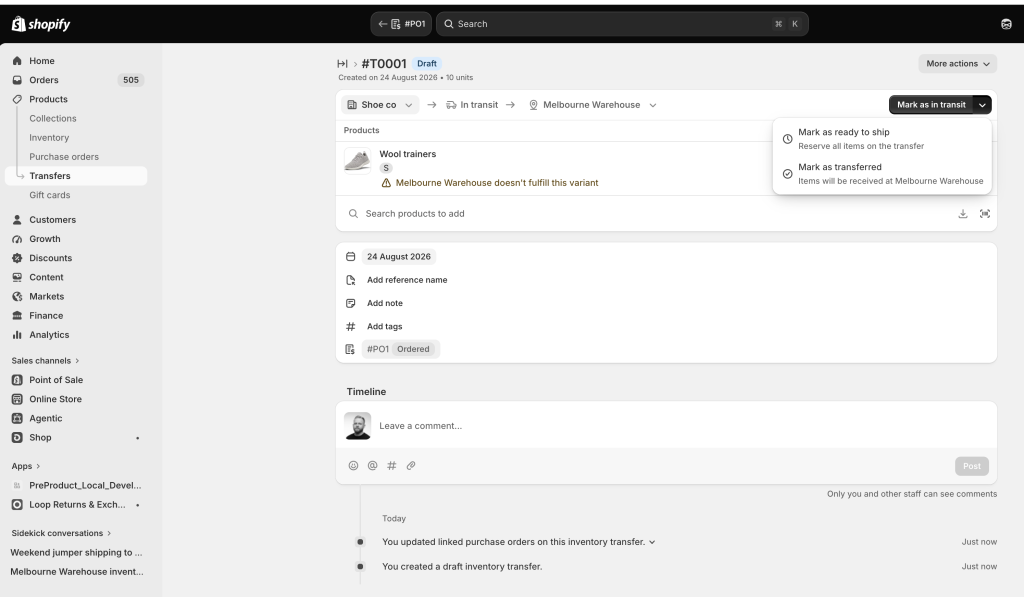
- From the purchase order, select “Create transfer” and mark it as in transit. This is the moment Shopify records the units as incoming, and the moment your pre-order limit appears.
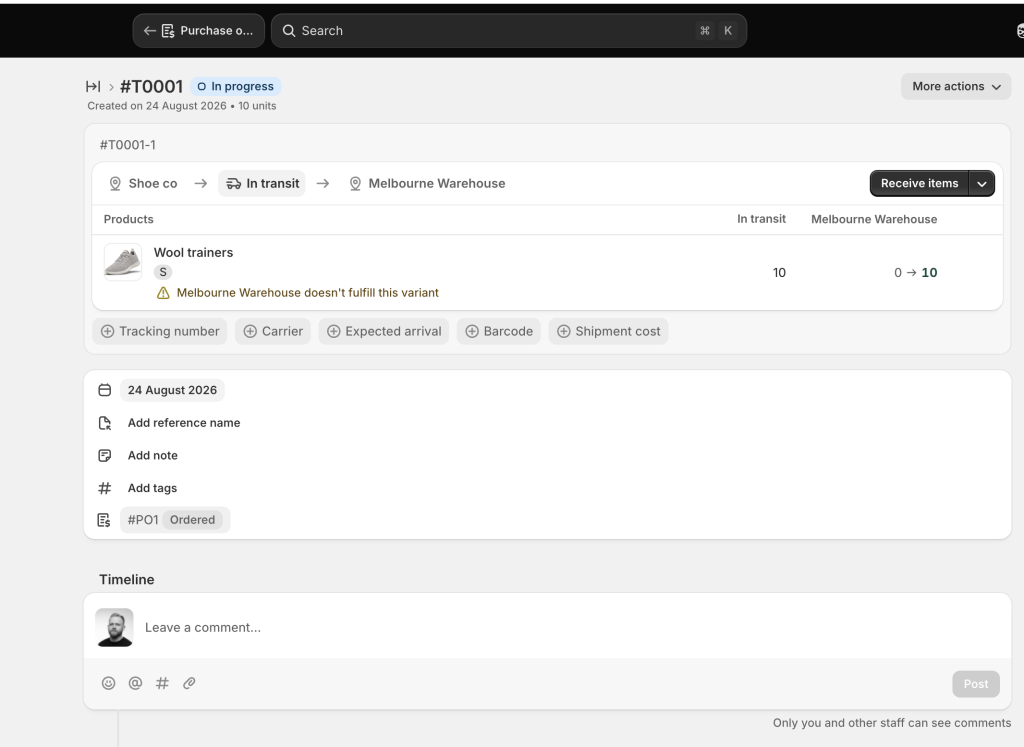
- When the stock arrives, use “Receive items” on the transfer. The received units move from incoming to available, so the pre-order limit drops away and, with stock now available, the variant comes off pre-order and sells normally.
In short: a variant only pre-sells with this automation when it’s stocked at the location, has no available stock, and has a transfer in transit (or an ERP-pushed incoming quantity). If you create purchase orders but never create in-transit transfers, incoming stays at 0 and the limit will be 0, so the variant will show as sold out for pre-order.
Limitations #
- Shopify only: Only Shopify stores are supported for multi fulfilment location selling with PreProduct.
- Headless stores:
window.Shopify.countryneeds to be set for headless stores to respect location inventory, otherwise all customers will be allowed to add pre-orders to cart/checkout. - Checkout validation rules: PreProduct’s checkout validation rules, namely pre-order enforcement and isolated pre-order cart enforcement, are deliberately cautious. A variant is only enforced at checkout when it’s on pre-order across all of your locations. This is because Shopify checkout functions read a single product-level metafield, which holds a flat list of variant IDs with no per-location dimension. Rather than risk blocking a legitimate buy now, PreProduct only writes a variant to that list, and so only enforces it, when every location has it on pre-order.
Troubleshooting #
The trickiest part of multi fulfilment location selling is making sure your Shopify configuration is correct, namely your locations, shipping profiles, shipping zones and inventory levels. This part of Shopify is incredibly flexible and powerful, but that flexibility can also make it confusing.
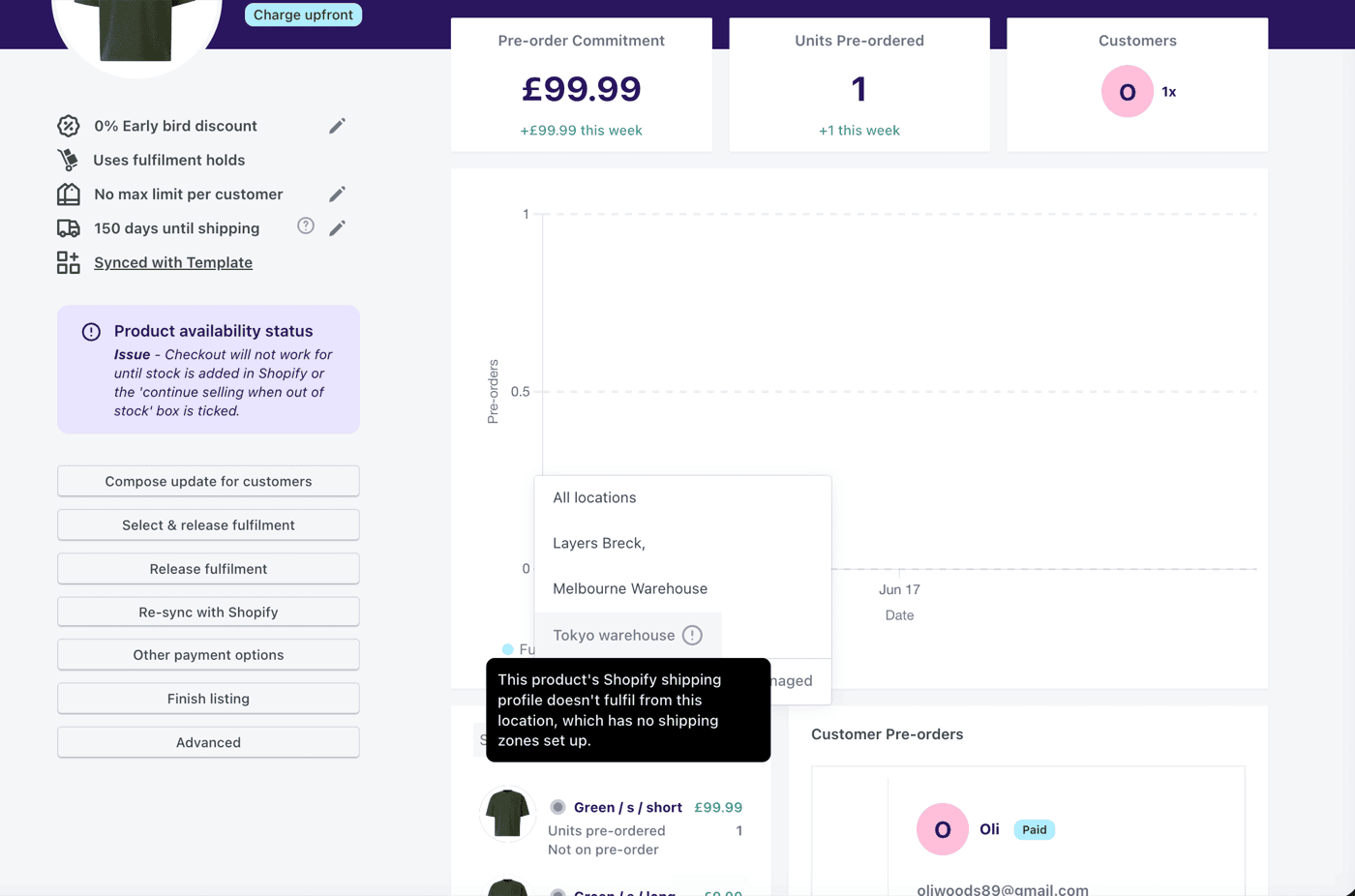
For this reason, the listing dashboard tells you whenever a location isn’t selling a product, along with the reason why. PreProduct won’t sell a product at a location if Shopify’s settings prevent it. There’s an in-depth Shopify doc here on multi fulfilment location selling.
A few Shopify-side causes come up again and again:
- The variant has no inventory level at the location. Shopify only lets a location sell (or pre-sell) a variant once it has an inventory level there, which is created when you stock or activate the variant at that location. Adding a new warehouse doesn’t stock your catalogue there automatically. If a variant seems missing from a location entirely, rather than showing the wrong button, check Shopify’s Inventory screen and activate it at that location first.
- A custom shipping profile has claimed the product. Adding a product to a custom shipping profile removes it from your general profile. Locations attached only to the general profile will silently stop serving that product, which surfaces as unexpected buy now or pre-order states. It’s also worth avoiding naming profiles after a single country (like “Japan”); profiles tend to grow to cover more locations and zones, and the name stops matching reality.
- A zone is missing from the profile. If a location should serve a country but doesn’t, check the shipping zones attached to that location within the relevant profile.