Already taken pre-orders with another app, or with no app at all? PreProduct can migrate Shopify pre-orders from your orders admin, so everything lives in one place: customer records, payment states, and listings. Tag the orders in your Shopify admin, tell PreProduct the tag, and it does the rest. Prefer to watch a video? Click here to see Oli walk through the process.
The import is completely read-only on the Shopify side. PreProduct never edits, tags, or holds your orders during a migration, and no customer emails are sent. The only thing that changes is inside PreProduct: new pre-order records (and listings where needed) appear in your dashboard.
Running the migration #
Step 1. Tag your pre-order orders in Shopify #
In your Shopify admin, add a tag to each order you’d like to import. Any tag works, as long as it’s the same one on every order, for example preorder_import_july. In the Shopify order admin you can tag orders one by one or in bulk.
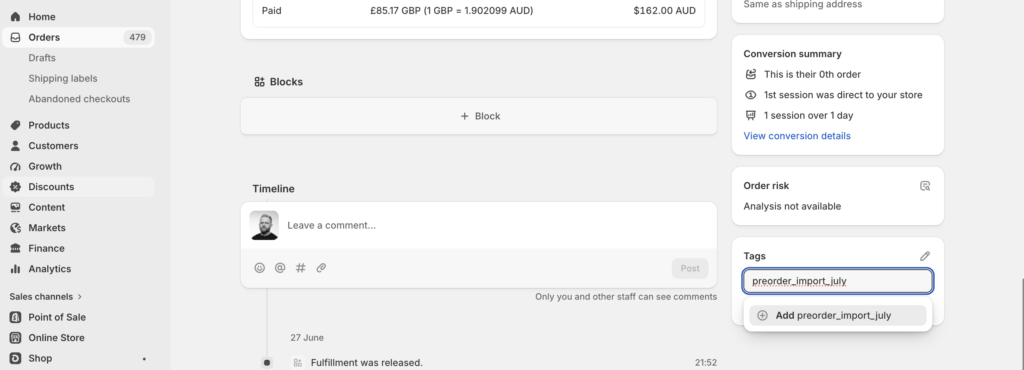
Tip: if your previous app already tagged its orders, you can reuse that tag as-is.
Step 2. Start the migration from PreProduct #
In PreProduct, select the Setup menu item up top, then scroll down to the “Migrate existing pre-orders” card (or use the Migrate shortcut in the side nav). Enter your tag in the Order tag field and click Start migration.
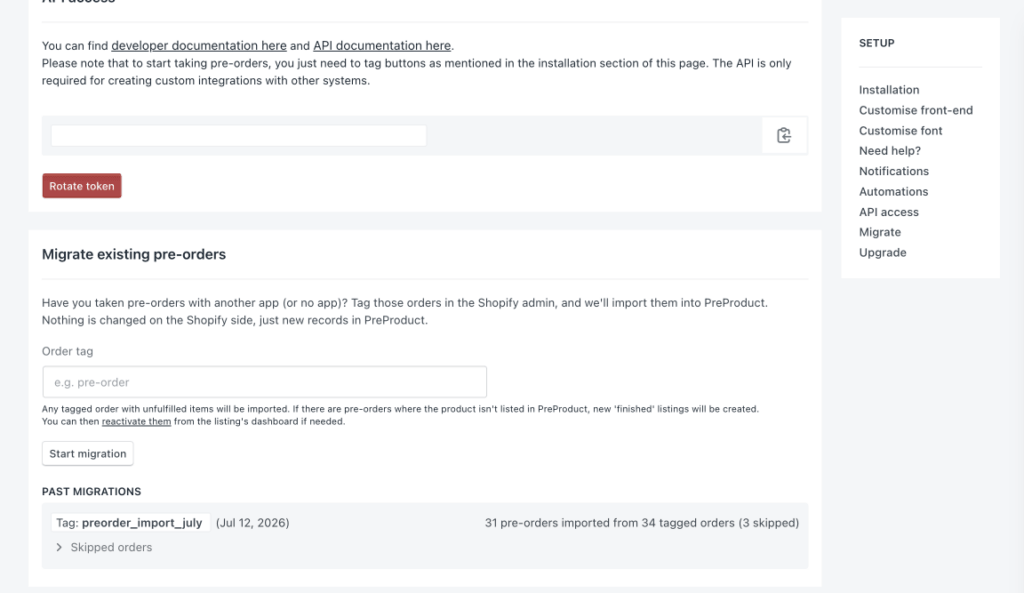
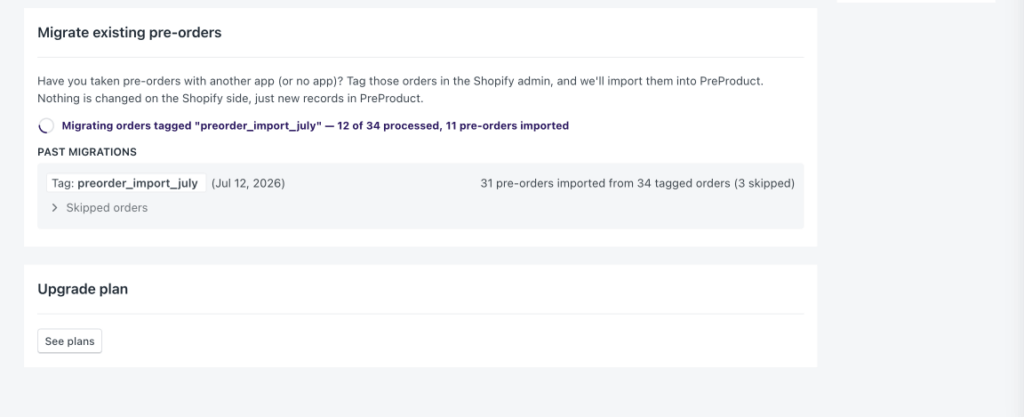
PreProduct finds every Shopify order carrying the tag and works through them one at a time, at a pace that’s safe for your store’s API limits. You can watch the progress live from the same card, feel free to navigate away, the migration continues in the background.
What gets imported #
Any tagged order with unfulfilled items is eligible. For each imported order, PreProduct creates a pre-order record of the correct type against the right listing, with the payment state carried over from the order:
- Paid orders import as paid, charge-upfront pre-orders.
- Partially paid orders import as deposit-based pre-orders, with the amount already paid recorded as the deposit.
- Unpaid orders (pending or authorised) import as charge-later pre-orders, ready to be charged from PreProduct when you’re ready to fulfil. These require a saved payment method on the order, see skipped orders below.
If an order contains a product that isn’t currently listed in PreProduct, a new ‘finished’ listing is created for it automatically, so the pre-order has somewhere to live. You can reactivate these listings from their dashboard if you’d like to keep selling, or leave them as an archive of the imported pre-orders (you can still trigger emails, charges and fulfilment). Orders that mix pre-order items with regular buy-now items are handled too: only the unfulfilled pre-order lines are imported, and any cash already taken for fulfilled lines is kept out of the pre-order’s numbers.
What gets skipped (and why) #
Not every tagged order should become a pre-order, so PreProduct skips anything that doesn’t qualify and tells you why. Once a run finishes, it appears under Past migrations with its counts; click Skipped orders on a run to see each skipped order and the reason.

Common skip reasons:
- Already in PreProduct: the order (or a pre-order with the same order name) already exists, so it isn’t imported twice. This means it’s safe to migrate a tag PreProduct itself uses, like
pre-order. - Fully fulfilled: every item has shipped, so there’s nothing left to treat as a pre-order.
- Cancelled / refunded: the order is no longer live.
- Missing email: pre-orders need a customer email for the customer portal and any future payment requests.
- No mandate evidence: an unpaid order can only import as a charge-later pre-order if there’s a saved (vaulted) payment method to charge later. Without one, there’d be no way to ever collect payment.
- Zero pre-orders created: the order was eligible, but none of its items are currently offered as pre-orders by your active PreProduct listing e.g. the variant isn’t set to pre-sell for the customers location.
Re-running and topping up #
Migrations are safe to re-run. Starting a new migration with the same tag skips everything already imported and only picks up new orders, handy if you tag a few more orders later, or if a run failed partway through and you want it to resume where it left off.
A few things to know #
- Nothing changes on Shopify. No order tags, no fulfilment holds, no emails to customers, no product or inventory changes. The import only reads from Shopify.
- Imported pre-orders never count toward your PreProduct billing. Revenue you took before PreProduct isn’t charged commission and doesn’t consume your commission-free threshold.
- Max-limit rules aren’t applied to imports. If migrated orders were added to a live listing, its sales counters now include them, but nothing was hidden or capped on Shopify during the import. The run will flag any live listings worth reviewing limits on.
- Fulfilment and charging works as normal. Imported pre-orders appear in your dashboard alongside native ones, and you can trigger charges and release fulfilment from PreProduct in the usual way.

