Prefer a video? Click here to watch Oli go through the POS integration.
Requirements #
Shopify POS Smart Grid setting #
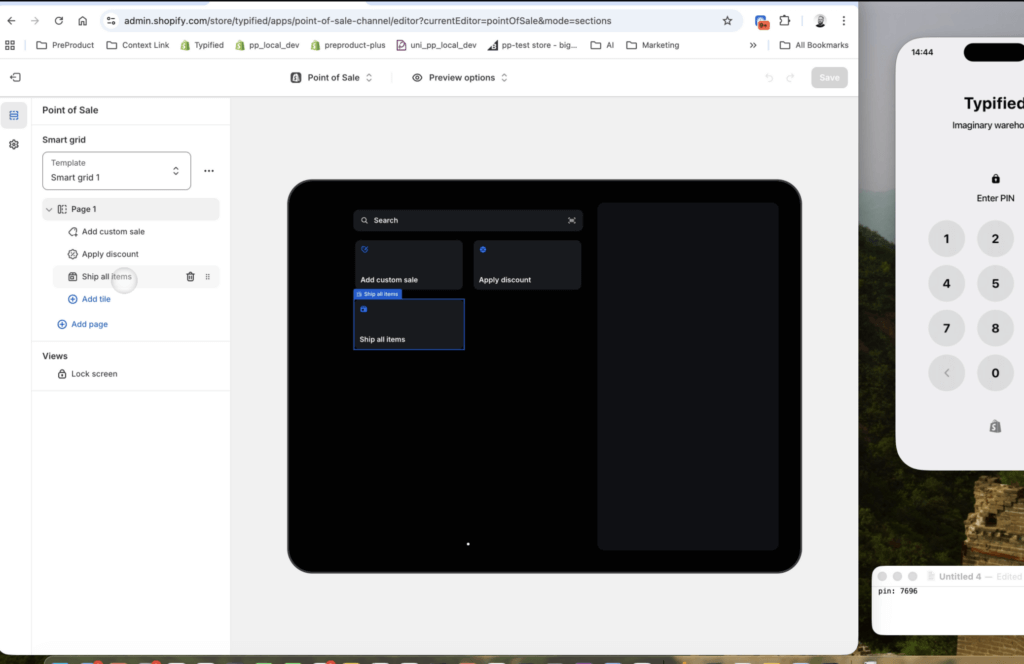
Shopify POS Pro is required for the PreProduct integration to work i.e. any paid Shopify POS plan. Pro enables the ability to set orders to ship from a POS device. To enable shipping, you must have one of these options enabled:
- Ship all items tile (POS Smart Grid), or
- Ship later / Ship to customer setting (depending on your POS setup)
If neither is enabled, Shopify POS will mark the order as fulfilled immediately (which can break the pre-order workflow).
Read before enabling #
1. A customer must be attached (with email + address) #
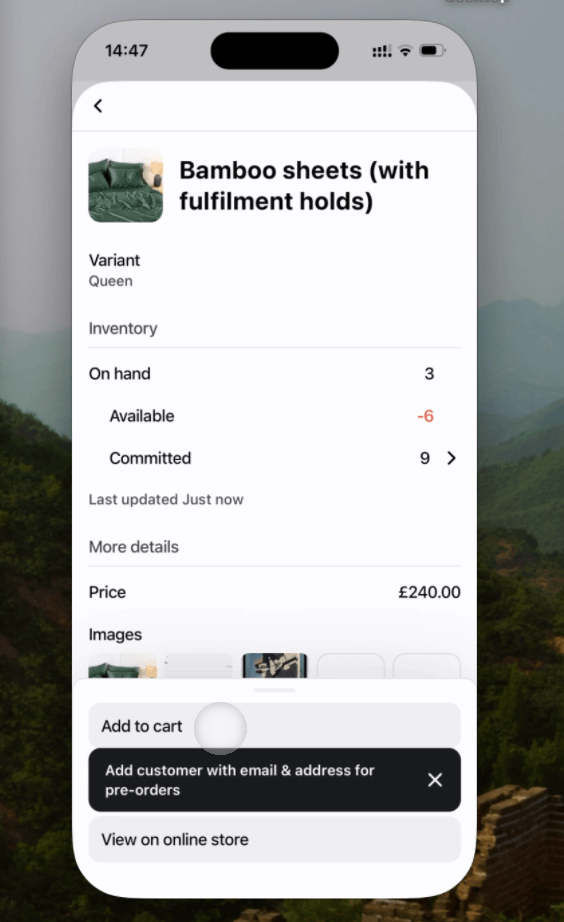
Pre-orders are only added to cart when a customer is present with both:
- Shipping address
If that isn’t true, staff will see a prompt telling them to add/select the customer first.
2. Deferred-charge isn’t supported in Shopify POS (Shopify limitation) #
Shopify POS doesn’t currently support pre-order purchase options, which are what power deferred-charge on the online store.
Because of that:
- POS pre-orders don’t support deferred-charge
- If the order is left as Unpaid, PreProduct will use a draft order invoice later when you trigger charges
- Alternatively, it’s totally fine to have the customer pay it off in-store at checkout. Both PreProduct and Shopify will understand the pre-order is paid
- Either method will create a fulfilment hold on the order in Shopify
3. Staff must set the order to ‘ship’ (don’t leave it as pickup/local fulfilment) #
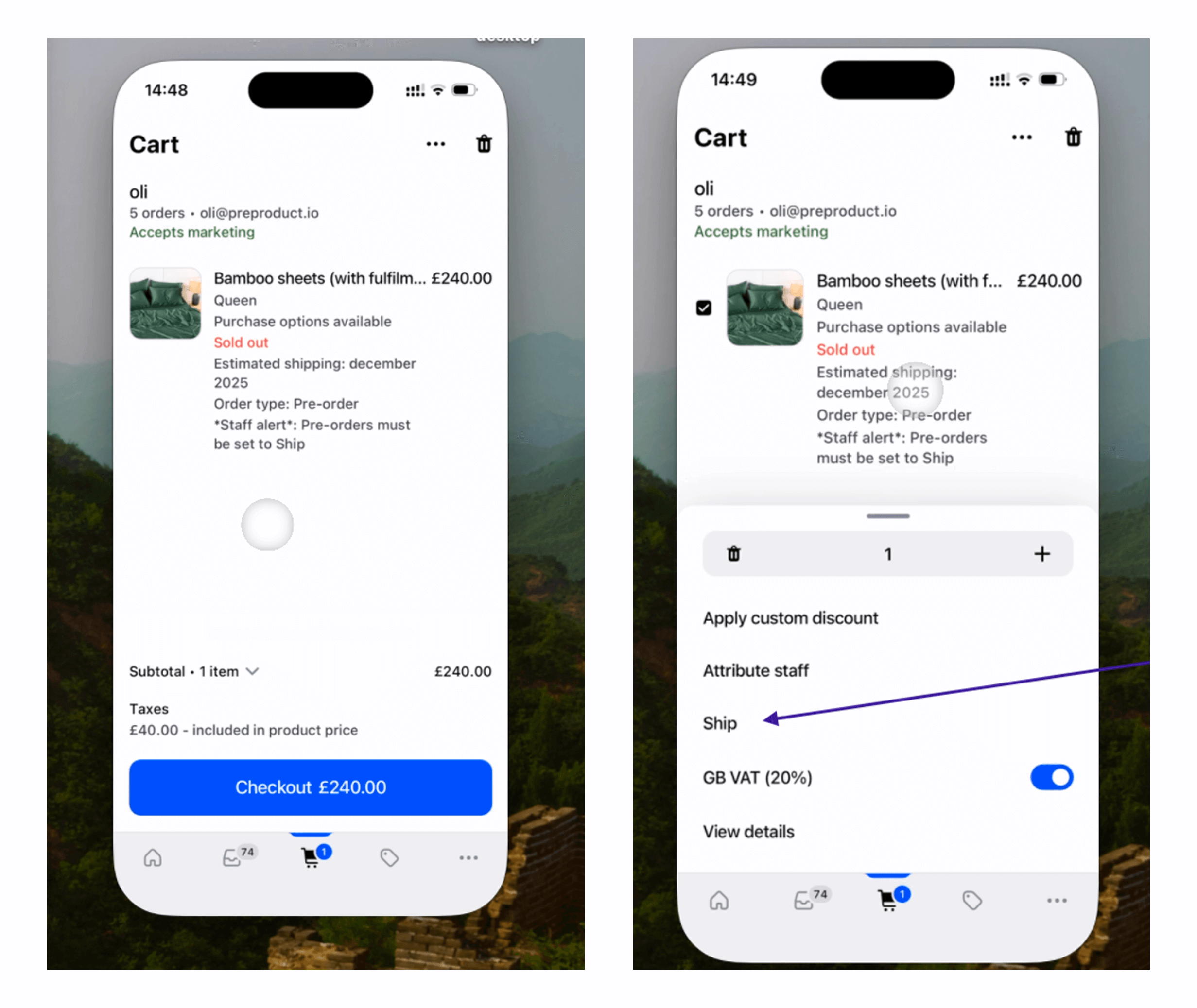
When a pre-order item is added to cart, PreProduct adds a staff note warning that the order contains a pre-order and needs to ship.
You should tell staff this means they should either:
- Click the Ship all items (tile) in the Smart Grid screen
- Or click on the line-item in the cart screen and click Ship from the menu
If they don’t, Shopify will create the order with a fulfilment status of ‘fulfilled’.
4. Capture-only pre-orders aren’t supported #
Capture-only pre-orders are not supported in POS. They will behave as if the POS integration wasn’t enabled.
Features #
- Communicates to staff that the item is on pre-order via the product detail screen
- Enforces that a customer with an email + address is attached to the POS session
- Supports charging upfront, or later via draft order invoice (when left unpaid)
- Adds shipping and “pre-order” line-item properties
- Adds a Pre-orders tile to the Shopify POS Smart Grid
- Supports 8 languages
- Adds a fulfilment hold and “pre-order” tag (matching online store pre-orders)
- Enforces your mixed-cart policy from your front-end redirect setting (whether to allow mixed carts of buy-now + pre-order items)
Activating the integration #
- From PreProduct’s Integrations screen, scroll down to the Shopify POS card.
- Click to active the integration in PreProduct, then click the Open POS Settings button to be redirected to the Shopify POS sales channel admin.
- In POS apps, find Pre-order support for Shopify POS, then add both extensions.
- Back in the POS settings page, under Customize, click Smart grid and ensure the Ship all items tile is activated.
- Done, your Shopify POS can now take pre-orders.