When products are on charge-later or deposit-upfront pre-order, PreProduct lets you offer multi-step payment plans. Customers can split their pre-order over multiple automatic charges (installments) on a schedule you define (customers can choose up to your maximum). You can also add an incentive via fixed or percentage discounts, and optionally take a deposit up-front.
Availability: Multi-step payment plans are currently supported on Shopify Plus and non-Shopify stores. We hope to expand availability in the future.
Admin #
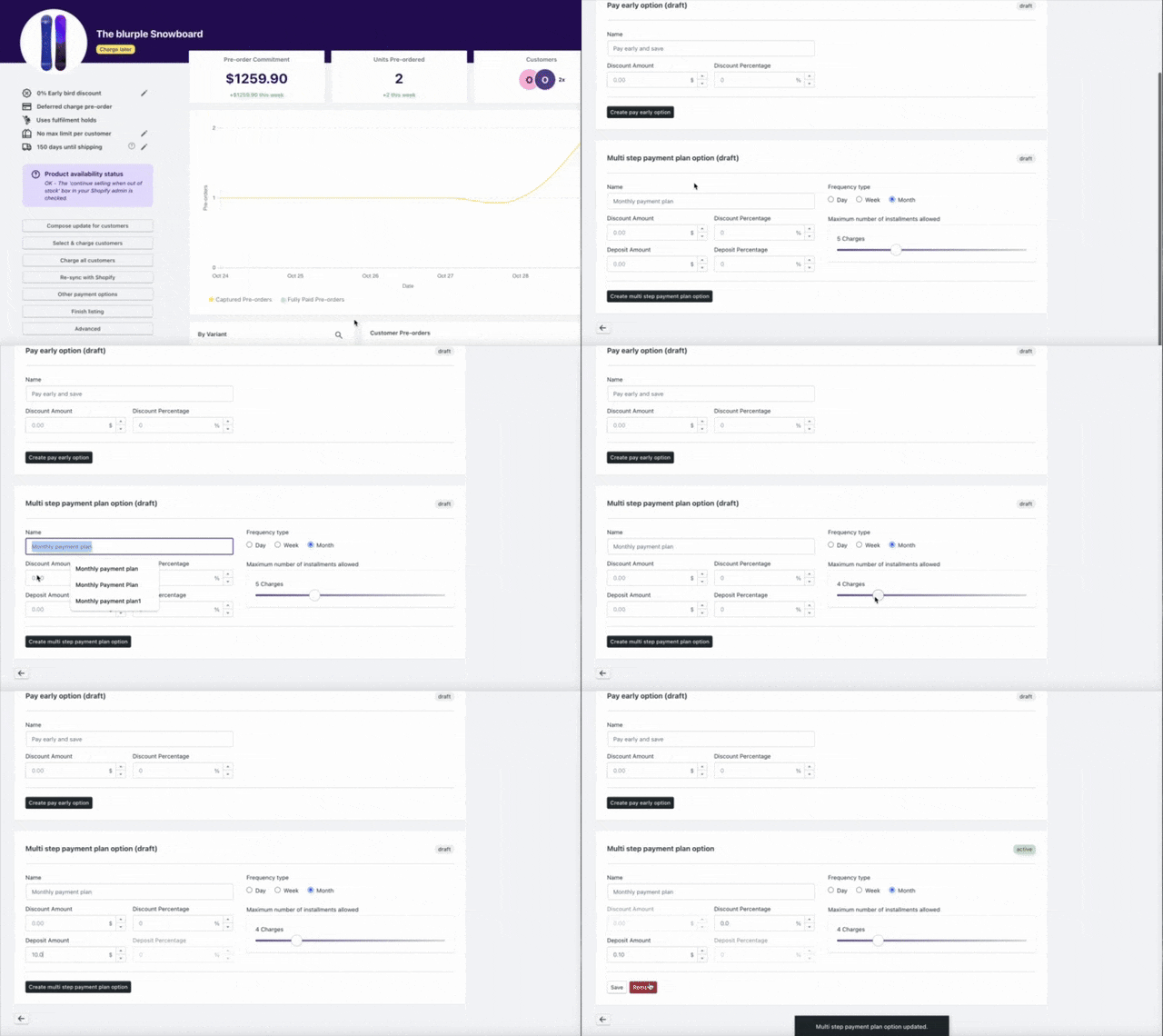
To enable payment plans for a listing, head to PreProduct’s main dashboard, click the listing name, then click “Other payment options” on the left. Scroll down to the “Multi-step payment plan option” card and optionally configure any of the below fields.
Setup for individual listing #
- Name – The customer-facing label for this plan. Shown at checkout and on the product page. e.g. “Monthly payment plan”
- Frequency type – How often installments are charged: Day, Week, or Month.
- Maximum number of installments allowed – The upper limit that customers can choose (e.g. up to 4 charges). Customers pick their preferred number of installments on the storefront.
- Discount Amount – Optional fixed monetary discount.
- Discount Percentage – Optional percentage discount.
- Deposit Amount – Optional fixed deposit captured up-front.
- Deposit Percentage – Optional percentage-based deposit captured up-front.
To remove the plan, click the red “Remove” button from the same screen.
Setup via templates #
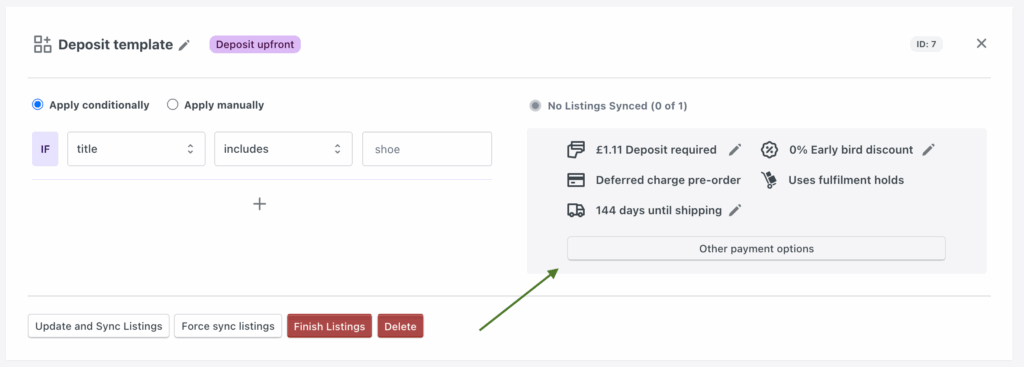
PreProduct also supports multi-step payment plans on the template level, meaning you can set and manage the setting across many listings from the templates screen.
Monitoring #
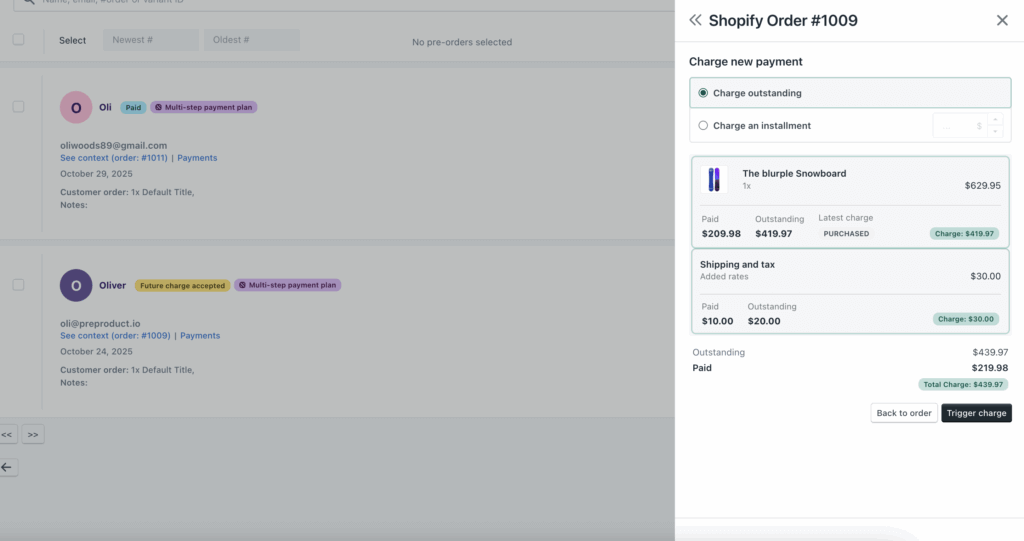
PreProduct surfaces a purple ‘multi-step payment plan’ badge on any active pre-orders using one. You can hover over it for a breakdown of the plan’s current state.
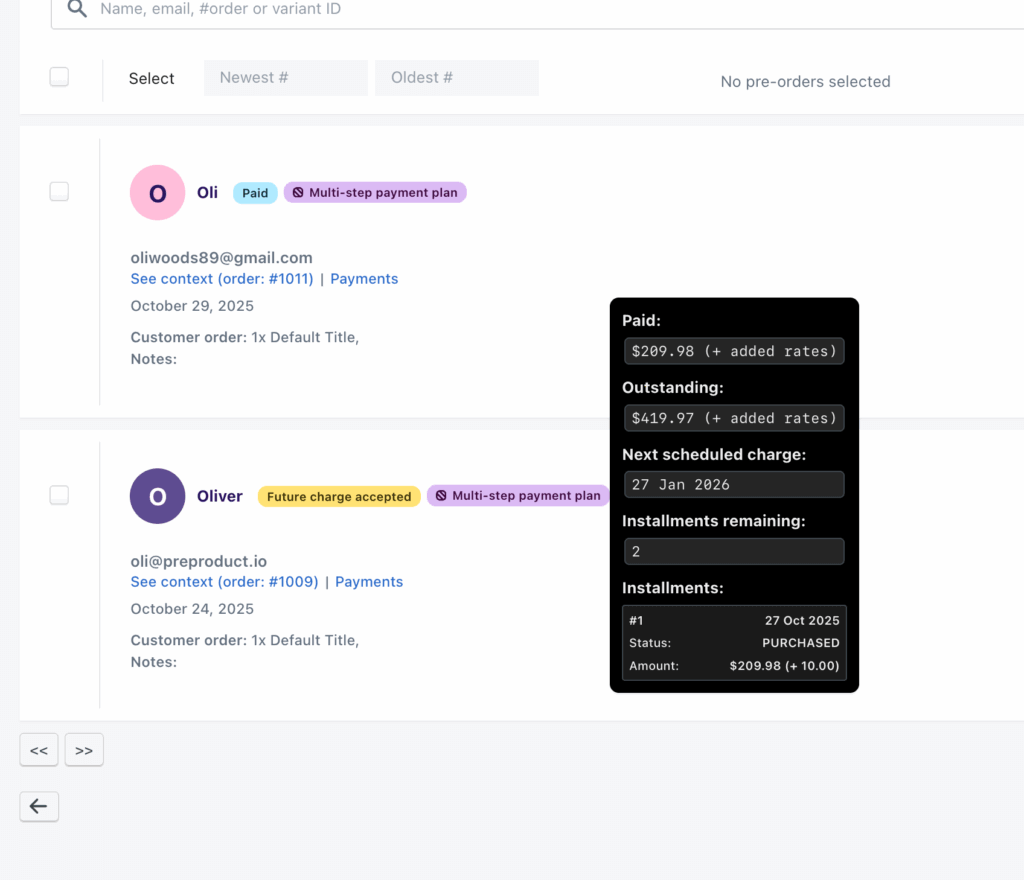
You can also see a financial view of the pre-order and any other pre-orders within the order by clicking the blue “Payments” link.
Managing #
To can manage multi-step payment plans, you can go to either the customer screen or the listing dashboard (wherever there a pre-order with a multi-step payment plan), and click on the order, you can then click on the “manage payment plan” link.
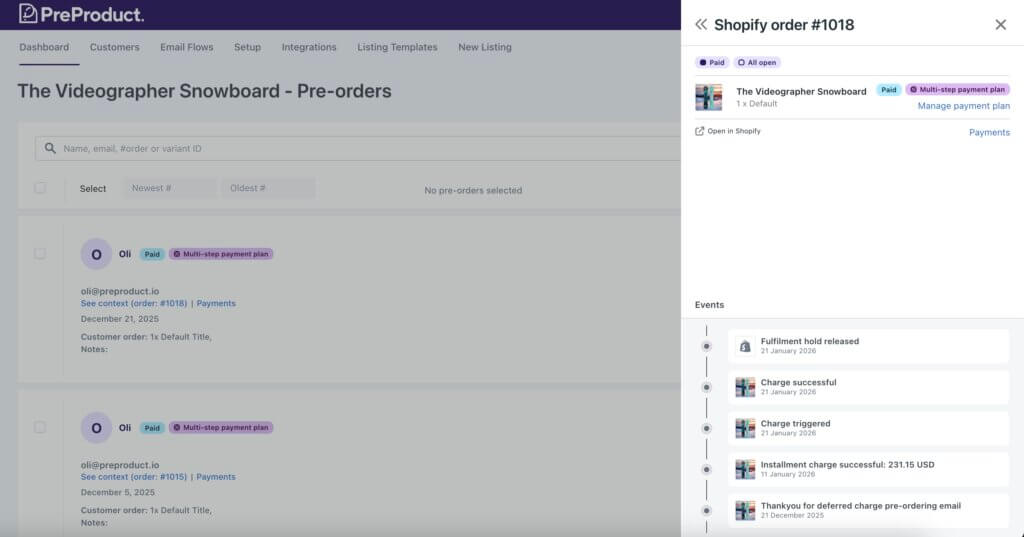
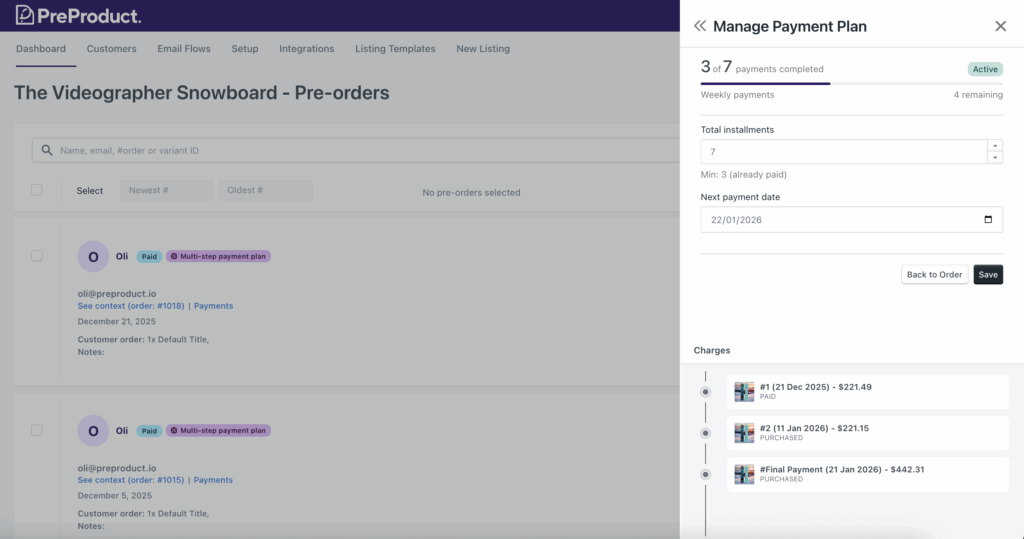
From this link you can see the progress of the payment plan, how many installments have been paid and how many are outstanding, and the next payment date. You can also edit both the nuber of installments and the next due date from here.
Below this you can see all of the charges, and if there has been an issue with a charge you will see this here as well.
Storefront #
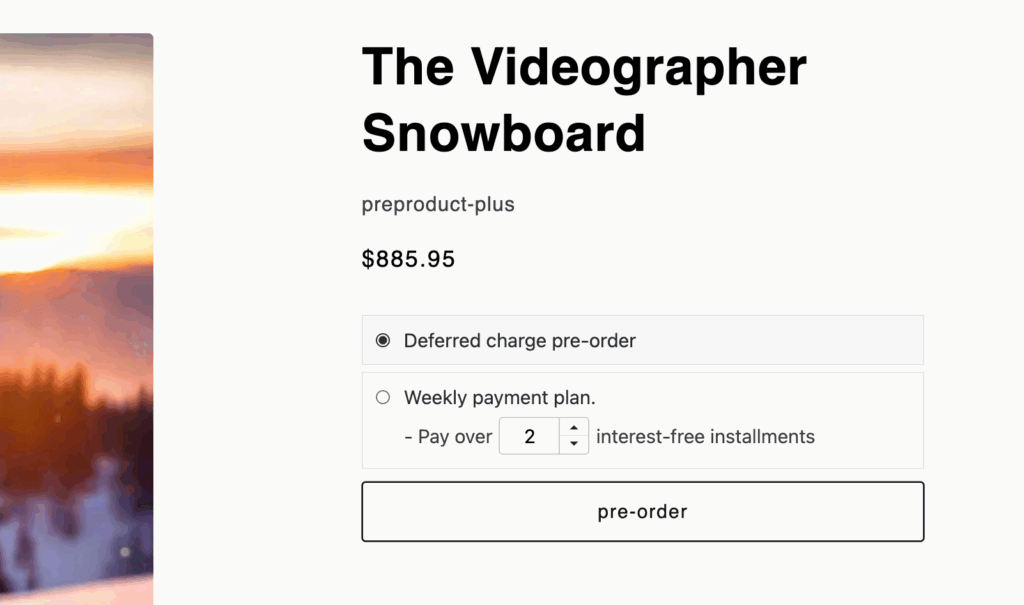
When a listing has a multi-step payment plan enabled, a selector appears above the pre-order button. Customers choose how many installments they want (up to your specified maximum). PreProduct then schedules and processes the charges automatically at the chosen Frequency type. The widget inherits your brand colours and fonts from PreProduct’s Setup and Customise wording screens.
Customising appearance options #
In terms of wording, the plan’s display name comes from the Name field you set above. You can also customise the generic labels via Setup → Customise wording (customised wording doc).
Supported custom wording fields #
- Installments action text – “Pay over” in the button lock-up area of the screenshot below.
- Installments value text – “interest free installments” in the button lock-up area of the screenshot below.
- Multi-step payment plan CTA – Action wording in the on-page cart e.g. “Pre-order today and we’ll charge you over the next”
- Installments – days – Verbiage for the “days” frequency type
- Installments – weeks – Verbiage for the “weeks” frequency type
- Installments – months – Verbiage for the “months” frequency type
- Line item property – installments key – Features in Shopify line item properties which are shown on the cart and checkout screens. It denotes the number of installments to be paid. Default value: “Pre-order installments”
Developer customising options #
You can style the multi-step selector (same component used by the “pay early” option) by setting a window.ppSelectableSellingPlansStyles JavaScript object. PreProduct will apply your styles to matching selectors.
Supported keys:
window.ppSelectableSellingPlansStyles = {}

window.ppSelectableSellingPlansStyles[`.pp-selling-plans`] = `background: #fff;`
window.ppSelectableSellingPlansStyles[`.pp-selling-plans__option`]
window.ppSelectableSellingPlansStyles[`.pp-selling-plans__radio`]
window.ppSelectableSellingPlansStyles[`.pp-selling-plans__name`]
window.ppSelectableSellingPlansStyles[`.pp-selling-plans__option:checked`]
window.ppSelectableSellingPlansStyles[`.pp-selling-plans__option::after`]
window.ppSelectableSellingPlansStyles[`.pp-selling-plans__option:checked::after`]
window.ppSelectableSellingPlansStyles[`.pp-selling-plans_multi-step-payment-plan-picker`]
window.ppSelectableSellingPlansStyles[`.pp-installments-error`]
Customer Portal #
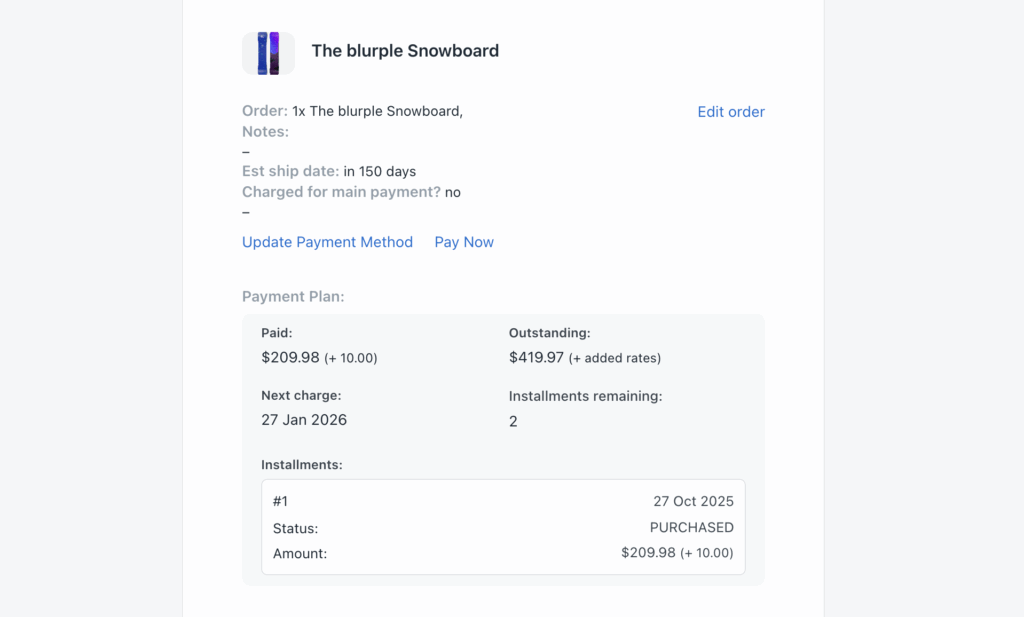
Customers can visit their pre-order portal to view a multi-step plan. The portal shows: amount paid, amount outstanding, date of next charge, remaining number of charges, and a breakdown of each installment (payment) that has been made.
As with the rest of the customer portal, all payment plan details are automatically translated into the customer’s language.