Pre-orders that are created as charge-later or deposit-upfront (deferred charge method) allow you to trigger the deferred charges whenever suits your store.
We also have a YouTube video here.
What are deferred charges #
A deferred charge is where the customer accepts a future charge at the time of pre-order via your checkout. Shopify, PayPal or Stripe will ‘vault’ the card details to use for the future transaction.
Triggering deferred charges for all pre-orders #
- Navigate to a product dashboard from within PreProduct. On the left-hand side of the dashboard will be a ‘Charge all customers’ button.
- You will now see a list of variants for that product and whether an upcoming charge email is set to send first.
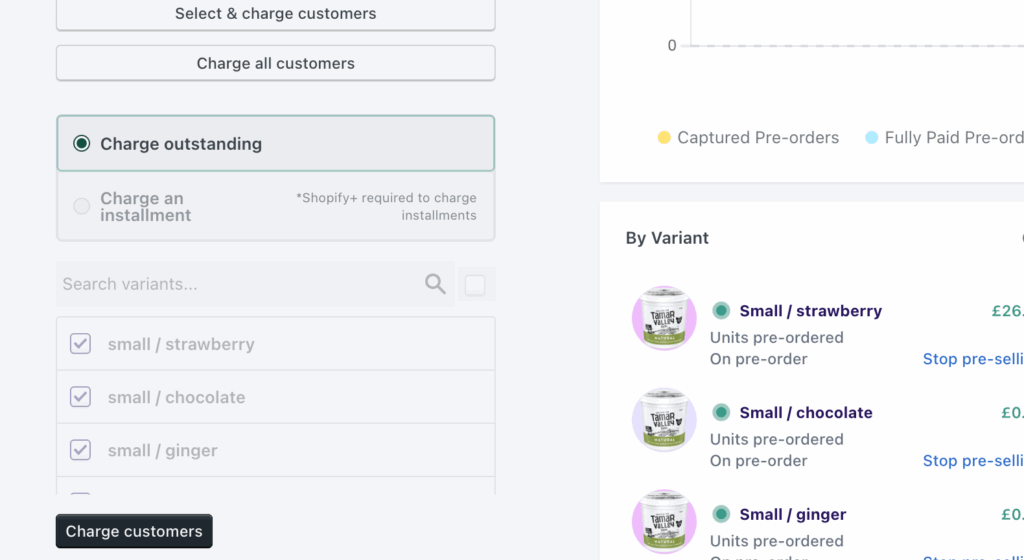
- Click the ‘Charge customers’ button and then a pop-up will appear prompting you to click ‘Confirm’.
Please note that deferred charges apply to the whole order meaning all pre-order items from the customer’s original cart will be paid for.
Triggering deferred charges for specific pre-orders #
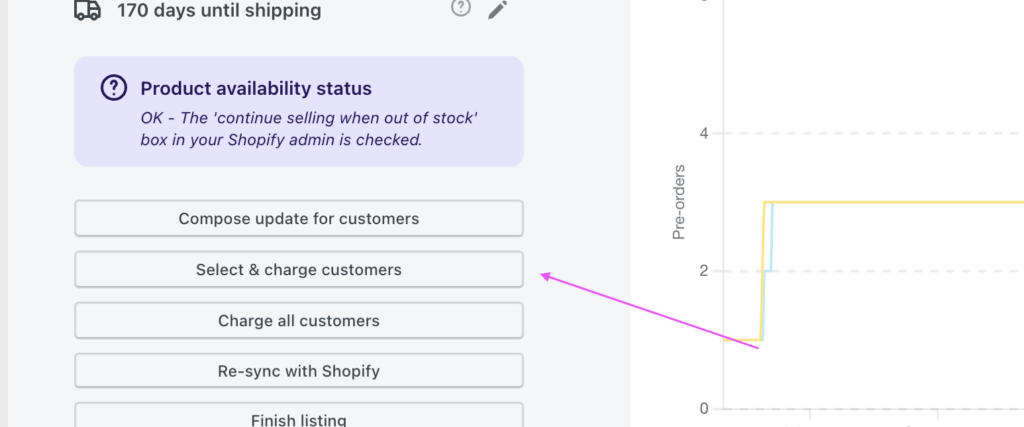
- Navigate to a listing dashboard from within PreProduct. On the left-hand side of the dashboard will be a ‘Select and charge customers’ button.
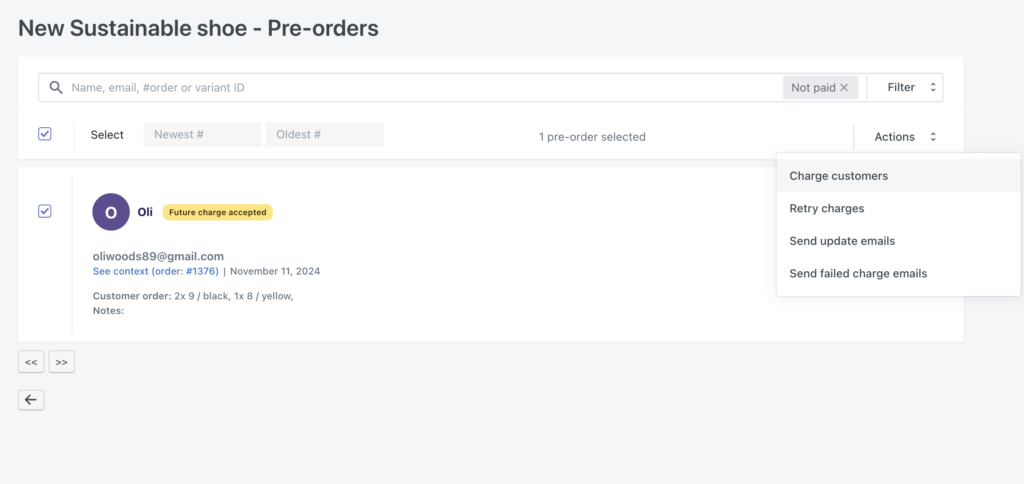
- All customer who have pre-ordered the product will be displayed. You can search, filter and select specific customers to charge. Feel free to also use the “Newest #” and “Oldest #” boxes which let you select X number of pre-orders from the filtered results or select all results via the top left checkbox.
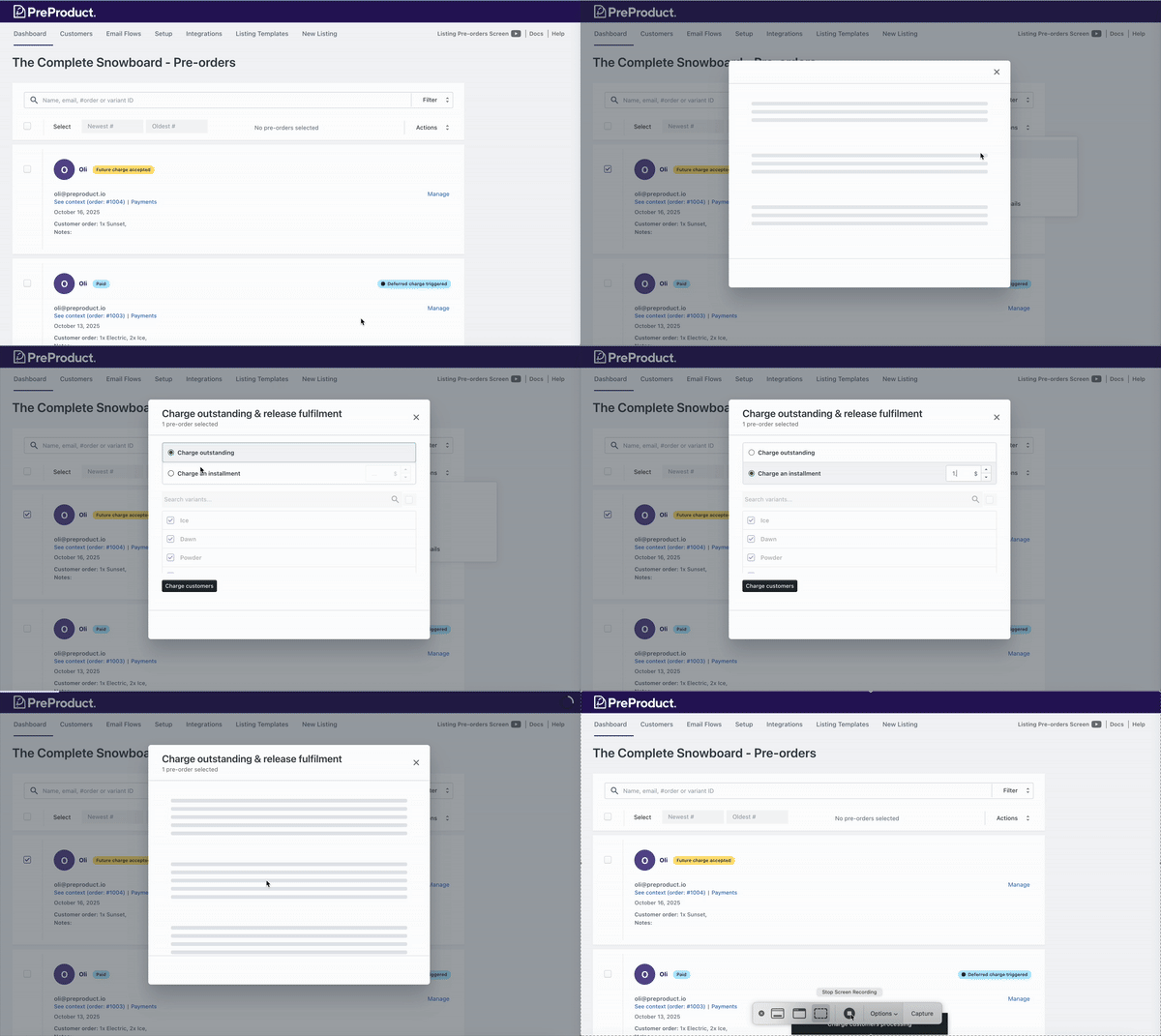
- Once you have selected the customers you wish to charge, click on Actions and then ‘Charge Customers’.
Installments #
Both Shopify Plus and non-Shopify stores can use PreProduct to charge ad-hoc installment payments. These can be triggered multiple times until the order is fully paid.
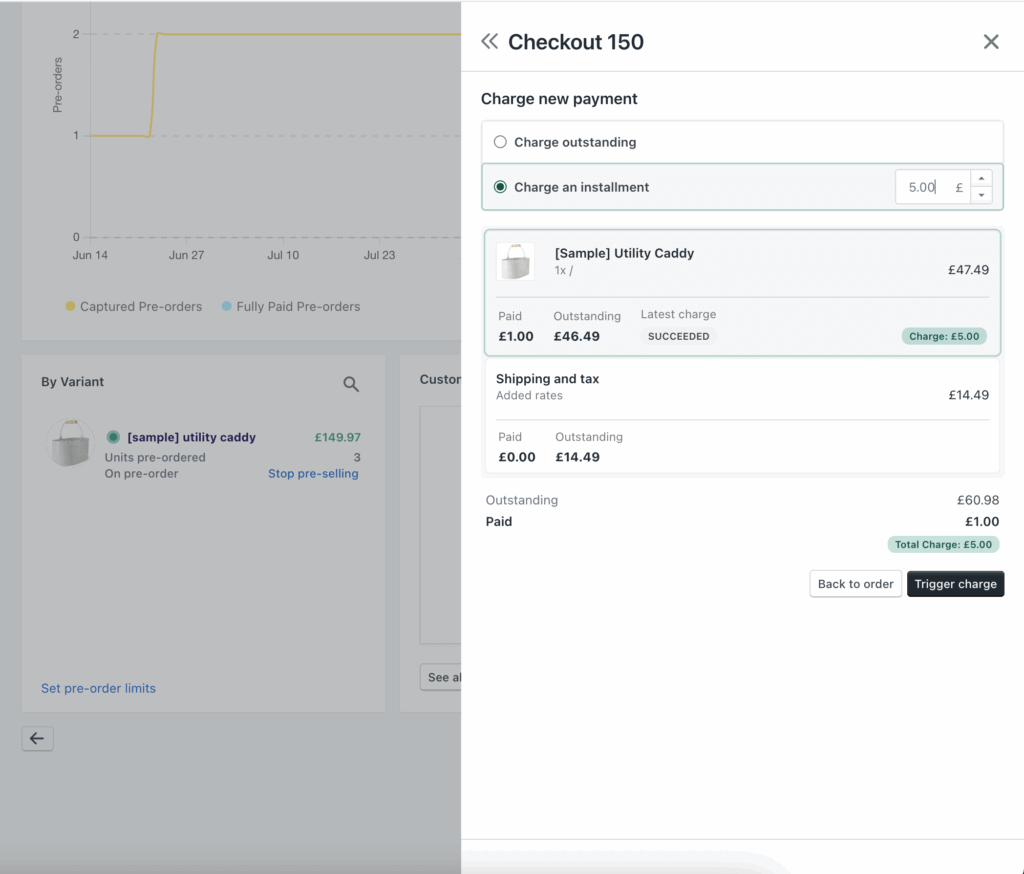
From the PreProduct listings dashboard or the See all screen, click Charge customers to open the pop-up. Then select Charge an installment, enter the amount, and click Charge customers to process the payment.
Whether you trigger installments as a group or one by one, you can view the results by clicking the blue Payments option on the pre-order’s individual card. In the screenshot below, note the Latest charge section for the Utility Caddy line item, along with updated Paid and Outstanding amounts reflecting the new payment.