Shopify Upsells for Pre-orders: Same Order, Same Parcel
TLDR: Most Shopify upsells happen in the few minutes around checkout, and for pre-orders that timing causes trouble: an in-stock add-on either waits months for the pre-order or forces a second shipment. Shopify upsells for pre-orders work better just before the order ships. A pre-ship upsell emails the customer four in-stock products picked for them, and anything they add goes on their existing Shopify order and arrives in the same parcel. Charge-later and deposit customers just confirm, with no second checkout.
Upsells are a great way to increase what a customer spends with you. But realistically there are only a few places to do it: before checkout, at checkout and in a pop-up straight after checkout.
Pre-orders give you one more. Between checkout and shipping there can be weeks or months, and the customer usually hears nothing until the shipping email. Right before that email goes out is a good time to suggest something that goes with what they already bought.
This guide covers Shopify upsells for pre-orders: why checkout upsells and pre-orders clash, why the week before shipping works better and how a pre-ship upsell works for each payment type and inside your Shopify admin. It’s a feature we’ve just launched at PreProduct. We came up with the idea about two years ago and held off building it until Shopify’s order editing could support it properly.
What Is a Pre-ship Upsell?
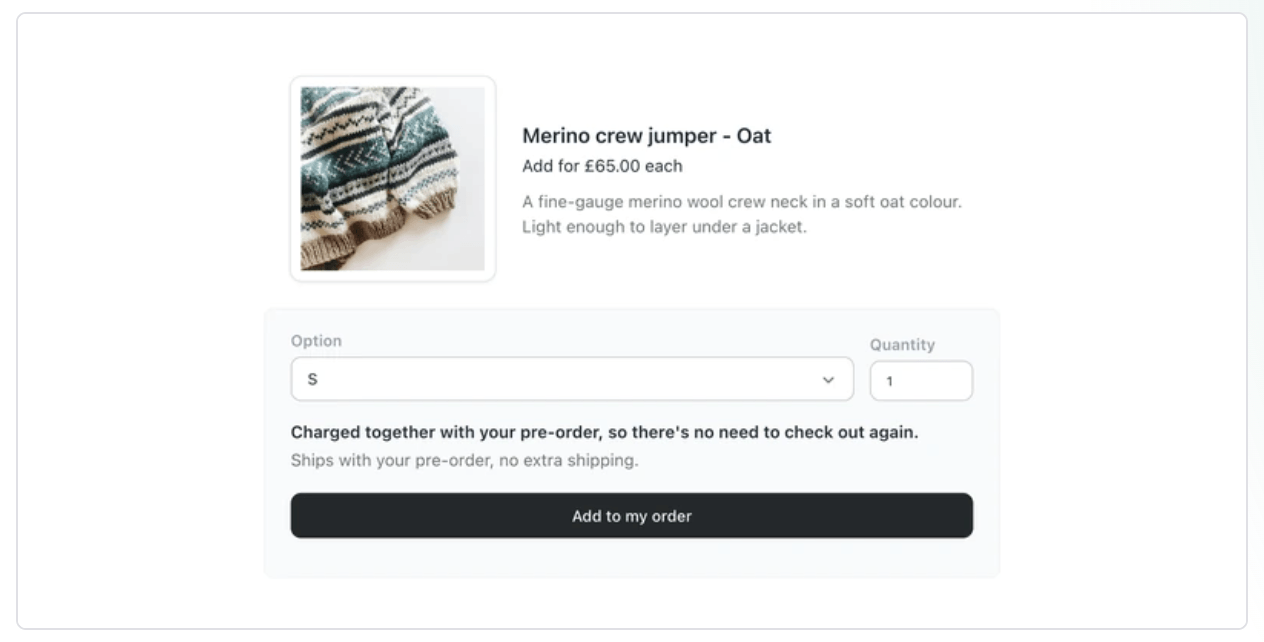
A pre-ship upsell is an email sent shortly before a pre-order ships, recommending a few in-stock products picked for that customer. Anything they choose is added to their existing Shopify order and arrives in the same delivery and parcel as the pre-order, at no extra shipping cost to them.
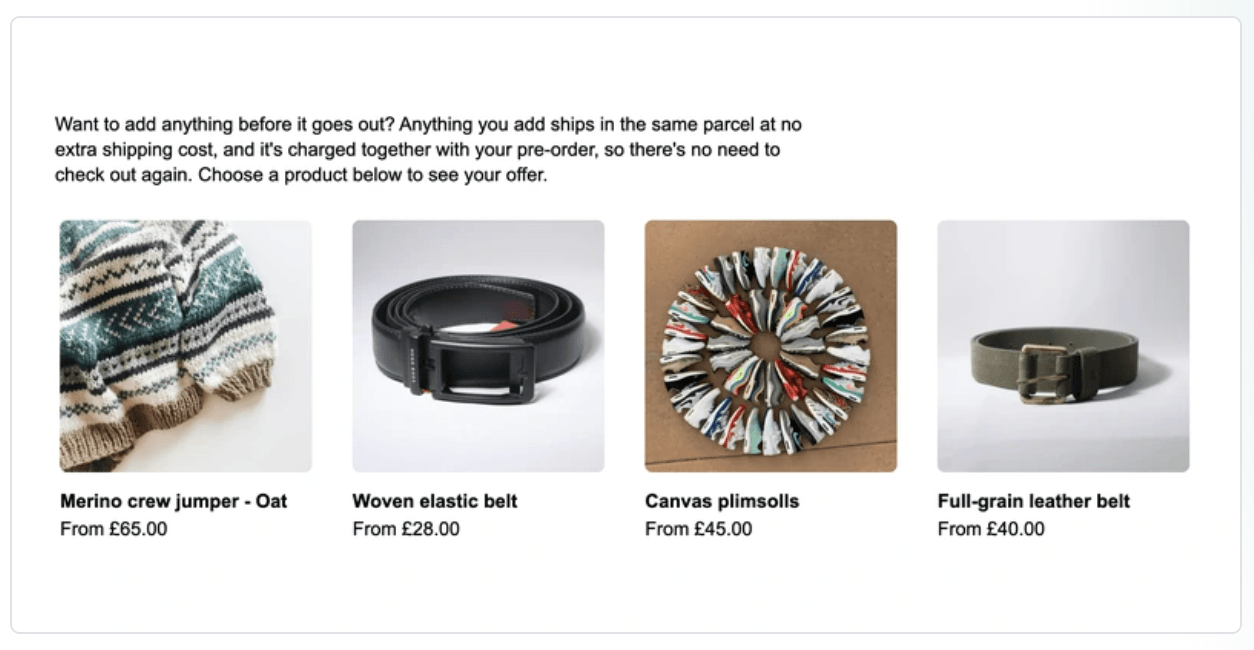
It’s the same idea as a post-purchase upsell, with two differences. It happens weeks or months after checkout, not seconds after. And the customer adds to a pre-order before it ships, rather than starting a new order.
That second point matters more than it sounds. An add-on sold as a separate order is a second order for your 3PL or ERP to pick, pack and reconcile, and a second parcel for the customer to receive. Adding it to the original order keeps everything together, so your team only packs the one parcel.
Why Checkout Upsells and Pre-orders Don’t Mix
Most upsell apps are built around one assumption: everything in the order ships now. Pre-orders break that assumption.
Say a customer pre-orders a jacket that ships in four months, and a checkout upsell offers them a beanie you have in stock. If they take it, you now have a mixed order: one line ready today, one line months away. There are only two ways that order can go:
- The beanie waits. The whole order is held until the jacket lands, so an in-stock item sits in your warehouse for months.
- The order gets split. The beanie ships now and the jacket ships later. That’s two parcels and two lots of postage, and it only works if your 3PL or warehouse system can split an order cleanly.
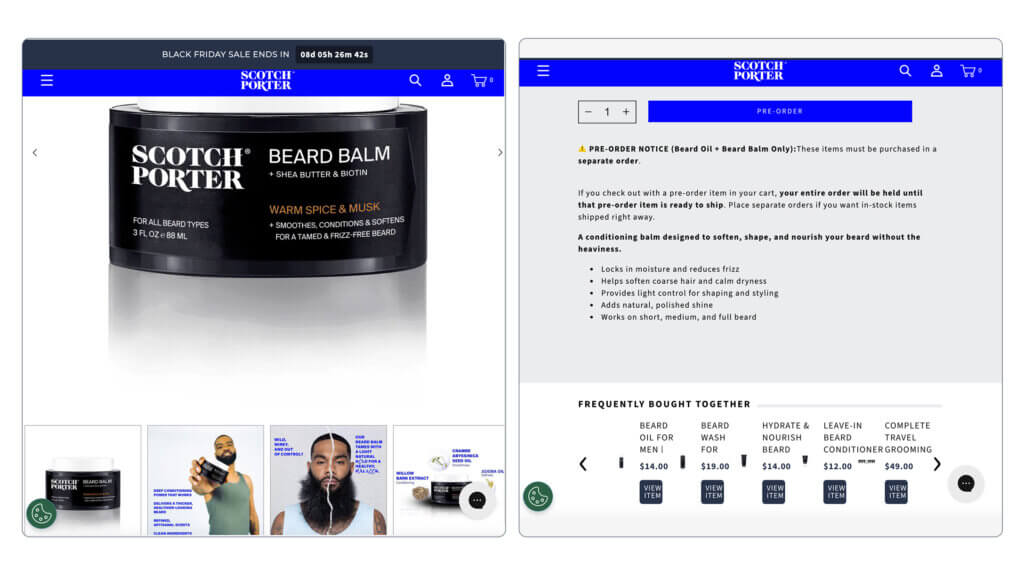
Neither is wrong, but both are ops decisions, not marketing ones. Our guide to mixed cart pre-orders walks through how to choose. Scotch Porter’s product page shows how real the problem is, telling customers their “entire order will be held until that pre-order item is ready to ship.”
Plenty of stores avoid the question by keeping pre-orders out of shared carts altogether. 62.1% of stores we’ve processed pre-orders for isolate pre-orders into their own carts. That keeps fulfilment clean, but it also means a checkout add-on can’t go on a pre-order in the first place.

So for a lot of pre-order stores, the usual upsell moments are either awkward or unavailable. The moment right before shipping doesn’t have that problem.
When to Upsell Pre-order Customers
The best time to upsell pre-order customers is at least a week before their order ships. A few things line up at that point:
- The excitement is back. They’ve waited, the product is nearly here and they’re thinking about it again.
- The parcel hasn’t been packed. Anything added now can go in the same box.
- Shipping is already paid for. The add-on travels on the original order’s shipping.
- The add-on is in stock. Recommendations only include products you can ship with the pre-order, so nothing has to wait.
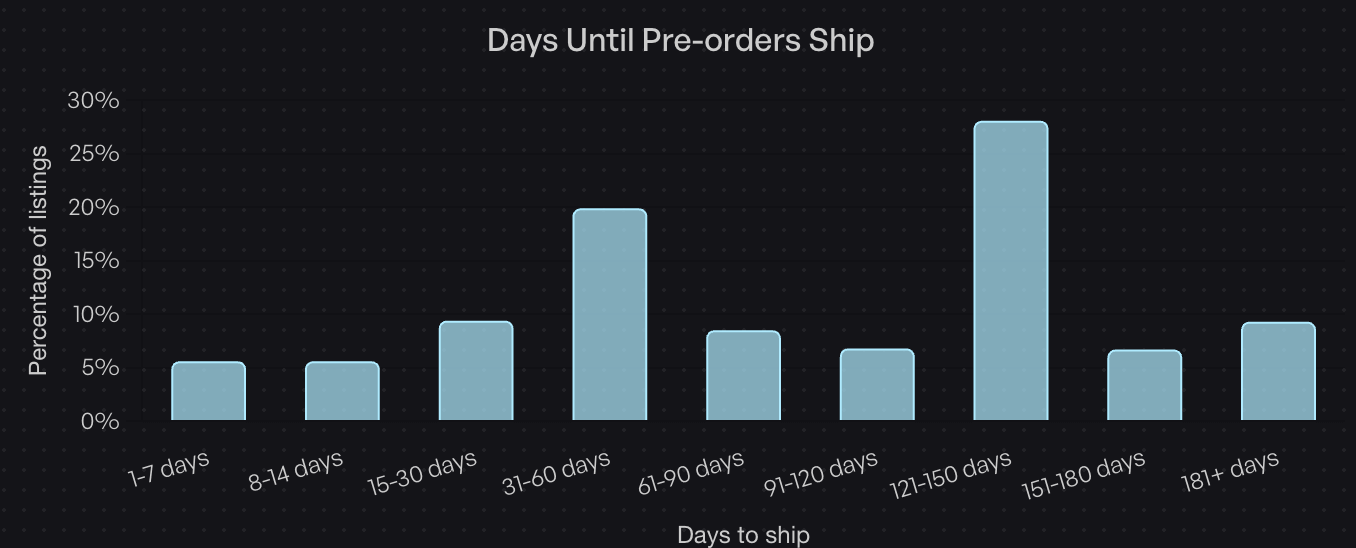
Compare that with the checkout moment for a long pre-order. 121 to 150 days is the most common pre-order shipping window, at 28.1% of pre-orders. A checkout upsell on one of those orders is an in-stock item stuck in a four-month queue. The same upsell sent the week before it ships has no queue at all.
One pre-order upsell email per order is enough. This isn’t a drip sequence. It’s a short note that the pre-order is nearly ready, followed by four products, sent once. It fits naturally alongside the rest of your pre-order emails as the last touch before the shipping confirmation.
Why at Least a Week, Not a Few Days
A week gives every customer time to see the email and say yes before anything is packed. Not everyone opens an email the day it lands, and there’s only one email per order, so a short window means fewer customers get a chance to accept.
It also has to land before you charge. On a deferred-charge pre-order, an upsell accepted before you trigger charges simply rides on that charge. Accepted after, the customer has to pay for it separately, the same way a charge-upfront customer does.
And count back from when your warehouse picks, not just the ship date. If your 3PL needs a few days to pick and pack, the week should end before that starts. PreProduct sends based on the listing’s current ship date, so if the date moves, the upsell email moves with it.
How Shopify Upsells for Pre-orders Work by Payment Type
What happens when a customer accepts depends on how their pre-order was paid for. This is where Shopify upsells for pre-orders differ most from regular upsell apps, which only ever see orders that are already paid. It covers charge-upfront and deferred-charge pre-orders; capture-only pre-orders don’t get pre-ship upsells.
Deferred-charge Pre-orders (Charge-later and Deposit)
With charge-later or deposit pre-orders, the customer’s card is already saved against the order and they still owe the remaining balance. So adding an item is simple: they click a product in the email, confirm it in the customer portal, and that’s it. There’s no second checkout and no card details to enter.
The item goes on the order straight away and is held so it can’t ship early. It’s then charged to the saved card along with the rest of the pre-order when you trigger charges, whether you do that by hand or on automation. If you already charge later on a vaulted card, the upsell rides on a charge you were going to run anyway.
Charge-upfront Pre-orders
Charge-upfront customers have already paid in full, so the add-on needs its own payment. The button reads “Add and pay”, and the customer pays for that one item on Shopify’s payment page. We’ve kept it as short as we can.
While that payment is pending, the item is held on the order. If it isn’t paid within an hour, it’s removed and restocked, and the original pre-order is left untouched.

What a Pre-ship Upsell Looks Like in Shopify
The part we’re most pleased with is what happens in Shopify. PreProduct uses Shopify’s order editing to add the item to the customer’s existing order. There’s no second order and no draft order to chase. The new line items sit on the original order, and so does every transaction, whether that’s the deferred charge or a separate “Add and pay” payment.
That matters most if a 3PL or ERP picks up your orders automatically. A second order means a second record to match up with the first. An edited order keeps one order number, one customer and one shipment.
The order is tagged so you can see what happened and route on it:
pre-order upsell pending: <item>while a charge-upfront add-on is waiting for paymentpre-order upsell: <item>once the item is added or paid
Those tags work with Shopify Flow like any other order tag, if your team wants a rule for upsell orders.
One thing worth doing before you switch on automatic sends: place a test pre-order, add an upsell to it and watch how it reaches your warehouse. Systems vary in how they handle an order that changes after it’s been imported, so it’s worth seeing yours handle one before a whole campaign goes through. Our guide to managing pre-orders on your 3PL covers the holds and statuses involved.
How Products Get Picked for Each Customer
Recommendations were the part we were most nervous about. Dedicated upsell apps have years of data and their own recommendation engines. As a pre-order app, we had neither.
What changed things was decision models. Just before we started building, models became available that could rank products well from a small amount of context. They’re also cheap enough to run for every single customer, not just a sample.
For each order, PreProduct pulls together purchase preferences only:
- What the customer has pre-ordered
- Their previous purchases from your store
- What other customers bought alongside the same products
Nothing that identifies the customer is sent. A Cloudflare-hosted decision model, which is faster and less random than an LLM, scores the candidates and the top four go in the email.
Before ranking, a few rules remove anything that can’t sensibly ship with the pre-order:
- Products already in the order
- Products that are on pre-order themselves
- Products out of stock at the location fulfilling the order (stock that only exists through “continue selling when out of stock” counts as out)
- Draft, archived and free products, bundles and subscription-only products

If there aren’t four strong picks, best sellers from your chosen collections fill the gaps, so the email never waits.
You choose the style. Complementary products is the default: shoes for a dress, a case for a camera. Similar products suggests another item of the same kind, which suits collectors and hobby stores where a customer who pre-ordered one model often wants the next.
Setting Up Shopify Upsells for Pre-orders
Setup takes one screen. Activate upsells on PreProduct’s Upsells screen, then choose:
- Recommend: complementary or similar products.
- Collections to upsell from: picked automatically, the same collections as the pre-ordered products, or specific collections you choose.
- Send automatically: how many days before the ship date to send. Leave it blank to only send by hand.
Automatic sends work for charge-upfront and deferred-charge orders alike. An order is eligible as long as its fulfilment hasn’t been released yet, and each order is only emailed once. You can also send by hand from a listing’s dashboard, a selection of orders or the customers screen, with a preview and test send first.
There are two email templates, one for deferred-charge orders and one for paid orders, and you edit them like your other PreProduct emails.
Pre-ship upsells are available on every PreProduct plan. We take 1% of paid upsell revenue, and nothing on items that are removed or refunded. The pre-ship upsells docs cover the details, including how upsell commission sits alongside your plan.
Getting Started With Pre-ship Upsells
Shopify upsells for pre-orders work because a pre-order gives you something a normal order doesn’t: a second chance to sell to the same customer, at the moment they’re most excited, with a parcel already on its way to them.
The key points:
- Checkout upsells and pre-orders clash, because an in-stock add-on either waits for the pre-order or forces a split shipment.
- The week or so before shipping is the better moment: the excitement is back, the box isn’t packed and shipping is paid. At least a week gives everyone time to accept.
- Deferred-charge customers just confirm. Charge-upfront customers pay for the add-on alone.
- Everything lands on the original Shopify order and ships in the same parcel.
“It’s very early, we’ve only just launched, but upsells are converting at around 3% so far,” says Oli, PreProduct’s founder. “I’m really curious to see where that goes once more stores are using it.”
If you run pre-orders on Shopify, set pre-ship upsells to go out at least a week before your next pre-order ships and see what comes back. Start with the pre-ship upsells setup guide.
Pre-sell With PreProduct
7 day free trial with all plansMigrate pre-orders
