A YouTube Launch Plan for New Products and Collections
Guest post from Alexander Matinyan of Ecom Store Pro
TLDR: Treat a YouTube launch as a sequence, not a single upload: channel setup, store connection, teasers, one scheduled launch video, then edits that keep it selling.
Introduction
A product page tells shoppers what something is. A video shows it in use, in someone’s hands, next to the thing it replaces. For a new product or a collection drop, that is often what your audience needs before committing, especially when the launch date is weeks away and you are collecting interest or pre-orders in the meantime.
YouTube has several features that fit launches: Premieres with a public watch page, scheduled live streams, Shorts with product stickers and a store on your channel. Some depend on your channel’s eligibility, and some hinge on settings that are easy to overlook, such as a password page or an audience set as Made for Kids. This guide covers the run-up, launch day and the weeks after.
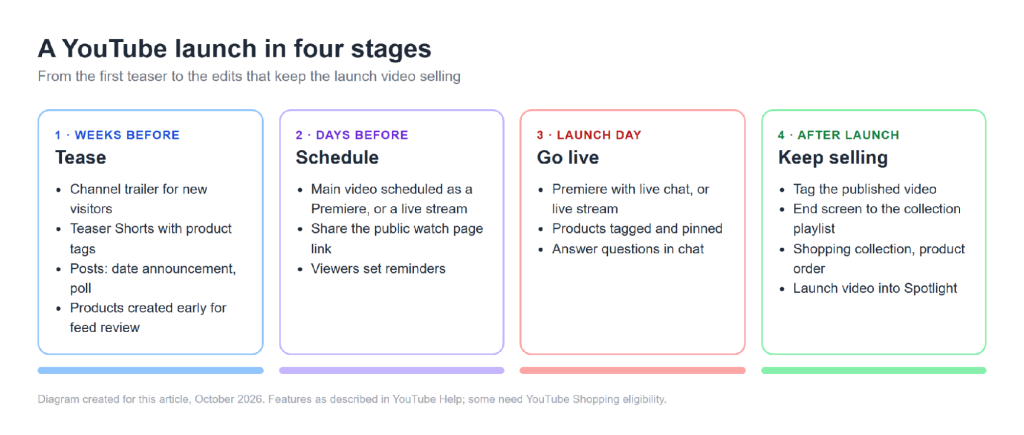
Set Up the Channel Before You Announce
When someone clicks through from a teaser to your channel, they should land on something that explains the launch.
Channel Trailer and Spotlight
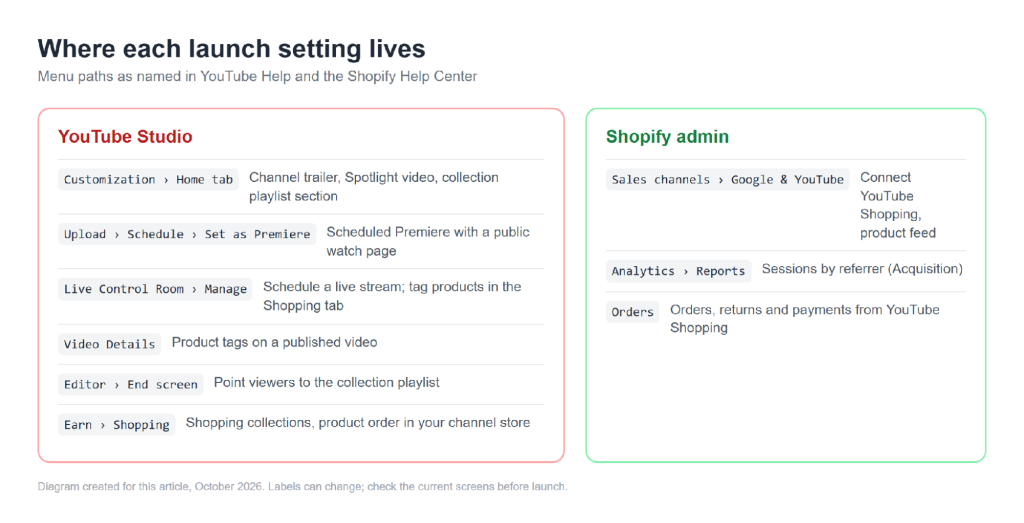
YouTube lets you set a channel trailer for people who haven’t subscribed and a Spotlight video for returning subscribers, both under Customization > Home tab > Add section in YouTube Studio. Once a viewer has watched either one, it isn’t shown to them again. For a launch, set a short teaser as the trailer for first-time visitors, and plan to move the full launch video into Spotlight once it’s public.
One Playlist per Collection
Give each collection or product line its own playlist: the launch video, behind-the-scenes clips, and how-to or care videos as you make them. The Home tab supports up to 12 custom sections, and Playlists is one of the section types, so you can place the new collection’s playlist near the top of the channel for the launch period.
Connect Your Store to YouTube Shopping
Connecting your Shopify store lets you tag products in videos, Shorts and live streams, and gives your channel a store where viewers can browse and buy, according to YouTube’s Shopping overview. It lets viewers go from a video to a product without hunting for a link, so check eligibility early.
Check Eligibility First
Shopify’s YouTube Shopping page lists these requirements, among others:
- At least 1,000 subscribers and a channel approved for monetisation.
- Being located in a country supported by the YouTube Partner Program.
- A channel audience not set as Made for Kids, and not a significant number of videos marked that way.
- The same email with owner or manager access to the channel and full permissions as a staff account in your Shopify admin.
- Official Artist Channel status, if you’re a music channel.
YouTube’s own pages frame this through the YouTube Partner Program, and YouTube’s expanded Partner Program opens Shopping features at a lower subscriber count in some countries. If your channel sits between the two numbers, keep in mind that Shopify’s page still lists 1,000 subscribers as a minimum, so check both YouTube Studio and Shopify before you plan around tags. If you don’t qualify yet, most of this guide still applies: put the product page link near the top of each description and use the collection playlist as your shop window.
Connecting the Store
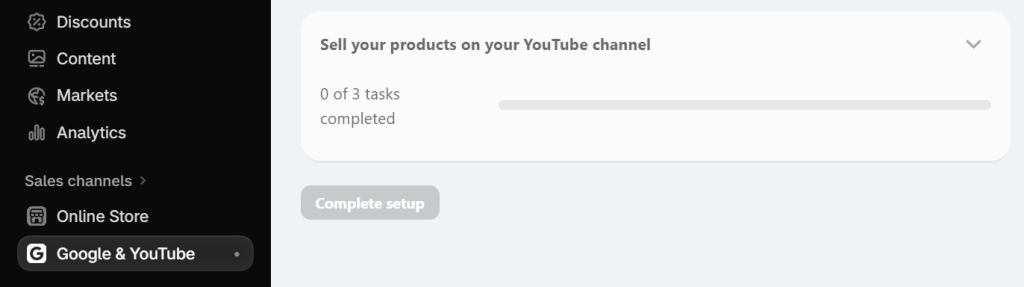
Shopify’s setup starts in YouTube Studio, where you choose Connect store under Shopping and select Shopify. It then continues in the Shopify admin: go to Sales channels > Google & YouTube, connect the channel, then in the YouTube Shopping section click Get started, confirm the requirements, select your channel, confirm your product feed settings, agree to the YouTube Shopping terms and click Complete setup.
The Google & YouTube channel has store requirements of its own. Shopify’s requirements include a refund policy and terms of service in your footer menu, contact details visible to customers, and an online store that isn’t in private mode. If you keep a password page up before a big reveal, plan the connection around it. If you haven’t added the channel yet, this guide to Shopify sales channels covers the Google & YouTube requirements and what adding a channel does to product availability.
Checkout differs by country: Shopify notes that in-app checkout on YouTube is for eligible merchants in the United States, while elsewhere shoppers are sent to your online store to complete the purchase.
Launch Products in the Feed
Shopify syncs products that are available to your online store to Google Merchant Center, and Shopify’s help page notes that Google reviews new products within 3–5 business days after the initial sync. Don’t leave product setup until launch eve.
If you take orders before release, Merchant Center has a value for that. Google’s availability attribute uses “preorder” for new products that haven’t been released, and it requires an availability date, up to one year ahead; Google’s minimum requirements say the product page must display the expected shipping date. Existing products coming back into stock should use “backorder”. Neither Shopify’s syncing page nor Google’s availability page says how a particular pre-order setup maps into the feed, so open the product in Merchant Center and check the availability it actually shows.
Build the Run-Up
Shorts as Teasers
Shorts suit countdown content: a close-up detail, a colour reveal, a packing clip. With a connected store you can tag products in Shorts, which adds a Shopping product sticker showing the first product in your tagged list. Shorts can’t be Premieres, so use them to point at the main video rather than replace it.
Two of YouTube’s tagging rules matter before you film. Tagged products should be mentioned out loud or in text, and tags aren’t available on content with a copyright claim or an audience set as Made for Kids.
Posts for the Date and a Poll
If your channel has posts, use them for the announcement: the date, a product image, the Premiere link. Polls take up to four answers, enough for “which colour first?” or “which drop time suits you?” Posts can be scheduled from the arrow next to the Post button, so you can queue the announcement and the day-before reminder in one sitting.
Schedule the Launch Video as a Premiere
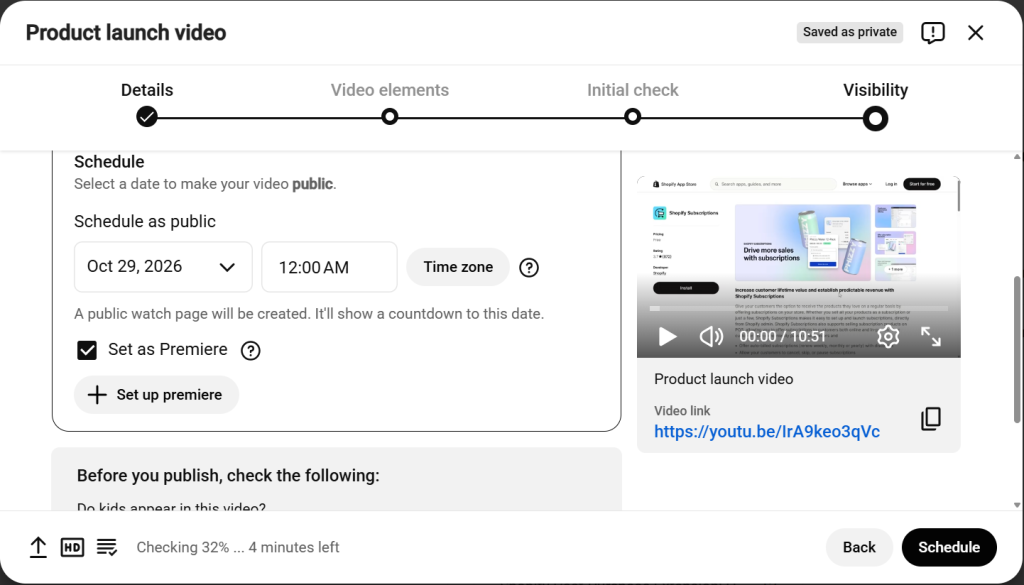
A Premiere creates a public watch page before the video goes out, so you can share the URL in emails, posts and on the product page in the days before. For the emails themselves, Tilly’s guide to planning a product launch email sequence maps out the teaser, early access and launch sends around a fixed go-live time. Viewers who set a reminder get a notification about 30 minutes before and again at the start. Live chat is open before and during the Premiere, and an uploaded trailer plays on the watch page until it begins.
In YouTube Studio, upload the video, choose Schedule, set the date and time, tick Set as Premiere, then use Set up Premiere to pick a countdown theme and length.
Say the Launch Terms on Camera
If the product ships later than the day people order it, say so in the launch video itself: the expected ship date, and when the customer is charged. Repeat both in the first lines of the description, next to a link that goes straight to the product page rather than your homepage.
Launch Day: Premiere or Live Stream
A Premiere suits a finished launch film. A live stream suits a drop where you want to answer questions, show sizing or demonstrate setup. Streams can be scheduled ahead from the Manage tab in the Live Control Room, and viewers can get reminders. Enabling live streaming for the first time can take up to 24 hours, so run a test well before launch week.
For products in a live stream, tag them in the Shopping tab before you go live. YouTube recommends finishing any removing and rearranging at least 30 minutes before the stream starts, and notes that products tagged during a stream may not show for some viewers already watching. During the stream you can pin a product, and on desktop the Live Control Room can rotate through tagged products automatically.
After the Launch: Keep the Video Selling
Launch day is one day; the video stays on your channel. A few edits keep it useful afterwards:
- Tag the published video. You can add product tags to existing content from its Details page in YouTube Studio, up to 60 products per video. Revisit them when variants sell out.
- Add an end screen. End screens sit in the last 5–20 seconds of videos at least 25 seconds long, with up to four elements on a standard 16:9 video. Point one at the collection playlist. The external link element is for Partner Program members only.
- Create a Shopping collection. In the YouTube Studio app, under Earn > Shopping, a collection groups 3 to 30 products with a cover image and description, and your most recent one appears in your channel store.
- Reorder your channel’s products. Under Earn > Shopping you can set your own order for up to 30 items and put the new line first.
Measure What YouTube Sent You
In Shopify, the Sessions by referrer report, under Analytics > Reports in the Acquisition category, shows whether visitors came directly, from search or by referral. Note the numbers for the fortnight before launch so you have a baseline. These reports count visitors to the Online Store sales channel only, not sales, so a shopper who buys through YouTube’s in-app checkout without visiting your store won’t appear there. YouTube points to Shopping analytics in YouTube Analytics for the performance of tagged products. Shopify notes that YouTube Shopping orders, returns and payments are managed in your Shopify admin.
A Checklist for This Week
Menu names below were checked in October 2026; YouTube and Shopify rename screens from time to time.
- Confirm YouTube Shopping eligibility in YouTube Studio and the Google & YouTube requirements in Shopify.
- Set a channel trailer and add a Playlists section for the new collection.
- Create launch products early enough for Merchant Center review, and check their availability value.
- Plan a handful of teaser Shorts and two scheduled posts.
- Schedule the Premiere or live stream and share the watch page link.
- Prepare the end screen and Shopping collection.
- Say the ship date and charge timing in the video and description.
- Record a baseline in Sessions by referrer.
About the Author
Alexander Matinyan is a Shopify developer and Editorial Director at Ecom Store Pro, a Shopify Partner agency that builds and optimises Shopify stores. He has worked exclusively with Shopify since 2017, after five years as a copywriter, and writes practical guides for Shopify merchants grounded in official sources rather than marketing copy.
Pre-sell With PreProduct
7 day free trial with all plansMigrate pre-orders
