How to do Pre-orders on Shopify: Complete 2025 Guide

Shopify pre-orders let stores capture demand before inventory arrives. Whether you’re launching a new product, managing out-of-stock items, or building hype for an upcoming release, pre-orders can help you take orders and revenue sooner while validating market interest.

This guide walks through everything you need to know about setting up pre-orders on Shopify, from choosing the right payment model to marketing your pre-launch campaign and measuring success.

What Are Pre-orders and Why Use Them?

A pre-order allows customers to purchase products before they’re available for general sale or when inventory is temporarily out of stock. Instead of waiting until products hit your warehouse, you can start taking orders immediately.

Shopify pre-orders

Business Benefits of Pre-orders

Validate Demand Before Committing to Inventory
Pre-orders help you gauge genuine customer interest before investing in large production runs. By tracking pre-order volume, you can adjust inventory levels to match actual demand, reducing the risk of overstocking or having to discount unsold products.

Improve Cash Flow and Take Revenue Sooner
Pre-orders powered through PreProduct have generated over $85.3 million USD, and that’s just our app alone. Taking payment upfront or capturing payment details earlier gives you working capital before products ship, particularly valuable for small businesses and startups managing tight cash flow.

Build Hype and Marketing Momentum
Pre-orders create anticipation around product launches. You effectively launch twice: once when you announce the pre-order and again when the product becomes available. This dual-launch approach generates sustained buzz and gives you multiple marketing touchpoints.

Secure Committed Customers
Customers who pre-order demonstrate higher commitment than those who add items to wishlists. Pre-order customers have already made a purchase decision, reducing the risk they’ll buy from a competitor when your product finally launches.

Customer Benefits

Guaranteed Access to New or Limited Products
Pre-orders ensure customers secure their spot for highly anticipated releases or limited-edition items that might sell out quickly.

Early-Bird Incentives
Many brands offer exclusive discounts, bonus content, or limited-edition packaging to reward customers who commit early.

First Access to Innovation
For customers who value being first to try new products, pre-orders provide that exclusive early-adopter experience.

How Pre-orders Work: The Customer Journey

Understanding the pre-order flow helps you design a better customer experience.

Step 1: Announcement

Announce your upcoming product with details about features, benefits, release date, and pricing. This announcement typically happens through email campaigns, social media, and on-site banners.

Step 2: Pre-order Period Opens

A designated timeframe begins when customers can place pre-orders. This period typically opens well before the official launch, ranging from a few weeks to several months depending on your product and lead time.

Step 3: Customer Places Order

Interested customers place orders through your Shopify store. The checkout experience differs slightly from regular purchases, with clear messaging about estimated delivery dates and when payment will be processed.

Step 4: Payment Processing

Depending on your pre-order model (covered below), customers either pay immediately, accept a future charge, pay a deposit, or receive a payment link when you’re ready to charge.

Step 5: Order Confirmation

Customers receive confirmation via email detailing their pre-order, estimated delivery date, and what to expect next.

Step 6: Fulfillment Communication

Throughout the pre-order period, you keep customers updated on production progress, shipping timelines, and any relevant changes. That can be done passively via a customer portal, or actively via email/SMS.

Step 7: Product Ships

On or near the estimated delivery date, any charges are processed, and products ship to pre-order customers, completing the purchase cycle.

Customer journey

Types of Pre-orders on Shopify: Choosing Your Payment Model

Shopify supports multiple pre-order payment models. Your ideal approach depends on your product lead times, price point, and cash flow needs. Most models use card vaulting (secure card storage) rather than traditional authorization holds, giving you flexibility for longer lead times.

Charge Upfront Pre-orders

Customers pay 100% at the time of pre-order placement. This model works best when you need immediate working capital or when lead times are relatively short (under 60 days).

Best for:

  • Products with short lead times (under 60 days)
  • Lower-priced items where customers are comfortable paying in full
  • Brands with established trust and reputation
  • Situations requiring immediate cash flow for production

Considerations:
According to our analysis of over one million pre-orders, charge-upfront accounts for a smaller percentage of listings compared to deferred payment models. Customers may hesitate to pay months in advance, especially for higher-priced items or brands they’re less familiar with.

Charge Later Pre-orders

Customers proceed through checkout and accept a future charge. Their card information is securely vaulted (stored) with your payment processor, and you trigger payment when inventory arrives and you’re ready to ship. No authorization hold is placed, so there’s no expiration window to worry about.

This is the most popular model: 43.8% of all pre-order listings on PreProduct use charge-later approaches, making it the dominant payment method for pre-orders.

Best for:

  • Products with longer lead times (60+ days or more)
  • Mid-high priced items where customers prefer not to pay months in advance
  • First-time purchase orders of a product or from a supplier, where having some wiggle room is important
  • Brands building trust with new customers
  • Any timeline where authorization holds would expire before you’re ready to charge

Considerations:
The customer’s card details are stored with your payment processor (Shopify Payments or PayPal) through card vaulting. When you’re ready to ship, you trigger the charge. If the card has expired or been cancelled, the charge will fail and you’ll need to collect updated payment information manually or via a dunning flow.

Deposit Pre-orders

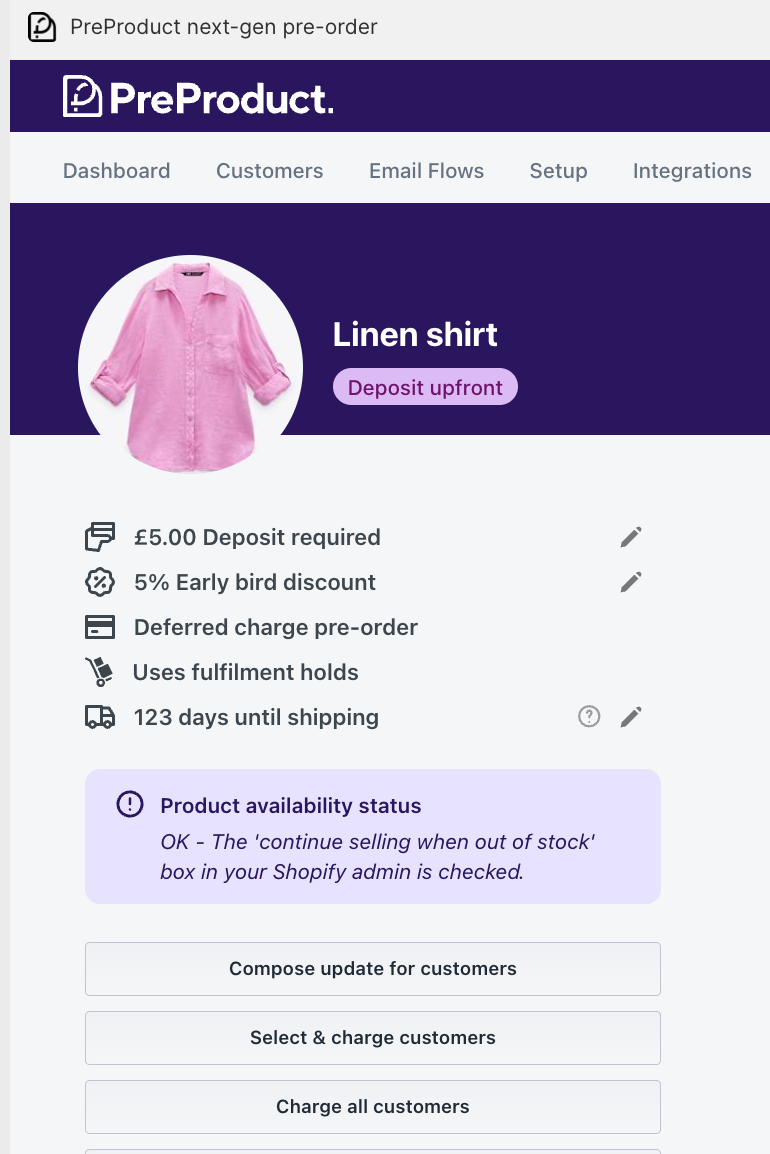
Customers pay a partial amount upfront (typically 10-50% of the total price), with the remaining balance charged later via deferred transaction when you’re ready to ship. Like charge-later orders, the customer’s card is vaulted with your payment processor for the future balance charge.

Best for:

  • Mid-high priced items ($50-200+)
  • Products with long lead times but requiring some upfront capital
  • Merchants who want assurance that buyers are committed
  • Balancing cash flow needs with customer comfort

Considerations:
Deposits signal stronger commitment than charge-later-only models while being less intimidating than full upfront payment. Customers pay a portion now and the rest later, with their card securely stored for the balance charge. This middle-ground approach works well for premium products where you need some working capital but want to reduce purchase friction.

Capture-Only Pre-orders

This model captures customer information without taking any payment or storing payment details. You replace the standard purchase button with a pre-order button, and email a payment link later when ready to process orders.

Capture-only payment links account for 28.7% of PreProduct pre-order transactions, making it the second most popular model.

Best for:

  • Conservative markets where merchants are hesitant to exchange any payment details upfront (we see quite a few Japanese merchants using this model)
  • Products with highly uncertain timelines
  • Testing demand before committing to production
  • Customers wanting maximum flexibility
  • Situations where you want zero checkout friction upfront during the pre-order phase

Considerations:
This approach has the lowest commitment level, which can lead to lower conversion rates when payment time comes. However, it’s excellent for demand validation since customers can opt in without any payment friction or card storage. It’s also one step above waitlists, as the order is already captured and can be prepopulated at checkout.
Weighing up your pre-order options

Authorization Period Pre-orders

The most basic approach is where customers go through checkout and you place a traditional authorization hold on their card. In Shopify, this is the “manual payment capture” method. You must capture payment within the authorization window (typically 7-30 days depending on the payment processor and card type) before the hold expires.

Best for:

  • Very short lead times (under 7-30 days)
  • Products arriving imminently where you know exact ship dates
  • Merchants who need guaranteed payment capture without card vaulting

Considerations:
This model is limited by authorization hold expiration windows. For most products with longer lead times, charge-later with card vaulting is more practical. Authorization holds tie up customer credit limits during the hold period, which can cause friction for higher-priced items. The extended 30 day authorization period is currently only available to Shopify Plus merchants and adds a 1.75% fee if charged after day 7.

Planning Your Pre-order Strategy

Before launching pre-orders, strategic planning ensures better outcomes.

When to Use Pre-orders

Pre-orders work well for:

  • New product launches: Build anticipation and validate demand before committing to large production runs.
  • Seasonal or limited releases: Create urgency for products available only during specific periods.
  • Out-of-stock bestsellers: Continue taking orders when inventory temporarily runs out.
  • Custom or made-to-order products: Collect orders before beginning production.
  • High-ticket items: Gauge serious buyer interest before investing in expensive inventory.

Setting Realistic Timelines

According to our data, 121-150 days represents the most common fulfillment window at 28.1% of pre-orders, while 20.6% ship within 30 days. Your estimated timeline should account for:

  • Manufacturing or production time: Factor in supplier lead times plus buffers for delays if the stock has not yet been manufactured.
  • Shipping and freight: Expected shipping times from the supplier for the product, whether that’s sea or air freight.
  • Quality control: If this is a first run or the first time using a supplier, building in time for inspection and potential corrections.
  • Customs and import processing: For international products, adding 1-2 weeks can be sensible.
  • Buffer for unexpected delays: Add 10-20% padding to your estimated timeline

It’s good to be conservative with your customer-facing shipping statement. It’s better to over-deliver than create frustration by missing promised dates. However, you can always update your shipping statement along the way and send out updates to your customers.

planning a strategy

Pricing Strategies

Products priced between $25-50 represent 42.7% of individual pre-orders, though the most common listing price range exceeds $250 (26.8% of listings).

Early-Bird Discounts:
Consider limited-time discounts (typically 10-20% off) to reward customers who commit earliest. This creates urgency and helps you gauge initial demand quickly.

Pay Early and Save:
Some pre-order solutions let you offer a discount to customers who want to pay off a deferred-charge pre-order early. This can be a good way to improve cashflow and incentivise customers to commit early, whilst giving them the option to pay later if they prefer.

Pay in Installments:
Optional multi-step payment plans can be a great way to meet customers where they are and let them pay in installments. This can be a good way to improve conversion for price sensitive customers or high-ticket items.

Tiered Pricing:
Consider Kickstarter style multiple pricing tiers:

  • Super early bird: 20% off (first 50 customers)
  • Early bird: 15% off (next 100 customers)
  • Standard pre-order: 10% off (remaining slots)
  • Launch price: Full price at product release

Bundle Incentives:
Include exclusive bonuses, free gifts, or exclusive perks for pre-order customers.

Inventory Planning Considerations

Use pre-order volume to inform production quantities. If you’re taking capture-only pre-orders (where no payment is collected upfront), build in an expected conversion rate (typically 70-85%) when planning inventory. Charge-later and deposit models typically have higher conversion since cards are vaulted.

Consider whether to limit pre-order quantities to create scarcity or leave them unlimited to maximize demand insights.

Setting Up Pre-orders on Shopify

Shopify Native Pre-orders vs. Apps

As of 2024, Shopify introduced native “Purchase Options” functionality that allows apps to facilitate deferred-charge pre-orders through your native Shopify checkout.
Purchase options require a supporting app to use, however the “continue selling when out of stock” checkbox allows merchants to sell pre-orders without any third-party solutions. That said, most merchants running serious pre-order campaigns still use a dedicated app; so they can make use of enhanced features like communication and payment flexibility.

FeatureNative Shopify Pre-ordersApp-Based Pre-orders
Cost✅ Free and built-in❌ Monthly subscription cost
App Required✅ No additional app required✅ Requires third-party app
Payment Flexibility❌ Limited (charge upfront only)✅ Multiple models (upfront, later, deposit, capture-only)
Customer Communication❌ No automated communication✅ Automated messaging and customer portals
Fulfillment Management❌ Basic fulfillment management✅ Advanced controls (holds, automation)
Analytics & Pre-order Insights❌ None✅ Pre-order analytics and performance tracking
Variant-Specific Controls❌ Not supported✅ Variant-specific pre-order limits

For smaller merchants running occasional, simple pre-orders that can be charged upfront, Shopify’s native option may suffice. For brands building pre-orders into their core strategy, dedicated apps provide significantly more control and better customer experience.

Payment Processor Requirements

Not all payment methods support pre-orders, particularly deferred charging models. Currently supported options include:

  • Shopify Payments (full support for all pre-order models)
  • PayPal (supports most pre-order types)
  • Cybersource potentially. As of late 2025, we’ve heard reports from merchants that Cybersource is supported for deferred charges as well.

Third-party gateways often don’t support deferred charging. Shop Pay, Apple Pay, and Google Pay also have limitations with charge-later pre-orders. Shopify automatically hides incompatible payment providers at checkout for pre-order products.

Installing a Pre-order App

We’ll use PreProduct as an example, though the general process can apply to other pre-order apps.

Step 1: Install from Shopify App Store
Search “pre-order” in the Shopify App Store and install your chosen app. PreProduct offers a free trial and/or a commission-only plan to test functionality.

Do more with Shopify apps

Step 2: Integration Based on Theme Version

For Shopify 2.0 Themes (Recommended):
If your app doesn’t support auto-install, then you’ll need to add it’s ‘app block’ from the Shopify Customize editor:

  1. Navigate to your theme customizer
  2. Select the product template
  3. Drag and drop the pre-order app block where you want it to appear (typically above the add-to-cart button)
  4. Save changes

For Shopify 1.0 Themes:
Again, if your app doesn’t support auto-install, then you’ll need to add it’s snippet code to your theme:

  1. Access Theme Code Editor from the “Online store” section of your Shopify admin.
  2. Locate your product template file (usually found in the snippets directory
    within a file like: product-template.liquid, add-to-cart-button.liquid or product-form.liquid)
  3. Add the app’s snippet code above the buy button’s <button> tag.
  4. Save changes

Most modern themes use Shopify 2.0, making integration significantly simpler. (PreProduct supports auto-install for most themes, but not all.)

Listing Your First Pre-order Product

After integration, you’ll need to configure your first pre-order listing. This can be done in an automation/rule type setup, or manually product by product.

Step 1: Select Product or Variant
Choose which products or specific variants to list as pre-order. Advanced apps allow variant-specific pre-ordering, so you can pre-order only out-of-stock sizes or colors while keeping others available for immediate purchase.

Step 2: Choose Payment Model
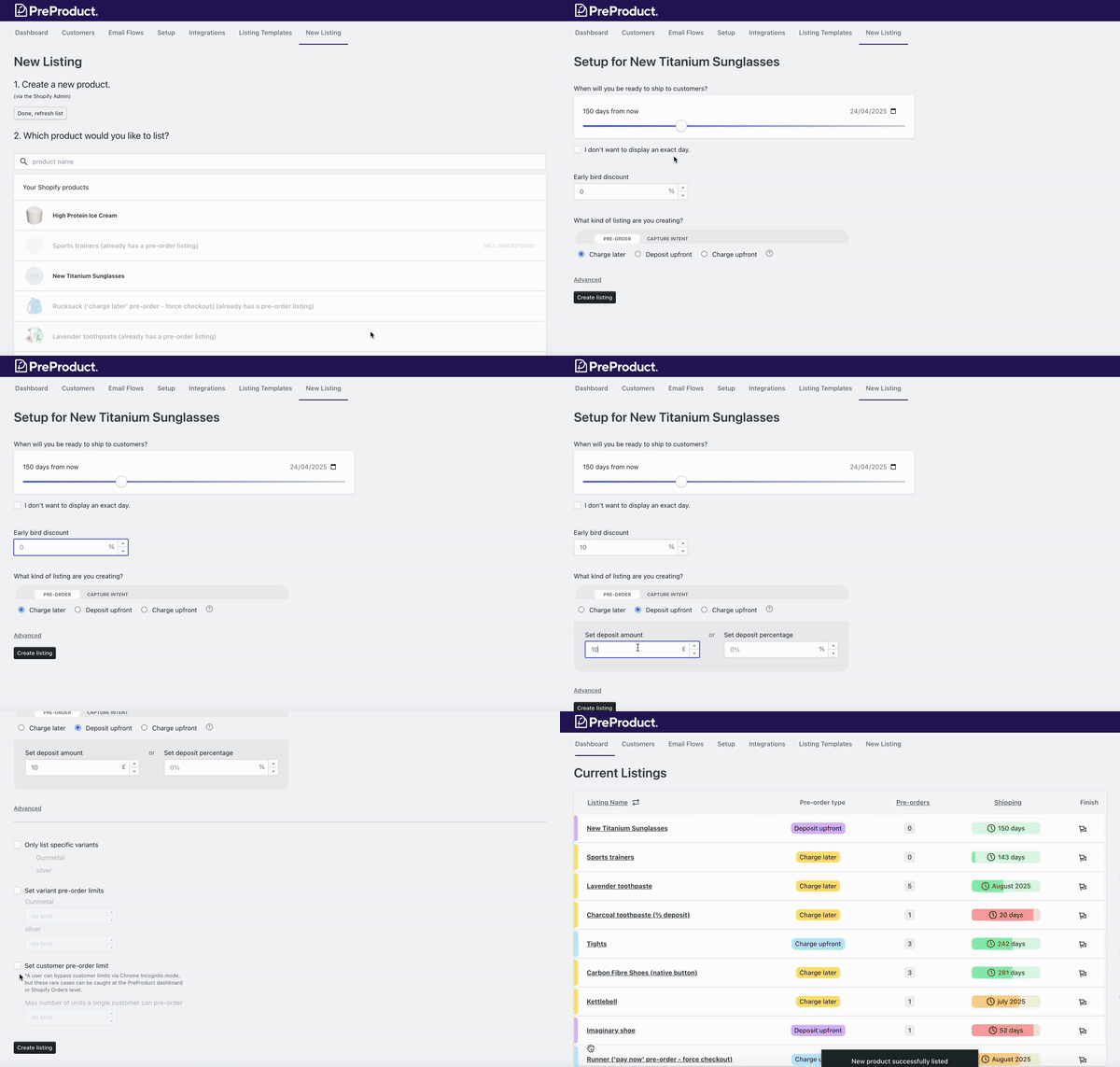
Select your preferred payment approach: charge upfront, charge later, deposit, or capture-only.

Step 3: Set Estimated Delivery Date
Provide a realistic delivery timeframe. This date appears to customers and can be updated as circumstances change.

Step 4: Configure Pre-order Limits (Optional)
Decide whether to limit quantity to create scarcity or leave unlimited to maximize demand insights.

Step 5: Add Early-Bird Discount (Optional)
Set discount pricing to incentivize early commitment.

Step 6: Customize Messaging
Once you’ve listed your first pre-order, check the front-end wording on your product, cart, and checkout screen. If it doesn’t match your brand voice oe clearly communicate the pre-order, change it via the apps’s “customise wording” screen.

Listing a product for pre-order

Fulfillment Holds and Order Management

Pre-order apps automatically often place fulfillment holds on pre-order items, preventing them from flowing prematurely to your 3PL, ERP, or fulfillment system. This ensures pre-orders stay isolated until you’re ready to ship.

When inventory arrives and you’re ready to fulfill:

  1. If using charge-later, capture-only or deposit pre-orders, trigger payment from your app
  2. If using charge-upfront pre-orders, trigger fulfillment from your app.
  3. Either of the above ways will release the fulfillment hold on the Shopify order, changing it from status: “On hold” to “Unfulfilled”.
  4. Orders flow to your fulfillment system like regular orders

Apps can also offer auto-charge automation based on inventory levels in Shopify, streamlining this process.

Marketing Your Pre-orders

Strong marketing turns a product announcement into a successful pre-order campaign.

Building Anticipation Before Launch

Start marketing before your pre-order period opens:

Tease the Product:
Share behind-the-scenes content, product development updates, or sneak peeks to build curiosity.

Build an Email Waitlist:
Collect email addresses from interested customers, giving you a ready audience when pre-orders open.

Create Countdown Content:
Use countdown timers on your website and social media to create urgency as the pre-order launch approaches.

Launch Day Strategies

When pre-orders open, maximize visibility:

Email Your Full List:
Send dedicated announcement emails to your entire subscriber base, highlighting early-bird pricing and limited quantities if applicable.

Social Media Blitz:
Post across all platforms simultaneously. Use Stories, Reels, and posts to reach different audience segments.

Influencer and Partner Outreach:
Coordinate with influencers, affiliates, and partners to amplify your announcement.

Press and Media:
For significant launches, reach out to relevant media outlets and bloggers in your niche.

Paid Advertising:
Run targeted ads on Facebook, Instagram, Google Ads, or other platforms to reach beyond your existing audience.

Creating Urgency and Scarcity

Drive conversions by emphasizing time-sensitivity:

Early-Bird Pricing:
Time-limited or quantity-limited discounts reward fast action.

Limited Quantities:
If you’re capping pre-orders, display remaining spots to encourage immediate purchase.

Exclusive Bonuses:
Offer pre-order-only bonuses that won’t be available at launch.

Tiered Pricing:
Show how pricing increases over time, motivating customers to buy now rather than later.

Ongoing Campaign Management

Pre-order campaigns span weeks or months. Maintain momentum:

Planning marketing

Regular Updates:
Email your pre-order customers with production updates, shipping progress, and exciting milestones.

Social Proof:
Share testimonials, unboxing videos, or endorsements from early customers or influencers.

Retargeting:
Run retargeting ads to website visitors who viewed the pre-order product but didn’t purchase.

Referral Incentives:
Encourage pre-order customers to refer friends in exchange for discounts or bonuses.

Customer Communication Best Practices

Clear communication throughout the pre-order period builds trust and reduces cancellations. Our data shows that approximately 5.4% of pre-orders get cancelled on average, with proper communication helping minimize this rate.

Front-End Messaging

Product Page:
Clearly indicate this is a pre-order, not an immediately available product. Display estimated delivery dates prominently.

Cart and Checkout:
Remind customers about pre-order status and delivery timelines during checkout. If you allow mixed carts (combining pre-order and ready-to-ship items), note that orders may ship in multiple shipments. Depending on your warehouse/3PL software and your Shopify split shipping settings.

From our data, 37.9% of stores permit mixed carts, with most merchants preferring isolated pre-order workflows to avoid complicated fulfilment workflows.

Email Communication Strategy

Order Confirmation:
Send immediate confirmation with order details, estimated delivery date, and what customers can expect next.

Progress Updates:
Send periodic emails (every 2-4 weeks for long lead times) with production updates, photos, or milestones reached.

Shipping Notifications:
Alert customers when products ship, providing tracking information and estimated arrival dates.

Pre-Fulfillment Reminder:
For charge-later or deposit-balance orders, consider setting up an upcoming charge email to give customers a 24 hour or so heads-up before their card is charged.

Customer Portals

Quality pre-order apps offer customer portals where buyers can:

  • View order status and progress
  • See real-time estimated shipping dates
  • Access payment schedules (for multi-step payments)
  • Request cancellations if needed
  • Update shipping information

This self-service approach reduces support inquiries while giving customers transparency and control.

Customer shopping

Legal Requirements and Compliance

Understanding legal obligations protects your business and builds customer trust. The below is a general guide, and you should always consult with a legal expert to ensure you’re compliant with your local laws and regulations.

FTC 30-Day Shipping Rule

In the United States, the Federal Trade Commission’s Mail, Internet, or Telephone Order Merchandise Rule requires that if you advertise a delivery timeframe, you must ship within that time. If you don’t specify a timeframe, you must ship within 30 days of receiving payment.

For Pre-orders:

  • Clearly state estimated delivery dates
  • If delays occur, notify customers promptly and offer options to cancel with full refund
  • Don’t charge payment until you can ship within the promised timeframe (or use charge-later models)

Required Disclosures

Be transparent about:

  • Pre-order status: Clearly indicate products aren’t immediately available
  • Delivery timelines: Provide realistic estimates, not guarantees
  • Payment terms: Explain when payment will be charged
  • Cancellation policy: Outline how customers can cancel and receive refunds

Refund Policies

Establish clear refund policies for pre-orders. Most merchants offer:

  • Full refunds before production begins
  • Partial refunds after production starts (to cover committed costs)
  • No refunds after shipping

State your policy clearly on product pages and in order confirmation emails.

International Considerations

If you are non-US based or selling globally, research requirements for:

Different regions have varying rules about pre-order disclosures, refund rights, and delivery timeframes. We also have a brief guide on pre-order legal requirements for various countries.

Shopify pre-order Shipping en route

Measuring Pre-order Success

Track these metrics to optimize your pre-order strategy over time.

Key Performance Indicators

Conversion Rate:
Percentage of product page visitors who complete pre-orders. Compare to your regular product conversion rates to understand if pre-order messaging affects purchase decisions.

Pre-order Volume:
Total number of pre-orders taken. This validates demand and informs inventory planning.

Average Order Value (AOV):
Revenue per pre-order transaction. Pre-orders often have higher AOV due to early-bird bundles or customers committing to premium versions.

Cancellation Rate:
Percentage of pre-orders cancelled before fulfillment. Rates above 8-10% may indicate overly long lead times, poor communication, or pricing issues.

Email Engagement:
Open and click rates for pre-order update emails. High engagement indicates customers remain excited; declining engagement may signal need for more compelling updates.

Time to Sell Out:
If you limit quantities, how quickly do pre-orders sell out? This measures demand intensity and can inform future launch strategies.

Analytics and Reporting

Use your pre-order app’s built-in analytics to track:

  • Daily pre-order volume trends
  • Traffic sources driving pre-orders
  • Variant-level performance
  • Geographic distribution of pre-orders
  • Payment model preferences

Integrate with Google Analytics using UTM parameters to track:

  • Which marketing channels drive highest pre-order conversions
  • Customer journey from awareness to pre-order
  • Retargeting campaign effectiveness
Measuring pre-order success

A/B Testing Opportunities

Optimize your pre-order campaigns by testing:

  • Early-bird discount amounts: Does 15% convert better than 20%?
  • Delivery date framing: “Ships in March” vs. “Estimated delivery: 90-120 days”
  • Payment models: Does your audience prefer charge-later or deposit approaches?
  • Pre-order button text: “Pre-order Now” vs. “Reserve Yours” vs. “Get Early Access”
  • Urgency messaging: Limited quantity vs. limited time vs. both

ROI Calculation

Calculate return on investment for pre-order campaigns:

Pre-order ROI = (Revenue - Campaign Costs - Product Costs) / Campaign Costs × 100

Campaign costs include:

  • Marketing and advertising spend
  • App subscription fees
  • Email platform costs
  • Influencer or partner fees
  • Content creation expenses

Factor in the value of early cash flow, which can be invested in production or growth while regular sales models require waiting for inventory.

Pre-order cash flow

Troubleshooting Common Pre-order Issues

Even well-planned campaigns encounter challenges. Here’s how to address common problems.

Payment Charge Failures

Problem: Customer’s vaulted card fails when you attempt to charge for charge-later or deposit balance pre-orders (card expired, cancelled, or insufficient funds).

Solutions:

  • Send automated email requesting updated payment information
  • Provide customer portal where buyers can update cards easily
  • Build in multiple retry attempts with updated payment details before cancellation
  • For deposit models, the upfront payment provides some revenue even if balance charge fails
  • Use payment recovery workflows to capture updated card details

Theme Compatibility Issues

Problem: Pre-order button doesn’t display correctly or conflicts with theme design.

Solutions:

  • Check that your theme supports Shopify 2.0 app blocks (most modern themes do)
  • Contact app support for theme-specific integration assistance. Whilst Shopify themes are standardized in lots of ways, there can still be big differences in how they work. Especially if you have a custom theme built especially for your store.
  • Test across devices and browsers to identify specific compatibility issues

Inventory Sync Problems

Problem: Pre-order availability doesn’t update correctly when stock levels change.

Solutions:

  • Verify app has proper permissions to access inventory data
  • Check if you’re using inventory management integrations that may conflict
  • In PreProduct, we don’t turn on automations autoamtically, so you will need to turn them on via the app’s “automations” screen.
  • Coordinate with 3PL or ERP provider to ensure inventory feeds are accurate

Customer Notification Delays

Problem: Automated emails aren’t sending or arrive late.

Solutions:

  • If sending from the pre-order app’s email domain, consider adding a custom sender so you can have emails sent from your own domain.
  • Verify email settings and SMTP configuration in app
  • Test email deliverability with test orders
  • Use transactional email services (Klaviyo, SendGrid) for improved delivery

Fulfillment Hold Confusion

Problem: Pre-order items accidentally ship early or fulfillment system attempts to process before ready.

Solutions:

  • Double-check fulfillment hold settings in app
  • Setup tag based workflows if your 3PL does not support fulfillment holds. A lot of pre-order apps will add a tag of “pre-order” on any order containing a pre-order item.
  • Train fulfillment staff to recognize pre-order indicators
  • Some ERPs and 3PLs will have ‘virtual warehouses’ which are designed to have pre-order stocked allocated to, as opposed to a real warehouse location.
Shopify pre-order Shipping

Managing Delays

Problem: Production or shipping delays push delivery dates beyond original estimates.

Solutions:

  • Communicate proactively as soon as delays are known
  • Explain the reason honestly (supply chain, quality control, etc.)
  • Offer options: wait with bonus incentive, partial refund, or full cancellation
  • Update estimated delivery dates across all touchpoints
  • Over-communicate during delay periods to maintain trust

Frequently Asked Questions

Does Shopify have built-in pre-orders?

Yes, Shopify has a “continue selling when out of stock” checkbox that allows zero stock products to pass through checkout. However, it only supports charge-upfront models and lacks advanced features like automated customer communication, multiple payment models, and detailed analytics. Most serious pre-order campaigns benefit from dedicated apps.

What payment methods work with Shopify pre-orders?

Shopify Payments and PayPal support all pre-order payment models. Third-party payment gateways often don’t support deferred charging (charge-later models). Shop Pay, Apple Pay, and Google Pay have limitations with certain pre-order types. Shopify automatically hides incompatible payment options at checkout.

Can I offer partial payment or deposits?

Yes, with pre-order apps that support deposit models. Customers pay a percentage upfront (typically 10-50%), with the remaining balance charged when you’re ready to ship. This balances cash flow needs with customer comfort, especially for higher-priced items.

How do I handle pre-order cancellations?

Pre-orders can be cancelled through standard Shopify order cancellation procedures or via your pre-order app. Quality pre-order apps offer customer portals where buyers can request cancellations directly. Your refund policy is at your discretion.

What apps are best for Shopify pre-orders?

Popular options include PreProduct (comprehensive features and all of the pre-order types listed in this guide), Purple Dot, Amai PreOrder Manager, and PreOrder Globo. Choose based on required payment models, automation needs, and budget.

Are there legal requirements for pre-orders?

Yes. In the US, the FTC 30-day rule requires shipping within stated timeframes or within 30 days if no timeframe is specified. You must notify customers of delays and offer cancellation options. Other countries have similar consumer protection requirements. Always clearly disclose pre-order status, delivery estimates, and refund policies.

How long should a pre-order period be?

According to our data analyzing over one million pre-orders, 121-150 days represents the most common fulfillment window (28.1%), while 20.6% ship within 30 days. Your timeline should match production realities plus buffer for delays. Shorter is generally better for maintaining customer excitement and reducing cancellations.

Can I mix pre-order and regular products in the same cart?

Yes, although only 37.9% of stores in our dataset permit mixed carts. A lot of merchants prefer isolated pre-order workflows to avoid confusion with their fulfilment workflows. However, mixed carts are totally do-able and can be a great way to increase average order value. If you allow mixed carts, we reccomend placing some test pre-orders first to see if your 3PL and ERP handle fulilment holds, or whether a rule based workflow is needed.

How do pre-orders affect my Shopify inventory management?

Pre-order apps place fulfillment holds on pre-order items, preventing them from flowing to your 3PL or fulfillment system prematurely. This keeps pre-orders separate from regular orders. When ready to fulfill, you release holds and orders process normally. Advanced apps integrate with Shopify inventory systems to trigger automatic charging when stock arrives.

What’s the typical pre-order cancellation rate?

Across our platform, approximately 5.4% of pre-orders get cancelled on average, with 2023 seeing the highest rate at 7.1%. Cancellation rates increase with longer lead times and poor communication. Keep customers engaged with regular updates and realistic delivery estimates to minimize cancellations.

Should I offer early-bird discounts for pre-orders?

Early-bird discounts (typically 10-20% off) create urgency and reward early commitment. They help gauge initial demand quickly and can accelerate word-of-mouth marketing. Test different discount levels to find the sweet spot between incentivizing purchases and maintaining margins.

How do I prevent pre-order items from shipping early?

Pre-order apps automatically apply fulfillment holds to prevent premature shipping. These holds integrate with Shopify’s fulfillment system, blocking orders from flowing to 3PLs or ERPs until you’re ready. When inventory arrives, you release holds manually or through automated triggers based on inventory levels.

Conclusion

Pre-orders represent a powerful strategy for Shopify stores looking to validate demand, improve cash flow, and build marketing momentum around product launches. With over $85.3 million in pre-order revenue processed through PreProduct alone, it’s clear that merchants across industries are leveraging pre-orders successfully.

The key to successful pre-order campaigns comes down to:

  • Choosing the right payment model for your product and lead time
  • Setting realistic delivery timelines with buffer for delays
  • Communicating clearly and frequently with customers
  • Marketing strategically to build urgency and maintain momentum
  • Measuring performance to optimize future campaigns

Whether you’re launching your first product, managing out-of-stock bestsellers, or building hype for seasonal releases, pre-orders let you take orders and revenue sooner while keeping customers informed and engaged.

Ready to start taking pre-orders on Shopify? PreProduct offers comprehensive pre-order management with charge upfront, charge later, deposit, and capture-only payment models, plus automated customer communication, fulfillment controls, and detailed analytics. Start your free trial today and see how pre-orders can transform your product launches.

Pre-sell With PreProduct

7 day free trial with all plans

Unbounce Pre-orders

1. Unbounce pre-orders with Shopify & PreProduct

Unbounce offers a super powerful and intuitive way to create and manage landing pages for new product launches.
However, what if you wanted to start taking pre-orders from one of your landing pages?

For selling physical products, Shopify has been establishing itself as a market leader for quite some time now.
PreProduct is a pre-order app that plugs into Shopify and enables you to launch new products via different kinds of pre-sale.
In the below guide, I’ll show you a quick and easy way to set up Unbounce pre-orders.

Although ordinarily confined to the Shopify store itself, in this guide I’ll show you how to run PreProduct in a ‘headless’ way from your Unbounce page. Enabling easy communication and capture of Shopify / Unbounce pre-orders.
Essentially you’ll be adding a ‘custom HTML block’ to your Unbounce landing page and populating it with a couple of lines of code that PreProduct will automatically generate for you.

Each of the below steps is fairly straightforward, but feel free to get in touch if you run into any issues.
I’ve also recorded a quick video here in case that’s your preferred tutorial format.

Requirements:


*Each of the above apps have fully functional free trials that you can take advantage of.


2. Step-by-step guide

2.1

  • For this tutorial we’ll be using Unbounce’s classic builder. If you don’t have an existing page set up, click the ‘create new’ button in the top right corner of Unbounce.
stage 1

2.2

  • Now click on the triple-dot symbol to the far right of your page’s card area. Then click ‘Edit champion variant’.
stage 2

2.3

  • You’ll now be taken to your page’s editor. Click and drag the ‘custom HTML’ block from the left-side menu onto the page.
    You should be greeted by a text input modal.
stage 3

2.4

  • Now we just need to generate a snippet in PreProduct to paste into the modal. Start by opening up PreProduct.
dashboard

2.5

  • If you haven’t already created a pre-order listing in PreProduct, create one now by clicking the ‘New listing’ menu item.
    Then select it from the main dashboard.

2.6

  • Now click the ‘Generate headless code’ button on the left-hand side of the dashboard. A modal should pop up with your snippet in a grey text area. Highlight and copy the snippet.

2.7

  • Now, back in Unbounce; paste the snippet into the ‘custom HTML code’ modal and click ‘save code’. You can now position the block where you’d like on the page. We generally recommend making the block no smaller than 40% of the desktop page width. Then on mobile, it should be used at around 100% width.
stage 7
stage 7.5

2.8

  • The pre-order front-end won’t show properly until you click ‘preview’. Let’s do that now. You should see the pre-order button appear, along with an on-page pre-order cart when clicked. Listing details and styling are controlled from within PreProduct’s dashboard.
stage 8

3. Summary

Congratulations, you’ve just enabled Unbounce pre-orders  from your landing page. Through PreProduct, you’ll now be able to take advantage of Unbounce’s optimisation and design, alongside Shopify’s powerful e-commerce engine.

Pre-orders will flow from your Unbounce page into PreProduct and then at some point, Shopify. Depending on the kind of pre-order listing: ‘pay later’, ‘deposit-based’, or ‘pay now’.
For example; pay later’ pre-orders will just be in PreProduct until you send out payment link emails. Where as ‘pay now’ pre-orders will redirect to your Shopify checkout straight away and flow directly into the Shopify order system. 

What kind of pre-order listing to choose is a whole other article in itself. However, ‘time until ship’ is a good point to benchmark against. Is your new product going to be in customer’s hands next month? Well ‘pay now’ pre-orders is probably a good fit.
Or is it more like 6 months with potential delays? Then pay later or deposit-based pre-orders will give you more flexibility and customer goodwill.

Feel free to reach out with any questions or to let us know how your pre-order campaign is going.
We’re always happy to talk ‘pre-orders’ and ‘new product launches’.

Pre-sell With PreProduct

7 day free trial with all plans

Offering Shopify deposit payments

Prefer a video? checkout the Youtube version of this article here.

1. Why should you offer partial payments/deposits?

1.1 What are Shopify deposit payments?

Offering Shopify deposit payments as an option allows the store to charge a portion of the sale up-front, basically the customer pays a required partial payment of the cost of the goods/services they purchase to secure the pre-order.

1.2 Benefits of deposit based pre-orders

  • Increases the window of time that you can acquire orders.
  • Accepting deposits means you can pre-sell and start receiving cash-flow before the product is available.
  • Customers have a stronger commitment to the pre-order as they have paid a deposit.
  • Split payments can make the financial outlay easier for customers.

1.3 Deposits in the real world

An example of Shopify deposit payments from the real world is the Holochain Foundation. They harnessed the power of deposits and split payments in their rollout of a new decentralised Web 3 platform. Charging an upfront amount to pay for the HoloPort hardware from their audience ahead of the final shipping date. This meant they were in complete control of when to charge the remaining payment and ship out the HoloPorts. Flexibility like this can come in extra handy with more ambitious product launches like this one.


holoport

2. Adding Shopify deposit payments manually

2.1 Intro

It is possible to start collecting deposit pre-orders manually without installing any apps or paying a developer to modify your theme, through a very bare-bones approach.

This would not be our recommended approach for a few reasons; both pros and cons are highlighted below. If you do want to go ahead with adding Shopify deposit payments manually the steps are also outlined below.

2.2 Pros and Cons of manual deposits (split payments via multiple products)

Pros

  • Free of charge.
  • Stays within Shopify’s admin.

Cons

  • Bad customer experience due to lack of communication touch points.
  • Bad customer experience due to email instructions at payment step as opposed to one click link.
  • A lot of time consuming manual work in Shopify, meaning staff expense and possible room for error.
  • Can only safely support purchases of 1 with a deposit (due to discount code).
  • No dedicated analytics on who’s paid a deposit and who’s paid in full.
  • No tagging or deposit specific segmenting in Shopify.

2.3 Steps for setting up manual Shopify deposits

  • Create a new Shopify product that will be your ‘deposit’. For example, call it ‘A test product – deposit’ (in the description explain your deposit process and terms).
  • Make sure the product isn’t marked as a ‘physical product’ in Shopify’s product admin. This is so shipping isn’t charged by default.
  • Collect payments and orders of this deposit product.
  • Now list your main product in Shopify with its full price.
  • When you’re ready to charge customers the outstanding amount. Create a Shopify deposit code for the price of your deposit product, it’s important to make it only applicable to the main product that you’ll be charging for. Also, look at limiting the usage to 1 use per product per customer, so it’s not abused.
  • Now go into the ‘orders’ section of Shopify and filter by the deposit product. You can now click on each of these orders, copy the customer’s name and email into a third-party email provider, along with the discount code from step 5 and a link to your main product.

3. Adding Shopify deposit payments via Shopify deposit apps

3.1 Intro

There are a few different Shopify apps available that will allow your store to take deposits. Both a deposit management app or a pre-order app like PreProduct will allow you to take deposits, with each app offering a variety of features and options.

It’s essential to carefully assess which one aligns best with your business needs.

We believe one of the best Shopify deposit apps is our app PreProduct (surprised?), which has a holistic deposit system that works through your existing Shopify checkout via Shopify payments or PayPal. It allows you to accept partial payments (based on the amount or percentage you setup when creating the listing), and gives you full control as to when you trigger the remaining payment amount. It also allows you to charge the remaining payment automatically, via our auto charge automation.

3.2 Pros and Cons of running deposits through PreProduct

Pros

  • Ensure customers are committed to their pre-orders.
  • Receive some money paid upfront, to assist with cash flow.
  • Email campaigns to keep customers in the loop and engaged throughout the pre-order process.
  • Great customer experience with email communication and deferred charges or one click payment links.
  • More automated process so less manual work and room for error.
  • Products on pre-order will automatically gain the Shopify tag ‘pre-order’ and deposit products will gain the tag ‘deposit’ to help with filtering in your Shopify admin.
  • A user interface to choose which of your products/variants will be on pre-order and when.
  • A designated dashboard for your pre-orders, without regular orders being mixed in and analytics to show number of orders received, and number who have paid.
  • Third-party customer support, both technical and strategic.

Cons

  • PreProduct is a paid app.
  • Has to work within the e-commerce platforms constraints.

3.3 Functionality of PreProduct

PreProduct utilises a secure system for your Shopify store so that customers card information is vaulted with your payment processor. Basically when the customer places their pre-order Shopify will vault customers card details. This allows you to initiate payment collection manually on a specified date or automate it as inventory is added to your platform. This feature is a game-changer, particularly for an ecommerce business extensive product catalogs.

3.4 Steps for setting up a PreProduct deposit listing

We have a dedicated doc for how to create deposit listings here.

Dashboard (PreProduct app interface)

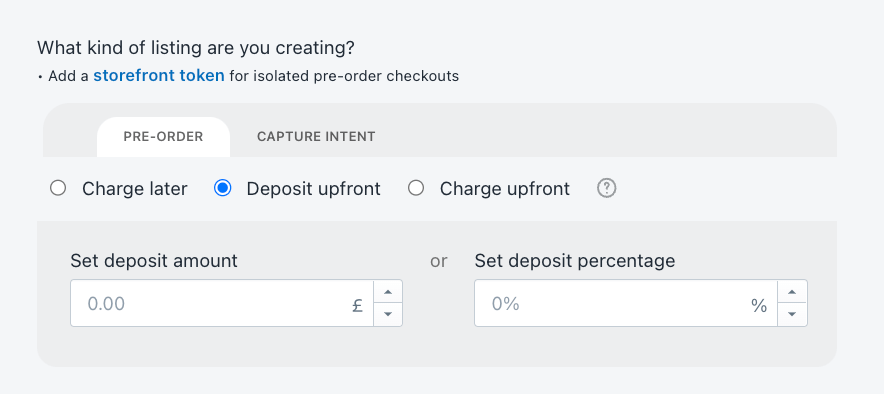
Navigate to the ‘New Listing’ screen in PreProduct and select/search-for the Shopify product you would like to list.

Under ‘What kind of listing are you creating?’, select ‘Deposit upfront’.

Now enter the deposit amount or percentage, which customers will have to pay upfront per item and click ‘create listing’. The amount entered defaults to your store’s primary currency.


choosing deposit pre-order

You can also offer a discount with deposit based pre-order sales. You can utilize both general discount codes and discounts tailored for pre-orders. However, it’s important to note that as of September 5th, 2023, ‘buy X, get Y’ Shopify discounts are not currently supported.

Front-end

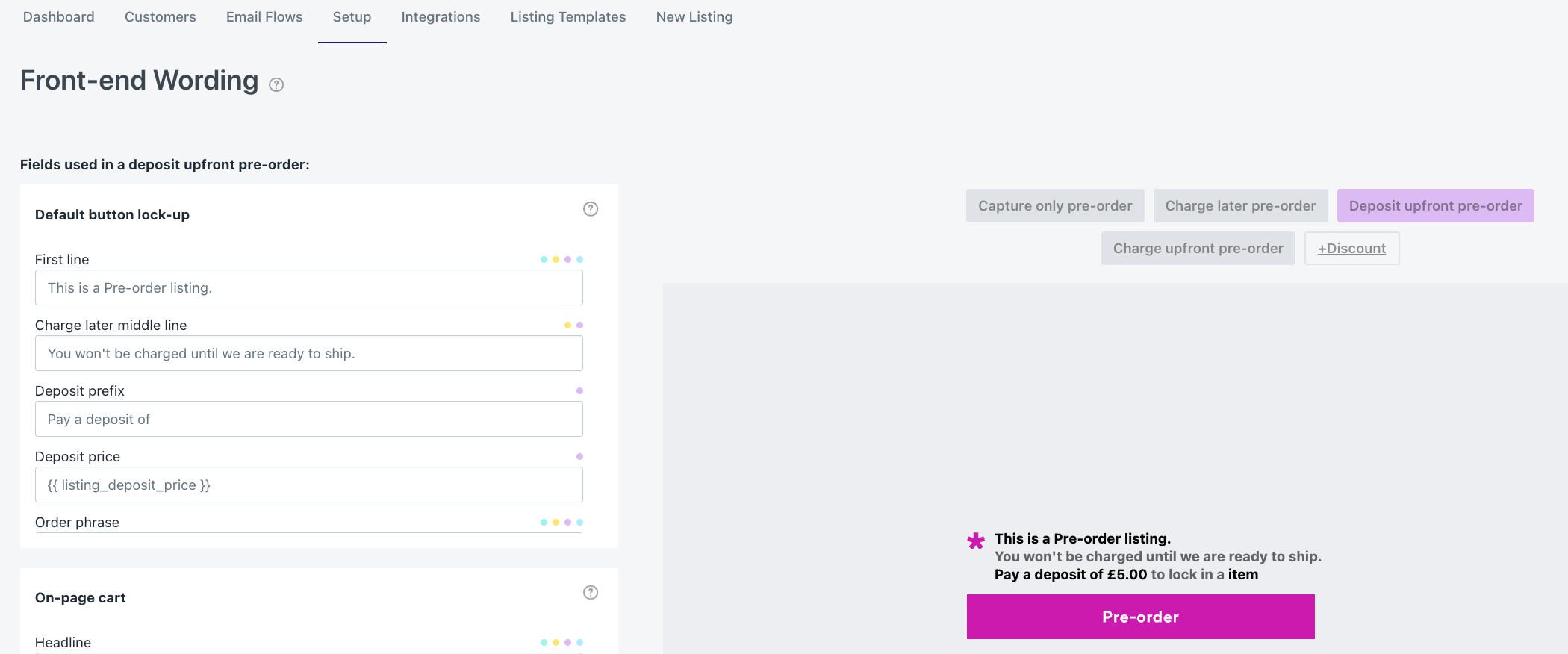
The PreProduct pre-order front-end will explain that a deposit is required, how much it is and then an incentive phrase afterwards.


A product set to use shopify deposit payments

The wording can all be edited via the ‘customise wording’ screen in PreProduct. Just make sure to select ‘deposit based pre-order’ before editing.


customising deposit pre-order wording

Campaign

Pre-orders will populate in the PreProduct dashboards, allowing you to view and interact with them.

A solution like PreProduct allows you to ensure customers stay informed throughout the entire process, starting from the product page to shipping, using customized front-end messages, dedicated customer portals, and email campaigns. By entrusting PreProduct to handle communication for deposit pre-orders as soon as orders are made, you not only relieve your customer support team but also maintain a high level of customer satisfaction.

The PreProduct dashboard is also where you trigger the deferred charges. You can either select and charge separate product for specific customers, or you can choose to charge all customers at once.


pre-order campaign to take shopify deposit payments

4. Summary

Offering Shopify deposit payments gives many benefits to Shopify businesses when selling upcoming or out of stock products.

Whether it’s increasing cash flow and gross sales or improving forecasting ability, using PreProduct to offer deposit based pre-orders can help super-charge the above and improve the customer experience, all whilst saving you time in the process.

Pre-sell With PreProduct

7 day free trial with all plans

Adding pre-orders to Shopify Dawn

The Dawn Shopify Theme

Dawn is Shopify’s exciting new theme. As of the end of August 2021, new stores will be set-up with Dawn as default and have access to a bundle of new features which Shopify are calling ‘Store 2.0’. Among these new features is the long rumoured ‘sections anywhere’ ability, speed increases, support for 3d models out of the box and much more. However, the topic of this article is how to add pre-orders to Shopify Dawn. There are many compelling reasons to offer pre-orders, including their positive effects on cash flow, the flexibility they afford your product launches, and the risks they can offset. If you would like to read more about the benefits and strategies of pre-orders, we have an article on why you should take pre-orders on Shopify here.

Dawn theme

ref: Shopify

Adding Pre-orders Manually

I do not recommend this method at all, but realise that some people would prefer to see a free of charge version of offering pre-orders.

Word of warning

It’s possible to start collecting pre-orders without installing any apps or paying a developer to modify Dawn through a very bare-bones approach, although I don’t recommend doing this for several reasons that will be soon become apparent. Here are the steps:

  • Backup your theme. (you should always backup theme files before you change code, so you have a safe version to revert to if something goes wrong).
  • Shopify has a checkbox in the Shopify product admin under ‘inventory’ called ‘continue selling when out of stock’. When checked, your store will accept orders for that product, even when the stock level is 0.
  • You can then made a code change like the below to what text is outputted in your add-to-cart button. You’ll be looking for something similar to the first block of code below; which you’ll want to change to the block below.

Before:

{%- if product.selected_or_first_available_variant.available -%}
  {{ 'products.product.add_to_cart' | t }}
{%- else -%}
  {{ 'products.product.sold_out' | t }}
{%- endif -%}

After:

{%- if product.variants.first.inventory_policy == "continue" and product.variants.first.inventory_quantity == 0 -%}
  pre-order
{%- elsif product.selected_or_first_available_variant.available -%}
  {{ 'products.product.add_to_cart' | t }}
{%- else -%}
  {{ 'products.product.sold_out' | t }}
{%- endif -%}

  • Finally, navigate back to the ‘online store’ screen in Shopify and click ‘Customize’, click through the store preview until you’re looking at your product page. Then click ‘Buy buttons’ from the list of ‘product information’ blocks and uncheck the ‘Show dynamic checkout buttons’ option so that only your main buy button shows up.
Problems with the manual approach

On top of the fact that this option hardcodes a change into your store’s theme and doesn’t localize to the user’s language, it also will mean:

  • Muddled up ‘pre-orders’ and ‘buy-now’ orders in your Shopify order section, leading to mistakes and laborious admin.
  • No efficient control of what’s a pre-order and what’s a ‘buy now’ listing in your store.
  • Your storefront won’t tell customers when they should hope to receive their pre-order.
  • You have no way of communicating with customers during the pre-order process. e.g. ‘Your Red Sneakers are two weeks away from shipping’.
  • Pre-order payment has to be upfront.
  • No way to place limits or any advanced pre-order features on your listing.

All of these drawbacks can very quickly add up to a bad customer experience with a lot of work on your end to stay afloat and in control. Luckily Shopify’s app ecosystem has apps listed by companies who spend their whole time solving these issues and figuring out the best way to increase your pre-orders. The best bit is… thanks to ‘Store 2.0’s new features, you won’t need to write a line of code to integrate one.

Adding a pre-order app

Like I mentioned above, Shopify’s Appstore is home to many pre-order apps that will help you find success with your pre-sales.
PreProduct offers the below benefits, as well as a customisable pre-order cart. However, there are many other good options on the Shopify AppStore. After selecting a pre-order app from the App Store, simply click ‘install app’ from the top of the page and Shopify will take you through a quick install process.

Pre-order app features can include:

  • A user interface to choose which of your product/variants will be on pre-order and when.
  • A designated dashboard for your pre-orders, without regular orders being mixed in.
  • Customisation of the visual design/messaging of the pre-order button and front-end, including real-time variables like shipping time.
  • Email campaigns to keep customers in the loop and engaged throughout the pre-order process.
  • Different pre-order payment options like; ‘pay later’, ‘deposit’ and ‘pay now’ meaning you can list pre-orders earlier and with more flexibility (and in some countries, conform to necessary legal requirements).
  • Analytics and dashboard for reporting/interacting with the individual pre-orders.

Pre ‘Store 2.0’, permanent code had to be added to your store theme to add a pre-order app, resulting in increased setup time while a developer made the integration, as well as the potential for your theme to acquire more and more third-party code as you installed/uninstalled various kinds of apps.
Now Shopify gives store owners the ability to add something called an ‘app block’. Instead of having a developer add permanent code to your theme, you can simply drag and drop a block into your product page. Meaning you’re in complete control of where the pre-order section goes in your storefront, as well as when to take it out.

How to add a pre-order app block to your product page with Dawn

Once you have a pre-order app installed from the Shopify app store, as long as it supports ‘Store 2.0’, you’ll be able to drag it’s block into your product page exactly where you want it. Here’s how:

  • Navigate to the ‘Online store’ section of your Shopify dashboard.
  • Click ‘Customize’
  • You will now be greeted with Shopify’s drag-and-drop editor. It will currently be set to your home page. Click ‘catalogue’ to go to a collection page and then click on any product to select your product page.
  • Notice the different areas of your product page in the left-hand side bar, signified by the tag icon and name in bold. We want to add to your ‘Product Information’ section, so click the blue ‘Add block’ link at the bottom of that list.
  • A pop-up should appear with a list of blocks under the ‘APPS’ heading. Click the pre-order app’s block.
  • The app’s block has now been added to the ‘Product information’ section. To choose it’s position, click the little back arrow to the left of the apps name so you can see all of the product page blocks again. Then hover over the app’s name in the ‘Product information’ section and drag it up or down until you’re happy with its position.
  • That’s it, you should be all good to go. Don’t forget to save! (Top right corner of the page).

Now that you have pre-orders set up on your store, you can start listing new products straight away and promoting them. Whilst there are specific pre-order marketing tactics, we generally find the usual suspects work well. For example, conversion and abandonment optimisation through an app like Tada, organic/paid social media, influencer partnerships, email marketing etc.

Summary

Once you have finished adding pre-order functionality to Shopify Dawn, you can start taking pre-sales straight away for your future and out of stock products. Now that Shopify’s clever ‘sections everywhere’ app blocks have been released, integrating exciting new features into your store has never been easier.

Pre-sell With PreProduct

7 day free trial with all plans