Shopify Backorders: How to Set Them Up (and When to Use a Pre-order Instead)
TLDR: Shopify has no dedicated backorder feature. You enable a Shopify backorder by ticking “Continue selling when out of stock” on a variant, which lets inventory go negative so customers can keep buying. That checkbox is step one of about eight. It won’t hold fulfilment, cap how many units you sell, show customers an ETA or give you any say over when you charge. If your restock is more than 30 days out, a charge-later pre-order solves all four problems at once.
Introduction
Search for how to set up a Shopify backorder and every guide gives you the same three steps: open the product, tick “Continue selling when out of stock”, edit the description. That’s accurate. It’s also about a fifth of the job.
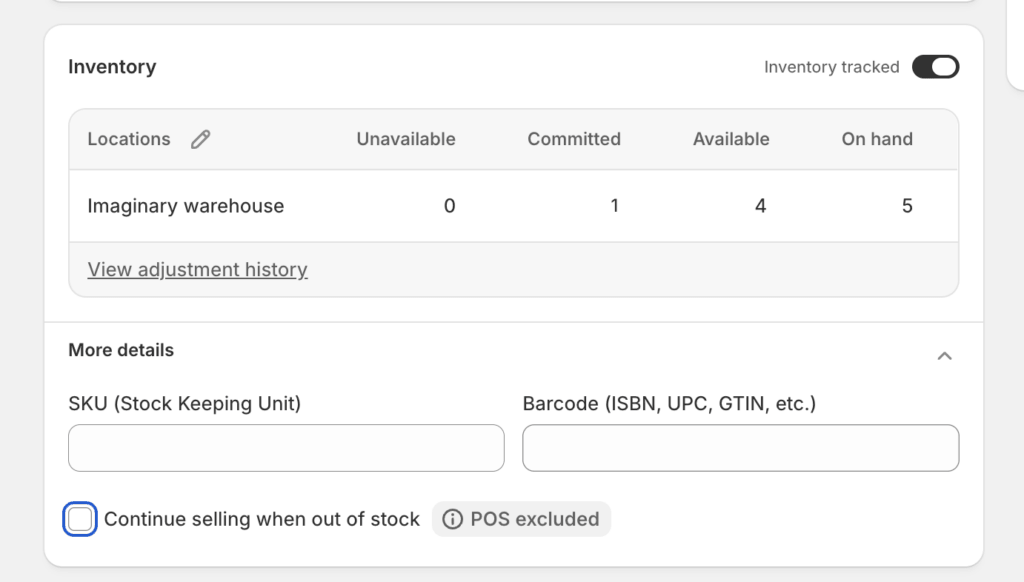
Here’s the part nobody leads with. Shopify doesn’t have a backorder feature. It has an inventory policy setting and a fulfilment status, and a backorder is something you build out of the two. The checkbox gets customers through checkout. Everything that happens next, holding stock back from your 3PL, capping how many units you sell, telling customers when it ships, deciding when to take their money, is on you.
That gap is why the first page of Google for this term includes two Shopify Community threads and two Reddit posts. Merchants aren’t asking what a backorder is. They’re asking why their fulfilment centre just shipped 40 units they don’t have.
This guide covers the admin steps, the workflow that stops you shipping unpaid stock, and the point where a backorder should have been a pre-order on Shopify instead.
What a Shopify Backorder Actually Is
A backorder is a product you’ve sold before, are temporarily out of, and will restock. The customer buys it now and you ship it when the next delivery lands.
That’s the short version. If you want the full breakdown of how it differs from simply marking something unavailable, we’ve covered backorder vs out of stock separately, along with a wider comparison of pre-orders vs backorders vs waitlists.
The distinction that matters operationally is narrower than most articles suggest. A backorder is a restock of something proven. A pre-order is something you haven’t shipped yet, either because it’s new or because the wait is long enough that customers need to be treated differently. The gap between them is mostly framing and payment timing, and both of those are choices you make.
What Shopify gives you is not a backorder mode. There’s no backorder status on an order, no backorder badge, no backorder report. There’s an inventory policy per variant, and a fulfilment status per order. Everything merchants call a “Shopify backorder” is assembled from those two things plus whatever messaging you write yourself.
Worth knowing that up front, because it explains why the setup is so short and the aftermath is so long.
How to Set Up Backorders on Shopify
The core toggle takes about 20 seconds. The rest of this list is what actually makes it work.
- Check inventory tracking is on. In your product admin, under Inventory, “Track quantity” needs to be enabled. If it’s off, Shopify never blocks the sale in the first place and none of this applies.
- Tick “Continue selling when out of stock”. It sits in the Inventory section. Set it per variant, not per product. If only medium and large are backordered, only tick those two.
- Understand what happens to your stock count. Available inventory now goes negative. That negative number is your backorder count. Minus 43 means 43 units owed.
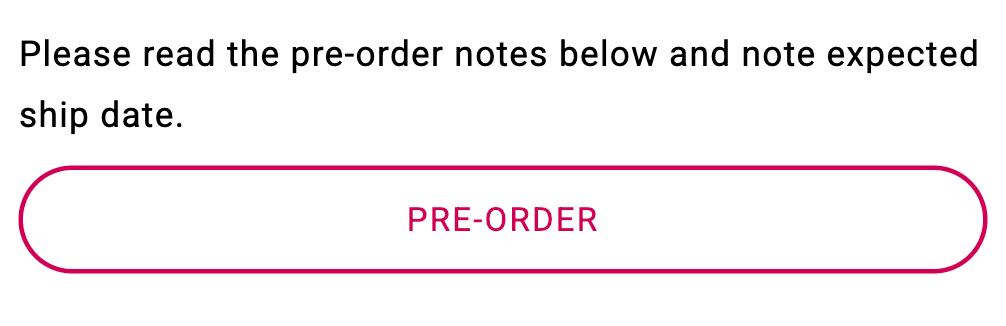
- Write the expected ship window onto the product page. A date range beats a specific date you’ll miss. “Ships week of 12 September” is fine. Silence is not.
- Change the button text. Leaving it as “Add to Cart” is how you generate support tickets. Merchants without an app usually do this with a Liquid conditional in the product template, swapping the button when
product.availableis false. - Tag the order. Downstream systems, your 3PL, your ERP, your helpdesk, can’t see your intentions. A tag or line-item property is how they find out this order isn’t normal.
- Hold fulfilment before anything reaches your warehouse. More on this below. It’s the step people skip.
- Plan the three emails. Order confirmation restating the timeline, a delay email if the date slips, a dispatch email. Most backorder complaints are silence complaints.
The Shopify POS Exception
One caveat worth knowing if you sell in person. Per Shopify’s documentation, “Continue selling when out of stock” doesn’t apply to Shopify POS. Staff can sell past zero regardless of the setting; POS just warns them first. So your online backorder rules and your in-store behaviour are two separate things.
What the “Continue Selling” Checkbox Doesn’t Do
This is the part that costs merchants money, so it’s worth being specific. The checkbox does exactly one thing: it stops Shopify blocking checkout at zero inventory. Four things it does not do.
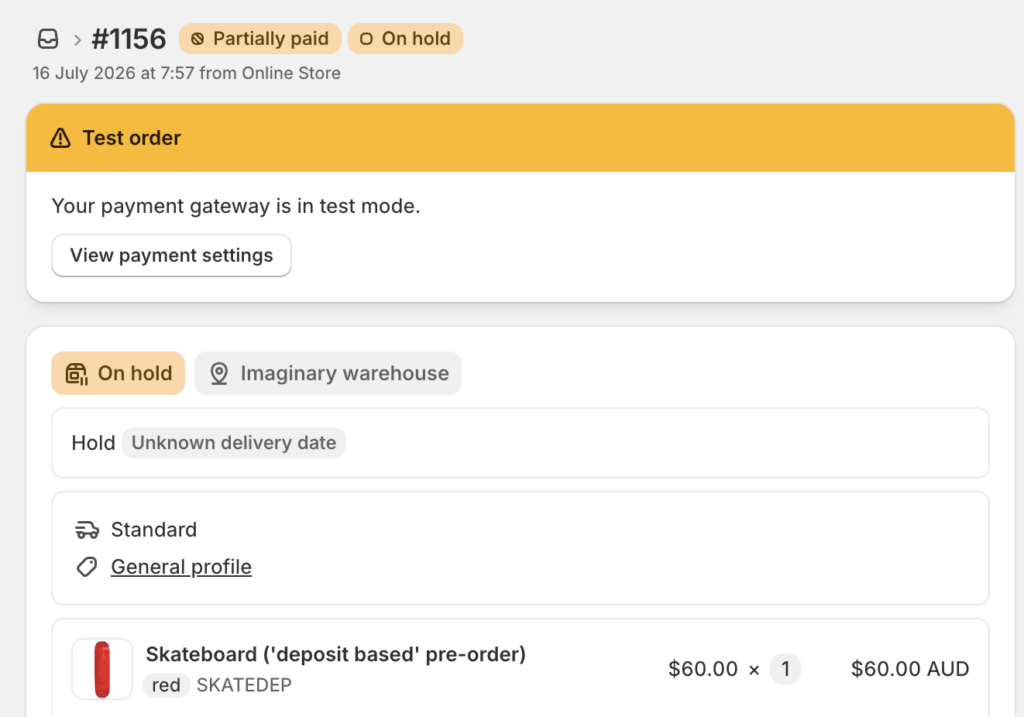
It doesn’t hold fulfilment. A backordered order looks identical to a normal one. If your 3PL, ERP or fulfilment app is watching for new orders, it will pick this up and try to ship it. That’s the single most common failure and it’s the reason those forum threads exist.
It doesn’t cap anything. Negative inventory has no floor. If your purchase order is for 200 units and 340 people buy, Shopify will happily take all 340. There’s no native way to say “sell 200 of these and then stop”.
It doesn’t tell customers anything. Nothing changes on the storefront. Same button, same page, no ETA, no badge. As far as the customer knows they bought something in stock. Baymard Institute’s research found 20% of shoppers who abandoned a cart did so because delivery was too slow, and that’s people who were told. Customers who find out after paying don’t abandon, they email you.
It doesn’t give you any control over payment. The customer is charged in full at checkout, today, for something shipping in three months. Every competing guide on this topic then spends a section on managing refunds and cancellations. That problem is self-inflicted, and it’s fixable.
Those four gaps are the whole reason a backorder app or a pre-order app exists.
The Two Ways to Build a Real Backorder on Shopify
Once you accept the checkbox isn’t enough, there are two routes.
Route One: The Checkbox Plus Manual Operations
You tick the box, write your own product page copy, tag orders by hand, and put a fulfilment hold on each one before your warehouse sees it. Then you watch the negative inventory number and turn the setting off when you hit your cap.

This works. It works well for a small catalogue, a short restock and one person paying attention. It falls over at volume, across variants, or the first week someone’s on holiday.
Route Two: Selling Plans (Deferred Purchase Options)
Selling plans are the mechanism Shopify provides for building pre-order style flows, and it’s what sits under the app-store tools that give you a distinct pre-order or backorder button. Worth being clear about what that means: this is a developer API, not a feature you can switch on. There’s no native pre-order or backorder mode in your Shopify admin, only the inventory checkbox above and whatever an app builds on top of selling plans.
You get a proper flow: a distinct button, an expected ship date attached to the order, and inventory that behaves predictably. What you give up is real, and it’s rarely spelled out. Per Shopify’s developer documentation, deferred purchase options don’t support Shopify POS, draft orders, B2B, “Buy X get Y” discounts, cart permalinks, or stores still on checkout.liquid. Payment support is limited to Shopify Payments, PayPal Express, Adyen and a subset of Stripe accounts. You also can’t add products to one of these orders through the Order Edits API, only remove them.
None of that is a dealbreaker for most stores. It is a dealbreaker if you run wholesale, sell at trade shows, or lean on BXGY promotions. Check the list before you commit, because working it out after you’ve migrated your catalogue is a bad afternoon.
Managing Backorders Once the Orders Land
Setup is the small half. Here’s the operational half nobody writes about.
Holding Fulfilment
Shopify has an “On Hold” fulfilment status. It’s the mechanism that stops a backordered order flowing through to whoever ships your parcels. Some providers respect it natively, including ShipBob, RyderShip and the Shopify Fulfillment Network. Others need you to map it to their own internal status, and a few ignore it entirely.
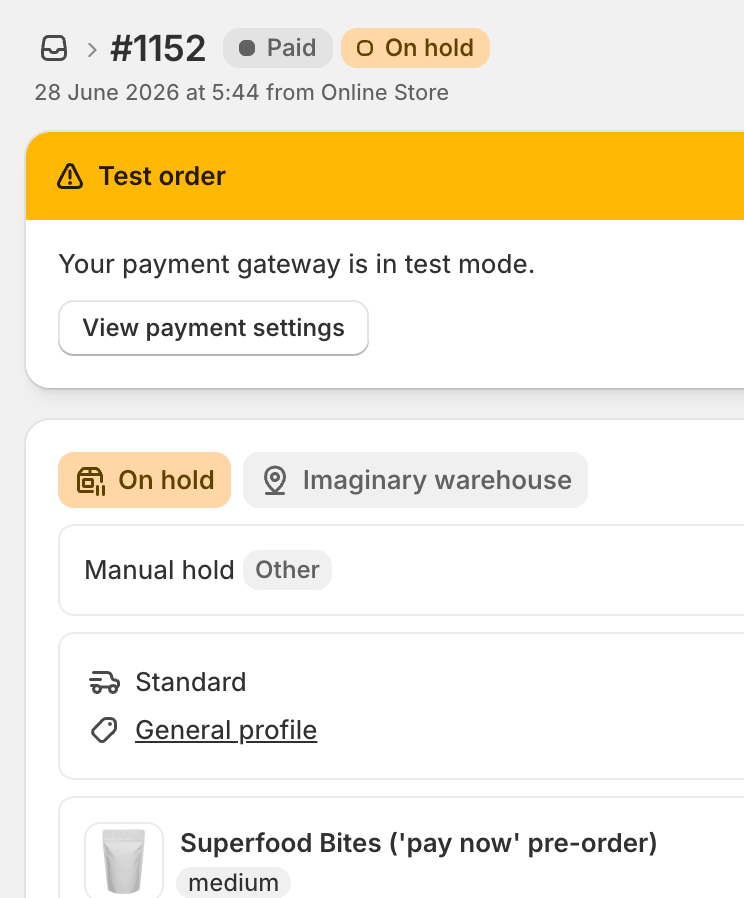
If yours ignores it, you’re back to tags, line-item properties and automation rules. We’ve written up how this plays out across different providers in our guide to managing pre-orders on your 3PL, and the same logic applies to backorders exactly.
Whatever you do, test it with a real order before you launch. Place one, watch where it goes, confirm it stopped.
Mixed Carts and Partial Fulfilment
Someone will buy a backordered t-shirt and an in-stock mug in the same order. You then choose: ship the mug now and the shirt later, or hold everything until both are ready.
Splitting costs you a second shipment. Holding annoys the customer waiting on a mug. There’s no clean answer, which is why 62.1% of stores in our data prevent mixed carts entirely and keep the two order types separate. It’s the simpler operational choice, especially early on.

Capping What You Sell
Because negative inventory is unbounded, you need a number and something to enforce it. Start with what’s actually on the purchase order, then subtract a buffer for defects and cancellations.
Do it at variant level. A restock of 200 smalls and 500 mediums needs two limits, not one product-level cap. The maths is the same whether you’re capping a backorder or a pre-order. We’ve worked through it, including per-customer purchase limits, in Can Pre-Orders Sell Out?, and covered the wider inventory picture in How to Manage Pre-Order Inventory in Shopify.
Messaging That Prevents Tickets
Say the same thing in five places: product page, cart, checkout, order confirmation, and again if the date moves. Use ranges, not promises. Send the delay email before customers ask, not after.
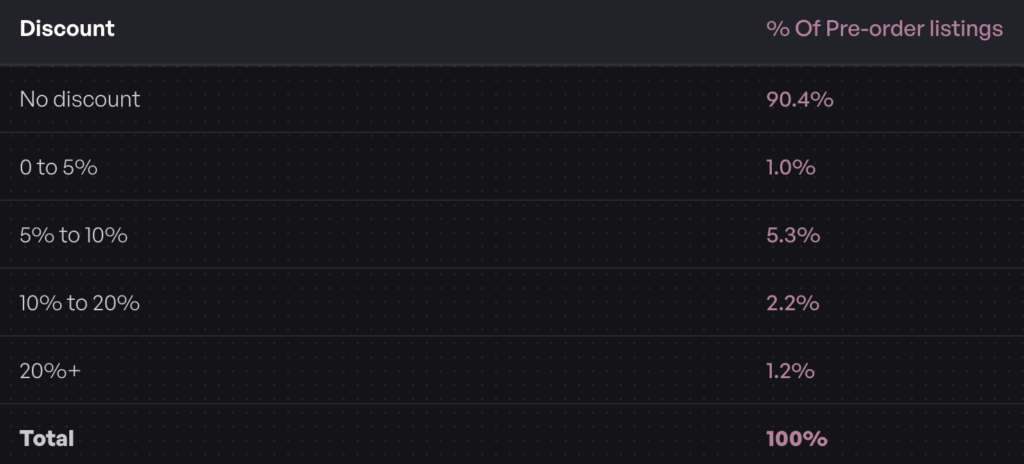
The 1M+ pre-orders dataset shows 90.4% of listings run at full price with no discount at all, so you don’t need to buy patience with margin. You need to earn it with clear dates.
When a Backorder Should Be a Pre-order Instead
Here’s the threshold, plainly. Under about 30 days, a backorder is fine. Charge upfront, ship soon, move on. That’s the right call for a core SKU with a purchase order already in transit, and anyone telling you otherwise is selling something.
Beyond 30 days, two things break. The framing stops working, because “backorder” reads as inconvenience while “pre-order” reads as early access. And charging in full for a three-month wait creates the exact refund exposure every guide on this topic then teaches you to manage.
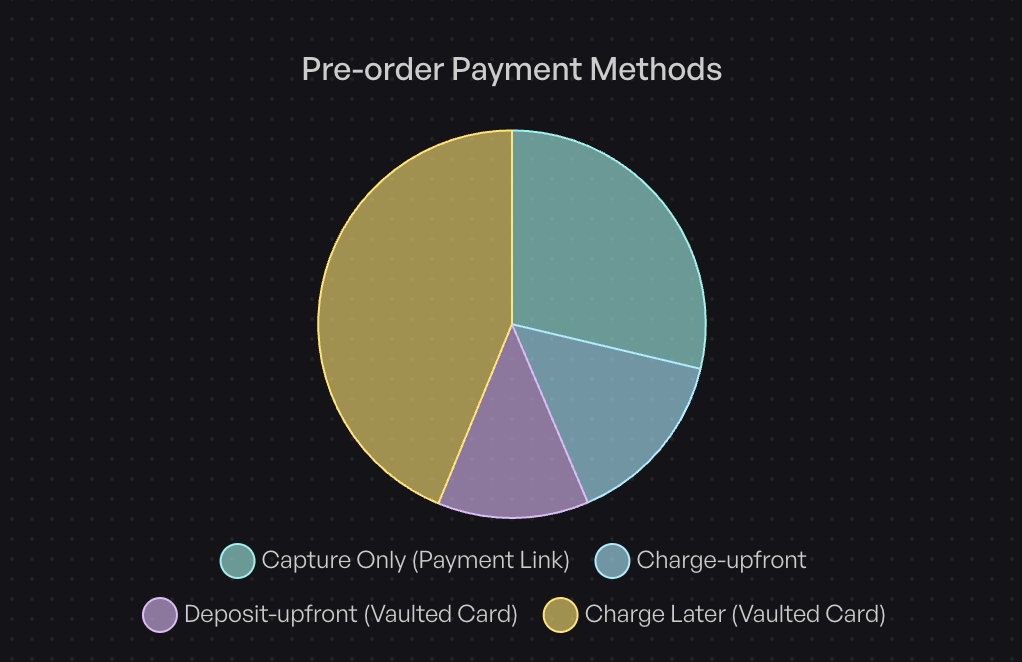
The payment side is the bigger of the two. Instead of taking the money today, you can vault the card and charge when stock lands. In our data, 43.8% of pre-order listings use charge-later, making it the most popular model by some distance. Deposits and capture-only cover the rest of the ground: a percentage now for higher-ticket items, or nothing at all until you send a payment link. There’s a full breakdown in our Shopify charge later guide.
Two numbers worth sitting with. The most common shipping window across our pre-orders is 121 to 150 days, and the average cancellation rate is 5.4%. Customers will wait four or five months, and almost all of them follow through, as long as you tell them what’s happening and don’t take their money months before you’ve earned it.
If you don’t know when stock is coming, neither approach fits. That’s when a back-in-stock notification is the honest option, or you leave the product marked unavailable. Our guide to out of stock on Shopify walks through that decision in more detail.
Frequently Asked Questions
Does Shopify Hold Backorders?
Not automatically. Shopify has an “On Hold” fulfilment status, but nothing applies it to backordered orders for you. Unless you place the hold manually or use an app that does it, a backordered order flows through to your fulfilment provider like any other.
How Do I Do a Backorder on Shopify?
Enable “Track quantity” on the variant, tick “Continue selling when out of stock”, then add expected ship messaging, change the button text, tag the order and hold fulfilment. The checkbox alone only handles checkout.
How Long Can an Item Stay on Backorder?
Technically indefinitely; Shopify doesn’t impose a limit. Practically, past roughly 30 days you should switch to a pre-order model with deferred payment, because holding a customer’s money for months is where cancellations and chargebacks come from.
Why Does My Store Still Say Out of Stock After Enabling Backorders?
Usually because the setting was applied at product level rather than to the specific variant, or the variant is stocked at a location not assigned to your online store. Check the individual variant first, then check location assignment.
Do I Need an App for Shopify Backorders?
No, if you have a small catalogue, a short restock and time to manage orders by hand. Yes, once you need caps, automatic fulfilment holds, or any control over when the customer is charged.
What Should a Backorder Notification Email Say?
Three things: what they ordered, when it ships as a date range, and what happens next. Send it at order, again if the date moves, and once more at dispatch. Vague reassurance generates more tickets than a delay does.
The Takeaway
Shopify backorders aren’t hard to enable. They’re hard to run.
The checkbox gets customers through checkout and stops there. It won’t hold fulfilment, so your 3PL ships stock you don’t have. It won’t cap anything, so you can sell 340 units against a 200-unit purchase order. It won’t tell customers when their order arrives. And it charges them in full today for something landing in three months, which is where the refunds come from.
Three things to take away. Set the toggle per variant, not per product. Test a real order end to end and confirm it stops before your warehouse. And be honest about your restock window, because past 30 days a backorder is just a worse-framed, worse-paid pre-order.
If your restock is far enough out that charging upfront feels uncomfortable, that’s your answer. PreProduct handles the half Shopify doesn’t: automatic fulfilment holds, variant-level limits, front-end messaging, and charge-later or deposit payments so you take the money when stock lands rather than months before. Start with one product, run it manually, then automate (Scale plan and up) once you trust the workflow.
Start taking pre-orders on Shopify.
Pre-sell With PreProduct
7 day free trial with all plansMigrate pre-orders
