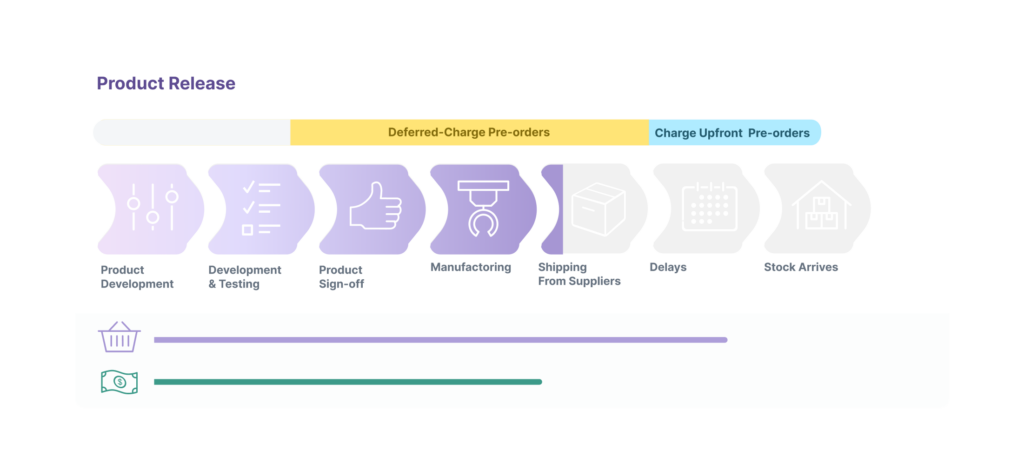
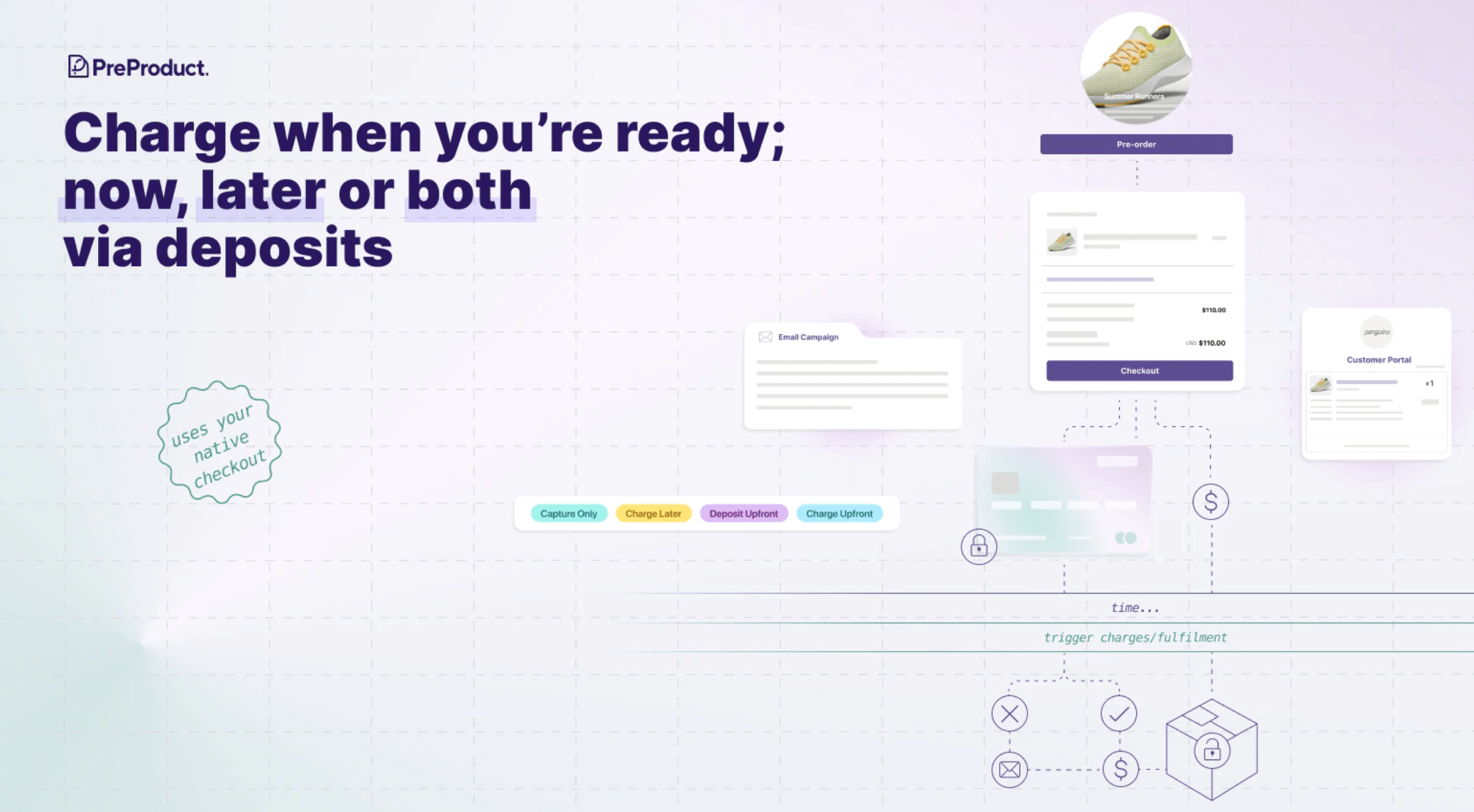
Create a custom Shopify payment link effortlessly with our free generator. These links send customers directly to your checkout page pre-populated with items. The generator is designed to be a quick convenient tool, if you’d like to automate payment links or use deferred-charge pre-orders, charged later on a vaulted card when you say so, then PreProduct may be a better fit.
Shopify Payment Link Generator
Generate a direct checkout payment link for your Shopify products.
Shopify payment links are powerful tools for e-commerce businesses, offering a direct and efficient way to guide customers through the purchasing process. These links streamline transactions by allowing customers to bypass the traditional product page and shopping cart steps, reducing friction and potentially increasing sales.
Key Advantages of Shopify Payment Links
Direct Purchasing: Send customers a link to your checkout with pre-populated items, eliminating browsing steps, perfect for DM or email interactions.
Email Campaign Integration: Embed payment links directly in marketing emails for immediate purchasing options.
Earlyaccess: Payment links work even if the product is hidden from your storefront, so can be great for early access launches (just make sure the Product admin status is set to “active”).
Discount Code Inclusion: Generate links with built-in discount codes for giving promos to specific audiences.
Maximizing Shopify Payment Link Effectiveness
To fully leverage the potential of your Shopify payment links:
Targeted Email Campaigns: Use payment links in newsletters or promotional emails to provide a direct path to purchase specific items or deals.
Quick Customer Service: Resolve inquiries rapidly by sending payment links for discussed products or easy reorders.
Social Media Sales: Share payment links on platforms like Instagram or Facebook to convert interest into immediate sales.
Promotional Strategies: Create urgency with time-sensitive deals using links that include limited-time discount codes.
Shopify payment links simplify the path from buyer intent to purchase, reducing barriers and potentially boosting conversion rates. By offering a more streamlined shopping experience, these links can be particularly effective when offered to individuals or specific customer cohorts.
We also have a YouTube version of this article here.
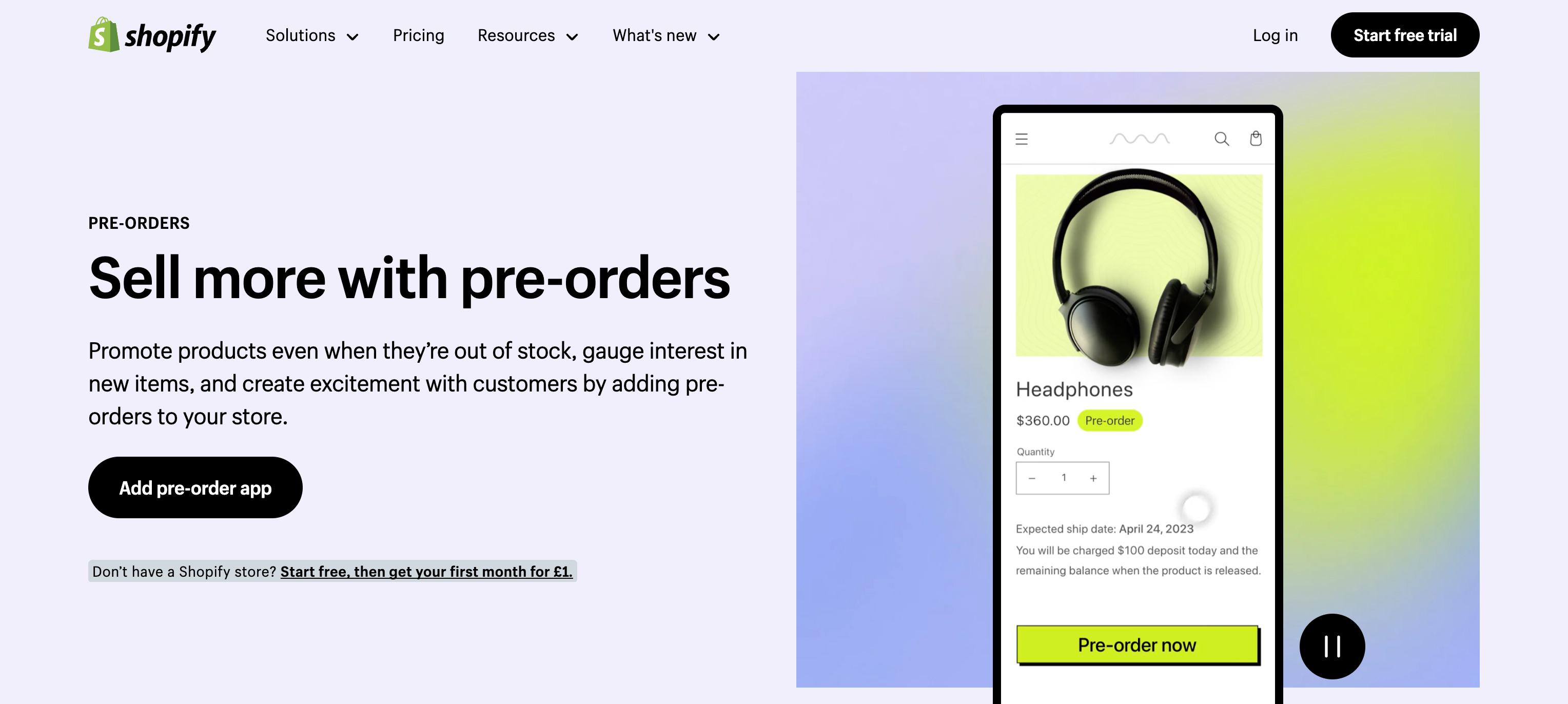
Introducing pre-orders for growth on Shopify
Looking to increase Shopify sales? The secret can lie in effective pre-order strategies. This article cuts straight to the point, providing six practical tactics that translate customer interest into secured revenue; crafting urgency, exclusivity, and increasing average order value to name a few. We’ll guide you through these methods and showcase how they’re each working for real-life online stores.
Key Takeaways
Pre-orders can significantly boost Shopify sales by creating urgency, leveraging influencer marketing, increasing average order value, and securing revenue before inventory is available.
Tactical pre-order strategies including limited edition items, exclusive discounts, charge-later options, time-limited availability, sustainable practices, and offering exclusive benefits can enhance customer engagement, loyalty, and overall sales.
To maximize the effectiveness of pre-orders, it’s essential to employ an effective customer centric marketing strategy. That way you can engage customers with a compelling narrative, offer flexibility, align pre-order strategies with brand values, and maintain transparent communication.
Implementing loyalty programs can enhance customer engagement, improve retention rates, and motivate repeat purchases.
https://www.shopify.com/pre-orders
Why and How Pre-Orders Can Increase Sales on Shopify
Stepping into the ecommerce store arena, you quickly learn that the key to a thriving Shopify store is not just attracting potential customers but converting their interest into actual sales. Pre-orders let you do this before stock hits your warehouse. Imagine the power of knowing your product is sold even before it’s physically available. It’s a strategy that transforms potential customers into committed buyers and increases customer retention in an otherwise volatile online shopping environment.
But how exactly do pre-orders amplify your Shopify store’s performance? Pre-orders can build a compelling sense of urgency by bridging the gap between anticipation and ownership. As the launch date nears, exclusive ad campaigns, early bird discounts, and time-sensitive offers can coax the prospective customers from the sidelines and into an action. Utilizing Google ads alongside other paid advertising platforms like Facebook and Instagram can further enhance these campaigns, driving targeted traffic and boosting sales. This urgency can be manufactured by employing a customer-centric playbook designed for increasing sales on Shopify.
Tried and Tested Shopify Pre-order Strategies
Now, let’s dive into each strategy in the form of mini case studies. The ecommerce market thrives on innovation, and pre-order strategies are a testament to this. These six strategies are proven tactics that can boost conversions. From limited editions that sell out rapidly to exclusive discounts that spur customers to click ‘pre-order’, each strategy is essential for boosting conversions and enhancing the performance of your ecommerce business or Shopify store. Additionally, bolting on additional marketing techniques like loyalty programs can further boost conversions and enhance customer engagement.
We’ll explore the mechanisms behind these strategies and how you can tailor them to fit your online store.
Pre-orders on Shopify
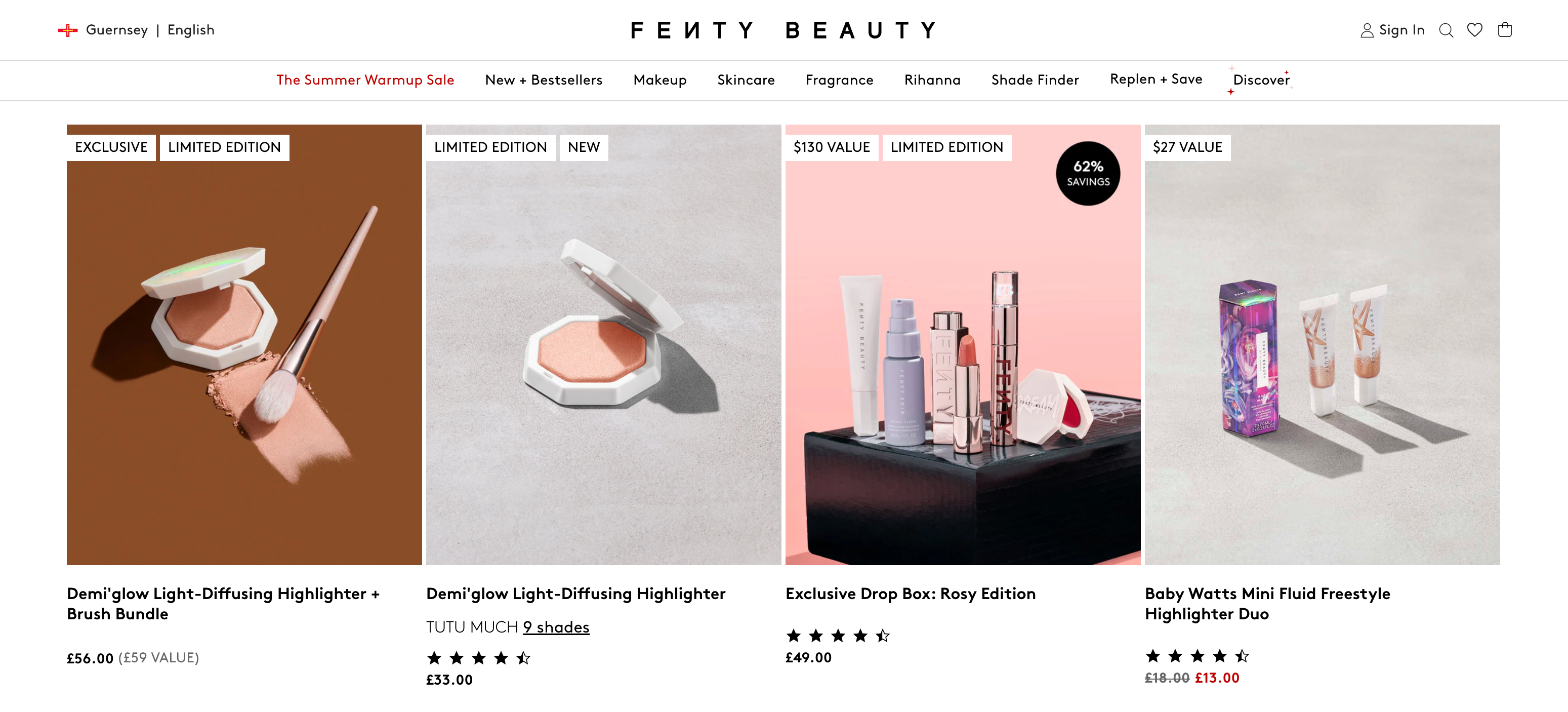
1. Limited editions pre-orders (Fenty Beauty)
Fenty Beauty’s limited edition pre-orders capitalize on the power of scarcity. Each exclusive launch generates significant excitement among customers, leveraging the brand’s association with Rihanna and aligning product releases with major events to maximize impact. The strategy isn’t just about celebrity influence; it’s about creating a compelling narrative around unique, one-time-only products.
When Fenty Beauty releases a limited edition product, the buzz generated drives significant interest and sales. This approach involves cohesive brand messaging across all customer touchpoints, supported by digital advertising, Google ads, and search engine optimization to maintain visibility and engagement.
The allure of limited edition pre-orders lies in the exclusive, unrepeatable nature of the products, which attracts a dedicated following eager for the next release. However, this strategy also requires meticulous planning and brand management to ensure each launch meets high expectations and reinforces the brand’s commitment to quality and innovation.
Tip: Creating Artificial Scarcity with limited edition BundlesIf you don’t have a fixed amount of units, consider releasing a bundle as a limited edition with an artificial limit. This strategy allows you to create a sense of exclusivity and urgency without needing to precisely manage inventory quantities. By curating a unique bundle and setting a cap on availability, you can drive pre-orders and excitement, effectively leveraging the power of scarcity to boost sales.
fentybeauty.com/collections/limited-edition
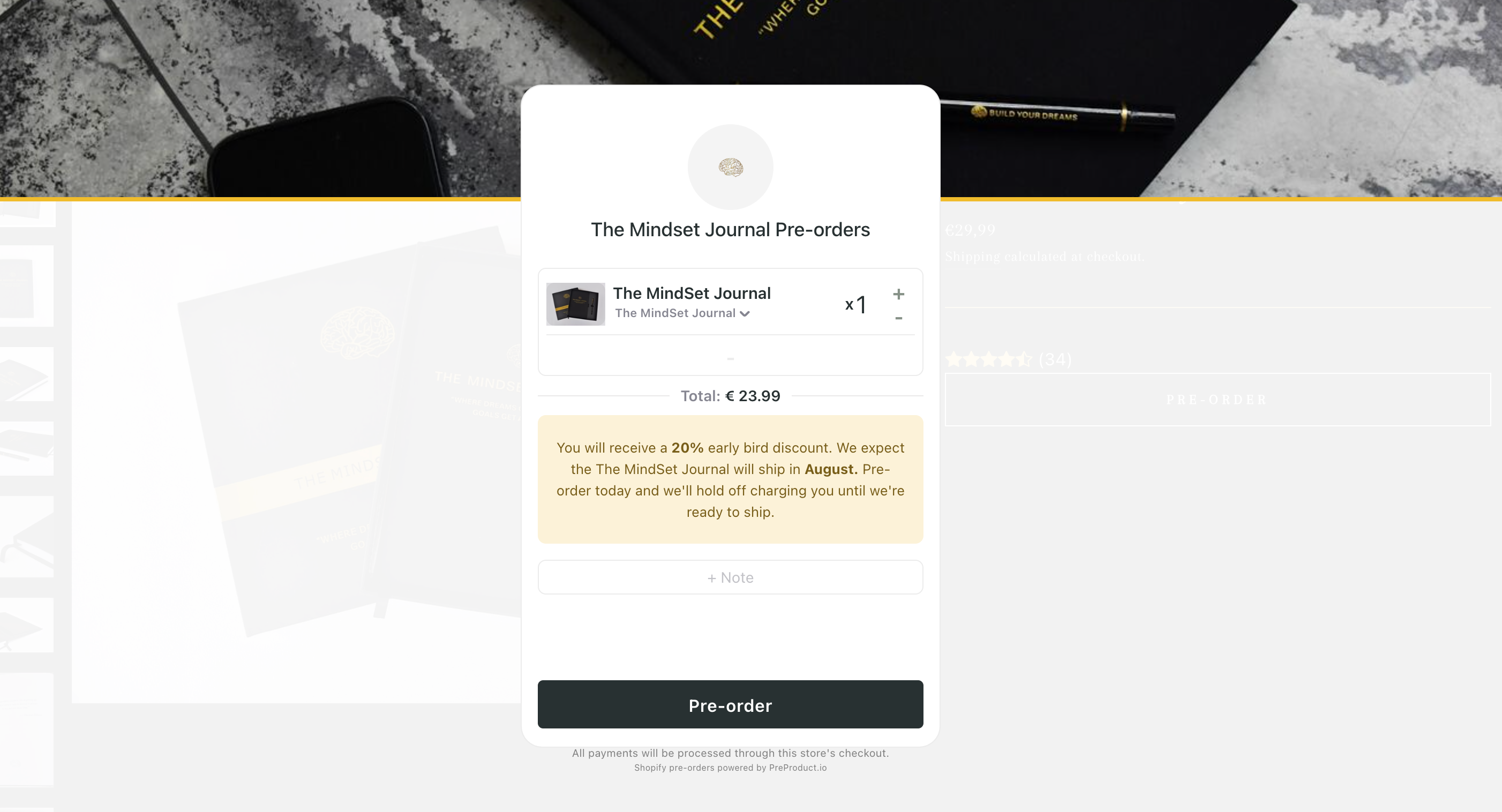
2. Exclusive Pre-order Discounts (The Mindset Journal)
Moving on from specific limited editions, limited discounts can be employed as well. The magnetic pull of an exclusive deal really plays our sense of FOMO. A customer of ours at PreProduct, The Mindset Journal puts this to great effect with an exclusive 20% discount on pre-orders of their V1 product. Pre-order discounts, don’t use a catch-all discount code; but are early bird specials that are only received when the product is purchased as a pre-order. This can propel customers to lock in the lower prices before they’re gone.
This strategy can be a great way to increase Shopify sales, as it allows you to discount without deprecating the perceived value of the product. i.e. the sub-text is that the item is discounted as it’s new, not because it’s failing to shift from shelves. The core mechanics of the Mindset Journal’s offering is:
A 20% discount to early adopters.
A valuable personal development tool at a bargain price.
Early sales and customer loyalty even before the product ships.
Incentivizing early purchases through loyalty programs to improve customer retention.
themindsetjournals.com/
The Mindset Journal can then drive traffic and attract customers by:
Explaining the discount codes in promotional emails
Leveraging their social media presence and organic traffic
Providing an additional 5% off for mailing list subscribers or influencer campaigns (Shopify discount codes can stack on top of pre-order discounts)
These tactics paired with traffic can create a cascade of incentives that increase customer retention, keeping loyal customers coming back for more.
Moreover, exclusive pre-order discounts often lead to repeat purchases. Customers who snag a deal are more likely to return, trusting they’ll find value and savings again. This strategy not only boosts sales on Shopify but also gives The Mindset Journal an additional reason to send marketing emails and communications.
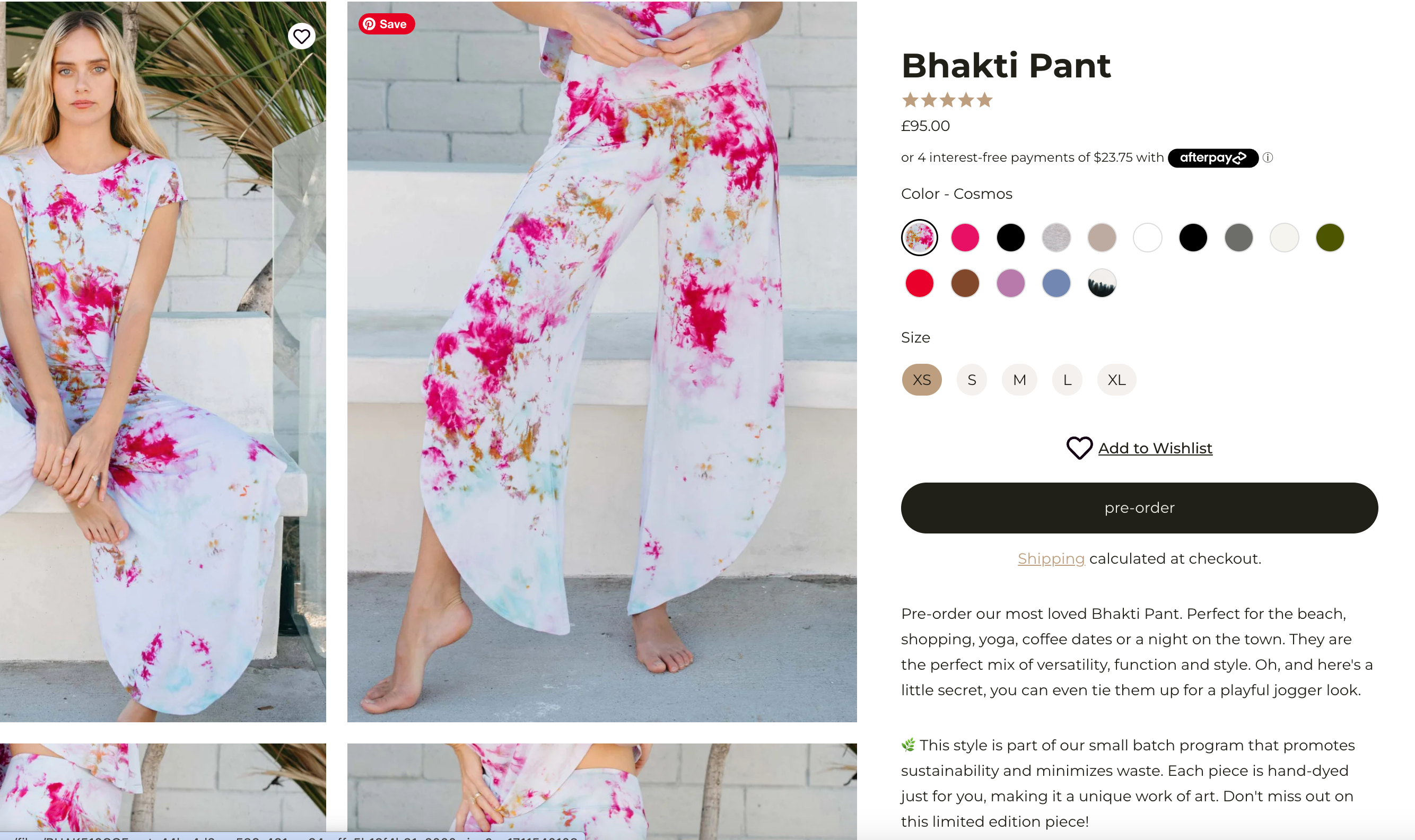
Jala Clothing’s approach to pre-orders focuses on giving a 100% charge-later pre-order option, ensuring customers are not billed until their item is ready to ship. This strategy helps manage customer expectations and good will, as no money changes hands until Jala are ready.
On the The Bhakti Pant (a collection that’s on pre-order at the time or writing) product descriptions, the marketing copy talks about a smaller batch, mindful fashion approach, that promotes sustainability and limits waste, with each piece being a unique hand-dyed creation. By marketing these aspects, Jala Clothing appeals to customers who make purchasing decisions based on a brand’s environmental responsibility as well as the $0 upfront incentive to lock in a pair.
Charge-later pre-orders offer the following logistical benefits:
Flexibility in fulfilment, especially for items with delayed shipping or those that offer free shipping
Transparency about shipping estimates and updates to customers, without the risk of customers being frustrated that they’ve already parted with their hard earned cash.
Moreover, flexible charging options can be a boon for cash flow management. Shopify store owners can utilise apps like PreProduct to establish pay-later terms that fit their inventory and financial strategy. As well as techniques like shoppable videos to drive trust and excitement for the product on pre-order.
jalaclothing.com
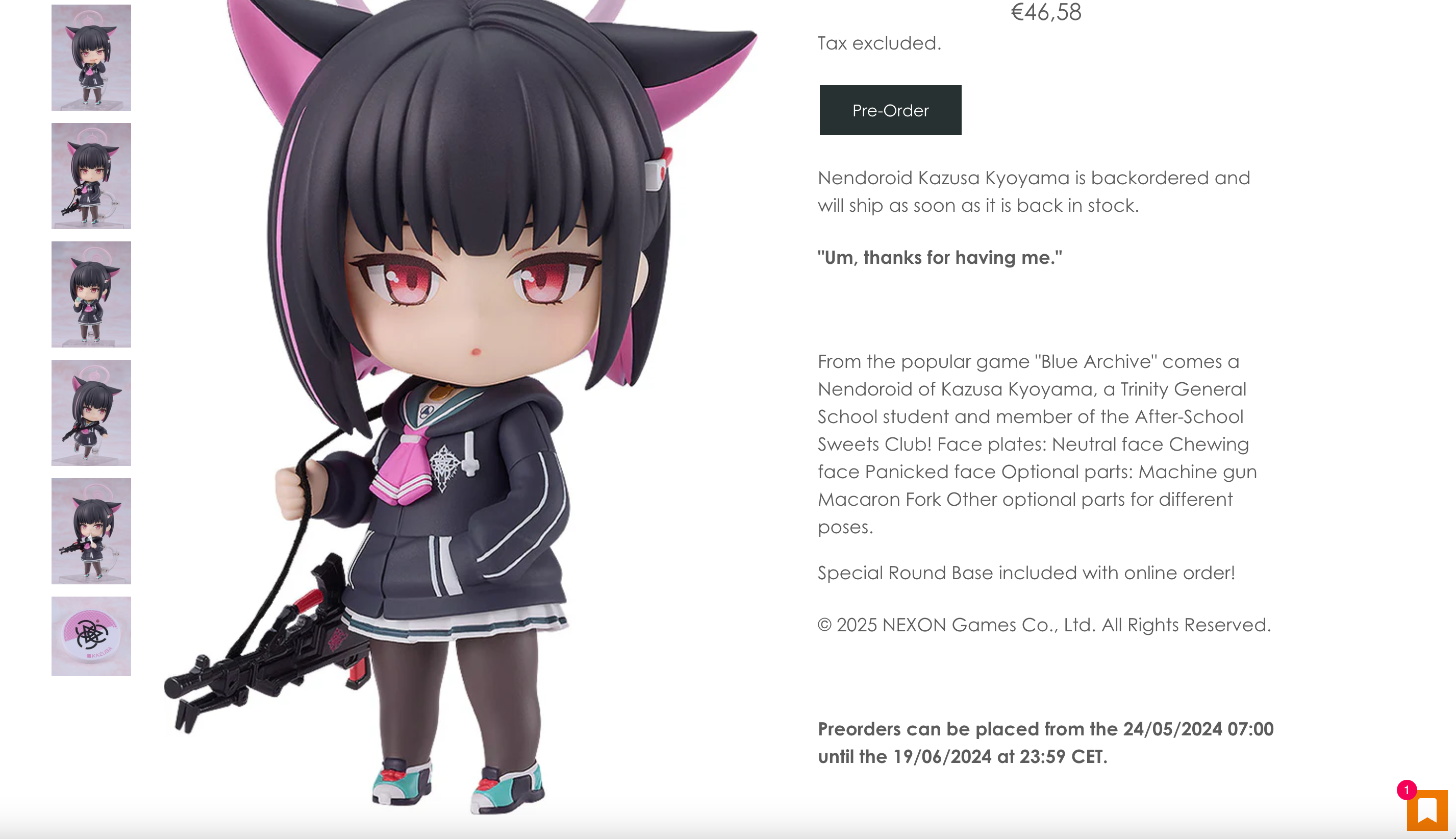
4. Offer Time-Limited Pre-Orders (Good Smile)
Moving to the next of the pre-order strategies, Good Smile (a hobby store out of Japan) shows how time can becomes a powerful lever. They offer pre-orders from their store page for a limited time period; creating a ticking clock that encourages customers to act swiftly. Sometimes offering products for as little as 24-hours. This is an incredible way to generate sales from a heightened sense of urgency and induced quick decision-making.
This strategy plays on the psychological trigger of scarcity, compelling customers to make a purchase before time runs out. It’s a potent tool that not only boosts sales but also enhances the online shopping experience by making it more thrilling and interactive. Customers become part of an exclusive event, racing against time to secure their desired items.
goodsmileeurope.com
The success of time-limited pre-orders lies in their ability to create a buzz around a product launch. The limited availability window is a signal to customers that they’re getting access to something special, something not everyone will have the chance to own. This exclusivity feeds into the desire to be part of a select group and can lead to a significant boost in sales.
Furthermore, the sense of urgency generated by Good Smile’s strategy is not only beneficial for the initial launch but can also have a ripple effect on future releases. Customers who miss out on one timed pre-order are more likely to pay attention to subsequent launches, increasing the chances of early engagement and securing sales well before the official release date.
5. Sustainable Pre-Order Practices for Customer Retention (Frahm Jackets)
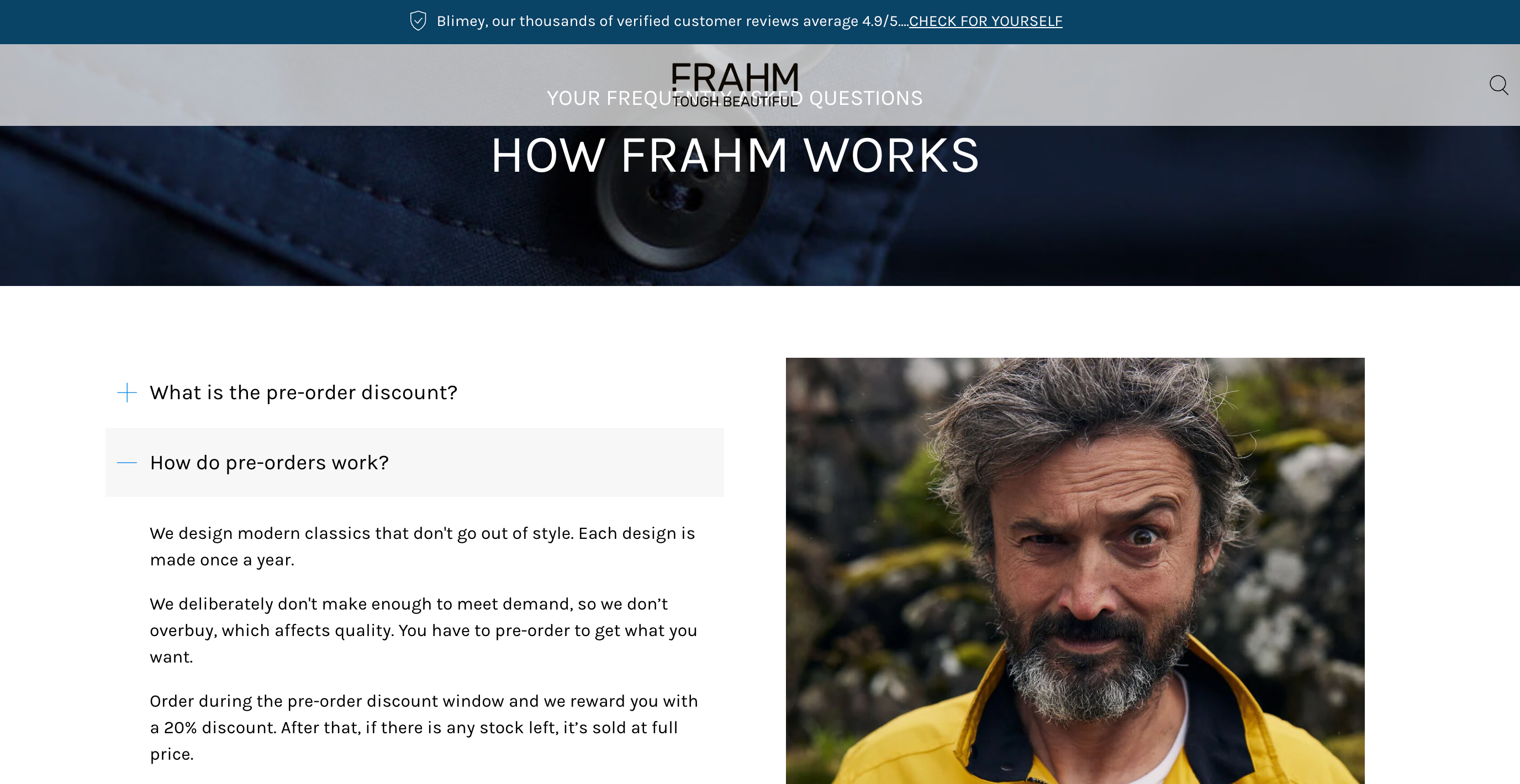
Leading the charge in ethical business practices, Frahm Jackets takes sustainable pre-ordering to heart. Their approach includes:
A buying experience that’s exclusive to pre-orders, ensuring no excess production (sometimes known as made-to-order)
Increased boost to their reputation and culture of sustainability
Resonating with a growing segment of consumers who prioritize the environmental impact of their purchasing decisions.
Frahm’s allows customers to pre-buy their coveted jackets, fostering a sense of commitment and anticipation, whilst being part of a clique. It’s a model that not only reduces waste but also builds a narrative of conscious consumerism around the brand.
“We design modern classics that don’t go out of style. Each design is made once a year.We deliberately don’t make enough to meet demand, so we don’t overbuy, which affects quality. You have to pre-order to get what you want.”
Communication is crucial in this process. Frahm makes it a point to clearly mention dispatch dates and keep customers updated on their order’s shipment and delivery. This level of transparency nurtures customer trust and loyalty, leading to repeat purchases and a robust, social media marketing presence that can amplify the brand’s message of sustainability.
Moreover, by aligning their business practices with the values of their target customers and audience, Frahm Jackets cultivates a brand image that is not only about selling a product but also about promoting a lifestyle. This deeper connection with customers can translate into a more engaged and dedicated following, willing to advocate for the brand and its principles.
frahmjacket.com/pages/why-preorder
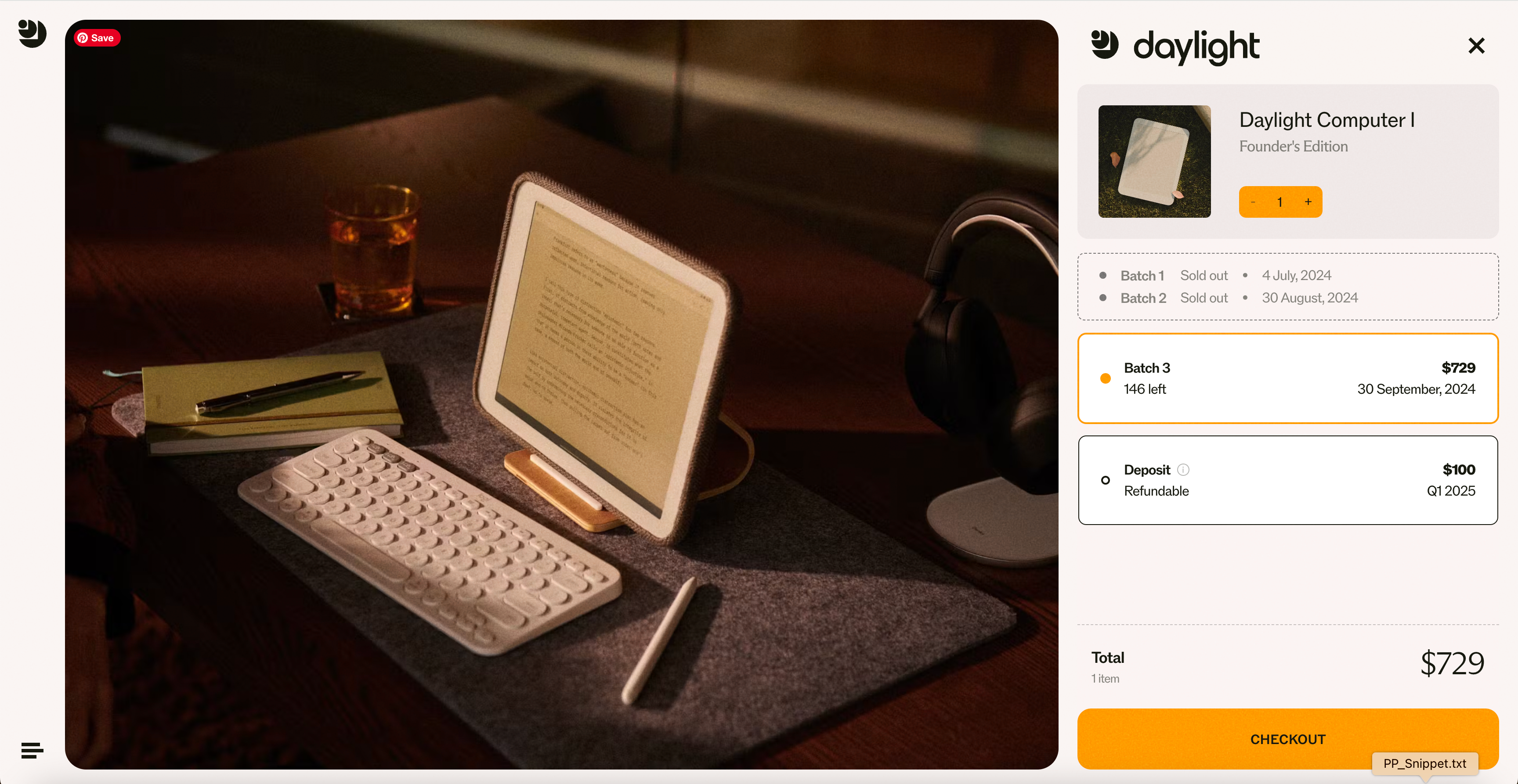
6. Insiders Club – Exclusive Pre-Order Benefits and Status for Loyal Customers (Daylight Computer)
Our final pre-order strategy takes us into the tech world with Daylight Computer. When talking about pre-orders, they call them “founders editions”, thus creating an insider’s club that rewards customer engagement and loyalty. This strategy provides intangible value to pre-order customers, making them feel like VIPs with access to behind-the-scenes updates and special treatment.
This approach transforms the pre-order process into an experience rather than a transaction. Customers aren’t just buying a product; they’re buying into a journey that unfolds over time, with Daylight Computer guiding them every step of the way. This feeling can be bolstered with exclusive updates, product pages and insider information keeps customers connected and invested in the brand.
The benefits of this strategy extend beyond the initial sale. Fostering a sense of belonging and exclusivity strengthens customer relationships, leading to increased loyalty and advocacy among existing customers. Implementing a customer loyalty program can further enhance this effect and increase Shopify sales. And when customers feel like they are part of something special, they’re more likely to share their experiences on social media platforms, providing valuable user-generated content that can boost sales and attract new customers.
Oh this is interesting. Especially love the writing example. Preordered. https://t.co/sBiSvfBadq
Furthermore, exclusive benefits can come with a call to action that encourages customers to share and become one of the first to receive the product, these incentives are a powerful motivator for customers to commit early, ensuring Daylight Computer secures sales and bolsters their buyers journey well before the product’s official release.
daylightcomputer.com
Conclusion and next steps to increase Shopify sales through pre-orders
In review, these six proven pre-order strategies are a masterclass in ecommerce marketing. From the excitement of limited runs to the allure of exclusive discounts and sustainable practices, there’s a strategy for every Shopify store looking to boost its performance. The essence of a successful pre-order strategy lies in creating a compelling customer journey, tapping into the psychology of anticipation and reward. (Oh and don’t forget to track your experiments, using an analytics platform like Google Analytics or Attribuly)
So, what’s the next step for your Shopify store? Embrace the strategies that resonate with you, align them with your brand’s values, and start implementing pre-orders to increase sales and build a stronger connection with your audience. Unlocking the potential of pre-orders can transform a good Shopify store into a great one. By driving urgency, offering value, and resonating with your target audience, you can enhance the shopping experience and foster a loyal customer base.
In addition to pre-orders, leveraging Google Ads can effectively target specific audiences and top search results. You can also find other high-impact optimizations by browsing a service like Taranker, which curates top-rated Shopify apps. These strategies help boost Shopify sales, drive better customer engagement, and build a more successful store.
At PreProduct, we’re always happy to talk pre-orders, so feel free to drop us an email. Alternatively, if you’re ready to start capturing pre-orders of your own, PreProduct runs them at scale alongside your in-stock range, charged and fulfilled when you say so, and we currently have free trials on all of our subscription plans, as well as a commission only option.
Shopify pre-order strategy FAQ
How do I know which pre-order strategy will increase my Shopify sales?
Choose a pre-order strategy that aligns with your brand’s values and goals, considering your target audience and product uniqueness. Test various approaches to see which resonates best with your customers.
Can pre-orders really increase my store’s sales?
Yes, pre-orders can significantly increase your store’s sales by locking in revenue before stock arrival, creating a sense of urgency, and offering exclusive benefits to customers. It’s a proven method to boost sales and customer retention.
Are there any risks associated with pre-orders?
Yes, there are risks such as failing to meet shipping estimates and customer expectations. Transparency and clear communication are crucial to maintaining trust and satisfaction. Offering charge-later or deposit-upfront pre-orders can also mitigate some risks.
How do I manage customer expectations for products that aren’t immediately available?
Set a clear estimated ship date on the product page and in your pre-order policy, so customers know when to expect their order before they buy. Confirm each pre-order by email, send updates as the date gets closer and tell customers straight away if anything slips. A customer portal where they can check their order status and any payment schedule also cuts down on support emails.
The secret’s out that the direct to consumer (DTC) model is a great business strategy, allowing brands to bypass traditional middlemen and connect directly with consumers. Also, social media ads, which is often the primary DTC marketing strategy isn’t what it once was. Read on to discover how some of the most prevalent brands bust through plateaus with new product releases.
In the dynamic world of DTC, there’s always room to innovate and redefine the game. This could mean introducing a complementary product or branching out into a new domain altogether. A list of product strategies from some of the greatest names in DTC has been put together, detailing 10 standout DTC marketing strategies.
Whether you’re a budding entrepreneur or an established brand, hopefully these mini case studies offer a fresh perspective and perhaps even spark the inspiration you need to revolutionise your next product strategy.
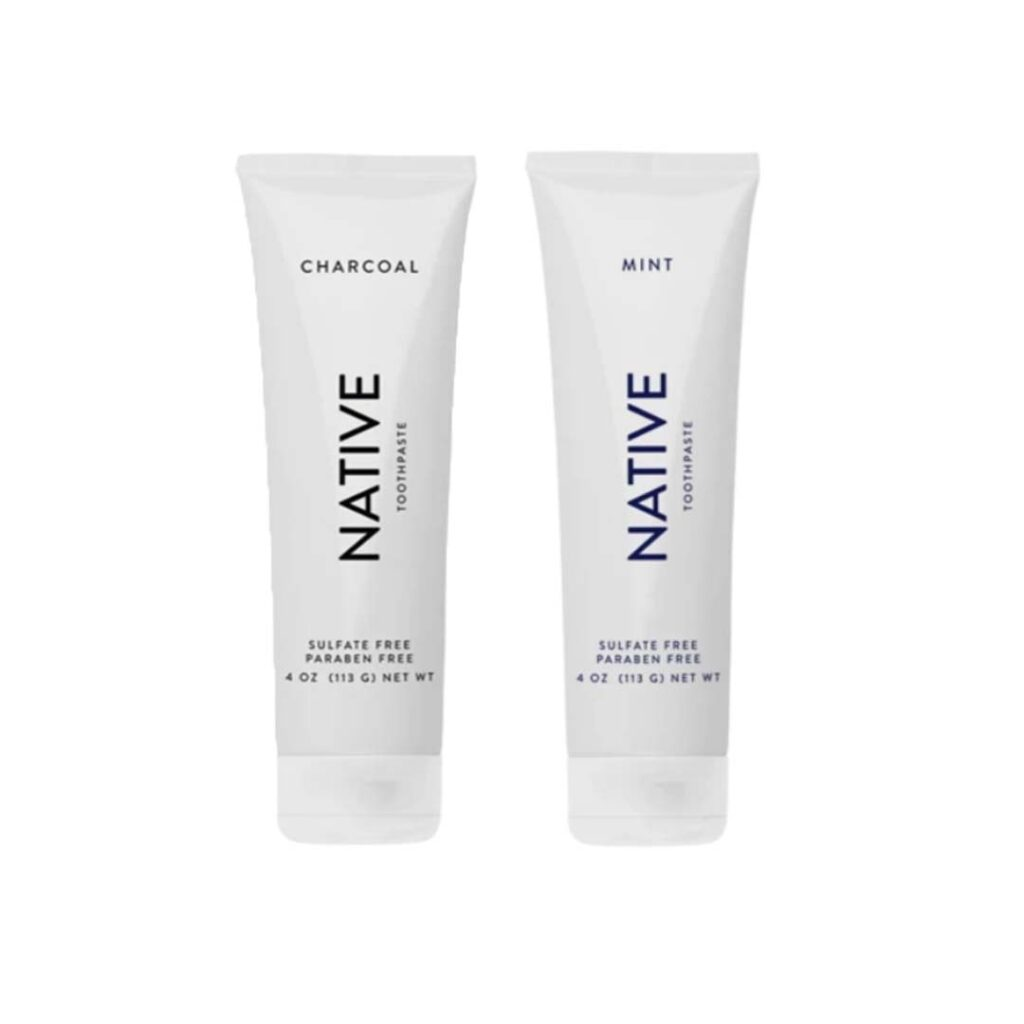
Native had success with deodorant, then moved into similar self-care categories where they could also apply their brand’s philosophy.
Why new product development strategies are so important for DTC brands
In the fast-evolving world of Direct to Consumer business, staying ahead of the curve is not just a luxury – it’s a necessity. Escaping the gate keepers of retail is great, but it also puts more responsibility on the brand to generate customer hype, build brand awareness and raise demand. Here’s why introducing new products can be so powerful for a DTC brand:
Maintaining relevance
As consumer preferences shift, so too must a brand’s offerings. By regularly introducing new products, DTC brands can stay attuned to the latest market trends and consumer demands; ensuring they continue to delight customers.
Diversifying revenue streams
Relying on a single product or a narrow range can put a brand in a vulnerable position. New product lines mean diversification, which can safeguard a company from economic fluctuations and changing market attitudes.
Increasing customer lifetime value
With each new product introduced, DTC brands stand to gain a competitive advantage and an opportunity to upsell or cross-sell to their target market. This not only boosts revenue but increases the average lifetime value of each customer.
Strengthening brand identity
Launching new products can reinforce a brand personality and reputation, further solidifying that ephemeral idea of your “brand” in people’s minds. This can set a label apart in a crowded market, making it more memorable and trusted.
Exploiting the power of social media advertising
With social media, there’s the eternal question of “what to post about”? Launching a fresh product gives you a whole new platform to build buzz around and renew target audience engagement. Whether that’s via influencer marketing, posts/stories/reals or Youtube content.
Incorporating customer feedback
Every time you start the new product development process, it’s an opportunity to pull from social media users, focus groups and loyal customers. This can be digested by a talented product development team to bolster idea generation, resulting in new additions to your product line that boost sales and brand loyalty for years to come.
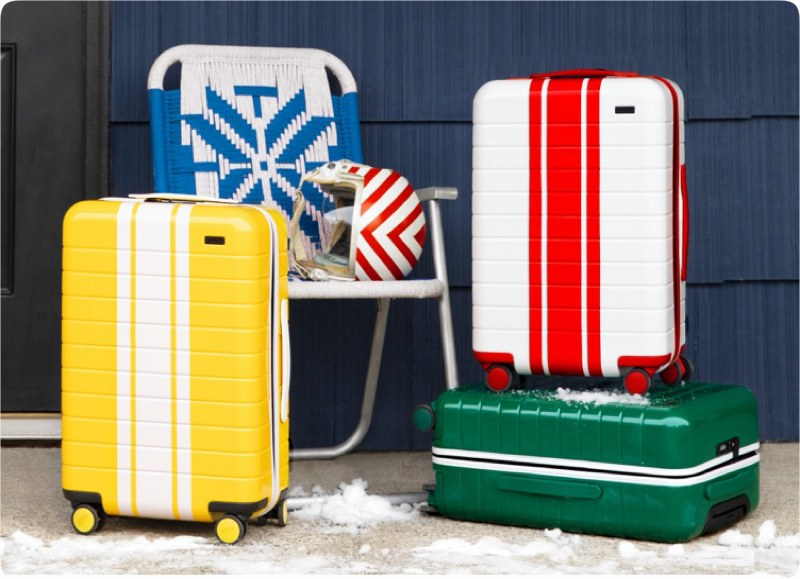
Away “luggage” founder explains inspiration behind the new range: “We were inspired by the nostalgia associated with some of our favourite iconic mountain towns”.
How to pick a new product development strategy for your DTC brand
Before diving into the new product development strategies of 10 successful DTC brands, let’s quickly cover some factors to keep in mind. Ensuring that your selection and filtering criteria is on point is important when putting together an effective strategy for new product creation.
Know your audience
Use DTC marketing research and insights from social media users to understand your target market’s needs and preferences.
Analyse current successes
Assess your existing products to inform new product offerings. What’s resonated with your target market before? Can you do more of it?
Leverage digital engagement
Embrace digital channels like social media marketing and email marketing to obtain real-time feedback and engage users. This might be more indirect, like a general sense of a gap or need in the existing market. Or it could be something very specific like “our customers keep on asking for a dental floss product to compliment our charcoal toothpaste range”.
Consider non-comital pre-orders
Of course I’m going to sneak pre-orders into the list! Taking capture-only or 100% charge-later pre-orders can be a great way to gauge a successful product before committing to tooling and stock. Using a tool like PreProduct you can take pre-orders that don’t charge customers a cent until you trigger charges, then hold them back from fulfilment until stock lands.
Iterative testing
Consider testing product concepts with real market testing. Whilst traditionally this is done with focus groups, mocking up a few examples of the product and driving traffic to them via Meta ads is much more appropriate for the digital era.
Explore DTC marketing avenues
Consider future distribution channels and your marketing mix. How is this product going to be marketed? What could future examples of SMS marketing look like? What would other examples from different marketing channels look like? Working backwards like this can keep you on track and ensure you don’t start diverging from reality.
Risk appetite
Can you leverage existing tooling and partners for this new product concept or will it require more expensive and elaborate setup? And hand-in-hand with this: an incremental product idea based on existing products will carry less risk of not selling than a brand new product range. The Basecamp “Shape Up” methodology has a similar idea called “Setting the appetite”, is this product concept worthy of its foreseeable risk and time needed?
In essence, a well-chosen product development strategy should balance your learned insights in the market, innovation, risk appetite and authentic brand image. Considering these points before committing to a product development strategy or process helps DTC brands be aware of risks, whilst giving themselves the best chance of success.
DTC marketing case studies
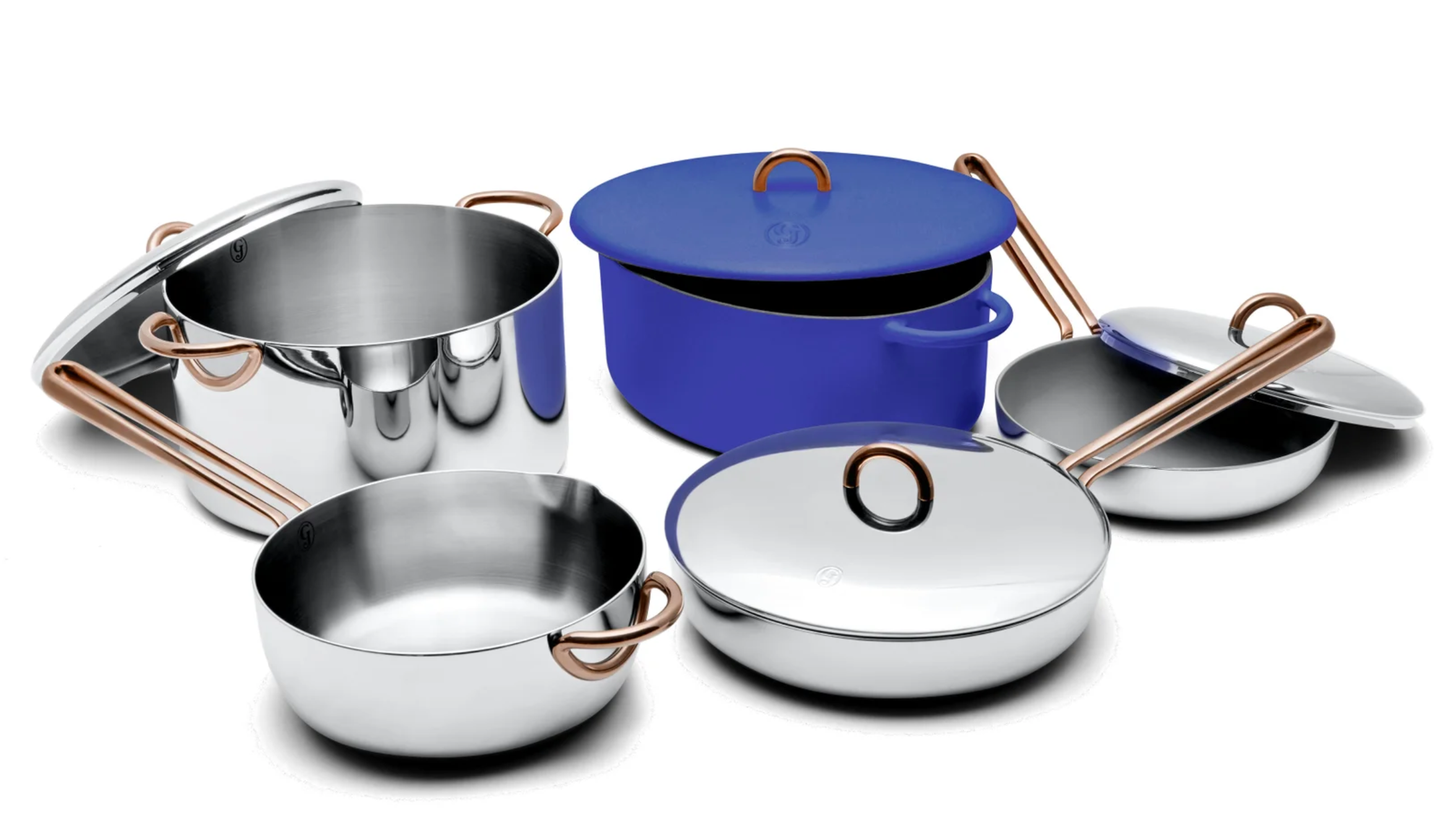
1. Release a pro-grade product at a casual consumer price point (Great Jones)
Direct-to-consumer cookware brand Great Jones, sells great looking chef-grade products at affordable prices. Co-founder, Sierra Tishgart, explains their cookware innovation strategy; “My pots and pans are highly visible design pieces in my home”, this insight of bringing great design to a fairly drab category, combined with lower pricing for professional quality has helped catapult Great Jones into the industry.
Their range centres around enameled cast-iron Dutch ovens and chef-grade skillets, using the same materials as high-end brands to ensure even distribution of heat during cooking. Instead of basing their market research on consumers, they focused their efforts on chefs. This approach helped them release a high quality product and not just appear to be one.
Making an unattainable product affordable, whilst driving credibility through design is a strategy put to great effect by D2C brands such as Brooklinen and Away. Are there products in your industry usually reserved for professionals that you can now sell at an accessible price point? With the ability to sell directly to consumers through your online store and avoid retailer margins, some of these traditionally higher-priced products may now be commercially viable at lower price points.
Great Jones cookware makes professional standard cookware accessible to home cooks
2. Target a narrow niche, then expand to the rest of the category (Native deodorant)
Natural deodorant brand, Native (acquired by P&G in 2017) kickstarted the ‘cleaner’ deodorant market trends, with the goal of making it easier to consume less harmful ingredients. “The personal care industry has been lazy in making sure its products are safe, and we’re not having it”. Native started out with a highly successful deodorant range, that manages to balance ‘healthy’ and ‘clean’ whilst still managing to capture the premium cues of an upmarket health product with their communications and DTC marketing.
With a passionate customer-base and authority in the space, they set their sights on expanding their offering to other items in the bathroom essentials space. Charcoal as an ingredient and process (charcoal filtering) has experienced huge growth in the past 5 years, with google search volume for ‘charcoal toothpaste’ increasing 1300% from 2016 to 2017. Native used this trend to supercharge their foray into the toothpaste category. By offering a new range of charcoal toothpaste to an existing customer base, they were able to stack the deck in their favour.
Finding an emerging trend that is congruent with your brand could help catapult your next product into the market. With the spoils being, easier press coverage, large volumes of word of mouth marketing, search traffic and other early mover advantages. Are there products that are used in the same customer ritual that you currently cater to? You could research possible opportunities through influential blogs, Google trends or customer interviews. As long as the new product fits in with your brand, this process could open up a whole new market for your business.
3. Expands your online offering by selling partner products (Brooklinen)
DTC brand, Brooklinen was birthed from the frustration that a husband and wife had with the high prices of luxury-grade linen. Six years later and they run a highly successful online brand with passionate customers and have raised sixty million dollars in venture funding.
After a while, customers were looking to Brooklinen for advice and curation not only for sheets, but for the rest of the bedroom as well. A privileged position to be in, but with a core competency in fabrics and a high standard for the products they put out, going too wide with their product offering didn’t seem wise.
Instead, they did something unexpected… Spaces by Brooklinen launched nearly a year ago and is a user-friendly marketplace concept offering a highly curated assortment of home goods from like-minded partner brands, as well as independent designers and artisans.
Selling partner products isn’t typical for a DTC brand, but the high calibre products chosen are completely on-brand for Brooklinen. Plus, they can now sell more to customers who are asking for products outside of their portfolio.
Opening a partner marketplace is obviously very ambitious and probably requires a large customer base. However, maybe you could partner with a handful of companies instead? Are there brands with a similar ethos, selling in your industry, but with non-competing products? This could increase your average order value and mean future customers recognize you from within your partner’s following.
Dog-care brand, Bark has developed a new purpose-lead product range of dog food. Not only do Bark give partial proceeds to dog charities (a cause that is near certain to be close to their customer’s hearts). They have also centred each variant around an American city or state, with proceeds going to that area’s dog charity. Not only is this an opportunity to speak to customers in a more focused way, it also offers great inspiration for flavours and packaging design.
Letting a customer support local, whilst giving to a cause close to their hearts is very compelling. Is there an opportunity for you to release multiple variants of a new product, each centred on a geographical region or city? Variants could be inspired by local cuisine, a famous figure or a stereotypical design-style. This method might even be used as a customer recruitment tool, effectively being a way to niche down with your DTC marketing via different smaller markets, whilst keeping your brand and product fundamentals intact.
5. Launch products behind a pay wall (Beauty Pie)
High-end DTC beauty brand, Beauty Pie launched by serial entrepreneur Marcia Kilgore, operates on a paid membership basis. You need to buy a monthly or yearly subscription to get access to the products.
The concept is based around the fact that most premium beauty brands use the same outsourced labs and manufacturers, Beauty Pie’s innovation is to be upfront with customers about this and offer their lines at ‘factory prices’, thus saving money without sacrificing on quality.
The company’s messaging and PR all point towards the subscription cost being how the brand makes their money. They’ve even been dubbed the ’Netflix of Beauty’ and go to the extent of offering different membership tiers with caps on how much customers are allowed to spend on the site.
Beauty Pie are affectively running a ‘recurring revenue’ style business model. With a subscription business, customers are charged every month whether they receive goods for not. Whilst basing a whole business around this concept may be hard to do, is there a way you could put certain areas of your brand behind a paywall or membership program? Maybe in return for exclusives, early access or even annual product refurbs? This could potentially add to your monthly revenue, without increasing unit sales or even having to acquire new customers.
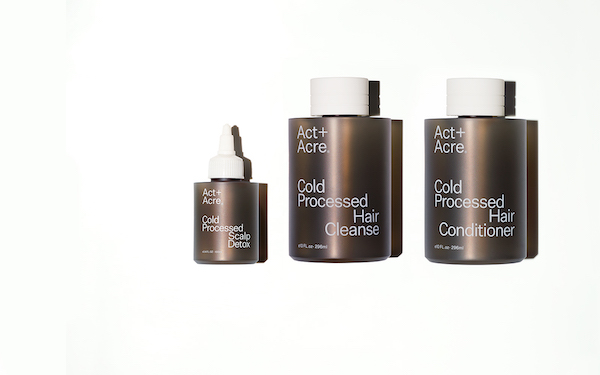
To launch a sustainable haircare range, Act + Acre engineered their product and packaging to be as recyclable and green as possible. Instead of settling for the guides set by government recycling certifications, they pushed further and created their own gold standard; “Reavey and Mackin developed a now-patented process that uses cold water and high pressure—while it takes a lot longer, it saves 90% energy”. Not only is this good for the planet, but it’s also a great talking point in their marketing material.
Sustainability has been reported as heavily influencing Millennial and Gen Z buying decisions, ’72 percent of Gen Z would spend more money on a service if it was sustainably produced’, alongside a tendency to switch to brands who take sustainable initiatives.
Is there a way you could refactor your existing products in a more sustainable way? Whether it’s the packaging, the freight or the product itself? Whilst you’re looking into your processes and supply chain, maybe you could put together a content series featuring the individuals and stages that are involved along the way. Giving your customers a ‘behind the scenes’ look at your brand.
7. Apply your opinionated philosophy to a new market (Allbirds)
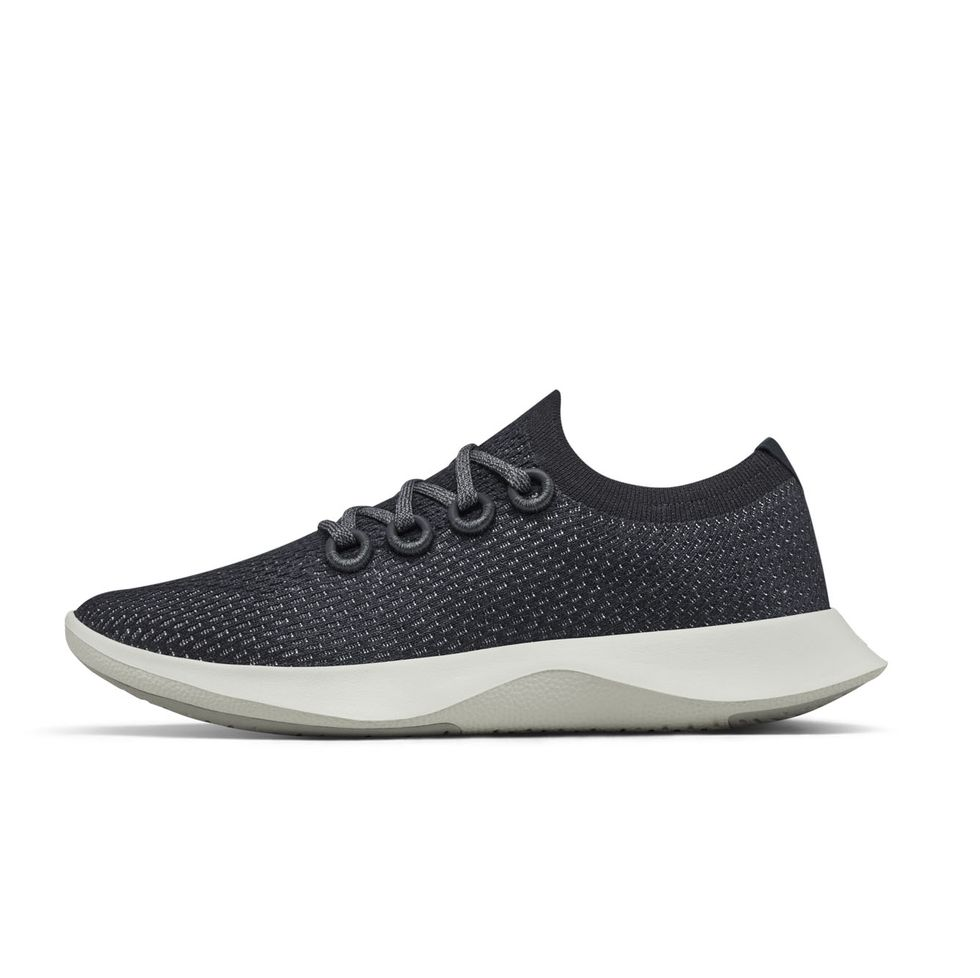
Sustainable footwear brand, Allbirds has grown a loyal customer base thanks to their environment-conscious ethos and signature shoe style. Their latest piece of footwear innovation expanded into the huge performance/running market; “The Dasher pushes Allbirds into athletics territory, to compete with the likes of Nike, Adidas and Lululemon”.
This new shoe will allow their fanbase to start buying another essential item from them, whilst staying true to their mission of footwear and the environment. “The Dasher emits 9kg of carbon dioxide per pair in their lifetime, which is nearly 30% lower than the average running shoe.”
If your customer base already buys one set of products from you, what else might they buy from you? The power of this strategy is a higher ‘average customer value’ and the potential for growth.
However, companies in the past have ‘watered down’ their strong brand identity by trying to sell too much to too many different types of people and projected a ‘master of none’ impression to the market. What new product types could you launch that are 100% aligned with your company and audience? Is there a way to have visual similarities or themes throughout your products, so they all feel cohesive with each other?
8. Release many smaller products to target micro-niches (Stance)
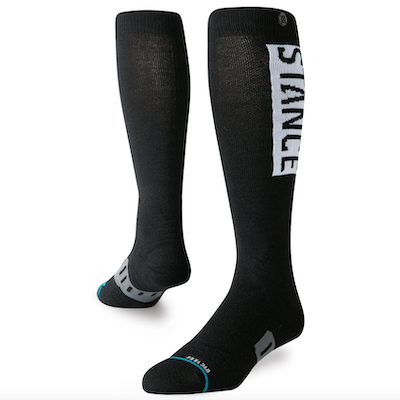
DTC sock brand, Stance specialise in socks and due to the low MOQ/new-product-development costs has launched a lot of them. They spotted an opportunity to create new product lines designed for specific sports niches. Starting with running, Stance redesigned a sock to suit players as much as possible, they then teamed up with influencers in the sport. Once that worked, they moved onto cycling, basketball, golf and more.
Creating new versions of an existing product positioned for a specific audience could help you recruit new customers. This could be as simple as changing your positioning through marketing and website copy. Or you could start developing new versions of your existing products to better serve specific niches. Have you heard from customers who are part of a specific sport, hobby or profession? This could be a good place to start.
9. Refreshes a best selling favourite (Outdoor Voices)
Outdoor voices decided to re-release their original hero product; the exercise dress. Doubling-down on the product that launched their company. But this time with new features requested by their customers, such as a phone pocket and inbuilt shorts.
The activewear brand used the marketing campaign as an opportunity to celebrate their company values and customers.
Rallying customers around this perennial and proven product seems like the closest Outdoor voices could come to a ’sure thing’. Is there an original range or product that represents your company more than any other? You have more than likely had bags of feedback over the years on possible ways to improve that product. This could be a good opportunity to celebrate everything that you, your team and your customer have built together.
10. Use a nostalgic era or theme to inspire a new product range (Away)
Luggage company Away used an iconic golden era from the past to design a new product range around. Co-founder Jen Rubiio explains “we were inspired by the nostalgia associated with some of our favourite iconic mountain towns, capturing the styles and colours found in retro postcards of places like Aspen or Verbier”.
This theme for the new line inspired everything from the product design to the marketing material. The desire for these new products was super-charged by the fact that it was a limited edition; creating a feeling of urgency with customers to make the purchase or miss out.
Is there an important time-period or place that is special to your industry or brand? If you developed a new product based around this theme, what story could you tell with the product and DTC marketing? Could it be used to break into new cohorts of the market or allow you to leverage a new set of influencers in your social media strategy?
Bonus. Expand the scope of your companies mission. Then launch new products that apply to this bigger ambition (Casper)
Direct to consumer brand Casper expanded their company vision from just mattresses to tackling a larger question: ‘how to have a good night sleep?’. They have since launched sleep aiding products such as a humidity-fighting duvet and a smart bedside lamp.
The broader company scope has allowed them to diversify from the saturated market they were in, whilst still leveraging their strong brand equity and existing customers.
Expanding your company vision by asking a new question could unlock fresh product ideas for your company. What if you weren’t just ’that kind of product’ business and instead tackled the larger area of your customer’s lives you currently just partially address. Using that line of thinking, what new products could you launch?
Should your DTC marketing strategy inform your new product strategy?
Absolutely! Your marketing strategy and new product development strategy should go hand-in-hand. The insights from market research, social media marketing, and understanding of your target audience that you gather in your marketing efforts can be invaluable in shaping your product development process. By aligning these strategies, you can ensure that your product offerings resonate with your audience and fit seamlessly into your broader marketing campaigns and brand image.
Can I use influencer marketing when launching new products?
Yes, alongside offline marketing, online channels like influencer marketing can be a powerful tool when launching new products. By partnering with the right influencers, you can introduce your new product to a wider audience, obtain real reviews, and gain user-generated content, which can further enhance your marketing mix.
What is New product strategy?
A new product strategy is a comprehensive plan that outlines how a business intends to introduce a new product to the market. It encompasses everything from initial product idea generation, market research, product development, to marketing strategies and distribution channels. This strategy aims to ensure the product meets the needs of the target market and aligns with the brand’s business model and objectives.
What does DTC mean?
DTC stands for “Direct to Consumer.” It’s a business model where brands sell directly to customers, bypassing traditional middlemen like retail stores or third-party retailers. This direct approach allows for a closer relationship between brands and consumers, often leading to more personalised marketing strategies and product offerings.
What is DTC marketing?
DTC marketing refers to direct to consumer marketing, the marketing strategies employed by Direct to Consumer brands to promote their products or services directly to end consumers. This often involves leveraging digital channels, social media advertising, email marketing, and other online platforms. DTC marketing strategies prioritise understanding and engaging the target audience to build brand loyalty and drive sales without the interference of intermediaries.
What is an example of DTC marketing?
An example of DTC marketing might be a brand launching a new product exclusively on its website and promoting it through targeted social media ads, influencer partnerships, and email marketing campaigns. A footwear brand, for instance, could release a limited-edition sneaker and use Instagram stories, posts from influencers wearing the shoe, and an email blast.
What is the difference between B2C and DTC?
B2C, or Business to Consumer, refers to the sale of products or services from businesses to individual consumers. DTC, or Direct to Consumer, is a subset of B2C where brands sell products or services directly to consumers without any intermediaries like retailers or wholesalers.
Summary
The Direct to Consumer (DTC) model has transformed the way brands connect with their audiences, eliminating the need for traditional retail intermediaries. However, this dynamic landscape demands that brands offer innovation and exciting new offerings to convince customers to part with their hard-earned cash.
Hopefully this article and the mini case studies have provided some insights into choosing the right product development strategy. Factoring in creativity, original thinking, audience understanding, digital engagement, risk appetite, and market insights.
Prefer to see a video? Click here to watch Oli weigh up the two options.
1. Introduction
The following guide is going to look at the very important debate between Shopify pre-orders vs Kickstarter and choosing which is best for launching a new product.
The Rising Importance of Pre-orders in E-Commerce
Pre-orders are increasingly becoming more important in e-commerce, this is due to several factors; some are listed below;
Revenue generation – Pre-orders contribute to revenue generation before the product’s official release. Customers typically pay in advance when placing a pre-order, providing businesses with a steady cash flow even before the product is available for shipment.
Production Planning and Inventory Management – Pre-orders help businesses forecast demand and plan production accordingly. By analysing pre-order data, companies can make informed decisions about manufacturing, supply chain management, and inventory allocation. This reduces the risk of overproduction or under-stocking, thus optimizing operational efficiency.
Anticipation and Exclusivity: Pre-orders allow customers to secure a product before its official release date, creating a sense of anticipation and exclusivity. By placing a pre-order, customers can ensure they will be among the first to receive the item, giving them a feeling of being ahead of the curve.
The power of pre-selling a new product:
Utilising pre-orders for e-commerce can offer lots of benefits, some of these include;
Marketing and Promotion: Pre-orders can serve as a marketing and promotional tool for companies. They generate buzz and excitement around a product before its release, creating a sense of urgency to secure a reservation. E-commerce platforms can leverage pre-orders to build anticipation through targeted advertising, social media campaigns, and influencer collaborations.
Customer Engagement and Loyalty: Pre-orders provide an opportunity for e-commerce companies to engage with customers and build loyalty. By allowing customers to secure a product in advance, businesses demonstrate that they value their customers’ preferences and trust. This can lead to increased customer loyalty and repeat purchases in the future.
What to Expect from This Comparison Guide?
This comparison guide will look at the Shopify vs Kickstarter debate, analysing the main differences between using Kickstarter or other crowdfunding platforms vs offering Pre-orders on your e-commerce platform (i.e. Shopify) for releasing a new product.
2. Understanding Shopify and Pre-Orders
The Basics of Shopify Pre-orders:
Pre-selling on Shopify allows you to sell products that are not currently in stock or available for immediate purchase directly from your own website/e-commerce platform. Here are the basic aspects of Shopify pre-orders:
Availability: With pre-selling, you can list products on your Shopify store even if they are out of stock or not yet released. This enables customers to place orders in advance, securing their purchase for when the product becomes available.
Product visibility: Pre-order products are displayed on your Shopify store like any other product, with the option to indicate their availability status as “pre-order” or “coming soon.” This helps customers understand that the product is not currently in stock but can be ordered in advance.
Order placement: Customers can add pre-order items to their cart and proceed to checkout just like regular purchases. The checkout process remains the same, allowing customers to provide their shipping information and select their preferred payment method.
Payment options: Shopify offers flexibility in terms of payment collection for pre-orders. You can choose to collect full payment, partial payment, or no payment upfront at the time of order placement, depending on your business strategy and product availability.
By leveraging Shopify pre-orders, you can gauge demand for new products, generate customer excitement, and secure sales before the items are physically in stock.
Key Benefits of Using an advanced Shopify Pre-order App like PreProduct:
PreProduct allows you to charge in a way that fits your lead time: upfront, later on a vaulted card or by deposit, charged when you say so
A Fully customisable set of customer communication tools to keep customers in the loop: product-page messaging, email campaign and customer portal.
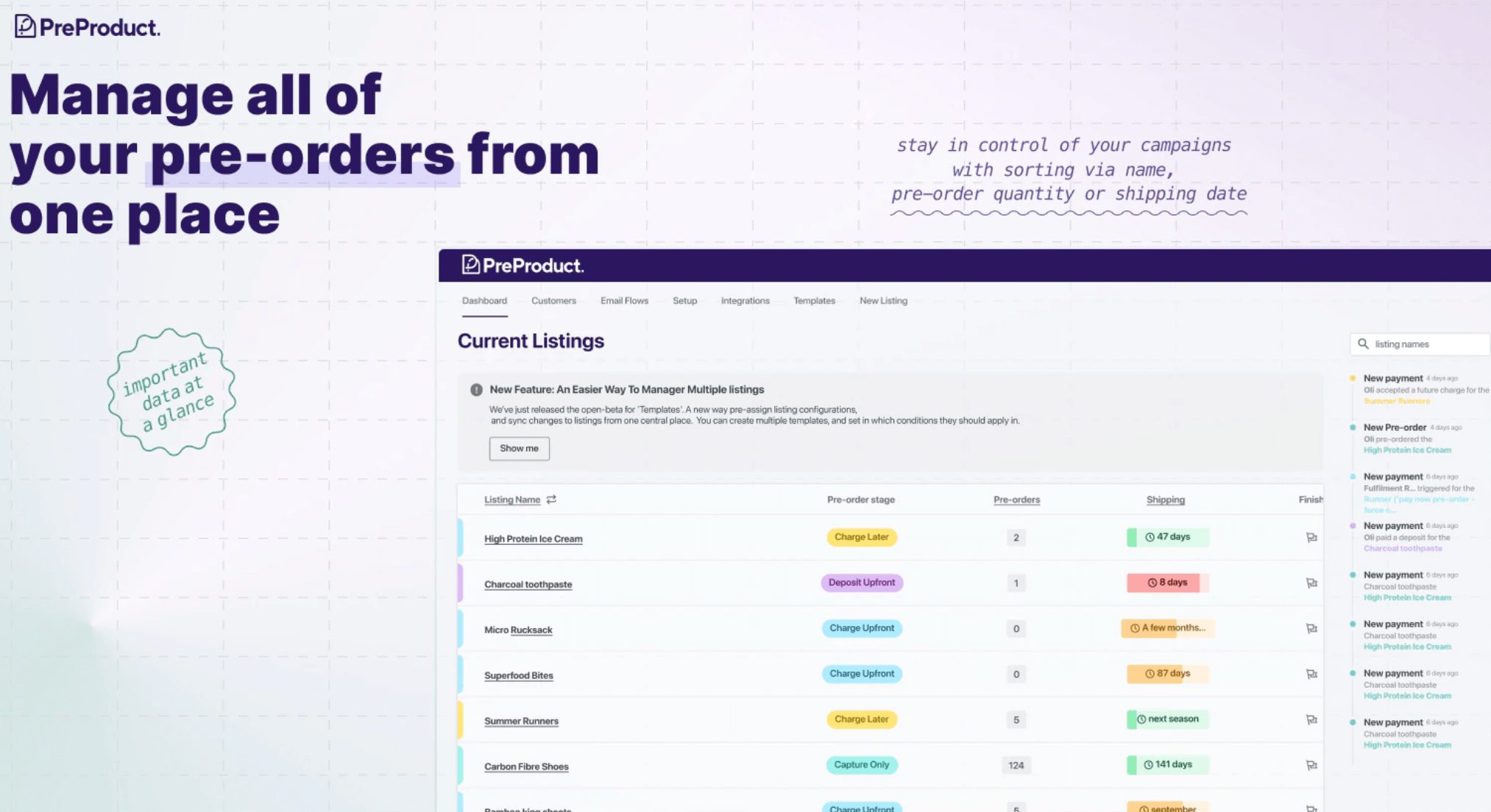
Manage pre-orders in their own system until paid, whilst closely integrating with Shopify so you have the power of both systems.
How do Shopify pre-orders work:
In order to utilize pre-orders, you must first install a pre-order app from the Shopify App Store and then go on to handle pre-orders within the Shopify admin interface or within the application itself.
To enable an item for pre-order, you will need to finalize app setup (any snippets/blocks that need adding), then list the Shopify product in question via the app.
Once pre-orders are configured, your customers gain the ability to pre-order (depending on the type of pre-order you set-up) for products before they are ready for shipment.
To access details pertaining to your pre-orders, it is essential to have a pre-order app in use. If a pre-order app is installed, you should also be able to see pre-order specific information in the Product and Orders screens of your Shopify admin, as well as within your specific Pre-order App.
Charge upfront pre-orders – this allows you to charge the customer for the pre-order when they place the pre-order
Charge later pre-orders – the customer goes through the checkout at the time of placing the order, but is not charged, instead they agree to a deferred charge, and Shopify vaults their card details until the store is ready to trigger the payment at a later stage.
Deposit based pre-orders – allows the store to charge a portion of the transaction up-front, the customers card details are vaulted by Shopify, allowing you to charge the outstanding amount at a later stage.
3. Understanding Kickstarter and Crowdfunding platforms
What is Kickstarter and How Does It Work?
Kickstarter is a crowdfunding platform that allows individuals, groups, and organizations to raise funds for creative projects and ideas. It allows the creator to set a backing goal within a specified timeframe. Video game and board game developers particularly like releasing crowdfunding projects.
People interested in supporting the project, known as backers, can contribute money to help raise money and bring the ideas to life. In return for their support, backers often receive rewards or early access to the project.
The Unique Advantages of Using Kickstarter for Crowdfunding:
Kickstarter offers several unique advantages for crowdfunding campaigns:
Broad Audience: Kickstarter has a large and diverse community of backers who actively browse and support projects. This provides creators with a built-in audience and increases the visibility of their projects to a wide range of potential supporters.
All-or-Nothing Funding Model: Kickstarter operates on an all-or-nothing funding model. This means that if a project fails to reach its backing goal within the specified timeframe, no money is collected from backers, and the project does not move forward. This model creates a sense of urgency and encourages backers to rally behind the project to raise money and ensure its success.
Backer Engagement: Kickstarter emphasises the importance of building a community around projects. Creators can actively engage with their backers through project updates, comments, and rewards. This fosters a sense of involvement and connection, creating a dedicated group of supporters who are invested in the project’s success.
Pre-Selling and Validation: Kickstarter allows creators to pre-sell their products or offer exclusive rewards to backers. This not only helps generate funds but also serves as a validation of the market demand for the project.
Noteworthy Kickstarter Success Stories
Exploding Kittens: Exploding Kittens is a card game that became a massive success on Kickstarter in 2015. The campaign broke records by raising over $8 million in just 30 days. The game’s unique and humorous concept, coupled with effective marketing, contributed to its phenomenal success. Exploding Kittens went on to become one of the most successful tabletop games in recent years.
Oculus VR: Oculus VR, the company behind the popular virtual reality headset Oculus Rift, launched its groundbreaking successful campaign on Kickstarter in 2012. The campaign raised more than $2 million, sparking significant interest in virtual reality technology. Oculus VR was later acquired by Facebook, further propelling the development of virtual reality.
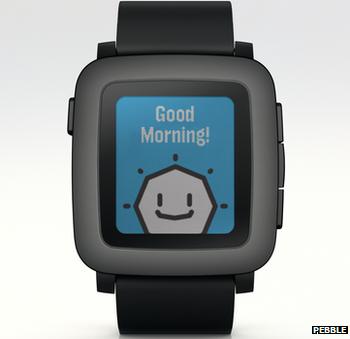
Pebble: Pebble is a smartwatch company that gained widespread recognition through its Kickstarter campaign in 2012. It raised over $10 million, making it one of the most successful Kickstarter projects at the time. Pebble went on to become a prominent player in the smartwatch industry before being acquired by Fitbit in 2016.
4. Comparison between Shopify Pre-orders and Kickstarter
Project Types and Scope: Shopify Pre-Orders vs Kickstarter
Kickstarter only offers the one format. An All-or-Nothing Funding Model, that is where a backing goal is set to be achieved within a specified timeframe, or backers don’t get charged. Kickstarter has great support for tiered rewards and quantity breaks, although this can be mimicked with a Shopify app like Discountly.
Shopify pre-orders on the other hand allow you to offer different charging options, therefore which allows for flexible funding. In the case of PreProduct: charge upfront pre-orders, charge later pre-orders or deposit based pre-orders.
Funding Mechanism: The Contrast Between Shopify Pre-orders and Kickstarter
Shopify pre-orders gives you the choice as to when you would like to receive revenue. You have the option to charge upfront with charge upfront pre-orders, collect a deposit upfront then charge the outstanding amount at a later time or charge the full amount at a later time with charge later pre-orders.
In contrast with Kickstarter you will only receive revenue if and when the project meets the goal and is successfully funded. There is a 14 calendar day window following your project’s deadline where Kickstarter will collect and process the pledges, and then the funding is then released.
Audience Reach and Marketing: Exploring the Differences
Crowdfunding platforms have a built-in audience of backers, whom are people who generally love the platform and pledge on projects regularly.
However, this audience tends towards certain industries like gaming and early adopter hardware gadgets/fashion. It also wouldn’t be advisable to rely on for your first bunch of sales, as the Kickstarter algorithm and social proof won’t kick in at the beginning.
Shopify on the other hand is your own store/website, which means you’re solely responsible for driving traffic to your website.
Although both Shopify and Ecommerce crowdfunding campaigns in general often heavily rely on paid social media ads for traction and sales, but at least with Shopify you’re driving customers to your own domain.
Because of this, existing brands usually opt for Shopify/their own website over Kickstarter, even if their first product launched via crowdfunding.
Timeframe: Getting Your Idea to Market
Kickstarter allows campaigns to run for 1 to 60 days maximum, and it is generally recommended to use a 30 day time frame.
This means that even if you are very close to your funding goal on the last day of the campaign, you can not extend it, and the project will not go ahead, no backers will be charged.
With Shopify pre-orders you are completely in control of the time frame. You can set the shipping time that suits you, and there is also no financial goal to be met.
Fees: Comparing the Costs
For crowdfunding platforms if your project is successfully funded, there are two main types of fees that will be collected from your project total: A platform for for example Kickstarter’s is a 5% fee, and payment processing fees (between 3% and 5%). If your project isn’t successful, there are no fees.
For a Shopify app, we will look at PreProduct (our Shopify app), fees start from $0 per month on the Starter plan (plus 5% of paid pre-order revenue), or $59.99 per month on Scale (0% commission up to $5,000 of paid pre-order revenue a month, then 0.5%).
Evaluating the two platforms
Kickstarter is for a short set time period, and this can not be extended, so there is high pressure to ensure you reach your goal in the set time period. You are also driving traffic (via your chosen marketing methods) to another platform rather than your own.
A favourable aspect of Kickstarter is that it has an in-built audience, so without any marketing effort your project can be exposed to the inbuilt Kickstarter audience.
When using Shopify, you are in control of how long you offer pre-orders for, and you can extend or shorten this time period. Also, in contrast to Kickstarter, you can customise your Shopify page as much as you’d like. Whether that’s via code using the theme files or an app like Back Lip’s ‘BL Custom HTML CSS JS Liquid’, or via many of the no-code Shopify apps available.
Another benefit of using a pre-order app like PreProduct, is that you are sending all traffic to your website, rather than to another companies website ie Kickstarter.
5. How to Choose: Shopify Pre-Orders or Kickstarter?
Factors to Consider When Choosing Your Platform, Making the Right Choice for Your Business:
Is it just a one hit product you are planning to launch and fulfil, or are you planning to make a business out of the initial product launch?
If you are at the early stage of your business and just wanting to launch your product with no business plans, Kickstarter will probably meet your needs just fine.
If you are wanting to make a business out of your product launch, then using Shopify combined with a pre-order app may be more beneficial as you are not confined to Kickstarters time-frames and rules + you can start building up marketing channels to your site
Are you wanting to launch and pre-sell more than one product?
You are able to run more than one Kickstarter crowdfunding campaign, but instead running multiple pre-order campaigns on the one site may be easier to manage, customers may also be interested in ordering more than one pre-order product.
What kind of time frame are you wanting to run the campaign for? Do you want to be able to make changes to the time frame?
A Kickstarter crowdfunding campaign requires you to set a specific timeframe, that is between 1 and 60 days. Once the campaign is created and begins this timeframe can not be edited.
Pre-order apps allow you to run the pre-order campaign for as short or as long as you like, and often do not require a timeframe to be set when the pre-order is launched.
Do you need an inbuilt audience?
Kickstarter has a large in-built audience and will also choose some projects to be featured or given the ‘Project We Love’ designation. If you have not undertaken any marketing, and have no existing audience, Kickstarter may be beneficial to get your project in front of a large audience. Although please note, you will need to ‘seed’ the campaign with at least a handful or orders to have a chance of organic sales from the platform.
Using Shopify and a pre-order app will not provide an in-built audience, but you will be driving all traffic towards your own site.
Fee structure
Kickstarter collects a 5% fee from the funds collected for creators. Stripe, the payments processor, will also collect a payment processing fee (roughly 3-5%).
All Shopify pre-order apps vary in the fees they charge. PreProduct our Shopify app, offers 3 different plans each with varying fees. Our Starter plan is $0 per month plus 5% of paid pre-order revenue. Scale is $59.99 per month with 0% commission up to $5,000 a month, then 0.5% of paid pre-order revenue; Scale Plus is $259.99 per month with 0% commission.
Using Kickstarter first, then transitioning to Shopify + PreProduct
An option that allows you to benefit from the advantages of both Crowdfunding and Shopify pre-orders, is to first use a Kickstarter crowdfunding campaign to launch your initial product and campaign, then after the campaign finishes, direct traffic to your own site and start running pre-orders.
Reflecting on the Shopify Pre-orders vs Kickstarter Debate
As you can see from this article, there are a lot of points to consider when deciding whether it is best to use either Shopify pre-orders or Kickstarter to launch a new product or variant, and it is important to evaluate and think through all of these points.
Kickstarter has the benefit of an inbuilt audience, which may be important for some new businesses, but Shopify pre-orders gives you full control.
You can choose when to charge customers, when to end or extend a pre-order campaign, and you are also directing all traffic to your own business site.
You also have the option to use a hybrid model, launching your campaign on Kickstarter and then transition to Shopify pre-orders afterwards.
Future Trends and Developments to Watch in Pre-orders and Crowdfunding
The pre-order and crowdfunding landscape is constantly developing.
One of the interesting developments happening in the pre-order/crowd funding space is the evolution of artificial intelligence and improved data analytics which can help campaign creators optimize their marketing strategy, predict demand, and set more accurate funding goals.
Another trend is the use of social media such as Instagram, Facebook & TikTok. For marketing to direct customers to your campaign, as well as for social proof and reviews, integrating customer reviews and social proof (e.g., user-generated content) into pre-order pages to build trust and credibility among potential buyers.
Hopefully this guide has been helpful and please don’t hesitate to reach out if you have any questions. Happy pre-selling!
Prefer to watch a video? Click here to see Oli explain four different pre-order methods on Shopify.
Shopify pre-orders let you capture demand before inventory arrives. Whether you’re launching a new product, managing out-of-stock items, or building hype for an upcoming release, pre-orders help you take orders and revenue sooner while validating market interest.
This guide covers everything you need to know about Shopify pre-orders: choosing the right payment model, planning your strategy, setting up step by step, and running a campaign that converts.
What are pre-orders and why use them?
A Shopify pre-order allows customers to purchase products before they’re available for general sale or when inventory is temporarily out of stock. Unlike backorders (where customers order products already in transit) or waitlists (where customers express interest without commitment), pre-orders involve a customer commitment to purchase upfront. Instead of waiting until products hit your warehouse, you start taking orders immediately.
Business benefits of Shopify pre-orders
Validate demand before committing to inventory
Shopify pre-orders help you gauge real customer interest before investing in large production runs. By tracking pre-order volume, you can adjust inventory levels to match actual demand, reducing the risk of stockouts, overstocking, or having to discount unsold products.
Improve cash flow and take revenue sooner
Taking payment upfront or capturing payment details earlier gives you working capital before products ship. This is particularly valuable for small businesses and startups managing tight cash flow, or when you need capital to fund production runs.
Build hype and marketing momentum
Pre-orders create anticipation around product launches. You effectively launch twice: once when you announce the pre-order and again when the product becomes available. This dual-launch approach generates sustained buzz and gives you multiple marketing touchpoints.
Secure committed customers
Customers who pre-order demonstrate higher commitment than those who add items to wishlists. Pre-order customers have already made a purchase decision, reducing the risk they’ll buy from a competitor when your product finally launches.
Customer benefits
Guaranteed access to new or limited products
Pre-orders ensure customers secure their spot for highly anticipated releases or limited-edition items that might sell out quickly.
Early-bird incentives
Many brands offer exclusive discounts, bonus content, or limited-edition packaging to reward customers who commit early.
First access to innovation
For customers who value being first to try new products, pre-orders provide that exclusive early-adopter experience.
How Shopify pre-orders work
Understanding the pre-order flow helps you design a better customer experience. Here’s how a typical Shopify pre-order journey unfolds:
Announcement: You announce the upcoming product with details about features, pricing, and expected delivery. This typically happens through email campaigns, social media, and on-site banners.
Pre-order period opens: A designated window begins where customers can place orders. This period can range from a few weeks to several months depending on your product and lead time.
Customer places order: Customers order through your Shopify store. The checkout experience includes clear messaging about estimated delivery dates and when payment will be processed.
Payment processing: Depending on your pre-order model (covered below), customers either pay immediately, accept a future charge, pay a deposit, or receive a payment link when you’re ready to charge.
Order confirmation and updates: Customers receive confirmation via email. Throughout the pre-order period, you keep them updated on production progress and shipping timelines.
Charges processed and product ships: When inventory arrives, any deferred charges are processed and products ship to pre-order customers.
Shopify pre-order payment models
Shopify supports multiple pre-order payment models. Your ideal approach depends on your product lead times, price point, and cash flow needs.
Most models use card vaulting (secure card storage) rather than traditional authorization holds, giving you flexibility for longer lead times.
Charge upfront pre-orders
Customers pay 100% at the time of pre-order placement. This model works best when you need immediate working capital or when lead times are relatively short (under 60 days).
Best for:
Products with short lead times (under 60 days)
Lower-priced items where customers are comfortable paying in full
Brands with established trust and reputation
Situations requiring immediate cash flow for production
Considerations:
Charge-upfront tends to be less popular than deferred payment models for longer lead times. Customers may hesitate to pay months in advance, especially for higher-priced items or brands they’re less familiar with.
Charge later pre-orders
Customers proceed through checkout and accept a future charge. Their card information is securely vaulted with your payment processor, and you trigger payment when inventory arrives and you’re ready to ship. No authorization hold is placed, so there’s no expiration window to worry about.
This is the most popular model among merchants running pre-orders with longer lead times.
Best for:
Products with longer lead times (60+ days)
Mid-high priced items where customers prefer not to pay months in advance
First-time orders of a product or from a new supplier, where flexibility matters
Any timeline where authorization holds would expire before you’re ready to charge
Considerations:
When you’re ready to ship, you trigger the charge. If the card has expired or been cancelled, the charge will fail and you’ll need to collect updated payment information via a dunning flow (automated emails requesting updated payment details).
Deposit pre-orders
Customers pay a partial amount upfront (typically 10-50% of the total price), with the remaining balance charged later when you’re ready to ship. Like charge-later orders, the customer’s card is vaulted for the future balance charge.
Best for:
Mid-high priced items ($50-200+)
Products with long lead times but requiring some upfront capital
Merchants who want assurance that buyers are committed
Balancing cash flow needs with customer comfort
Considerations:
Deposits signal stronger commitment than charge-later-only models while being less intimidating than full upfront payment. This middle-ground approach works well for premium products where you need some working capital but want to reduce purchase friction.
Capture-only pre-orders
This model captures customer information without taking any payment. You replace the standard purchase button with a pre-order button, and email a payment link later when ready to process orders.
Best for:
Conservative markets where merchants are hesitant to exchange any payment details upfront
Products with highly uncertain timelines
Testing demand before committing to production
Situations where you want zero checkout friction upfront
Considerations:
This approach has the lowest commitment level, which can lead to lower conversion rates when payment time comes. However, it’s excellent for demand validation since customers can opt in without any payment friction. It’s also one step above waitlists, as the order is already captured and can be prepopulated at checkout.
Authorization period pre-orders
The most basic approach is placing a traditional authorization hold on the customer’s card. In Shopify, this is the “manual payment capture” method. You must capture payment within the authorization window (typically 7-30 days) before the hold expires.
Best for:
Very short lead times (under 7-30 days)
Products arriving imminently where you know exact ship dates
Considerations:
This model is limited by authorization hold expiration windows. For most products with longer lead times, charge-later with card vaulting is more practical. The extended 30-day authorization period is currently only available to Shopify Plus merchants and adds a 1.75% fee if charged after day 7.
Planning your Shopify pre-order strategy
Before launching pre-orders, strategic planning ensures better outcomes.
When to use pre-orders
Pre-orders work well for:
New product launches: Build anticipation and validate demand before committing to large production runs
Seasonal or limited releases: Create urgency for products available only during specific periods (see our guide to holiday pre-orders for Q4 and BFCM planning)
Out-of-stock bestsellers: Continue taking orders when inventory temporarily runs out
Custom or made-to-order products: Collect orders before beginning production
High-ticket items: Gauge serious buyer interest before investing in expensive inventory
Setting realistic timelines
Your estimated timeline should account for:
Manufacturing or production time: Factor in supplier lead times plus buffers for delays
Shipping and freight: Expected shipping times from the supplier, whether sea or air freight
Quality control: Building in time for inspection, especially for first runs or new suppliers
Customs and import processing: For international products, adding 1-2 weeks can be sensible
Buffer for unexpected delays: Add 10-20% padding to your estimated timeline
Be conservative with your customer-facing shipping statement. It’s better to over-deliver than create frustration by missing promised dates. You can always update your shipping statement along the way and send out updates to your customers.
Pricing strategies
Early-bird discounts: Consider limited-time discounts (typically 10-20% off) to reward customers who commit earliest. This creates urgency and helps you gauge initial demand quickly.
Pay early and save: Some pre-order apps let you offer a discount to customers who want to pay off a deferred-charge pre-order early, improving cashflow while giving them the option to pay later.
Pay in installments: Optional multi-step payment plans let customers pay in installments, improving conversion for price-sensitive customers or high-ticket items.
Use pre-order volume to inform production quantities. If you’re taking capture-only pre-orders (where no payment is collected upfront), build in an expected conversion rate (typically 70-85%) when planning inventory. Charge-later and deposit models typically have higher conversion since cards are vaulted.
In 2024, Shopify also introduced “Purchase Options” functionality that allows apps to facilitate deferred-charge pre-orders through Shopify’s native checkout.
What Shopify’s native options handle well:
Simple charge-upfront pre-orders for products temporarily out of stock
No additional app cost
Where you may need a dedicated pre-order app:
Charge-later, deposit, or capture-only payment models
Automated customer communication and progress updates
Customer portals for order status visibility
Pre-order analytics and performance tracking
Variant-specific pre-order controls
For smaller merchants running occasional, simple pre-orders that can be charged upfront, Shopify’s native option may suffice. For brands building Shopify pre-orders into their core strategy, dedicated apps provide significantly more control.
Payment processor requirements
Not all payment methods support pre-orders, particularly deferred charging models. Currently supported options include:
Cybersource – as of early 2026, merchants have reported Cybersource support for deferred charges as well
Third-party gateways often don’t support deferred charging. Shop Pay, Apple Pay, and Google Pay also have limitations with charge-later pre-orders. Shopify automatically hides incompatible payment providers at checkout for pre-order products.
Setting up a pre-order app
Once you’ve chosen a pre-order app from the Shopify App Store (our round-up of the best Shopify pre-order apps compares the main options by use case), setup typically follows these steps:
Step 1: Install from Shopify App Store
Search “pre-order” in the Shopify App Store and install your chosen app.
Step 2: Integration based on theme version
For Shopify 2.0 themes (recommended):
If your app doesn’t support auto-install, you’ll need to add its app block from the Shopify Customize editor:
Drag and drop the pre-order app block where you want it to appear (typically above the add-to-cart button)
Save changes
For Shopify 1.0 themes:
If your app doesn’t support auto-install, you’ll need to add its snippet code to your theme:
Access Theme Code Editor from the “Online store” section of your Shopify admin
Locate your product template file (usually in the snippets directory, within a file like: product-template.liquid, add-to-cart-button.liquid or product-form.liquid)
Add the app’s snippet code above the buy button’s <button> tag
Save changes
Most modern themes use Shopify 2.0, making integration significantly simpler.
Listing your first pre-order product
After integration, configure your first pre-order listing. This can be done via an automation/rule-based setup, or manually product by product.
Select product or variant: Choose which products or specific variants to list as pre-order. Advanced apps allow variant-specific pre-ordering, so you can pre-order only out-of-stock sizes or colors while keeping others available for immediate purchase.
Choose payment model: Select your preferred payment approach: charge upfront, charge later, deposit, or capture-only.
Set estimated delivery date: Provide a realistic delivery timeframe. This date appears to customers and can be updated as circumstances change.
Configure pre-order limits (optional): Decide whether to limit quantity to create scarcity or leave unlimited.
Add early-bird discount (optional): Set discount pricing to incentivize early commitment.
Customize messaging: Check the front-end wording on your product, cart, and checkout screen. If it doesn’t match your brand voice or clearly communicate the pre-order, change it via the app’s settings.
Fulfillment holds and order management
Pre-order apps typically place fulfillment holds on pre-order items, preventing them from flowing prematurely to your 3PL, ERP, or fulfillment system. This ensures pre-orders stay isolated until you’re ready to ship.
When inventory arrives and you’re ready to fulfill:
For charge-later, capture-only, or deposit pre-orders, trigger payment from your app
For charge-upfront pre-orders, trigger fulfillment from your app
Either approach releases the fulfillment hold on the Shopify order, changing its status from “On hold” to “Unfulfilled”
Orders then flow to your fulfillment system like regular orders
Auto-charge automation can trigger charges based on inventory levels in Shopify, streamlining this process further.
Running a successful Shopify pre-order campaign
Getting your Shopify pre-order set up is only half the picture. Running a successful pre-order campaign requires thoughtful marketing, clear communication, and awareness of your obligations.
Marketing your pre-orders
Strong pre-order marketing turns a product announcement into a successful campaign. Start by building anticipation before the pre-order period opens: tease the product, build an email waitlist, and create countdown content.
When pre-orders open, maximize visibility through email announcements, social media, influencer outreach, and paid advertising. Create urgency with early-bird pricing, limited quantities, and exclusive bonuses.
Customer communication best practices
Clear communication builds trust and reduces cancellations. The typical pre-order cancellation rate sits around 5-7%, with proper communication helping minimize this.
Front-end messaging: Clearly indicate pre-order status on product pages, cart, and checkout. Display estimated delivery dates prominently. If you allow mixed carts (combining pre-order and ready-to-ship items), note that orders may ship in multiple shipments.
Email communication: Send immediate order confirmations, periodic progress updates (every 2-4 weeks for long lead times), and shipping notifications. For charge-later or deposit-balance orders, send an upcoming charge email to give customers advance notice before their card is charged.
Customer portals: Quality pre-order apps offer customer portals where buyers can view order status, see estimated shipping dates, access payment schedules, and request cancellations, reducing support inquiries while giving customers transparency.
Legal requirements
Understanding pre-order legal obligations protects your business and builds customer trust.
In the United States, the FTC’s 30-Day Rule requires you to ship within the timeframe you advertise, or within 30 days if no timeframe is specified. If delays occur, notify customers and offer full refund options.
Be transparent about pre-order status, delivery timelines, payment terms, and cancellation policies. If selling internationally, research requirements for the UK, EU, and Australia.
Common issues and how to fix them
Payment charge failures: Customer’s vaulted card can fail when you attempt a deferred charge (card expired, cancelled, or insufficient funds). Set up automated emails requesting updated payment information, and provide a customer portal where buyers can update their cards.
Theme compatibility: If the pre-order button doesn’t display correctly, check that your theme supports Shopify 2.0 app blocks. Contact app support for theme-specific assistance, especially for custom themes.
Fulfillment hold confusion: If pre-order items accidentally ship early, double-check fulfillment hold settings in your app. Set up tag-based workflows if your 3PL does not support fulfillment holds. Some ERPs and 3PLs use “virtual warehouses” for pre-order stock allocation.
Managing delays: Communicate proactively as soon as delays are known. Explain the reason honestly, offer options (wait with bonus incentive, partial refund, or full cancellation), and update estimated delivery dates across all touchpoints.
Measuring pre-order success
Track these metrics to optimize your pre-order strategy over time:
Conversion rate: Percentage of product page visitors who complete pre-orders
Pre-order volume: Total orders taken, which validates demand and informs inventory planning
Average order value (AOV): Revenue per transaction, often higher for pre-orders due to early-bird bundles
Cancellation rate: Rates above 8-10% may indicate overly long lead times or poor communication
Email engagement: Open and click rates for pre-order update emails
Integrate with Google Analytics using UTM parameters to track which marketing channels drive the highest pre-order conversions, and Integrate with a product like TrueProfit to track which pre-order products bring you highest profit margin.
Frequently asked questions about Shopify pre-orders
Does Shopify have built-in pre-orders?
Yes, Shopify has a “continue selling when out of stock” checkbox that allows zero-stock products to pass through checkout. However, it only supports charge-upfront models and lacks advanced features like automated customer communication, multiple payment models, and analytics. Most serious pre-order campaigns benefit from dedicated apps.
What payment methods work with Shopify pre-orders?
Shopify Payments and PayPal support all pre-order payment models. Third-party payment gateways often don’t support deferred charging (charge-later models). Shop Pay, Apple Pay, and Google Pay have limitations with certain pre-order types. Shopify automatically hides incompatible payment options at checkout.
Can I offer partial payment or deposits?
Yes, with pre-order apps that support deposit models. Customers pay a percentage upfront (typically 10-50%), with the remaining balance charged when you’re ready to ship. This balances cash flow needs with customer comfort, especially for higher-priced items.
How do I handle pre-order cancellations?
Pre-orders can be cancelled through standard Shopify order cancellation procedures or via your pre-order app. Quality pre-order apps offer customer portals where buyers can request cancellations directly. Your refund policy is at your discretion.
Are there legal requirements for pre-orders?
Yes. In the US, the FTC 30-day rule requires shipping within stated timeframes or within 30 days if no timeframe is specified. You must notify customers of delays and offer cancellation options. Other countries have similar consumer protection requirements.
How long should a pre-order period be?
Most pre-order campaigns have fulfillment windows between 30-150 days, with longer windows (90-150 days) being common for manufactured products. Your timeline should match production realities plus buffer for delays. Shorter is generally better for maintaining customer excitement and reducing cancellations.
Can I mix pre-order and regular products in the same cart?
Yes, though many merchants prefer isolated pre-order workflows to avoid complications with their fulfillment processes. Mixed carts can increase average order value, but if you allow them, place some test pre-orders first to verify your 3PL and ERP handle fulfillment holds correctly.
How do pre-orders affect my Shopify inventory management?
Pre-order apps place fulfillment holds on pre-order items, preventing them from flowing to your 3PL or fulfillment system prematurely. When ready to fulfill, you release holds and orders process normally. Advanced apps integrate with Shopify inventory systems to trigger automatic charging when stock arrives.
What’s the typical pre-order cancellation rate?
Pre-order cancellation rates typically range from 5-8%, increasing with longer lead times and poor communication. Keep customers engaged with regular updates and realistic delivery estimates.
Should I offer early-bird discounts for pre-orders?
Early-bird discounts (typically 10-20% off) create urgency and reward early commitment. They help gauge initial demand quickly and can accelerate word-of-mouth marketing. Test different discount levels to find the sweet spot between incentivizing purchases and maintaining margins.
How do I prevent pre-order items from shipping early?
Pre-order apps automatically apply fulfillment holds to prevent premature shipping. These holds integrate with Shopify’s fulfillment system, blocking orders from flowing to 3PLs or ERPs until you’re ready. When inventory arrives, you release holds manually or through automated triggers based on inventory levels.
Conclusion
Shopify pre-orders are a powerful strategy for validating demand, improving cash flow, and building marketing momentum around product launches.
The key to running successful Shopify pre-order campaigns comes down to:
Choosing the right payment model for your product and lead time
Setting realistic delivery timelines with buffer for delays
Communicating clearly and frequently with customers
Marketing strategically to build urgency and maintain momentum
Measuring performance to optimize future campaigns
Whether you’re launching your first product, managing out-of-stock bestsellers, or building hype for seasonal releases, Shopify pre-orders let you take orders and revenue sooner while keeping customers informed and engaged.
If you’re looking for a Shopify pre-order app to handle charge-later, deposits and automated customer communication at scale, we’ve built one. It handles all the payment models covered in this guide, charges when you say so and holds pre-order lines until stock lands, so your 3PL or ERP ships only what’s ready.