Running Pre-orders on Shopify with Multiple Fulfilment Locations
TLDR: You can run pre-orders on Shopify with multiple fulfillment locations, but not with native tools alone. Shopify tracks inventory separately at each location, yet its only native lever, the “continue selling when out of stock” toggle, applies store-wide, with no per-location logic. The result: one empty warehouse can flip your whole storefront to oversell, even for customers served by a fully stocked location. The fix is location-aware pre-orders, where a customer only sees a pre-order button when every location that can serve them is out of stock. PreProduct supports this natively on the Scale Plus plan, including per-location pre-order limits and automated listing management.
Introduction
Here’s a scenario that catches a lot of multi-warehouse brands off guard. Your US warehouse sells out of a hero product, so you put it on pre-order. But your EU warehouse still has hundreds of units on the shelf. Suddenly, European customers are being asked to pre-order something you could ship to them tomorrow.
The reverse stings too: sell buy-now everywhere and your US orders route to a warehouse with nothing in it.
The root cause is a mismatch. Shopify’s multi-location inventory tracks stock separately at each fulfillment location, but its only built-in way to keep selling at zero stock, the “continue selling when out of stock” checkbox, is a store-wide overselling toggle. Pre-orders proper run through Shopify’s APIs, orchestrated by an app, and out of the box there’s no way to say “this variant is pre-order for customers served by warehouse A, and buy-now for customers served by warehouse B.”
This guide explains how to run pre-orders on Shopify with multiple fulfillment locations properly. We’ll cover how Shopify’s inventory locations, shipping profiles and order routing decide which warehouse fulfills each order, why the usual pre-order workarounds break down, and how to set up location-aware pre-orders that show every customer the right button. If you’re newer to the topic, our guide to pre-orders on Shopify covers the fundamentals first.
How Shopify decides which fulfillment location gets an order
Before pre-orders enter the picture, it’s worth understanding the three Shopify settings that control multi-location selling. Misconfigured versions of these cause most multi-location pre-order headaches.
Inventory locations and what “out of stock” really means
Shopify treats each fulfillment location (a warehouse, retail store, 3PL or fulfillment app) as its own inventory location. Quantities are independent and can’t be pooled or shared between locations. The Inventory screen in your Shopify admin shows stock levels per location, which makes it easy to see which warehouses are actually empty.

Under the hood, every variant has an inventory item, the back-end record of its physical stock unit. When you stock that variant at a location, Shopify creates an inventory level: the inventory item’s quantity at that specific location. This detail matters more than it sounds. If a variant has no inventory level at a location, that location can’t sell the product, and it can’t pre-sell it either. Adding a new warehouse doesn’t stock your catalogue there automatically, so a “missing” pre-order at a location is often just a variant that was never activated there.
That means “out of stock” is not one number. A variant can be out of stock in Texas, in stock in Rotterdam and inactive in your Sydney retail store, all at once. Any pre-order logic that treats stock as a single store-wide figure is already working with the wrong picture.
Shipping profiles and shipping zones
Shipping profiles map products and locations to the countries and regions each location can serve. They answer the question: which of my locations is allowed to ship this product to this customer?
This is the layer that makes location-aware pre-orders possible. If your US warehouse only ships domestically and your EU warehouse serves everywhere else, then a US stockout only affects US customers. But if the EU warehouse is configured to ship worldwide, it can cover US customers too, and nothing should go on pre-order at all.
One trap worth knowing before you touch these settings: adding a product to a custom shipping profile silently removes it from your general profile. Do that without realising and locations that used to serve the product suddenly don’t, which shows up later as confusing buy-now and pre-order states. For the same reason, avoid naming profiles after a single country; a profile tends to grow to cover several locations and zones over time, and a name like “Japan” stops making sense the day you attach a UK warehouse to it.
Order routing
When a customer checks out, Shopify’s order routing rules rank your eligible locations and assign the order (technically, its fulfillment orders) to the winner. Default rules prioritize things like customer proximity and stock availability, and you can reorder them.
For most stores, the defaults are fine. If you’re on Shopify Plus, you can go further with custom routing rules via Shopify Functions, which matters for larger pre-order setups on Shopify Plus. Either way, the key point stands: routing decides where an order lands after checkout. It doesn’t decide what the customer saw on the product page. That storefront side is the gap a pre-order setup has to cover.
Why the usual pre-order setups break with multiple fulfillment locations
It’s worth being clear about what Shopify itself provides here. Natively, Shopify supports overselling, not pre-orders: the “continue selling when out of stock” toggle. Proper pre-order support lives in its APIs, which are capable, but they’re designed to be orchestrated and controlled through an app. Neither layer has a location dimension out of the box, so both treat your multi-location inventory as one big pile of stock unless the app on top adds that logic.
“Continue selling when out of stock” has no location awareness
The inventory toggle most merchants reach for first is variant-level and store-wide. Tick it, and the variant stays purchasable everywhere, regardless of which locations hold stock.
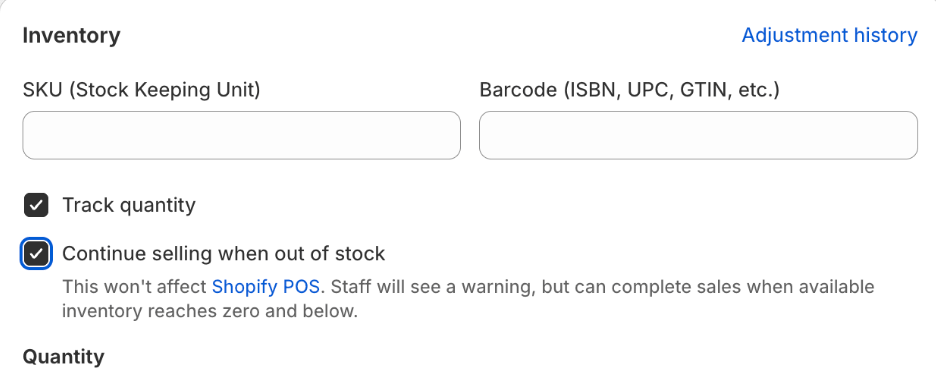
With multiple fulfillment locations, that creates two problems:
- Orders route to empty warehouses. A customer buys, routing assigns the order to their regional location, and that location has nothing to ship. If a 3PL runs that location, the fulfillment request can sit unactionable or get declined.
- No quantity control. The toggle sells infinitely. There’s no cap per location, or at all, so a strong launch can oversell one warehouse while another sits comfortable.
It also does nothing to tell the customer they’re buying a pre-order, which is a separate expectations problem.
Selling plan pre-orders are location-blind too
Shopify’s real pre-order support is deferred purchase options built on selling plans. A selling plan defines billing (deposit or deferred payment), delivery timing and an inventory policy for the pre-order. It’s a strong foundation; there’s just no admin UI for running it yourself, so a pre-order app orchestrates it for you.
But look at what the inventory policy actually controls: whether inventory is committed when the order is placed or when it’s fulfilled. That’s it. There is no per-location concept anywhere in the model. A selling plan applies to a variant for every customer, in every region, served by every location. Any location awareness has to come from the app doing the orchestrating, and most pre-order apps don’t build it.
So the standard advice you’ll find in forums, “just ask your 3PL to load expected inventory before stock arrives,” isn’t really a multi-location strategy. It’s a way of faking stock so the location-blind tools stop misfiring. Some 3PLs will do it; many won’t, and either way you’re now selling real orders against inventory that doesn’t physically exist yet.
What location-aware pre-orders on Shopify look like
The correct behaviour is easy to state; it just has to come from the app layer rather than a Shopify setting:
A customer should only see a pre-order button when every location that can serve them is out of stock.

For backorder-style pre-orders, where you’re reselling something that has sold out, everything else follows from that one rule. Limited releases and pre-launch campaigns are a little different, since you sometimes launch with stock already sitting in Shopify, but they mostly follow the same process. Walk through the cases for a brand with a US warehouse and a UK warehouse:
- US out of stock, UK in stock, each serves its own region. US customers see pre-order. UK customers see buy-now. Same product page, different button depending on who’s looking.
- UK out of stock, but the US warehouse ships worldwide. Nobody sees pre-order. The US warehouse can still serve UK customers, so there’s no reason to make anyone wait.
- Both out of stock. Everyone sees pre-order, and once pre-order limits are hit, the button flips again to “pre-orders are sold out.”
Notice the four button states in play: buy now, pre-order, sold out and pre-orders sold out. A location-aware setup swaps between them dynamically per customer, based on their location, your inventory at each warehouse and your shipping profiles.
This is also why getting your Shopify shipping settings right matters so much. The pre-order logic can only be as accurate as the shipping profiles and zones underneath it. If Shopify’s settings say a location can’t serve a customer, no app should sell from it there.
Setting up multi-location pre-orders with PreProduct
On the Scale Plus plan, PreProduct supports multi-location pre-orders for Shopify stores out of the box, handling the dynamic button swapping above automatically. There are three ways to create location-aware listings, depending on how hands-on you want to be. The full walkthrough lives in our multi-location pre-order support docs, but here’s the shape of each.
1. Create a single listing manually
From the New listing screen, select your product, open Advanced and tick “Only list specific variants,” then “Select out of stock variants.” The listing starts with only the out-of-stock variants on pre-order, in a location-sensitive way. If size 10 is out at the US warehouse but in stock at the UK warehouse, US customers get a pre-order button on size 10 while UK customers keep buy-now.
This is the right starting point for a first campaign. We generally recommend running one listing manually before automating, so you can see exactly how orders behave across your locations, 3PL and any connected systems, such as an ERP managing your pre-order stock.
To check your work, use Shopify’s storefront preview to view the store as a customer in each country you serve. It’s the fastest way to confirm that one region is seeing buy-now while another sees pre-order, before any real customers do.
2. Create listings in bulk
For a bigger catalogue, the bulk lister does the same thing across many products at once. Select the products, tick “Only list out-of-stock variants,” and only the variants that are actually out of stock (at one or more inventory locations) go on pre-order. Warehouses that still hold stock keep selling as normal. It’s the same location-sensitive logic as the single listing, applied across your whole range in a few clicks.
3. Automate it with the location-aware listing manager
The fully hands-off option is the location-aware listing manager automation. Activate it, click “Rebuild inventory data” and PreProduct works through your entire catalogue once, putting every eligible variant in the right state. From then on, Shopify webhooks (inventory changes, product changes, location and stock-level updates) keep everything in sync automatically.
As variants sell out at a location, they flip to pre-order there. As stock lands, they flip back to buy-now. And the shipping-profile rule still applies: if another location can serve those customers, the automation leaves the variant on buy-now, because nothing is actually unavailable to them.
If you want to automate beyond listings, like tagging pre-orders or triggering notifications as variants change state, pre-order automation with Shopify Flow pairs well with the listing manager.
Per-location pre-order limits
Overselling risk is uneven across warehouses, so caps should be too. From the listing dashboard you can view variants by location, then use “Set pre-order limits” to cap each variant at each location independently. Maybe you’re comfortable taking 500 pre-orders against the inbound US shipment but only 150 against the smaller UK one.
If you’re unsure where to set those numbers, our guide to setting pre-order limits covers a simple cap formula based on your purchase order and expected cancellations.
Fulfillment holds, order routing and your 3PL
Selling the pre-order is half the job. The other half is making sure nobody ships it early.
When a pre-order is placed, Shopify’s order routing assigns it to a fulfillment location as usual. PreProduct then places a fulfillment hold on the order, keeping it at “On Hold” status so it doesn’t flow into that location’s pick-and-pack queue.
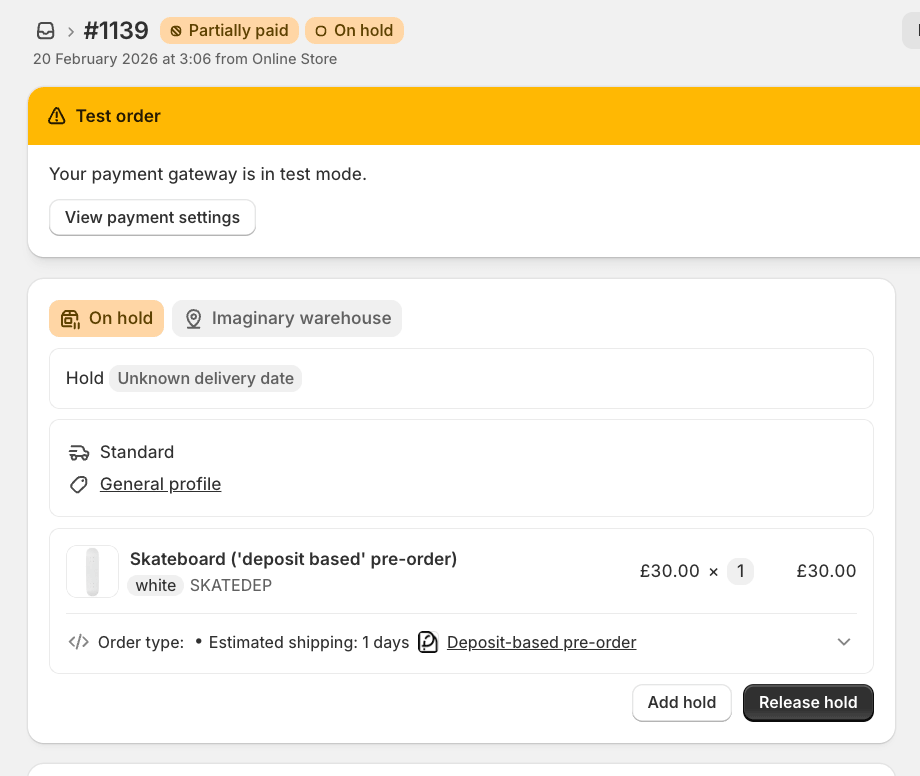
Warehouses and 3PLs that sync Shopify order statuses will leave held orders alone. When stock lands at that location, you release fulfillment (per listing or per customer), any outstanding charges are collected and the order flows through normally. If your 3PL doesn’t respect the On Hold status natively, our guide to managing pre-orders on your 3PL covers tag-based workarounds.
Mixed carts deserve a mention here, because multiple locations raise the stakes. A cart with a buy-now item and a pre-order item may already split into shipments; add multiple warehouses and you can end up with an order split across locations and timelines. Across our dataset, 62.1% of pre-order listings keep pre-orders in their own isolated carts, and multi-location stores have the strongest case of all for doing the same. If you do allow mixing, work out ahead of time how split shipping will be priced and communicated to customers. Our pre-order inventory management guide walks through the trade-offs.
Limitations and edge cases worth knowing
A few honest caveats before you build on this.
Checkout enforcement is deliberately cautious. Shopify’s checkout validation functions read a single product-level list of pre-order variant IDs, with no per-location dimension. So PreProduct only enforces pre-order rules at checkout (like isolated carts) for variants that are on pre-order at all of your locations. The alternative would risk blocking a legitimate buy-now purchase, which is the worse failure. Storefront button swapping remains fully location-aware either way.
Headless stores need one extra setting. Location-sensitive selling relies on knowing the customer’s country, so headless storefronts need window. Shopify.country set. Without it, every customer is treated the same and pre-orders stay available to all.
Shopify’s shipping settings are the usual culprit. When a location isn’t selling a product and you expected it to, the cause is almost always a shipping profile, a zone or a missing inventory level rather than the pre-order listing. It’s a flexible, powerful part of Shopify, and that flexibility can make it confusing. PreProduct’s listing dashboard flags whenever a location isn’t selling a product and tells you why, which turns most troubleshooting into a two-minute check.
Final thoughts
Multi-location pre-orders come down to one principle: sell based on what’s available to each customer, not what’s available somewhere in your business. To recap:
- Shopify’s multi-location inventory tracks stock per location, but natively it only supports store-wide overselling; pre-orders, including the location logic, are the app layer’s job.
- The right rule: a customer only sees pre-order when every location that can serve them (per your shipping profiles) is out of stock.
- Order routing decides where orders land; fulfillment holds stop pre-orders shipping early from whichever location they land at.
- Per-location pre-order limits let you cap campaigns against each warehouse’s actual inbound stock.
- Keep an eye on shipping profiles and zones; they drive everything.
If you fulfill from more than one location, you don’t have to choose between pausing sales everywhere and overselling an empty warehouse. Start taking location-aware pre-orders with PreProduct on the Scale Plus plan, which comes with a 7-day free trial.
Pre-sell With PreProduct
7 day free trial with all plansMigrate pre-orders
