Feature update (July – October 2026): A Polaris Redesign and Built for Shopify
TLDR:
- PreProduct now has Built for Shopify status.
- The PreProduct admin has been redesigned using Shopify’s Polaris design system, with every flow and screen layout kept exactly where you know it to be.
- A new version of our location-aware listing manager automation sets per-location pre-order limits from incoming stock, the stock you already set through Shopify purchase orders and inventory transfers (beta).
- PreProduct now spots when its app embed is switched off on your theme, and you can check whether it recognises your buy buttons from the admin.
Introduction
This roundup covers what we’ve shipped since our last feature update, up to early October 2026, including the biggest visual change PreProduct has had in a long while.
We’ve redesigned the app on Shopify’s Polaris design system, and PreProduct now carries Built for Shopify status. Alongside that, multi-location stores can opt into managed pre-order limits based on their incoming stock, and PreProduct is better at telling you when something on your theme is stopping pre-orders from showing.
Here’s what’s new and what it means for your day-to-day.
PreProduct is now Built for Shopify
PreProduct now has Built for Shopify status. It’s the badge Shopify gives apps that meet its standards for performance, design and integration with the Shopify admin.
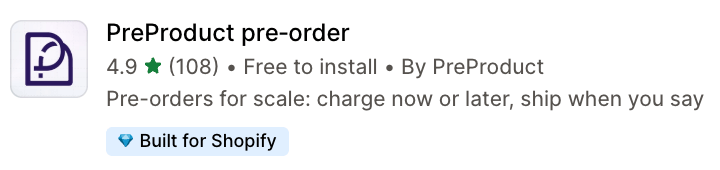
For you, it’s a signal that PreProduct works the way Shopify expects apps to work, fits naturally into your admin and is built with Shopify’s own building blocks. If you’re comparing pre-order apps, it’s an independent check from Shopify rather than a claim from us.
A redesign that keeps everything where you left it
We’ve rebuilt the PreProduct admin using Polaris, Shopify’s own design system. Buttons, forms, tables, badges, banners and save bars now look and behave like the rest of your Shopify admin.
Same flows, same layouts
We know you open PreProduct to get a job done, not to admire it. Redesigns that move things around are frustrating, especially mid-launch when you just need to update a ship date or check an order.
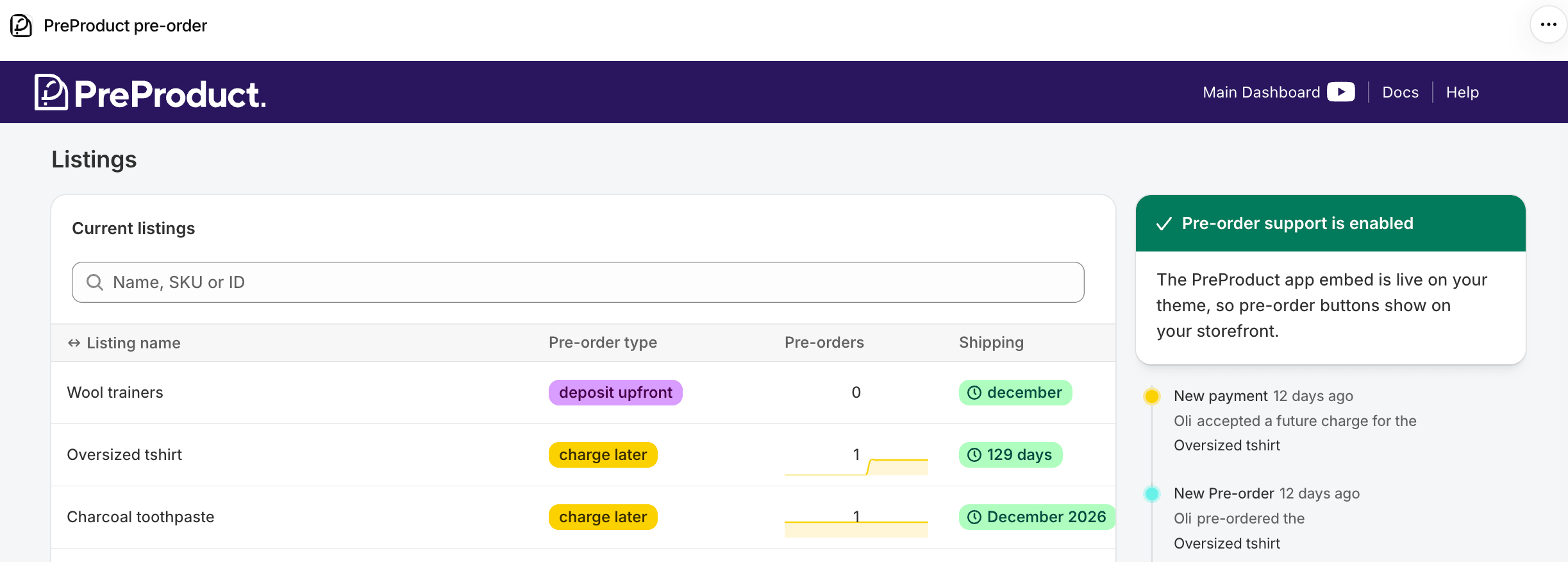
So we were strict about it. Every flow and every screen layout is where it was. Creating a listing, managing pre-orders, customising your front end and working through your setup all follow the same steps in the same places. What’s changed is the individual components on each screen, which are now sharper, more consistent and more familiar.
If you knew where something was last month, it’s still there.
What you’ll notice
- A familiar look. PreProduct now matches the rest of your Shopify admin, so moving between Shopify and PreProduct feels seamless.
- Clearer status at a glance. Listing stages and pre-order payment statuses use Polaris badges, so it’s quicker to see what’s active, paid or waiting.
- Fewer lost changes. Settings pages use a Shopify-style save bar, so it’s obvious when you have unsaved changes.
- Consistent forms and tables. Inputs, toggles and lists behave the same way on every screen.
Pre-order limits that follow your incoming stock (beta)
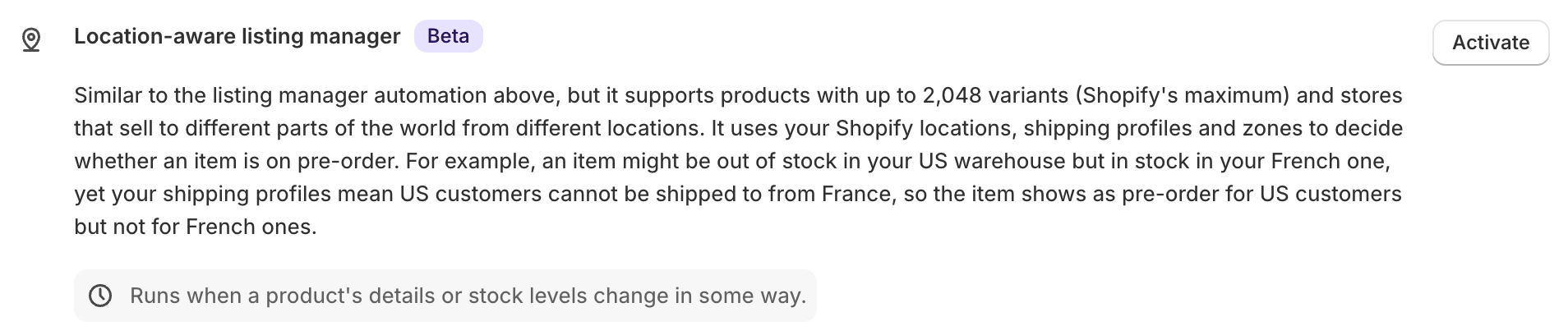
If you sell from more than one location, you may already use the location-aware listing manager, one of PreProduct’s automations. Once it’s switched on, it puts items on and off pre-order for you, using your Shopify locations, shipping profiles and zones to decide whether an item shows as pre-order for a given customer.
There’s now a second, alternative version of that automation: the Location-aware listing manager with max limits. It’s a separate automation rather than a change to the original, so nothing changes for you unless you turn it on. It does everything the original does, and also sets each variant’s pre-order limit at each location from its incoming stock, so you never pre-sell more than is actually on the way.
Driven by the stock you already track in Shopify
Most merchants already record incoming stock in Shopify, without thinking of it as a pre-order setting:
- Purchase orders. Raise a purchase order to a supplier and Shopify records those units as incoming at the receiving location.
- Inventory transfers. Move stock between locations and the units in transit show as incoming at the destination.
PreProduct reads that incoming stock and uses it as the pre-order limit for that variant at that location. When a new purchase order lands or a transfer is updated, the limit updates with it. No spreadsheets, no manual limits to keep in sync.
Is it right for your store?
This version is deliberately strict. A variant becomes pre-sellable at a location only when that location stocks it, it has run out of available stock and it has incoming stock on the way. That means it only suits stores that already track incoming stock in Shopify, through purchase orders or inventory transfers. If a sold-out variant has no incoming stock recorded, PreProduct won’t let it go on pre-order at all. If you don’t use that side of Shopify, the original location-aware listing manager is the better fit.
Fine-tuning it
- Reserve a percentage of incoming stock. Hold part of each incoming shipment back from pre-orders, for wholesale, retail or simply a buffer.
- ERP-friendly mode. If your ERP or inventory system already reduces Shopify’s incoming quantity as pre-orders come in, switch this on so stock isn’t counted twice.
Where to find it
Go to Automations and look for Location-aware listing manager with max limits. It’s in beta, available for Shopify stores on our premium plans, and needs the latest app permissions.
Know when pre-orders can’t show on your storefront
When a pre-order button doesn’t appear, the cause often isn’t the listing at all. It’s the theme. Either PreProduct’s app embed has been switched off, which is easy to miss after a theme change, or PreProduct can’t find the theme’s buy buttons to switch over to pre-order.
PreProduct now helps with both.
Automatic app embed detection
On Shopify, PreProduct checks whether its app embed is turned on in your live theme. If it isn’t, you’ll see a warning on your listings dashboard telling you that pre-order support isn’t enabled on your theme, with a button that opens your theme editor with the PreProduct embed ready to switch on. Once it’s on, the warning turns green by itself.
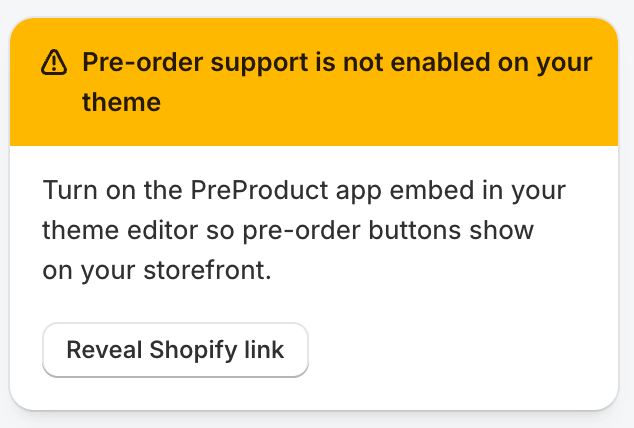
That’s especially handy after publishing a new theme, when it’s easy to forget the embed doesn’t carry over.
Buy button recognition check
PreProduct works by taking over your theme’s existing add-to-cart buttons. A new Check my theme button opens a product page on your storefront and confirms whether PreProduct has recognised those buttons.
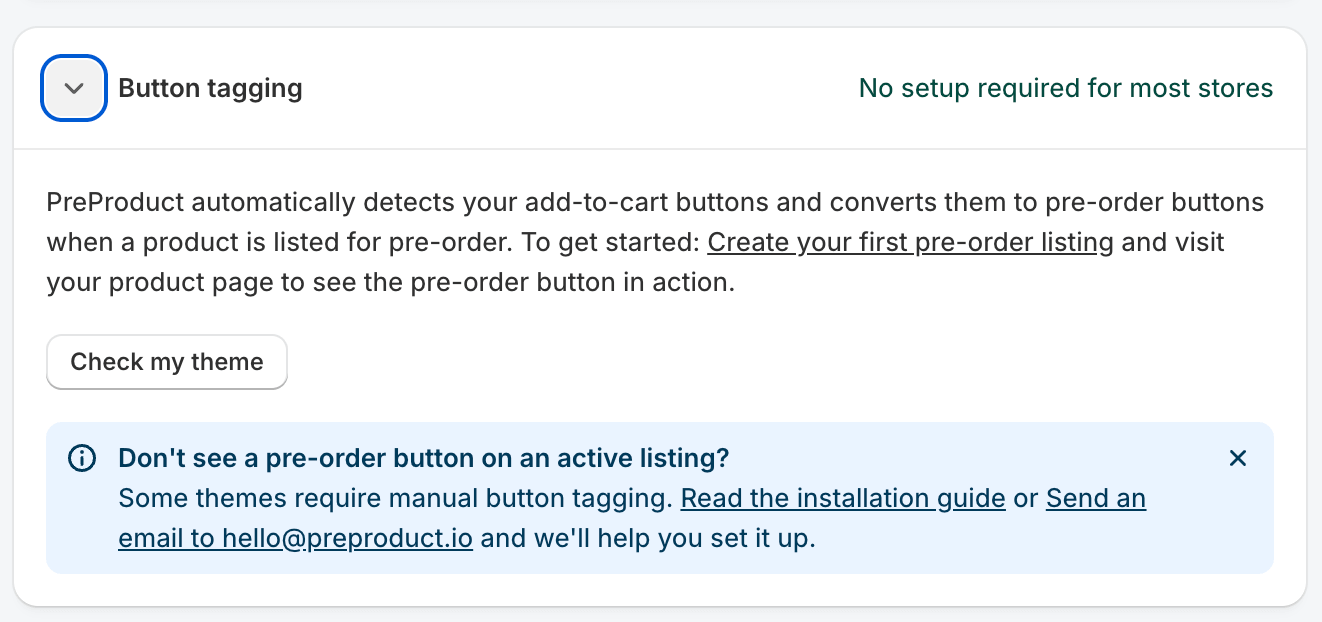
If it has, you’re good to go. If it hasn’t, you’ll know before a customer does, and you can email us so we can get it working with your theme. This check works on Shopify, BigCommerce and WooCommerce.
Wrapping up
This update is mostly about how PreProduct feels to use. Built for Shopify status and the Polaris redesign make PreProduct a natural part of your Shopify admin, without moving anything you rely on. Limits driven by incoming stock take another manual job off your plate for multi-location launches, and the new theme checks catch the quiet problems that stop pre-orders from showing.
As always, if anything doesn’t look or behave the way you expect after the redesign, reply to any of our emails and you’ll reach us directly.
Ready for a calmer next launch? Start taking pre-orders with PreProduct.
Pre-sell With PreProduct
7 day free trial with all plansMigrate pre-orders
