Back in Stock Notifications on Shopify: Complete Setup Guide

Stockouts cost retailers serious money. According to industry research, global stockouts are responsible for roughly $1 trillion in missed sales each year. For Shopify merchants, a sold-out product page can mean losing customers to competitors, or worse, losing them forever.

Back in stock notifications on Shopify offer a way to recover some of those lost sales. Instead of showing a “Sold Out” label and hoping customers return later, you can collect their email address and automatically alert them when inventory is available again.

In this guide, you’ll learn exactly how to set up back in stock notifications on Shopify, from third-party apps to email platform integrations. But we’ll also cover something most guides skip: when pre-orders are actually the smarter choice for capturing revenue upfront, rather than just collecting emails and hoping for the best.

What Are Back in Stock Notifications?

Back in stock notifications are automated alerts that let customers know when a previously sold-out product becomes available again. The workflow is straightforward:

  1. A customer visits a product page that’s out of stock
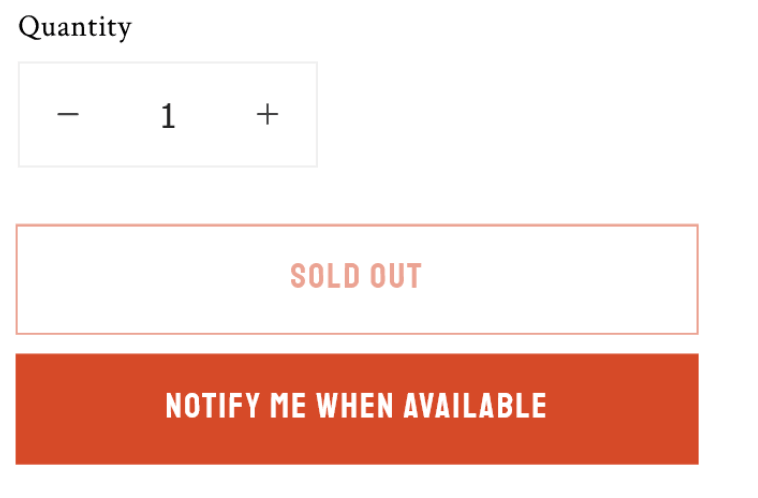
  2. Instead of a “Buy Now” button, they see a “Notify Me When Available” button
  3. They enter their email address (and sometimes phone number)
  4. When you restock the product, an automated email or SMS goes out
  5. The customer clicks through and hopefully completes a purchase

The customer experience is simple, but the backend requires some setup. Shopify doesn’t include native back in stock alert functionality, so you’ll need either a dedicated app, an email marketing platform with this feature, or custom code.

Why doesn’t Shopify build this in? It’s a feature that requires ongoing email sending, subscriber management, and inventory syncing. Shopify keeps its core platform lean, leaving this functionality to apps and integrations that specialise in it.

Why Back in Stock Notifications Matter for Your Store

Back in stock emails have some of the strongest performance metrics in ecommerce marketing. According to Omnisend’s 2025 data, these emails achieve:

  • 58.03% open rate (compared to ~20% for standard promotional emails)
  • 21.19% click-through rate (well above typical ecommerce benchmarks)
  • 6.46% conversion rate (the highest of any email automation type)

These numbers make sense when you think about the psychology. Someone who signed up for a back in stock notification has already expressed clear purchase intent. They wanted your product, they just couldn’t buy it at that moment. When the notification arrives, it’s not a cold promotional email; it’s the answer they were waiting for.

Beyond direct conversions, back in stock notifications help you:

Capture demand signals. Every signup tells you someone wanted that product. Aggregate this data across your catalogue and you have real-time demand intelligence for inventory planning.

Reduce customer frustration. Instead of bouncing away from a “Sold Out” page, customers feel like they have a path forward. This keeps them engaged with your brand.

Build your email list. Even if a customer doesn’t convert when the product returns, you’ve added a qualified lead to your marketing list. They’ve demonstrated product interest, making them valuable for future campaigns.

Create urgency when you restock. Back in stock emails naturally drive urgency. The product was gone, now it’s back, and it might sell out again. This psychology converts browsers into buyers.

How to Set Up Back in Stock Notifications on Shopify

There are three main approaches to implementing back in stock alerts on your Shopify store. Each has trade-offs around cost, complexity, and features.

Option 1: Third-Party Shopify Apps

The most common approach is installing a dedicated back in stock notification app from the Shopify App Store. These apps handle everything: the “Notify Me” button, subscriber management, automated sending, and analytics.

How app setup typically works:

  1. Install the app from the Shopify App Store
  2. The app automatically adds a “Notify Me” button to sold-out product pages (or you configure where it appears)
  3. Customise the button styling to match your theme
  4. Configure your email templates and sending rules
  5. Connect SMS if you want multi-channel notifications

Most apps can be set up in 15-30 minutes. The “Notify Me” button replaces your standard buy button when a product variant hits zero inventory.

Popular app categories include:

  • Standalone back in stock apps (focused solely on restock alerts)
  • Combined pre-order and back in stock apps (offering both notification capture and pre-order purchasing)
  • Email marketing platforms with back in stock features built in

Pricing varies significantly. Some apps charge monthly fees ($10-50/month is common), while others charge based on notification volume or take a percentage of attributed sales. Consider your expected volume when evaluating pricing models.

Key features to look for:

  • Multi-channel support (email + SMS)
  • Theme compatibility (especially with Shopify 2.0 themes)
  • Integration with your existing email platform
  • Customisable signup forms and email templates
  • Analytics and conversion tracking
  • Asynchronous loading (so the button doesn’t slow your page)

Option 2: Email Platform Integrations

If you already use an email marketing platform like Klaviyo, Omnisend, or Dotdigital, you may be able to handle back in stock notifications without a separate app. These platforms often include built-in back in stock forms and automated flows.

Klaviyo’s back in stock feature, for example, works like this:

  1. Add Klaviyo’s back in stock script to your theme
  2. Customise the “Notify Me” button appearance in Klaviyo’s form editor
  3. Set up a back in stock flow that triggers when inventory is added
  4. Klaviyo automatically matches subscribers to restocked products and sends notifications

The advantage of this approach is consolidation. Your back in stock subscribers live alongside your other email segments, making it easier to include them in broader marketing campaigns.

The downside? Email platform back in stock features can be less robust than dedicated apps. You may have fewer customisation options, less sophisticated variant-level tracking, or limited SMS capabilities.

Option 3: Custom Code Solutions

Technically savvy merchants or development teams can build custom back in stock functionality using Shopify’s APIs, webhooks, and theme code. This approach offers maximum control but requires significant development resources.

A custom solution typically involves:

  • Theme modifications to display signup forms on sold-out products
  • A backend system to store subscriber data
  • Integration with inventory webhooks to detect restocks
  • Connection to an email service (SendGrid, Mailgun, etc.) for sending notifications
  • Custom analytics and reporting

This approach makes sense for large stores with unique requirements or merchants who want complete ownership of their customer data. For most Shopify stores, however, the time and cost of custom development outweighs the benefits compared to existing app solutions.

Best Practices for Back in Stock Notifications

Setting up the technical infrastructure is just the first step. How you execute your back in stock strategy determines whether you actually recover those lost sales.

Email Best Practices

Write compelling subject lines. Your subject line needs to cut through inbox noise. Be direct: “Good news: [Product Name] is back” or “[Product Name] is back in stock, grab it now” work well. Include the product name so subscribers immediately know why they’re receiving the email.

Personalise the content. Address customers by name. Reference the specific product they signed up for. Include the product image prominently. The email should feel like a personal update, not a mass broadcast.

Create urgency (honestly). If the product previously sold out, it might sell out again. You can mention limited quantities or high demand, but only if it’s true. Fake scarcity erodes trust.

Make the CTA obvious. One clear button: “Shop Now” or “Buy [Product Name]”. Don’t clutter the email with other products or offers that distract from the primary action.

Send immediately. Back in stock notifications should go out the moment inventory is added. Delays reduce conversion rates; someone else might buy the product first, or the customer’s interest may have cooled.

Multi-Channel Approach

Email isn’t your only option. SMS and push notifications can significantly boost your reach:

SMS alerts have open rates above 98% and are particularly effective for fast-moving products where speed matters. If someone signed up for a limited-edition drop, an SMS ensures they see the restock notification immediately.

Push notifications (web or app) offer another touchpoint for customers who have opted in. They’re especially useful for mobile shoppers.

WhatsApp is gaining traction for customer communications in many markets. Some back in stock apps now support WhatsApp notifications alongside email and SMS.

The key is letting customers choose their preferred channel during signup. Offering multiple options captures more subscribers and ensures notifications reach them on the channel they’re most likely to engage with.

Timing and Automation

Automate everything. Manual restock notifications don’t scale. Your back in stock system should automatically detect inventory changes and trigger notifications without human intervention.

Consider follow-up sequences. If someone doesn’t convert from the initial notification, a follow-up 24-48 hours later can capture additional sales. Just don’t overdo it; two touchpoints are usually enough.

Use low-stock alerts too. Some apps let you notify subscribers when inventory is running low, even before it sells out. This creates urgency and can drive purchases before you hit zero stock.

When Pre-orders Beat Back in Stock Notifications

Here’s what most back in stock guides won’t tell you: sometimes capturing an email address is the wrong strategy. If you know when inventory is coming, pre-orders let you capture revenue now instead of just collecting signups and hoping customers return later.

The Revenue Timing Problem

Consider the standard back in stock workflow:

  1. Product sells out
  2. Customer signs up for notification
  3. You wait for inventory (weeks or months)
  4. You send the notification
  5. Customer hopefully opens the email
  6. Customer hopefully clicks through
  7. Customer hopefully completes a purchase

That’s a lot of “hopefully.” Even with a 6.46% conversion rate (the best-case scenario), you’re losing over 93% of the interested customers who signed up.

Now consider pre-orders:

  1. Product sells out (or you launch a new product)
  2. Customer places a pre-order
  3. You charge upfront, later, or take a deposit
  4. Inventory arrives
  5. You fulfill the order

The sale is captured when interest is highest, not weeks later when the customer may have found an alternative or simply forgotten about your product.

Conversion Comparison

Back in stock notifications measure interest. Pre-orders measure commitment.

An email signup says “I was interested enough to give you my email address.” A pre-order says “I’m committed enough to give you my payment information.”

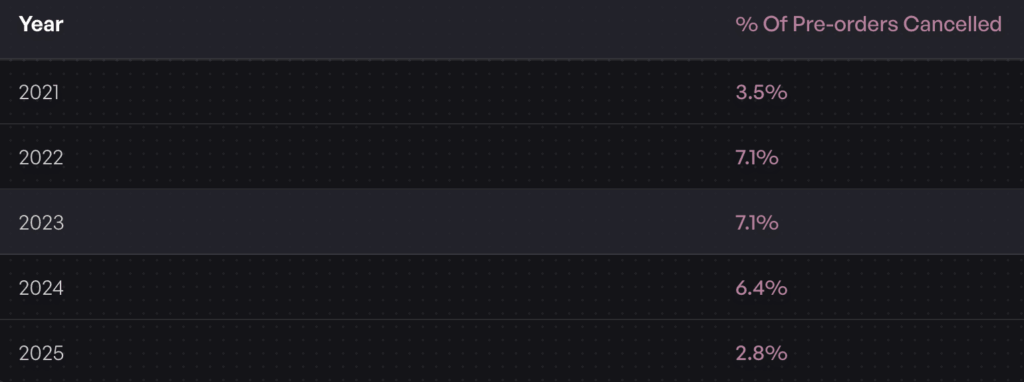
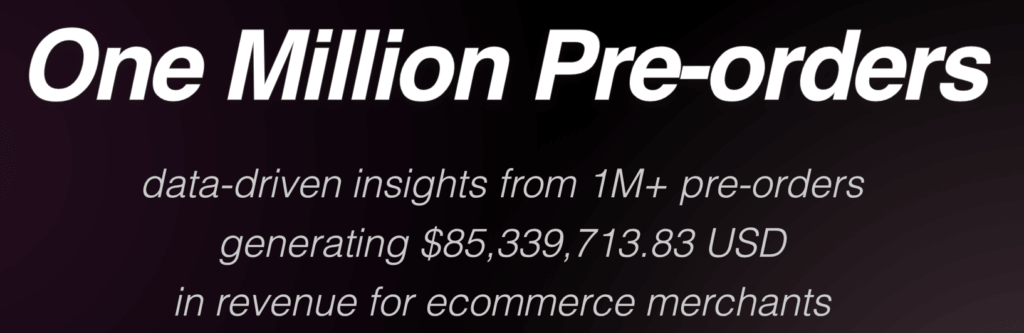
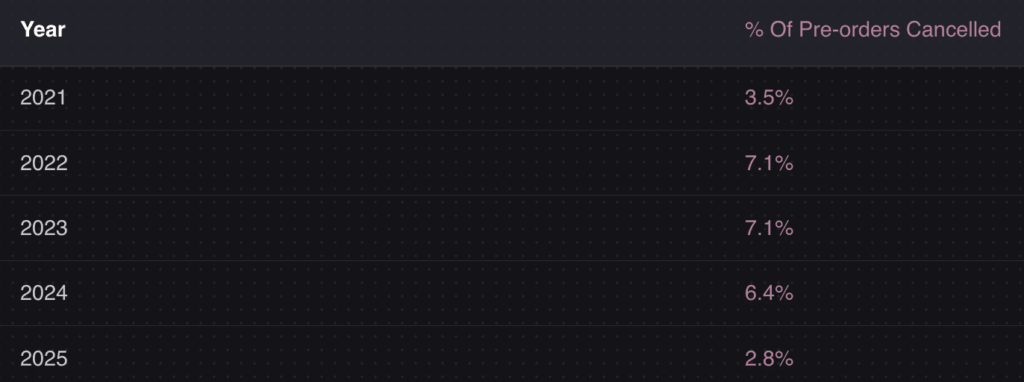
Data from over 1 million pre-orders shows that pre-order cancellation rates average just 5.4%. That means 94.6% of customers who place a pre-order follow through to purchase. Compare that to the 6.46% who convert from a back in stock email.

The math is clear: if you can take pre-orders instead of collecting email signups, you capture dramatically more revenue.

When to Use Pre-orders Instead

Pre-orders make more sense than back in stock notifications when:

You have a confirmed restock date. If you know inventory is arriving in 4 weeks, why collect emails when you could collect orders? Customers get the certainty of a secured product; you get the certainty of committed revenue.

You’re launching a new product. Pre-orders let you build hype, validate demand, and fund production before you’ve invested in inventory. This is especially valuable for brands launching new SKUs.

You have high-demand items with waitlists. If your back in stock signup list is growing into the hundreds or thousands, that’s demand you could be capturing as revenue. Long waitlists signal you should be taking pre-orders.

You need cash flow now. Back in stock notifications don’t generate revenue until inventory arrives and customers convert. Charge-upfront pre-orders bring revenue in immediately. Even charge-later models vault the customer’s payment method, creating a committed sale.

Your product has a long lead time. For made-to-order products, custom items, or products with extended manufacturing timelines, pre-orders are the natural fit. Customers understand they’re ordering in advance.

Payment Flexibility with Pre-orders

One reason merchants default to back in stock notifications is uncertainty about payment timing. Pre-orders solve this with flexible payment models:

Charge upfront: Collect full payment at checkout. Revenue is immediate, and there’s zero risk of failed future charges. Best for products with short lead times or when you need immediate cash flow.

Charge later: Customers go through checkout, but you vault their card and charge when inventory arrives. This works well when you’re not sure exactly when stock will land. 43.8% of pre-order listings use this approach.

Deposits: Collect a partial payment upfront (10-50% is common), then charge the balance later. Deposits reduce cancellation risk while being less intimidating than full upfront payment for higher-priced items.

These options give you more control than back in stock notifications, where the only “commitment” you capture is an email address.

Combining Back in Stock with Pre-orders

You don’t have to choose one strategy exclusively. Many Shopify merchants use both, depending on the situation.

Use back in stock notifications when:

  • You genuinely don’t know if or when a product will return
  • The product is being discontinued or is a limited run
  • Restock timelines are unpredictable

Use pre-orders when:

  • You have confirmed inventory incoming
  • You’re launching a new product
  • Lead times are known and communicable to customers
  • You want to capture revenue rather than just interest

The hybrid approach: Some merchants start with back in stock signups when inventory status is uncertain, then transition to pre-orders once they have restock confirmation. You can even re-engage your back in stock signup list with a “pre-orders now open” email, converting passive interest into active orders.

For a deeper comparison of these approaches, see our guide on pre-orders vs backorders vs waitlists.

Measuring Your Back in Stock Performance

Whatever approach you choose, tracking performance is essential. Key metrics to monitor:

Signup rate: What percentage of visitors to sold-out product pages sign up for notifications? Low signup rates may indicate a visibility problem (button placement, design) or a product problem (customers don’t want it enough to wait).

Open rate: Industry benchmark for back in stock emails is around 58%. Significantly lower rates suggest deliverability issues or weak subject lines.

Click-through rate: Benchmark is around 21%. Low CTR with high opens suggests the email content or CTA isn’t compelling.

Conversion rate: The 6.46% benchmark is for customers who receive the notification. Track your actual conversion to see how you compare.

Revenue per notification: How much revenue does each back in stock notification generate on average? This helps you understand the true value of the feature.

If your back in stock conversions are underperforming benchmarks, it may be time to test pre-orders instead. Converting even a fraction of your signup list into pre-order customers will likely generate more revenue than waiting for restock notifications.

Conclusion

Back in stock notifications are a valuable tool for recovering lost sales on Shopify. With conversion rates around 6.46%, significantly higher than standard email campaigns, they’re worth implementing for any store that regularly experiences stockouts.

But here’s the key takeaway: back in stock notifications capture emails, while pre-orders capture revenue. If you know when inventory is coming, pre-orders let you turn interested browsers into committed buyers today, not weeks from now when they may have moved on.

For managing out of stock products on Shopify, consider your situation carefully:

  • Uncertain restock? Use back in stock notifications
  • Confirmed restock date? Consider pre-orders to capture revenue now
  • High demand product? Pre-orders with deposits let you gauge commitment without full upfront payment

The best strategy often combines both approaches, using back in stock for unpredictable inventory and pre-orders when you have clarity on when products will ship.

Ready to capture more revenue from your out-of-stock products? Explore how pre-orders work on Shopify to see if they’re right for your store.


Frequently Asked Questions

Does Shopify have built-in back in stock notifications?

No, Shopify doesn’t offer native back in stock alerts. You’ll need a third-party app from the Shopify App Store or an email platform integration like Klaviyo to add this functionality to your store.

What is the conversion rate for back in stock emails?

Back in stock emails have an average conversion rate of 6.46%, making them the highest-converting email automation type. Open rates average around 58%, with click-through rates of 21%.

What’s the difference between back in stock notifications and pre-orders?

Back in stock notifications collect customer emails and alert them when products restock. Pre-orders capture payment or payment intent upfront, securing the sale before inventory arrives. Pre-orders convert interested customers immediately; back in stock notifications require customers to return and complete a purchase later.

Can I use both back in stock and pre-orders on Shopify?

Yes. Many merchants use back in stock notifications for uncertain restock timelines and pre-orders when they have confirmed inventory coming. The two strategies complement each other and can be used together based on your inventory situation.

How quickly should back in stock notifications be sent?

Immediately. Back in stock notifications should trigger automatically the moment inventory is added. Delays reduce conversion rates because customers may find alternatives or lose interest. Most back in stock apps send notifications within minutes of a restock.

Pre-sell With PreProduct

7 day free trial with all plans

Backorder vs Out of Stock: What’s the Difference (and When to Use Each)

Understanding backorder vs out of stock is essential for any ecommerce merchant facing inventory gaps. Stockouts cost retailers $1.2 trillion globally every year in direct lost sales alone. When customers land on a product page and can’t buy what they want, the consequences ripple through your revenue, customer loyalty and brand perception.

But there’s more than one way to handle out of stock ecommerce situations. You can mark products as “out of stock” and block purchases entirely. You can accept backorders and let customers buy now for later delivery. Or you can take a third approach that some merchants overlook: pre-orders.

Understanding the difference between backorder vs out of stock (and knowing when each makes sense) can mean the difference between capturing revenue and losing customers to competitors. By the end of this guide, you’ll know exactly which approach fits your situation.

What Does Backorder Mean? Understanding Backorder Meaning

So what does backorder mean exactly? A backorder happens when a product is temporarily unavailable but customers can still purchase it. The backorder meaning is simple: the item isn’t in your warehouse right now, but you’ve confirmed that more inventory is coming. Customers place their order, you take payment (or vault their card), and you ship once stock arrives.

Think of backorders as a promise: “We don’t have it today, but we will soon, and we’re holding your spot.”

The key characteristics of a backorder:

  • Customers can still purchase the product despite zero inventory
  • Restocking is confirmed with a known or estimated timeline
  • Payment is typically collected upfront or at time of shipment
  • Fulfillment is delayed until inventory is replenished

Backorders usually work best for short restocking windows. On average, it takes 14-21 days to fulfill a backorder, though this varies by product and supply chain. The shorter the window, the more willing customers are to wait.

From an operational perspective, backorders let you continue taking orders rather than turning customers away. But they also create fulfillment complexity. You need systems to track incoming inventory, manage customer expectations, and process payments at the right time.

What Does Out of Stock Mean?

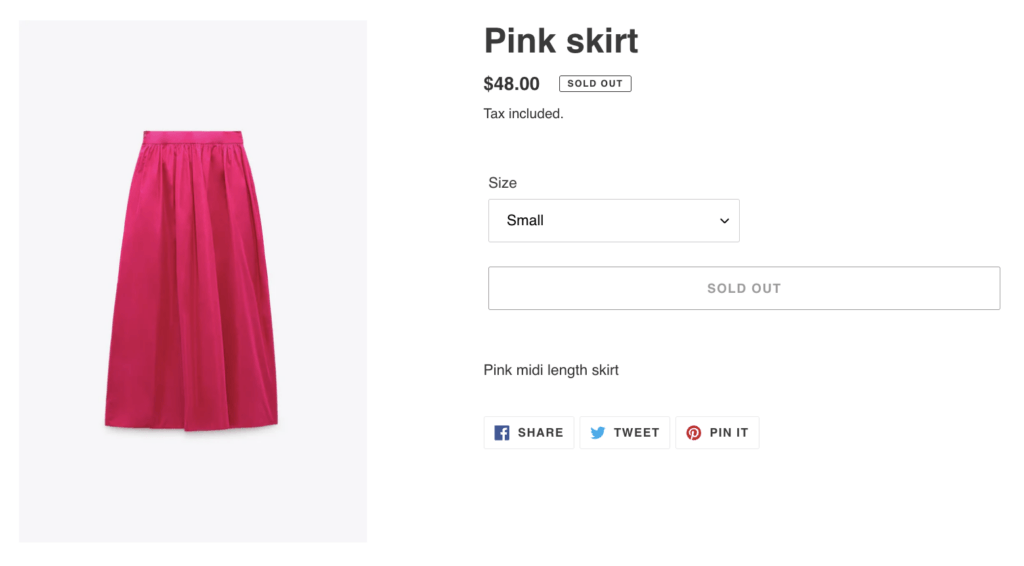
When a product is marked “out of stock,” customers cannot purchase it at all. The buy button is disabled, replaced with a “Sold Out” badge, or the product may be hidden from your store entirely.

An out-of-stock status signals uncertainty. Unlike backorders, there’s no guarantee the product will return, and no commitment to a timeline. Customers have to wait and hope, or look elsewhere.

The key characteristics of out of stock:

  • Customers cannot purchase the product
  • Restocking timeline is unknown or uncertain
  • No payment is collected
  • The product may or may not return

Out of stock is the default setting for most ecommerce platforms when inventory hits zero. It’s the safest approach from a fulfillment standpoint because you’re not making promises you can’t keep. But it’s also the most expensive from a revenue standpoint.

When customers encounter out-of-stock products, 69% abandon their purchase entirely and shop elsewhere. And 43% will go directly to a competitor. Every “Sold Out” badge is a potential lost customer.

Key Differences Between Backorder and Out of Stock

The fundamental difference comes down to purchase availability and customer commitment. Here’s how they compare:

FactorBackorderOut of Stock
Can customers purchase?Yes, with delayed fulfillmentNo, purchase blocked
Restocking timelineConfirmed or estimatedUnknown or indefinite
Payment timingUpfront or deferredNone
Customer expectation“My order is coming soon”“Maybe it will come back”
Revenue impactPreserved (delayed)Lost
Operational complexityHigherLower

From a customer psychology perspective, the difference is significant. A backorder customer has made a commitment. They’ve decided to buy, entered their payment details and are waiting for delivery. An out-of-stock customer hasn’t committed to anything. They’re still in consideration mode and can easily be distracted by a competitor.

This psychological difference matters for your business. Customers who have already committed are less likely to cancel or shop around. But backorder customers also have higher expectations. They expect clear communication, accurate timelines and a smooth delivery experience.

When to Use Backorders

Backorders work best in specific scenarios where you have confidence in your restocking timeline and customers are willing to wait.

Fast-moving bestsellers

When a popular product sells out faster than expected, backorders let you continue capturing demand. If you have a reliable supplier and predictable restocking timeline, accepting backorders keeps sales flowing while you wait for the next shipment.

Core catalog items

For products that are a permanent part of your catalog, backorders make sense during temporary stockouts. These are items you’ll definitely restock, and customers know they’re getting a product that’s proven and available.

Short restocking windows

Backorders work best when the wait time is measured in days or weeks, not months. The sweet spot is typically 2-6 weeks. Beyond that, customer patience wears thin and cancellation risk increases.

Reliable supplier relationships

Only offer backorders when you’re confident in your restocking timeline. If your supply chain is unpredictable, making promises you can’t keep will damage customer trust more than simply saying “out of stock.”

When NOT to use backorders:

  • Seasonal items unlikely to restock this season
  • Products with uncertain supply chains
  • Wait times beyond 8-12 weeks
  • Items being discontinued or phased out

The risk with backorders is overpromising. If you tell customers their order will ship in two weeks and it takes six, you’ve created a support headache and potentially lost their trust for future purchases.

When to Mark Products Out of Stock

Sometimes the safest approach is to be upfront: this product isn’t available, and you can’t make promises about when it will return.

Discontinued products

If you’re not bringing a product back, don’t pretend otherwise. Mark it out of stock (or redirect to an alternative) and move on. Accepting backorders for discontinued items is a recipe for refunds and complaints.

Uncertain restocking timelines

When you genuinely don’t know when inventory will arrive, it’s better to be honest. Telling customers “out of stock” is more trustworthy than making up a timeline you can’t guarantee.

Supply chain disruptions

Major supply chain issues can make restocking timelines impossible to predict. During periods of uncertainty, marking products out of stock protects both customer expectations and your operations team.

Quality or compliance issues

If a product is unavailable due to quality concerns or regulatory issues, you need to resolve those before selling again. Out of stock is the appropriate status while you work through the problem.

The downside of out of stock is lost revenue. But the upside is operational simplicity and honest customer communication. Sometimes it’s better to lose a sale today than damage trust with a broken promise.

For Shopify merchants dealing with stockouts, we’ve written a comprehensive guide on what to do when products are out of stock on Shopify, covering strategies from hiding products to setting up notifications. Understanding Shopify backorder functionality is crucial for maintaining sales during inventory gaps.

The Third Option: Preorder vs Backorder

Here’s where most backorder vs out of stock discussions fall short. They treat these as the only two options when there’s a third approach that often works better for ecommerce: pre-orders.

Understanding preorder vs backorder differences is crucial for choosing the right strategy. Pre-orders are different from backorders in a few important ways:

  • Proactive vs reactive: Pre-orders are typically used for new products or planned restocks, while backorders are reactive responses to unexpected stockouts
  • Longer acceptable timeframes: Customers willingly wait months for pre-orders but lose patience after a few weeks with backorders
  • Different psychology: Pre-order customers are excited early adopters; backorder customers are frustrated buyers whose item wasn’t available

The data backs this up. According to our analysis of over one million pre-orders generating $85M+ in revenue, the most common pre-order shipping timeframe is 121-150 days. That’s 4-5 months. Customers don’t just tolerate these wait times, they expect them.

The average pre-order cancellation rate? Just 5.4%. Despite wait times that would be unacceptable for a backorder, pre-order customers stay committed because they’ve made a conscious choice to wait for something they want.

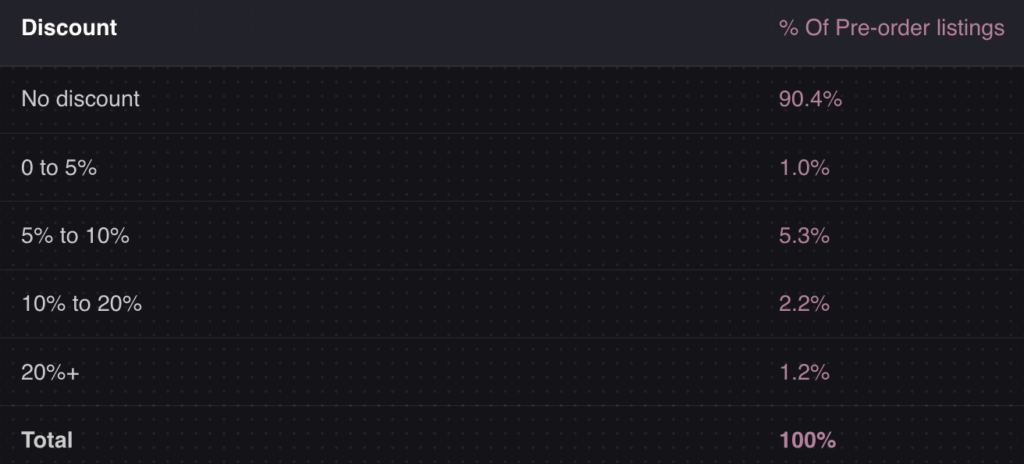
Another insight: 90.4% of pre-orders carry no discount. Customers aren’t waiting because they got a deal. They’re waiting because they want early access to the product. This is fundamentally different psychology than a backorder, where customers often feel they’re being inconvenienced.

When pre-orders work better than backorders:

  • New product launches (build anticipation before inventory arrives)
  • Restocks with longer lead times (4+ weeks)
  • Made-to-order or custom products
  • Limited edition drops (create scarcity and urgency)
  • Seasonal products returning next season

Pre-orders also give you payment flexibility that backorders typically don’t. With charge-later pre-orders, you can vault a customer’s card at checkout and charge when you’re ready to ship. This reduces refund risk for longer timelines while still capturing customer commitment.

For a deeper comparison, see our guide on pre-orders vs backorders vs waitlists.

How to Choose Between Backorder vs Out of Stock

With three options available, how do you decide which approach fits your situation? Here’s a decision framework based on the most common backorder vs out of stock scenarios:

ScenarioBest ApproachWhy
Known restock date (2-4 weeks)BackorderShort wait, high confidence, keep sales flowing
Known restock date (4-12 weeks)Pre-order with charge-laterLonger wait needs proper expectation-setting
Unknown restock timelineBack-in-stock notificationDon’t make promises you can’t keep
New product launchPre-orderBuild anticipation, capture early demand
Seasonal product (returning later)Pre-order or notificationDepends on how far out the restock is
Product being discontinuedOut of stock + redirectDon’t accept orders you can’t fulfill
Made-to-order itemsPre-order with depositCollect commitment before production
High-ticket itemsPre-order with depositReduce risk for both parties

The key questions to ask:

  1. How confident are you in the restock timeline? High confidence = backorder or pre-order. Low confidence = out of stock or notification.
  2. How long will customers wait? Under 4 weeks = backorder probably works. Over 4 weeks = consider pre-orders with proper messaging.
  3. Is this a new launch or a restock? New launches benefit from pre-order anticipation. Restocks can go either way.
  4. What’s the price point? Higher-ticket items may warrant deposit-based pre-orders to secure customer commitment.
  5. How will this affect your operations? Backorders and pre-orders both require systems to track orders, manage fulfillment holds and communicate with customers.

Best Practices for Shopify Backorder and Out of Stock Management

Regardless of which approach you choose, clear communication is essential. Customers can handle waiting. What they can’t handle is uncertainty. Here are best practices for managing backorder vs out of stock situations in your store.

Set expectations on the product page

Don’t bury the shipping timeline in fine print. If an item is on backorder or pre-order, make the expected delivery date prominent. “Ships in 2-3 weeks” or “Expected ship date: April 15” gives customers the information they need to decide.

Use dedicated buttons and messaging

A generic “Add to Cart” button doesn’t tell customers they’re committing to a delayed order. Use clear labels like “Pre-order Now” or “Backorder” to signal that this isn’t a standard purchase.

Send automated updates

Keep customers informed throughout the wait. A simple “Your order is still on track to ship next week” email can prevent support tickets and build trust. If timelines change, communicate proactively.

Consider payment timing carefully

For short backorders, charging upfront is usually fine. For longer waits (especially 30+ days), consider charge-later options where you vault the customer’s card and charge closer to shipment. This reduces refund requests and expired card issues.

Our data shows that 43.8% of pre-order listings use charge-later, which suggests merchants are finding value in delaying payment for longer lead times.

Forecast demand to prevent stockouts

The best backorder strategy is avoiding backorders in the first place. Use inventory forecasting tools and pre-order inventory management to predict demand and set reorder points that give you buffer before running out.

Don’t overcommit

If you’re not sure how much inventory you’ll receive, consider capping backorders or pre-orders to avoid overselling. It’s better to turn away some orders than to cancel orders after customers have committed.

Putting It All Together: Backorder vs Out of Stock

The backorder vs out of stock decision isn’t just about definitions. It’s about choosing the right tool for your specific out of stock ecommerce situation.

Backorders keep sales flowing during short, predictable stockouts. They work best when you have confidence in your restocking timeline and customers are willing to wait a few weeks.

Out of stock is the honest approach when you can’t make promises. It protects customer trust and operational simplicity, even though it means lost sales in the short term.

Pre-orders offer a third path that many merchants overlook. When comparing preorder vs backorder options, pre-orders handle longer timelines, build anticipation for new products and give you payment flexibility that backorders don’t. For most ecommerce scenarios beyond simple restocks, Shopify pre-orders are worth considering.

The common thread across all three approaches? Communication. Customers can handle delays when they know what to expect. What they can’t handle is uncertainty, broken promises or radio silence.

If you’re running a Shopify store and want to explore pre-orders as an alternative to Shopify backorder management, our guide on how to do pre-orders on Shopify covers the full setup process. And for managing inventory across pre-orders and regular stock, see our guide on managing pre-order inventory in Shopify.

Whatever approach you choose, the goal is the same: capture demand, keep customers informed and deliver on your promises.

Pre-sell With PreProduct

7 day free trial with all plans

Out of Stock on Shopify? Turn Sold-Out Products Into Pre-Orders

Prefer a video? Click here to watch Oli explain your options when products sell out of stock.

Every out-of-stock product on your Shopify store is a sale walking out the door. The fix isn’t a “notify me” form. It’s letting shoppers commit and pay (or reserve) right now via a pre-order. That’s what PreProduct does: it swaps the greyed-out “Sold Out” button for a pre-order button so demand converts instead of bouncing to a competitor.
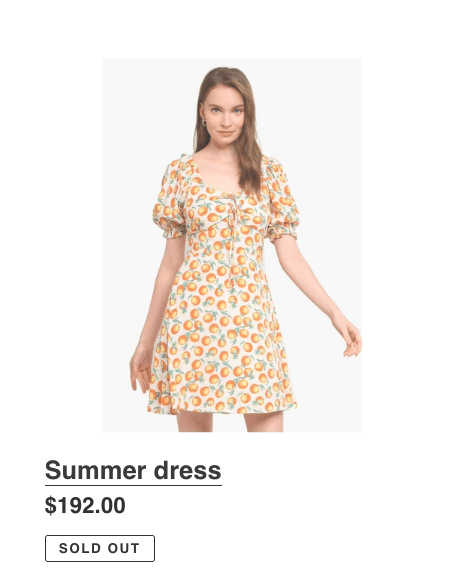
This is what happens by default when products go out of stock on Shopify. And it costs more than you think. According to industry research, 69% of online shoppers will abandon a purchase entirely and shop with a competitor when they encounter an out-of-stock item. For first-time visitors, the damage is even worse: 42% are unlikely to return after hitting a stockout.

But a product going out of stock doesn’t have to mean lost revenue. Stockouts are increasingly common across popular product categories, and there are several ways to handle them, from quick settings changes to revenue-preserving strategies like pre-orders and back-in-stock notifications. The right approach depends on your situation: whether the product is coming back, how long restocking takes and how you want to manage customer expectations.

This guide walks through every option available to Shopify merchants.

Why Does My Shopify Store Say “Sold Out”?

Before jumping into strategies, it’s worth understanding why a product shows as sold out on Shopify in the first place. Sometimes it’s expected (inventory genuinely hit zero). Other times it’s a settings issue that’s costing you sales unnecessarily. (If you’re specifically wrestling with the “Sold Out” badge rather than the underlying inventory question, our companion guide on sold out products on Shopify walks through what to do at the product page itself.)

Here are the most common causes:

Inventory genuinely reached zero. This is the straightforward one. Shopify tracks inventory quantities, and when a product or variant drops to zero, the buy button is replaced with “Sold Out.” This is default Shopify behaviour and it’s working as intended.

Inventory tracking is misconfigured. If “Track quantity” is turned on but no inventory count was entered, the product defaults to zero. This catches merchants who add new products without setting initial stock levels. Check the Inventory section of your product in Shopify admin and make sure quantities are correct.

Multi-location inventory confusion. If you use multiple inventory locations in Shopify (warehouse, retail store, 3PL), a product can show as sold out if the location assigned to your online store has zero stock, even if other locations have plenty. Verify that the right location is stocked and assigned.

Variant-level stock issues. A product with multiple variants (sizes, colours) can appear partially or fully sold out if individual variants hit zero. One variant at zero stock won’t necessarily make the whole product unavailable, but it can confuse customers if the default-selected variant is the one that’s out of stock.

Sync problems with third-party apps. If you use a 3PL, ERP or multi-channel selling tool, inventory syncs can lag or fail. This is a common frustration in Shopify community forums, with merchants posting about products showing “Sold Out” despite having stock on hand. If this is happening, check your integration settings and sync logs.

Once you’ve ruled out (or fixed) technical issues, the next question is: what do you do when a product is legitimately out of stock?

The Shopify “Continue Selling When Out of Stock” Setting

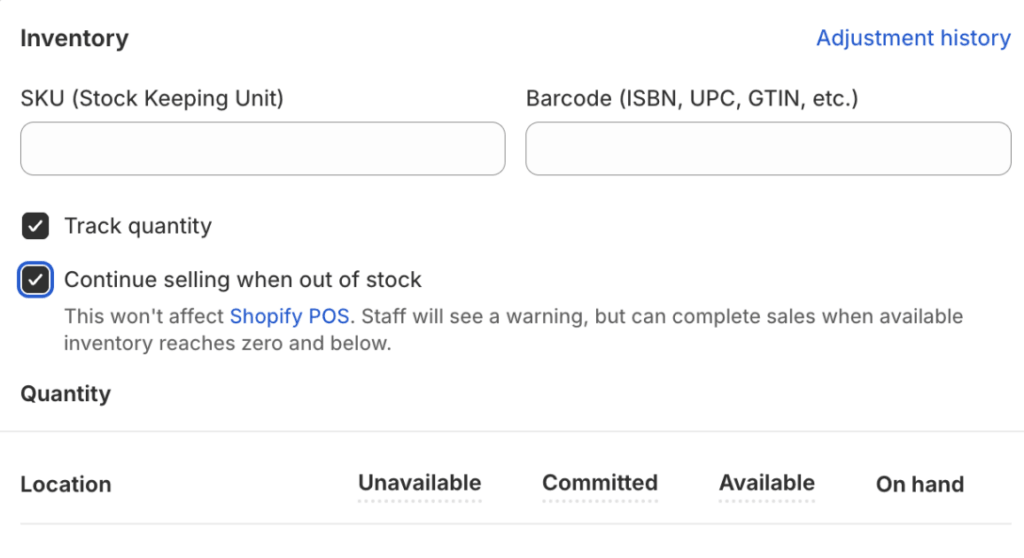
Shopify has a built-in setting that lets you keep accepting orders even when inventory drops to zero. It’s a checkbox labelled “Continue selling when out of stock” in the Inventory section of any product or variant.

How to enable it:

  1. Go to Products in your Shopify admin
  2. Click into the product you want to update
  3. Scroll to the Inventory section (or click into a specific variant)
  4. Check “Continue selling when out of stock”
  5. Save

Once enabled, the buy button stays active regardless of inventory count. Customers can purchase even when stock is at zero or negative.

When this makes sense:

  • You have confirmed restock coming soon (within days)
  • You’re running a made-to-order or build-to-order model
  • You’re pairing it with a pre-order app that manages expectations
  • You have a reliable supply chain with short lead times

When it gets risky:

This setting is not a “set and forget” solution. The biggest risk is customer expectations. If someone buys a product expecting normal shipping and then discovers it won’t ship for weeks, you’ll get support tickets, refund requests and potentially chargebacks.

Without clear messaging on the product page, at checkout and in order confirmation emails, enabling this checkbox alone can create more problems than it solves. If you’re going to use it, pair it with one of the strategies below.

Five Strategies for Out-of-Stock Products on Shopify

There’s no single right answer for every stockout. The best approach depends on whether the product is coming back, how long restocking takes and what kind of customer experience you want to deliver. Here are five options.

1. Take pre-orders

Pre-orders let you keep accepting orders for out-of-stock products with full transparency about when they’ll ship. Instead of hiding the product or blocking purchases, you give customers the option to buy now and receive the product later.

This is the most revenue-positive approach for products that are definitely coming back.

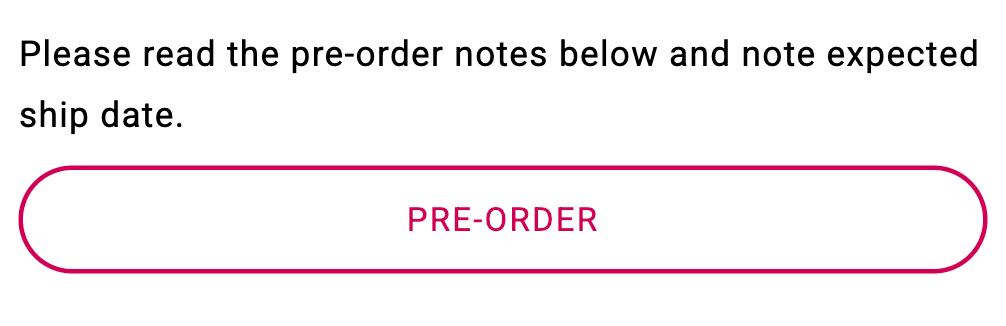
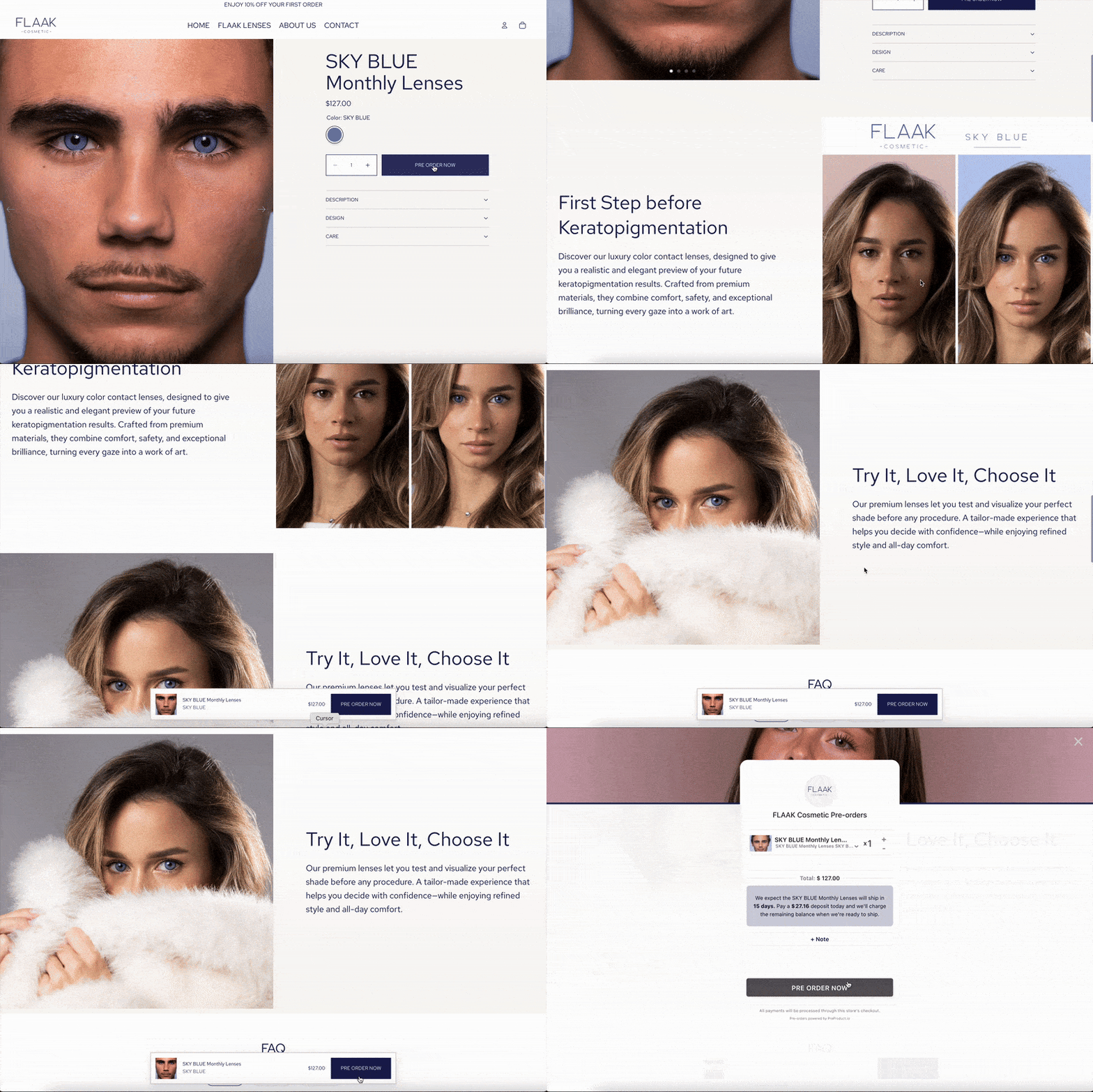
A pre-order app like PreProduct replaces your standard “Add to Cart” button with a pre-order button when a product is out of stock. It manages customer expectations through customisable front-end messaging, email updates and customer portals.

Payment flexibility matters here. Not every pre-order needs to charge upfront. Depending on your situation, you can:

  • Charge upfront: Collect full payment now. Best for short lead times where you know the product will ship soon.
  • Charge later: Vault the customer’s card and charge when stock arrives. Good for longer lead times where you want to reduce refund risk.
  • Take a deposit: Collect a percentage upfront and charge the balance later. Useful for higher-ticket items where you want commitment without asking for the full amount.

Pre-orders also give you valuable demand data. If 200 people pre-order a product, you have a much clearer picture of how much inventory to order than if you just showed a “Sold Out” badge and guessed.

Best for: Products being restocked, new launches, seasonal items coming back, made-to-order products.

2. Set up Shopify out of stock notifications

If you’re not sure when a product will be available again (or don’t want to commit to a timeline), back-in-stock notifications let customers sign up to be alerted when the product returns.

This typically involves adding a “Notify Me” or “Email Me When Available” button to sold-out product pages. When the product is restocked, subscribed customers receive an email or SMS notification.

The main advantage is low risk. You’re not taking payment or making a fulfilment promise. You’re just collecting intent signals.

The downside is that you’re not capturing revenue. The customer leaves your store without buying, and there’s no guarantee they’ll come back when notified. Open rates on back-in-stock emails can be strong, but conversion rates vary widely depending on how long the customer has been waiting and whether they found an alternative.

Best for: Uncertain restock timelines, products that may or may not return, lower-ticket items where pre-orders feel excessive.

3. Hide out-of-stock products or push them down

Rather than showing customers products they can’t buy, some merchants prefer to hide out of stock products on Shopify or de-prioritise sold-out items. There are a few ways to do this.

Smart collections filtering. You can set up a smart collection with the condition “Inventory stock is greater than 0” to automatically exclude out-of-stock products from collection pages. This keeps your browsing experience clean.

Shopify’s “unlisted” status. Introduced in late 2025, you can set a product status to “Unlisted.” The product won’t appear in your storefront search or collection pages, but the URL remains accessible. This is useful for SEO because search engines can still crawl and index the page.

Push-down apps. Several Shopify apps (like Nada or StockIQ) automatically move sold-out products to the bottom of collection pages rather than hiding them entirely. This keeps the page live for SEO while improving the browsing experience.

A word of caution on hiding products: If you unpublish or delete a product page, you risk losing any SEO value that page has built up, including backlinks, indexed pages and ranking signals. More on this in the SEO section below.

Best for: Large catalogues where browsing experience matters, seasonal products that won’t return for months, discontinued items.

4. Recommend alternative products

When a product is out of stock, don’t let the customer hit a dead end. Use the sold-out product page as a jumping-off point to suggest similar items they might want instead.

You can do this with:

  • Shopify’s built-in product recommendations (based on purchase patterns and product descriptions)
  • Manual “You might also like” sections using related products
  • App-powered recommendations that use browsing behaviour and purchase history

This is especially effective for stores with large catalogues where multiple products can fill a similar need. A customer looking for a specific colour of t-shirt might happily buy a different colour if it’s presented well.

Best for: Large catalogues with substitutable products, discontinued items with successors, fashion and lifestyle brands with range depth.

5. Show estimated restock dates

Sometimes the simplest approach is the most effective: tell customers when the product will be back.

Adding an estimated restock date to the product page (“Expected back in stock: March 15”) sets clear expectations. Customers can decide whether to wait, sign up for a notification or look elsewhere.

This works particularly well when paired with pre-orders. Instead of just showing a date, you can let customers place a pre-order with the restock date displayed prominently. That way they know exactly when to expect delivery.

Best for: Products with predictable restock timelines, brands that prioritise transparency, items with consistent demand.

Which Out-of-Stock Strategy Should You Use?

The right approach depends on a few factors. Here’s a quick decision framework:

SituationBest StrategyWhy
Product is being restocked (known timeline)Pre-ordersCapture revenue now; ship when ready
Product might come back (unclear timeline)Back-in-stock notificationsCollect interest without committing
Product is discontinuedHide + redirect (301)Preserve SEO; guide customers to alternatives
Product is seasonal (returning later)Hide + notificationsClean up browsing experience; re-engage later
Large catalogue with many substitutesRecommend alternativesKeep the customer shopping on your store
High-demand product with waitlist potentialPre-orders + restock dateMaximise revenue capture; build anticipation

In practice, many stores combine strategies. For example, you might take pre-orders for your best-sellers while hiding lower-priority out-of-stock products and showing alternatives for discontinued items.

How Out-of-Stock Pages Affect Your Shopify SEO

How you handle out-of-stock products has real SEO implications. Get it wrong and you can lose rankings, traffic and link equity that took months to build.

Here’s what to keep in mind:

Don’t delete product pages that have backlinks or organic traffic. If a product page has earned backlinks from other websites, or ranks for any keywords in Google, deleting it creates a 404 error and throws away that SEO value. Even if the product is gone, the page still carries weight.

Use 301 redirects for permanently discontinued products. If a product is never coming back, set up a 301 redirect to the most relevant alternative: a similar product, the parent collection page, or a newer version. Avoid redirecting everything to your homepage. Google treats homepage redirects as “soft 404s,” which means you still lose the SEO value.

Keep temporarily out-of-stock pages live. If the product is coming back, leave the page active. You can update the product description to reflect availability (adding a pre-order option, a notification sign-up, or an expected restock date) while keeping the URL indexed and ranking.

Use availability schema markup. Shopify themes generally include product structured data, but make sure the availability status is accurate. Setting it to “PreOrder” or “BackOrder” (rather than just “OutOfStock”) tells Google the product is still purchasable, which can help maintain visibility in search results and Google Shopping.

Consider Shopify’s “unlisted” status for seasonal products. If you want to remove a product from your storefront without affecting its SEO, “unlisted” keeps the URL live and crawlable while hiding it from your store’s search and collection pages.

Automate with Shopify Flow. If you’re managing a large catalogue, manually updating product statuses is tedious. Shopify Flow can automate actions like tagging products when inventory hits zero, hiding them from collections and republishing when stock is added back.

Preventing Out of Stock on Shopify in the First Place

The best out-of-stock strategy is not needing one. While stockouts happen to every Shopify store eventually, there are ways to reduce their frequency.

Track inventory levels and set low-stock alerts. Shopify lets you set up notifications when inventory drops below a threshold. Use these to trigger reorder processes before stock actually runs out.

Use pre-orders to gauge demand before committing to inventory. One of the biggest advantages of pre-orders is demand validation. If you’re launching a new product or restocking, taking pre-orders first tells you exactly how much inventory to order. This reduces the risk of overstocking (and the discounting that follows) while ensuring you don’t run out.

Diversify suppliers for best-sellers. If a single supplier has issues, your top products go out of stock. Having backup suppliers or manufacturers reduces this risk, even if the cost per unit is slightly higher.

Build safety stock buffers for high-velocity SKUs. Safety stock is extra inventory held as a buffer against unexpected demand spikes or supply delays. For your highest-selling products, maintaining even a small buffer can prevent the revenue loss that comes with a stockout.

Forecast demand using historical data. Look at your sales trends, seasonality and marketing calendar to anticipate demand. If you’re running a promotion that drives a traffic spike, make sure your top products have enough inventory to handle it.

Wrapping Up

Products going out of stock on Shopify is inevitable. What matters is how you handle it.

If the product is coming back, pre-orders are the most effective way to keep capturing revenue while being transparent with customers. If you’re not sure about restocking, back-in-stock notifications collect interest without commitment. For discontinued products, clean redirects and product recommendations keep your SEO intact and your customers engaged.

The key is matching the strategy to the situation rather than defaulting to a “Sold Out” badge and hoping customers come back later. In most cases, they won’t.

Whatever approach you choose, clear communication is what separates a good out of stock experience on Shopify from a frustrating one. Tell customers what’s happening, when to expect the product, and what their options are. That transparency builds trust, even when the product isn’t available yet.

Ready to turn stockouts into pre-orders? Start taking pre-orders on Shopify with PreProduct and keep selling even when inventory hits zero.

Pre-sell With PreProduct

7 day free trial with all plans

How Do Pre-Orders Work? Everything You Need to Know

Prefer to watch a video? Click here to see Oli explain how pre-orders work on Shopify.

Pre-orders let customers buy products before they’re available to ship. It’s a simple concept, but the mechanics behind how pre-orders work can vary depending on the payment model, the platform and the type of product being sold.

At PreProduct, we’ve processed over $85 million in pre-order sales across more than 1 million orders. That dataset gives us a clear picture of how pre-orders actually work in ecommerce, who uses them, what payment models perform best and how long customers are willing to wait.

This guide breaks down how pre-orders work from both sides of the transaction. Whether you’re a customer wondering what happens when you pre-order something or a merchant exploring whether pre-orders make sense for your store, this covers everything you need to know.

What Does Pre-Order Mean?

So what does pre-order mean exactly? The pre-order meaning is straightforward: it’s an order placed for a product that isn’t yet available or in stock. The customer commits to buying the item, and the merchant commits to delivering it once it’s ready.

Pre-orders are common across ecommerce, not just gaming and entertainment. According to data from 1 million+ pre-orders processed through PreProduct, the top industries using pre-orders are apparel (16.7%) and beauty and fitness (13.9%). Fashion brands, tech companies, beauty labels and food producers all use pre-orders to take orders before stock arrives.

It’s worth noting the differences between related concepts. A pre-order is for a product that’s coming soon or being restocked. A backorder is for a product that’s already listed but temporarily out of stock. A waitlist collects interest without any purchase commitment. Each serves a different purpose, and you can read our full breakdown of pre-orders vs backorders vs waitlists for more detail.

How Pre-Orders Work Step by Step

Understanding how pre-ordering works is easier when you see the full process laid out. The pre-order flow follows a straightforward path, whether you’re selling on Shopify, BigCommerce, WooCommerce or any other platform.

1. The merchant lists a product for pre-order.
This could be an upcoming launch, a restock of a sold-out item or a made-to-order product. A pre-order app or tool replaces the standard “add to cart” button with a pre-order button and displays companion wording like estimated shipping dates or payment terms.

2. The customer places a pre-order.
They browse the product page, see the pre-order terms and click to buy. The checkout experience is similar to a regular purchase, with any pre-order-specific details (like estimated shipping dates) shown before they confirm.

3. Payment is collected.
This is where pre-orders diverge from regular orders. Depending on the merchant’s setup, the customer might be charged immediately, later when the product ships, or asked to pay a deposit upfront. We’ll cover the payment models in detail below.

4. The merchant communicates updates.
Good pre-order experiences depend on communication. Merchants keep customers informed about production progress, shipping timelines and any changes to the expected delivery date.

5. Stock arrives and the merchant fulfils orders.
Once stock is in hand, the merchant processes the pre-orders. If payment was deferred, charges are triggered at this stage. Fulfilment holds are released, and orders flow through to shipping.

6. The customer receives their product.
The pre-order is complete. From the customer’s perspective, the main difference between a pre-order vs a regular order is the wait, which can range from a few days to several months.

That’s how pre-ordering works at a high level. However, the payment step is where things get interesting.

How Do You Pay for a Pre-Order?

One of the most common questions about how pre-orders work is whether you pay for pre-orders immediately. The answer depends on the payment model the merchant uses.

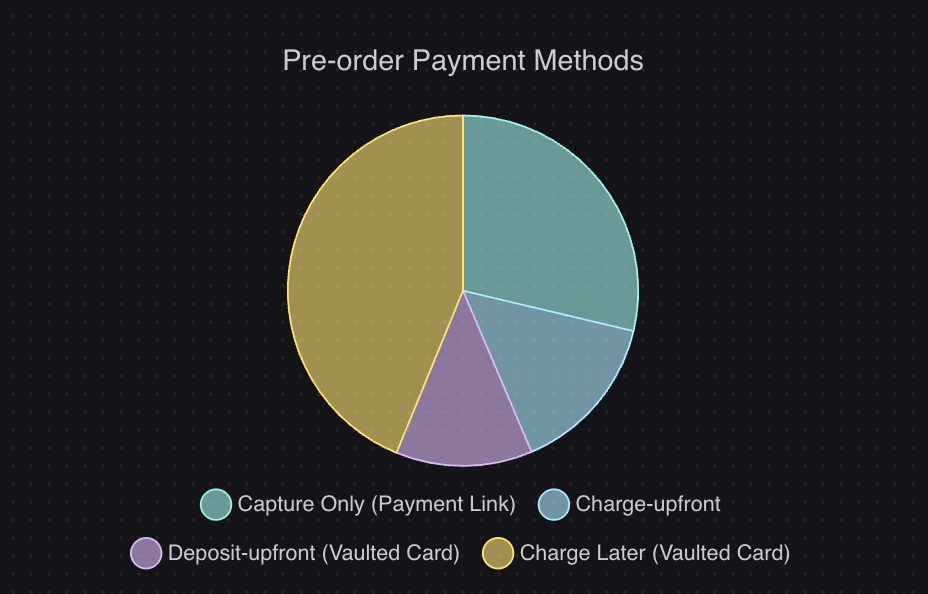
Based on data from over 1 million pre-orders, here are the four main payment models and how often merchants use them:

Payment Model% of ListingsWhen You’re Charged
Charge-later43.8%When product is ready to ship
Capture-only / payment link28.7%When merchant sends payment link
Charge-upfront14.9%Immediately at checkout
Deposit-upfront12.6%Partial now, balance later

Charge-later (43.8% of listings)
The most popular model on PreProduct (Shopify and BigCommerce). The customer’s card is vaulted (saved securely) at checkout, but they’re not charged until the product is ready to ship. This gives customers confidence that they won’t pay for something that isn’t ready, while still letting the merchant secure the order.

Capture-only / payment link (28.7% of listings)
The merchant collects the customer’s payment intent and sends a payment link when the product is ready. This works well for merchants who want to avoid holding customer payment details for extended periods.

Charge-upfront (14.9% of listings)
The customer pays the full price at checkout, just like a regular order. The merchant gets immediate cash flow, but takes on more responsibility to deliver on time. This model works best when the product is close to shipping.

Deposit-upfront (12.6% of listings)
The customer pays a partial amount (the deposit) at checkout, with the balance collected later. This strikes a balance between securing commitment and reducing risk for the customer. It’s popular for higher-ticket items where paying the full amount months in advance feels like a bigger ask. Learn more about how deposit pre-orders on Shopify work.

Each model suits different situations. Short lead times pair well with charge-upfront. Longer waits tend to favour charge-later or deposits. For a deeper comparison, see our pre-order payment models guide.

Why Do Merchants Offer Pre-Orders?

Merchants run pre-orders for practical reasons, not just to build hype. Here’s what drives them:

Take orders and revenue sooner. You don’t have to wait until stock is sitting in your warehouse to start selling. Pre-orders let you capture demand as soon as a product is announced or listed, whether it’s a brand new launch or a restock of something that sold out.

Validate demand before committing to inventory. Pre-orders give you real purchase data for demand forecasting, not just interest or email signups. If 500 people place pre-orders for a new product, you know exactly how much to manufacture. This reduces the risk of overproducing and having to discount or write off unsold stock.

Improve cash flow. With charge-upfront or deposit models, revenue starts coming in before you’ve paid for manufacturing or shipping. That cash can fund the production run itself, which is why pre-orders are especially popular with smaller brands and independent makers.

Avoid missed sales on out-of-stock products. When a popular product sells out, most stores put up a “sold out” message and lose the sale. Pre-orders keep the revenue flowing by letting customers secure their order and wait for the restock.

Build anticipation for product launches. A well-run pre-order campaign creates momentum. Customers who pre-order are invested in the product and often share it with others. Brands like Daylight Computer have turned pre-orders into a VIP experience, offering a “Founders Edition” insider club that transforms the wait into part of the appeal.

Use data to plan production. Pre-order numbers give you concrete demand forecasting data. Instead of guessing how many units to produce, you can base manufacturing decisions on actual orders. This is especially valuable for brands producing in small batches or working with seasonal suppliers.

One insight from our dataset that surprises people: 90.4% of pre-orders are not discounted. Customers pre-order for access, not savings. They want to be first in line, not to get a deal. That’s a meaningful signal for merchants who assume they need to offer a discount to make pre-orders work.

Cancellation rates are low too. The average across our dataset is just 5.4%, which suggests customers who pre-order are genuinely committed. Understanding how pre-orders work from the merchant side makes it clear why so many brands build them into their launch strategy.

When Do Pre-Orders Make Sense (and When They Don’t)

Pre-orders aren’t the right fit for every situation. Here’s a practical framework for deciding.

Pre-orders work well for:

  • New product launches. You’re confident the product is coming. Pre-orders let you build demand and take revenue before it ships.
  • Restocks of popular items. A product sold out and you know it’s coming back. Pre-orders capture customers who don’t want to miss it again.
  • Limited editions and seasonal collections. Scarcity and time-sensitivity make pre-orders a natural fit.
  • Higher-value items. Products priced at $250 or more make up 26.8% of pre-order listings in our dataset. Customers are willing to commit early for items they’ve been eyeing.
  • Made-to-order products. Brands like Frahm Jackets use pre-orders as a core part of their business model. As they put it: “Each design is made once a year. We deliberately don’t make enough to meet demand, so we don’t overbuy.”

Pre-orders are less ideal for:

  • Very short timelines (under seven days). If the product is shipping that soon, a regular order is simpler for everyone.
  • Products with uncertain specs or timelines. If you don’t know what the final product looks like or when it’ll be ready, you’re setting up for frustrated customers.
  • Merchants without communication systems in place. Pre-orders require keeping customers informed. If you can’t send updates about shipping timelines or production status, the experience falls apart.

The simplest test: if you know you’re going to sell the product and just need time for stock to arrive, pre-orders are a good fit.

How Long Do Pre-Orders Take to Ship?

How long do pre-orders take? Shipping timelines vary widely depending on the product, the manufacturer and the supply chain involved.

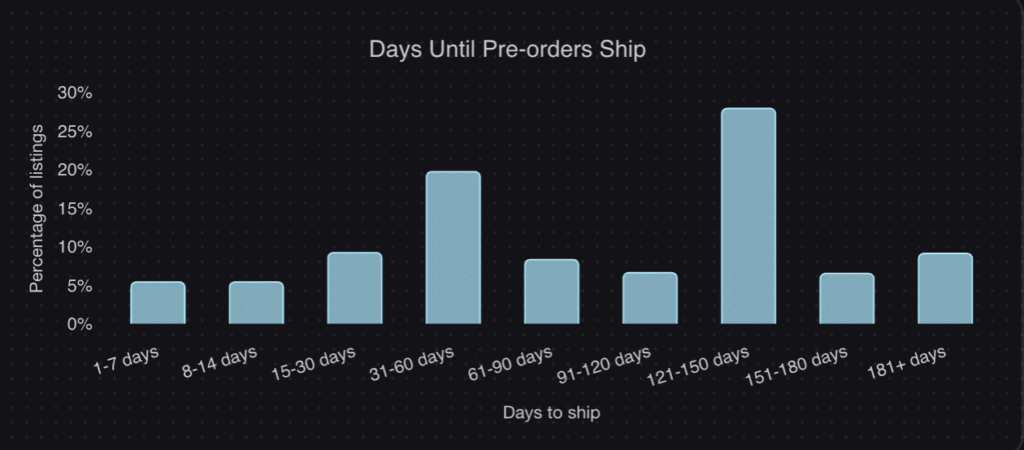
From our dataset, the most common pre-order shipping timeframe is 121-150 days, accounting for 28.1% of all pre-order listings. However, 20.6% of pre-orders ship within 30 days, so there’s a wide range.

Shipping Timeframe% of Listings
0-30 days20.6%
31-60 days13.2%
61-90 days11.9%
91-120 days15.4%
121-150 days28.1%
150+ days10.8%

The specific duration matters less than transparency. Customers are willing to wait months for a product they want, as long as they know what to expect. The merchants who run successful pre-order campaigns communicate estimated shipping dates clearly on the product page and send updates if anything changes.

If you’re managing inventory around pre-orders, our guide on how to manage pre-order inventory in Shopify covers the operational side in detail.

Pre-Order FAQs

Do you get charged right away for a pre-order?
It depends on the merchant. 43.8% of pre-order listings on PreProduct use a charge-later model, meaning you won’t be charged until the product is ready to ship. Others charge upfront or take a deposit. The payment terms should be clearly stated on the product page before you checkout.

Can pre-orders sell out?
Yes. Merchants can set limits on how many pre-orders they accept. This is common for limited-edition releases or products with capped production runs. Once the limit is reached, the pre-order option is removed.

Can you cancel a pre-order?
In most cases, yes. The average cancellation rate across our dataset is 5.4%, which means the vast majority of customers keep their pre-orders. Cancellation policies vary by merchant, so check the store’s pre-order policy before placing your order.

Do pre-orders cost more than regular orders?
Typically no. 90.4% of pre-orders in our dataset are sold at the regular price with no discount applied. Some merchants offer an early-bird discount or deposit incentive, but this is the exception rather than the rule.

What’s the difference between a pre-order and a backorder?
A pre-order is placed before a product launches or while it’s being restocked. A backorder is placed for a product that was in stock, sold out and is being replenished. The customer experience is similar, but the context is different. Read our full pre-orders vs backorders vs waitlists comparison for more detail.

What’s the difference between a pre-order vs a regular order?
The main difference is timing. A regular order ships from available stock straight away. A pre-order is placed before the product is ready, with the customer waiting for fulfilment. Payment handling also differs. Pre-orders may use charge-later, deposit or payment-link models, while regular orders are always charged immediately at checkout.

Are pre-orders worth it for small businesses?
Yes. Pre-orders help smaller merchants validate demand and reduce inventory risk. Instead of guessing how much stock to order, you can use real pre-order numbers to plan your production run. The charge-later and deposit models also reduce the financial commitment required from customers, which can help smaller brands compete with larger ones.

How do I set up pre-orders on Shopify?
You’ll need a pre-order app to handle the checkout flow, payment collection and customer communication. Our complete guide on how to do pre-orders on Shopify walks through the full setup process.

Wrapping Up

Now you know how pre-orders work, from the step-by-step process to the four payment models and the data behind what makes them successful.

Pre-orders let you take orders before stock arrives, with flexible options for when and how to charge customers. Whether you use a charge-later model to reduce customer risk or a charge-upfront model to improve cash flow, the right approach depends on your product, your lead times and your customers.

The data from over 1 million pre-orders shows that customers are willing to wait, cancellation rates are low and discounts aren’t necessary to drive pre-order sales. Pre-orders work because customers want access to products they care about.

If you’re thinking about adding pre-orders to your store, start with our guide on how to pre-sell online or jump straight to setting up pre-orders on Shopify.

Pre-sell With PreProduct

7 day free trial with all plans

Failed Shopify Payments: What They Mean and How to Fix Them

Few things are more frustrating than watching sales slip away because of a failed Shopify payments. Whether it’s a customer seeing “payment declined” at checkout or a deferred charge that won’t go through months after a pre-order was placed, payment failures cost merchants real revenue and can damage customer trust.

The good news? Most failed payments are fixable, and many are recoverable. Research shows that many failed charge payments can be recovered with proper retry logic and timing. But first, you need to understand what went wrong.

This guide breaks down the different types of Shopify payment failures, explains what each error code means, and walks through practical steps to diagnose, fix, and prevent them. We will also cover the unique challenges that pre-order merchants face with deferred payments and authorization expiration, topics most guides overlook entirely.

What causes Shopify payments to fail?

Payment failures fall into three main categories: customer-side issues, merchant-side issues, and platform/gateway problems. Understanding where the failure originated helps you fix it faster.

Customer-side issues are the most common. These include expired cards, insufficient funds, incorrect card details, and fraud detection blocks from the customer’s bank. Sometimes a customer’s bank simply flags the transaction as suspicious, especially for international purchases or unusually large orders.

Merchant-side issues typically involve configuration problems. Maybe your payment gateway credentials are incorrect, you’re still in test mode, or your fraud filters are too aggressive. These issues affect all customers, not just one.

Platform and gateway issues are less common but do happen. Shopify or your payment provider might experience outages, or there could be processing delays during high-traffic periods.

For merchants running pre-orders with charge-later payment models, there’s a fourth category: deferred payment failures. When you charge a customer weeks or months after their initial order, cards expire, accounts close, and customers forget they placed an order. This creates a unique set of challenges we’ll address in this guide.

Shopify payment error codes explained

When a payment fails, Shopify returns a standardized error code that tells you exactly what went wrong. Here’s a complete reference based on Shopify’s API documentation.

Card and bank declines

These errors indicate the customer’s bank or card issuer rejected the transaction:

Error CodeWhat It MeansWhat to Do
CARD_DECLINEDThe card issuer declined the transaction without a specific reasonCustomer should try a different card or contact their bank
CALL_ISSUERThe bank wants the customer to call them before approvingCustomer must contact their card issuer directly
PICK_UP_CARDThe card has been reported lost or stolenCustomer needs to use a different payment method
INSUFFICIENT_FUNDSNot enough money in the accountCustomer should use a different card or add funds

The generic CARD_DECLINED is frustrating because the bank doesn’t always explain why. It could be fraud protection, spending limits, or account restrictions. The customer’s best option is to call the bank phone number on their card.

Card detail errors

These happen when the payment information entered doesn’t match what the bank has on file:

Error CodeWhat It MeansWhat to Do
EXPIRED_CARDThe card’s expiration date has passedCustomer needs to update their card details
INCORRECT_NUMBERThe card number is wrongCustomer should re-enter their card number carefully
INCORRECT_CVCThe security code (CVV/CVC) doesn’t matchCustomer should check the 3-4 digit code on their card
INVALID_CVCThe security code format is incorrectCustomer should verify they’re entering digits only
INVALID_EXPIRY_DATEThe expiration date format is wrongCustomer should use MM/YY format

Card detail errors are usually simple to fix. The customer just needs to re-enter their information carefully.

Address verification failures

Address Verification Service (AVS) failures occur when billing address details don’t match the card issuer’s records:

Error CodeWhat It MeansWhat to Do
INCORRECT_ZIPThe ZIP or postal code doesn’t matchCustomer should verify their billing ZIP code
INCORRECT_ADDRESSThe full billing address doesn’t matchCustomer should check their complete billing address

AVS mismatches are common for customers who’ve recently moved or have multiple addresses on file with their bank.

Processing and configuration errors

These errors often indicate problems on the merchant side:

Error CodeWhat It MeansWhat to Do
GENERIC_ERRORAn unknown error occurred during processingRetry the transaction; if persistent, contact support
CONFIG_ERRORYour gateway or merchant configuration is wrongCheck your payment gateway settings and API credentials
PROCESSING_ERRORSomething went wrong during processingWait and retry; could be a temporary issue
TEST_MODE_LIVE_CARDA real card was used but your gateway is in test modeSwitch your gateway from test to live mode

If you’re seeing CONFIG_ERROR or TEST_MODE_LIVE_CARD, the problem is almost certainly in your Shopify admin under Settings > Payments.

Regional and feature limitations

Some errors relate to what payment methods are available:

Error CodeWhat It MeansWhat to Do
INVALID_COUNTRYThe payment method isn’t available in the customer’s countryOffer alternative payment methods
PAYMENT_METHOD_UNAVAILABLEThe payment method is temporarily unavailableTry a different payment method or wait
UNSUPPORTED_FEATUREYour gateway doesn’t support a required featureCheck gateway capabilities or switch providers

Shopify payment status types

Beyond error codes, Shopify uses transaction statuses to indicate where a payment stands in its lifecycle:

  • SUCCESS: The transaction completed. Funds will settle to your account.
  • FAILURE: The transaction was rejected. No funds were captured.
  • PENDING: The transaction is still processing. This is normal for some payment methods.
  • ERROR: Something went wrong during processing, distinct from a decline.
  • AWAITING_RESPONSE: The system is waiting for a response from the payment gateway.
  • UNKNOWN: The status couldn’t be determined. Check your gateway dashboard.

What “Payment pending” means: When you see a pending status, it usually means Shopify is waiting for confirmation from the payment provider. For methods like bank transfers or some regional payment options, pending payments can take several days to clear. Most pending payments have an expiry date, typically around a week, after which they change to “Expired” if not completed.
For pre-order merchants, it’s important to distinguish between an authorization pending (waiting for you to capture a payment hold) and a deferred payment pending (waiting to charge a vaulted card). Authorization holds expire after 7 days on standard Shopify plans, which is why many pre-order apps use vaulted cards instead.

Authorization expiration: what pre-order merchants need to know

This section is critical if you’re taking pre-orders with lead times longer than a week. Understanding Shopify’s authorization periods can save you significant headaches.

Standard authorization period: Shopify Payments allows a 7-day authorization period. This means when a customer places an order, the payment is authorized (the funds are held on their card) but not captured. You have 7 days to capture that payment before the authorization expires.
What happens after 7 days: If you capture payment after the standard authorization period, Shopify charges an additional 1.75% fee on top of your normal processing fees. This adds up quickly on larger orders.

Extended authorization for Shopify Plus: Merchants on Shopify Plus may have access to extended authorization periods for certain card types, but this varies by issuing bank and isn’t guaranteed.

Why this matters for pre-orders: If you’re selling products that won’t ship for 30, 60, or 120+ days, the 7-day authorization model doesn’t work. By the time stock arrives, the authorization has long expired.

The solution: Charge-later with vaulted cards. Instead of authorizing and capturing later, charge-later pre-orders vault the customer’s card at checkout (securely storing the payment method) and charge it when you’re ready to ship. This bypasses the authorization period entirely.

According to our analysis of over one million pre-orders, 43.8% of pre-order listings use charge-later models, and 28.1% of pre-orders have lead times of 121-150 days. For these merchants, vaulted cards aren’t optional; they’re essential.

How to fix common Shopify payment failures

Now for the practical part. Here’s how to address the most common failure scenarios.

For checkout payment failures

When customers can’t complete checkout, work through this checklist:

  1. Check your payment gateway setup: Go to Settings > Payments in your Shopify admin. Verify that your gateway is active, API credentials are correct, and you’re not in test mode.
  2. Review your fraud filter settings: Overly aggressive fraud filters can block legitimate customers. Check your settings and consider loosening restrictions if you’re seeing high false-positive rates.
  3. Verify Shopify’s status: Visit the Shopify status page to check for any ongoing incidents affecting payment processing.
  4. Test with a real transaction: Run a small test purchase using a real card to confirm your setup is working correctly.
  5. Offer multiple payment methods: If one method fails, customers can try another. Consider enabling Shop Pay, PayPal, Apple Pay, or Google Pay alongside credit cards.

If specific customers are experiencing issues, the error code will guide your response. For CARD_DECLINED or CALL_ISSUER, the customer needs to contact their bank. For INCORRECT_CVC or INVALID_EXPIRY_DATE, they just need to re-enter their details.

For failed deferred charges

When a charge-later pre-order or subscription payment fails, you need a recovery process:

  1. Notify the customer immediately: Send an email explaining that their payment couldn’t be processed and provide a direct link to update their payment method.
  2. Retry with smart timing: Don’t retry immediately after a failure. Wait 24 hours for the first retry. This gives temporary issues (like a bank’s fraud hold or a card limit reset) time to resolve.
  3. Follow a dunning schedule: Industry best practice suggests retrying at 24 hours, then 3-5 days, then 7-10 days. After the final retry, send a last-chance notice before cancellation.
  4. Make payment updates easy: Provide a customer portal where customers can update their payment method without contacting support. This self-service option dramatically improves recovery rates.
  5. Send pre-charge notifications: For deferred charges, send an “upcoming charge” email 3-7 days before you plan to charge. This catches expired cards proactively and reminds customers the charge is coming.

If you’re using PreProduct for pre-orders, our failed charge recovery flow handles much of this automatically, including customer notifications and retry logic.

For failed payouts

When Shopify can’t send money to your bank account:

  1. Verify bank account details: Double-check your account number and routing number in Settings > Payments > Shopify Payments.
  2. Confirm currency settings: Ensure your bank account currency matches your Shopify Payments payout currency. Currency mismatches cause failed payouts.
  3. Maintain a positive balance: If you’ve issued refunds or received chargebacks, you might have a negative balance. Shopify needs a positive balance to process payouts.
  4. Check for account restrictions: Some banks have restrictions on business deposits or international transfers. Contact your bank if payouts consistently fail.

Recovering failed payments: dunning strategies that work

Failed payments don’t have to mean lost revenue. With the right recovery strategy, you can recapture the majority of failed transactions.

Why recovery matters: Failed payments can lead to involuntary churn rates of 20-40% monthly if left unaddressed. But research shows that many of these failures are recoverable with proper retry logic and customer communication.

Pre-dunning for deferred charges: The best failed payment is one that never happens. For pre-orders and subscriptions, send customers a notification 3-7 days before their scheduled charge. This email should:

  • Remind them a charge is coming
  • State the amount and what it’s for
  • Provide a link to update their payment method if needed

Immediate notification: When a payment fails, notify the customer within minutes. Your email should:

  • Clearly state that payment couldn’t be processed
  • Avoid accusatory language (their card wasn’t “rejected,” the payment “couldn’t be completed”)
  • Include a direct link to update payment information
  • Provide a deadline for resolution

Smart retry schedule:

  • 24 hours after failure: First automatic retry. Resolves temporary holds and daily limit resets.
  • 3-5 days after failure: Second retry with follow-up email. Catches customers who intended to update their card but forgot.
  • 7-10 days after failure: Final retry with urgent notice. Make clear that the order will be cancelled without payment.

Customer self-service: The easier you make it to update payment information, the higher your recovery rate. A customer portal where customers can:

  • View their pending charges
  • Update their card on file
  • See their payment history

…will outperform email-only recovery every time.

Handling chargebacks and disputes

Chargebacks are different from payment failures, but they’re related. A chargeback happens when a customer disputes a charge with their bank after the payment was successful. The bank reverses the transaction and takes the money (plus a fee) from your account.

Common chargeback reasons:

  • Fraudulent transaction: The cardholder claims they didn’t authorize the purchase
  • Product not received: The customer says they never got their order
  • Product not as described: The customer claims the product was different than expected
  • Duplicate charge: The customer was charged twice
  • Unrecognized transaction: The customer doesn’t recognize the charge on their statement

The response process: When you receive a chargeback through Shopify Payments:

  1. You’ll be notified with a deadline to respond (typically 7-21 days)
  2. Gather evidence: Order confirmation, shipping tracking, delivery confirmation, customer communication, your terms and policies
  3. Submit your response through the Shopify admin before the deadline
  4. The card network reviews the evidence and makes a decision (can take up to 120 days)

Important: Always submit evidence, even if the customer says they’ve withdrawn the dispute. Without a formal withdrawal letter submitted as evidence, you could still lose.

Prevention strategies:

  • Use clear merchant descriptors so customers recognize charges
  • Send order confirmations and shipping notifications
  • Require signature on delivery for high-value orders
  • Maintain clear pre-order policies that customers agree to at checkout
  • Respond quickly to customer service inquiries

For pre-orders specifically, clear communication about lead times and expected ship dates prevents “product not received” disputes. When customers know what to expect, they’re less likely to dispute a charge out of confusion.

Preventing payment failures before they happen

The best approach to payment failures is preventing them in the first place.

At checkout:

  • Display pricing clearly, including taxes and shipping, before checkout
  • Offer multiple payment methods so customers have alternatives
  • Use address validation to catch typos before submission
  • Keep your fraud filters balanced; too strict means lost sales

Before deferred charges:

  • Send pre-charge notification emails 3-7 days in advance
  • Monitor for expiring cards and prompt updates proactively
  • Allow customers to update payment methods anytime via a portal
  • Set appropriate retry logic for failed charges

Ongoing monitoring:

  • Track your payment failure rate and abandonment metrics monthly
  • Test your checkout process regularly, especially after theme or app changes
  • Monitor the Shopify status page during high-traffic periods
  • Review failed transactions to identify patterns

For pre-orders specifically:

  • Set realistic lead time expectations on product pages
  • Send regular status updates during longer lead times
  • Use charge-later with vaulted cards for products shipping beyond 7 days
  • Implement dunning automation through Shopify Flow or your pre-order app

When you’re running pre-orders at scale, failed payment recovery should be automated, not manual. Tools like Shopify Flow can trigger customer notifications, schedule retries, and even cancel orders after a set number of failed attempts.

Conclusion

Failed Shopify payments are frustrating, but they’re manageable. Most failures can be diagnosed from the error code, fixed with the right troubleshooting steps, and recovered with smart dunning strategies.

Here’s the key takeaway: approach payment failures as a lifecycle, not a one-time fix.

  1. Diagnose: Use error codes to understand what went wrong
  2. Fix: Address the root cause, whether it’s configuration, customer card issues, or gateway problems
  3. Recover: Implement retry logic and customer communication to recapture failed payments
  4. Prevent: Put systems in place to reduce failures before they happen

For pre-order merchants, the standard authorization model doesn’t work for products with long lead times. If you’re shipping more than a week out, charge-later pre-orders with vaulted cards bypass authorization expiration entirely and give you the flexibility to charge when you’re ready to fulfill.

Payment failures will always happen. The difference between merchants who lose revenue and those who don’t comes down to having the right systems in place to catch and recover those failures before they become permanent losses.

Pre-sell With PreProduct

7 day free trial with all plans