Out of Stock on Shopify: What to Do (and How to Keep Selling)
Prefer a video? Click here to watch Oli explain your options when products sell out of stock.
Your best-selling product hits zero inventory. Shopify slaps a “Sold Out” badge on it and blocks purchases. Customers land on the page, see the greyed-out button and leave. Some buy from a competitor instead.
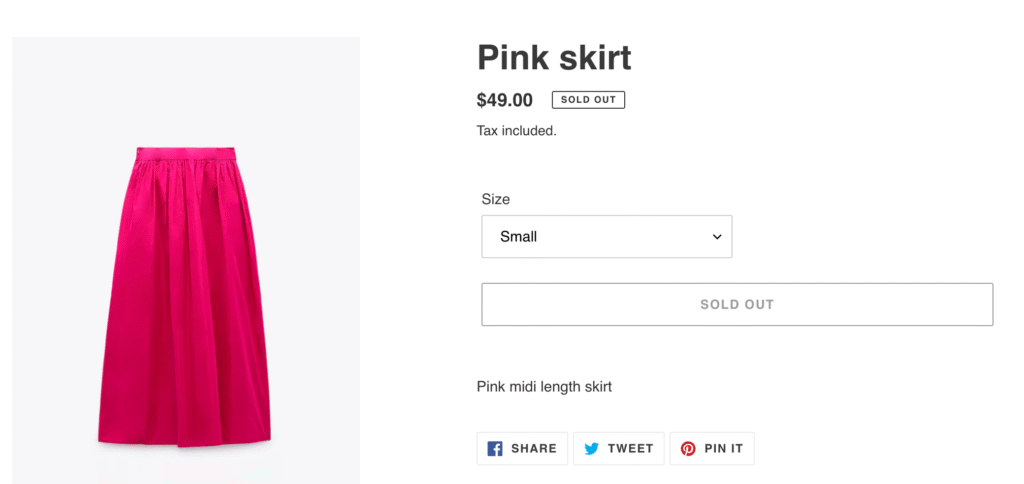
This is what happens by default when products go out of stock on Shopify. And it costs more than you think. According to industry research, 69% of online shoppers will abandon a purchase entirely and shop with a competitor when they encounter an out-of-stock item. For first-time visitors, the damage is even worse: 42% are unlikely to return after hitting a stockout.
But a product going out of stock doesn’t have to mean lost revenue. Stockouts are increasingly common across popular product categories, and there are several ways to handle them, from quick settings changes to revenue-preserving strategies like pre-orders and back-in-stock notifications. The right approach depends on your situation: whether the product is coming back, how long restocking takes and how you want to manage customer expectations.
This guide walks through every option available to Shopify merchants.
Why Does My Shopify Store Say “Sold Out”?
Before jumping into strategies, it’s worth understanding why a product shows as sold out on Shopify in the first place. Sometimes it’s expected (inventory genuinely hit zero). Other times it’s a settings issue that’s costing you sales unnecessarily.
Here are the most common causes:
Inventory genuinely reached zero. This is the straightforward one. Shopify tracks inventory quantities, and when a product or variant drops to zero, the buy button is replaced with “Sold Out.” This is default Shopify behaviour and it’s working as intended.

Inventory tracking is misconfigured. If “Track quantity” is turned on but no inventory count was entered, the product defaults to zero. This catches merchants who add new products without setting initial stock levels. Check the Inventory section of your product in Shopify admin and make sure quantities are correct.
Multi-location inventory confusion. If you use multiple inventory locations in Shopify (warehouse, retail store, 3PL), a product can show as sold out if the location assigned to your online store has zero stock, even if other locations have plenty. Verify that the right location is stocked and assigned.
Variant-level stock issues. A product with multiple variants (sizes, colours) can appear partially or fully sold out if individual variants hit zero. One variant at zero stock won’t necessarily make the whole product unavailable, but it can confuse customers if the default-selected variant is the one that’s out of stock.
Sync problems with third-party apps. If you use a 3PL, ERP or multi-channel selling tool, inventory syncs can lag or fail. This is a common frustration in Shopify community forums, with merchants posting about products showing “Sold Out” despite having stock on hand. If this is happening, check your integration settings and sync logs.
Once you’ve ruled out (or fixed) technical issues, the next question is: what do you do when a product is legitimately out of stock?
The Shopify “Continue Selling When Out of Stock” Setting
Shopify has a built-in setting that lets you keep accepting orders even when inventory drops to zero. It’s a checkbox labelled “Continue selling when out of stock” in the Inventory section of any product or variant.
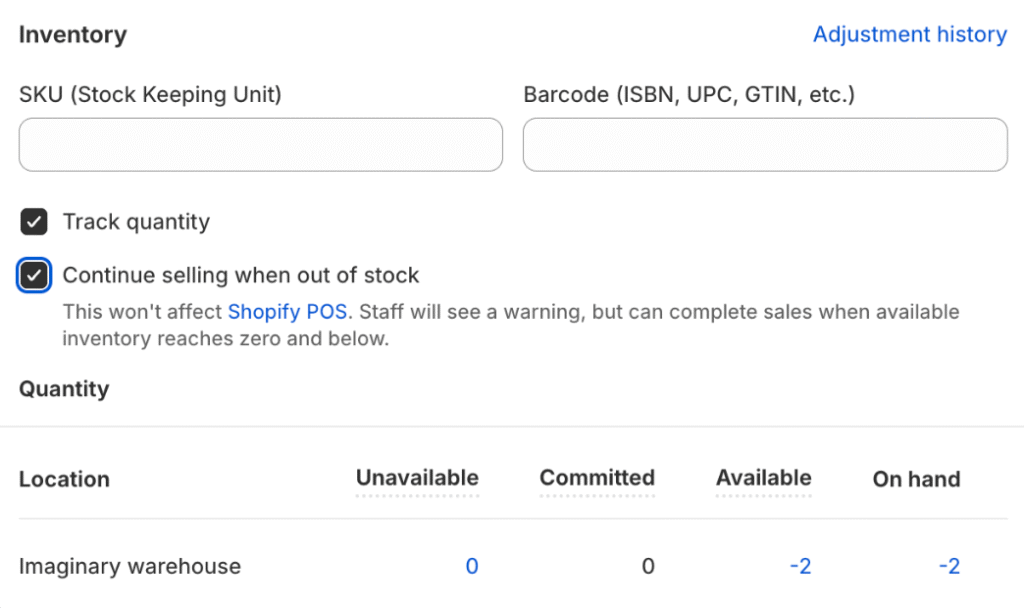
How to enable it:
- Go to Products in your Shopify admin
- Click into the product you want to update
- Scroll to the Inventory section (or click into a specific variant)
- Check “Continue selling when out of stock”
- Save
Once enabled, the buy button stays active regardless of inventory count. Customers can purchase even when stock is at zero or negative.
When this makes sense:
- You have confirmed restock coming soon (within days)
- You’re running a made-to-order or build-to-order model
- You’re pairing it with a pre-order app that manages expectations
- You have a reliable supply chain with short lead times
When it gets risky:
This setting is not a “set and forget” solution. The biggest risk is customer expectations. If someone buys a product expecting normal shipping and then discovers it won’t ship for weeks, you’ll get support tickets, refund requests and potentially chargebacks.
Without clear messaging on the product page, at checkout and in order confirmation emails, enabling this checkbox alone can create more problems than it solves. If you’re going to use it, pair it with one of the strategies below.
Five Strategies for Out-of-Stock Products on Shopify
There’s no single right answer for every stockout. The best approach depends on whether the product is coming back, how long restocking takes and what kind of customer experience you want to deliver. Here are five options.
1. Take pre-orders
Pre-orders let you keep accepting orders for out-of-stock products with full transparency about when they’ll ship. Instead of hiding the product or blocking purchases, you give customers the option to buy now and receive the product later.
This is the most revenue-positive approach for products that are definitely coming back.
A pre-order app like PreProduct replaces your standard “Add to Cart” button with a pre-order button when a product is out of stock. It manages customer expectations through customisable front-end messaging, email updates and customer portals.
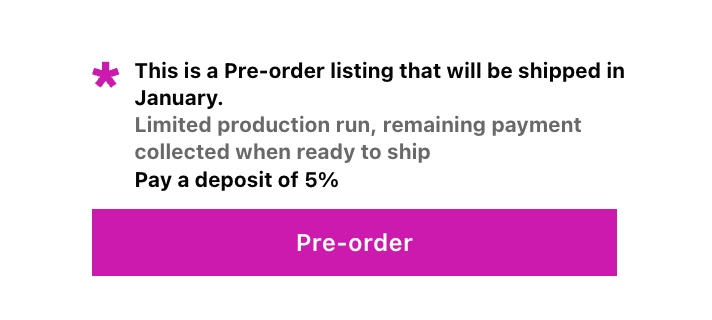
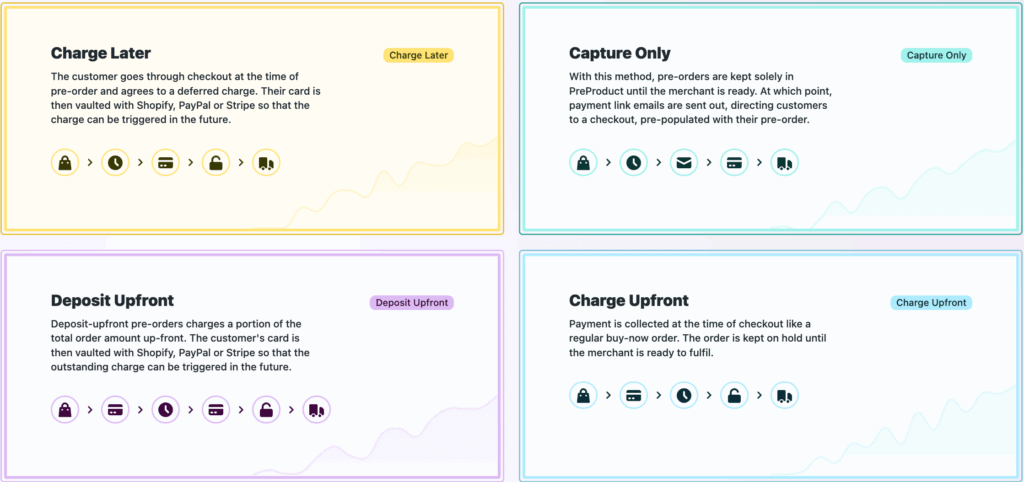
Payment flexibility matters here. Not every pre-order needs to charge upfront. Depending on your situation, you can:
- Charge upfront: Collect full payment now. Best for short lead times where you know the product will ship soon.
- Charge later: Vault the customer’s card and charge when stock arrives. Good for longer lead times where you want to reduce refund risk.
- Take a deposit: Collect a percentage upfront and charge the balance later. Useful for higher-ticket items where you want commitment without asking for the full amount.
Pre-orders also give you valuable demand data. If 200 people pre-order a product, you have a much clearer picture of how much inventory to order than if you just showed a “Sold Out” badge and guessed.
Best for: Products being restocked, new launches, seasonal items coming back, made-to-order products.
2. Set up Shopify out of stock notifications
If you’re not sure when a product will be available again (or don’t want to commit to a timeline), back-in-stock notifications let customers sign up to be alerted when the product returns.
This typically involves adding a “Notify Me” or “Email Me When Available” button to sold-out product pages. When the product is restocked, subscribed customers receive an email or SMS notification.
The main advantage is low risk. You’re not taking payment or making a fulfilment promise. You’re just collecting intent signals.
The downside is that you’re not capturing revenue. The customer leaves your store without buying, and there’s no guarantee they’ll come back when notified. Open rates on back-in-stock emails can be strong, but conversion rates vary widely depending on how long the customer has been waiting and whether they found an alternative.
Best for: Uncertain restock timelines, products that may or may not return, lower-ticket items where pre-orders feel excessive.
3. Hide out-of-stock products or push them down
Rather than showing customers products they can’t buy, some merchants prefer to hide out of stock products on Shopify or de-prioritise sold-out items. There are a few ways to do this.
Smart collections filtering. You can set up a smart collection with the condition “Inventory stock is greater than 0” to automatically exclude out-of-stock products from collection pages. This keeps your browsing experience clean.
Shopify’s “unlisted” status. Introduced in late 2025, you can set a product status to “Unlisted.” The product won’t appear in your storefront search or collection pages, but the URL remains accessible. This is useful for SEO because search engines can still crawl and index the page.
Push-down apps. Several Shopify apps (like Nada or StockIQ) automatically move sold-out products to the bottom of collection pages rather than hiding them entirely. This keeps the page live for SEO while improving the browsing experience.
A word of caution on hiding products: If you unpublish or delete a product page, you risk losing any SEO value that page has built up, including backlinks, indexed pages and ranking signals. More on this in the SEO section below.
Best for: Large catalogues where browsing experience matters, seasonal products that won’t return for months, discontinued items.
4. Recommend alternative products
When a product is out of stock, don’t let the customer hit a dead end. Use the sold-out product page as a jumping-off point to suggest similar items they might want instead.
You can do this with:
- Shopify’s built-in product recommendations (based on purchase patterns and product descriptions)
- Manual “You might also like” sections using related products
- App-powered recommendations that use browsing behaviour and purchase history
This is especially effective for stores with large catalogues where multiple products can fill a similar need. A customer looking for a specific colour of t-shirt might happily buy a different colour if it’s presented well.
Best for: Large catalogues with substitutable products, discontinued items with successors, fashion and lifestyle brands with range depth.
5. Show estimated restock dates
Sometimes the simplest approach is the most effective: tell customers when the product will be back.
Adding an estimated restock date to the product page (“Expected back in stock: March 15”) sets clear expectations. Customers can decide whether to wait, sign up for a notification or look elsewhere.
This works particularly well when paired with pre-orders. Instead of just showing a date, you can let customers place a pre-order with the restock date displayed prominently. That way they know exactly when to expect delivery.
Best for: Products with predictable restock timelines, brands that prioritise transparency, items with consistent demand.
Which Out-of-Stock Strategy Should You Use?
The right approach depends on a few factors. Here’s a quick decision framework:
| Situation | Best Strategy | Why |
|---|---|---|
| Product is being restocked (known timeline) | Pre-orders | Capture revenue now; ship when ready |
| Product might come back (unclear timeline) | Back-in-stock notifications | Collect interest without committing |
| Product is discontinued | Hide + redirect (301) | Preserve SEO; guide customers to alternatives |
| Product is seasonal (returning later) | Hide + notifications | Clean up browsing experience; re-engage later |
| Large catalogue with many substitutes | Recommend alternatives | Keep the customer shopping on your store |
| High-demand product with waitlist potential | Pre-orders + restock date | Maximise revenue capture; build anticipation |
In practice, many stores combine strategies. For example, you might take pre-orders for your best-sellers while hiding lower-priority out-of-stock products and showing alternatives for discontinued items.
How Out-of-Stock Pages Affect Your Shopify SEO
How you handle out-of-stock products has real SEO implications. Get it wrong and you can lose rankings, traffic and link equity that took months to build.
Here’s what to keep in mind:
Don’t delete product pages that have backlinks or organic traffic. If a product page has earned backlinks from other websites, or ranks for any keywords in Google, deleting it creates a 404 error and throws away that SEO value. Even if the product is gone, the page still carries weight.
Use 301 redirects for permanently discontinued products. If a product is never coming back, set up a 301 redirect to the most relevant alternative: a similar product, the parent collection page, or a newer version. Avoid redirecting everything to your homepage. Google treats homepage redirects as “soft 404s,” which means you still lose the SEO value.
Keep temporarily out-of-stock pages live. If the product is coming back, leave the page active. You can update the product description to reflect availability (adding a pre-order option, a notification sign-up, or an expected restock date) while keeping the URL indexed and ranking.
Use availability schema markup. Shopify themes generally include product structured data, but make sure the availability status is accurate. Setting it to “PreOrder” or “BackOrder” (rather than just “OutOfStock”) tells Google the product is still purchasable, which can help maintain visibility in search results and Google Shopping.
Consider Shopify’s “unlisted” status for seasonal products. If you want to remove a product from your storefront without affecting its SEO, “unlisted” keeps the URL live and crawlable while hiding it from your store’s search and collection pages.
Automate with Shopify Flow. If you’re managing a large catalogue, manually updating product statuses is tedious. Shopify Flow can automate actions like tagging products when inventory hits zero, hiding them from collections and republishing when stock is added back.
Preventing Out of Stock on Shopify in the First Place
The best out-of-stock strategy is not needing one. While stockouts happen to every Shopify store eventually, there are ways to reduce their frequency.
Track inventory levels and set low-stock alerts. Shopify lets you set up notifications when inventory drops below a threshold. Use these to trigger reorder processes before stock actually runs out.
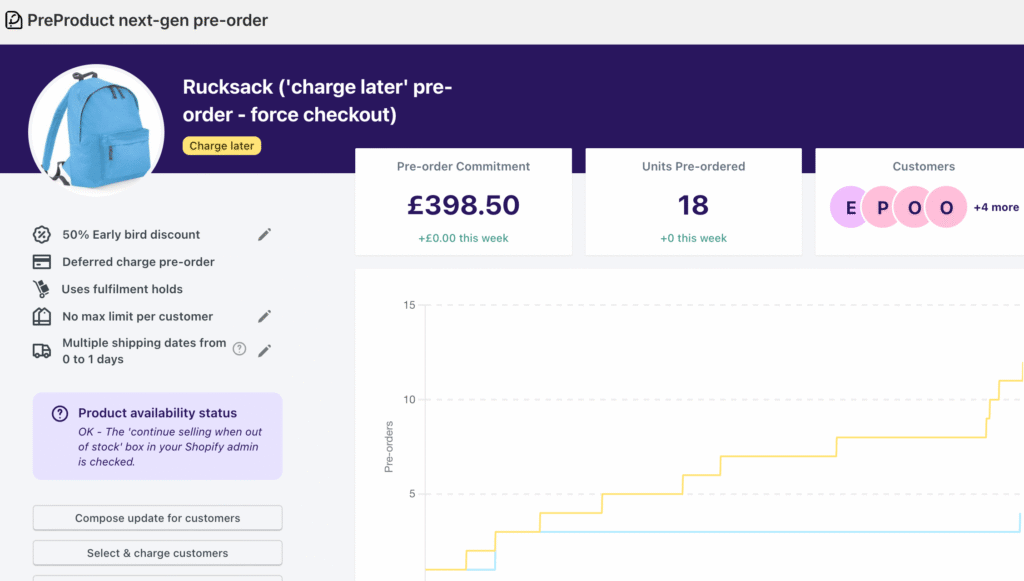
Use pre-orders to gauge demand before committing to inventory. One of the biggest advantages of pre-orders is demand validation. If you’re launching a new product or restocking, taking pre-orders first tells you exactly how much inventory to order. This reduces the risk of overstocking (and the discounting that follows) while ensuring you don’t run out.
Diversify suppliers for best-sellers. If a single supplier has issues, your top products go out of stock. Having backup suppliers or manufacturers reduces this risk, even if the cost per unit is slightly higher.
Build safety stock buffers for high-velocity SKUs. Safety stock is extra inventory held as a buffer against unexpected demand spikes or supply delays. For your highest-selling products, maintaining even a small buffer can prevent the revenue loss that comes with a stockout.
Forecast demand using historical data. Look at your sales trends, seasonality and marketing calendar to anticipate demand. If you’re running a promotion that drives a traffic spike, make sure your top products have enough inventory to handle it.
Wrapping Up
Products going out of stock on Shopify is inevitable. What matters is how you handle it.
If the product is coming back, pre-orders are the most effective way to keep capturing revenue while being transparent with customers. If you’re not sure about restocking, back-in-stock notifications collect interest without commitment. For discontinued products, clean redirects and product recommendations keep your SEO intact and your customers engaged.
The key is matching the strategy to the situation rather than defaulting to a “Sold Out” badge and hoping customers come back later. In most cases, they won’t.
Whatever approach you choose, clear communication is what separates a good out of stock experience on Shopify from a frustrating one. Tell customers what’s happening, when to expect the product, and what their options are. That transparency builds trust, even when the product isn’t available yet.
Ready to turn stockouts into pre-orders? Start taking pre-orders on Shopify with PreProduct and keep selling even when inventory hits zero.
Pre-sell With PreProduct
7 day free trial with all plans