Shopify Draft Orders Explained (and When a Pre-order App Is the Better Fit)
Most Shopify merchants discover draft orders the first time they need to sell something outside the standard checkout. A wholesale customer asks for a custom quote. A trade-show visitor wants to pre-pay for stock you haven’t received yet. A returning buyer can’t complete checkout and you want to send a payment link directly.
A Shopify draft order is the right tool for all of those one-off moments. The Shopify draft order workflow starts to creak the moment you need the same pattern to repeat itself: deposits on every made-to-order item, charge-later on a pre-order campaign, automatic capture when a restock lands.
This guide explains what Shopify draft orders actually do, how to create and send one, and where a dedicated pre-order app fills the gap when manual invoice cycles stop scaling. Across over $85 million in pre-order sales, we’ve watched a lot of merchants reach for draft orders and then run out of road. The trick is knowing where that line sits before you cross it.
What Is a Shopify Draft Order?
A Shopify draft order is an order a merchant creates on a customer’s behalf, for phone, email, in-person, or B2B sales, then sends to the customer as an invoice or secure checkout link. When the customer pays, the draft becomes a real order in your admin. Draft orders handle one-off transactions well. They do not natively support recurring charges, automated deferred payments, or multi-step payment plans.
You’ll find them in your Shopify admin under Orders > Drafts. Only merchants can create them; customers can’t open a draft on their own from the storefront. That’s the most important constraint to understand. Draft orders are a merchant tool, not a self-serve customer feature.
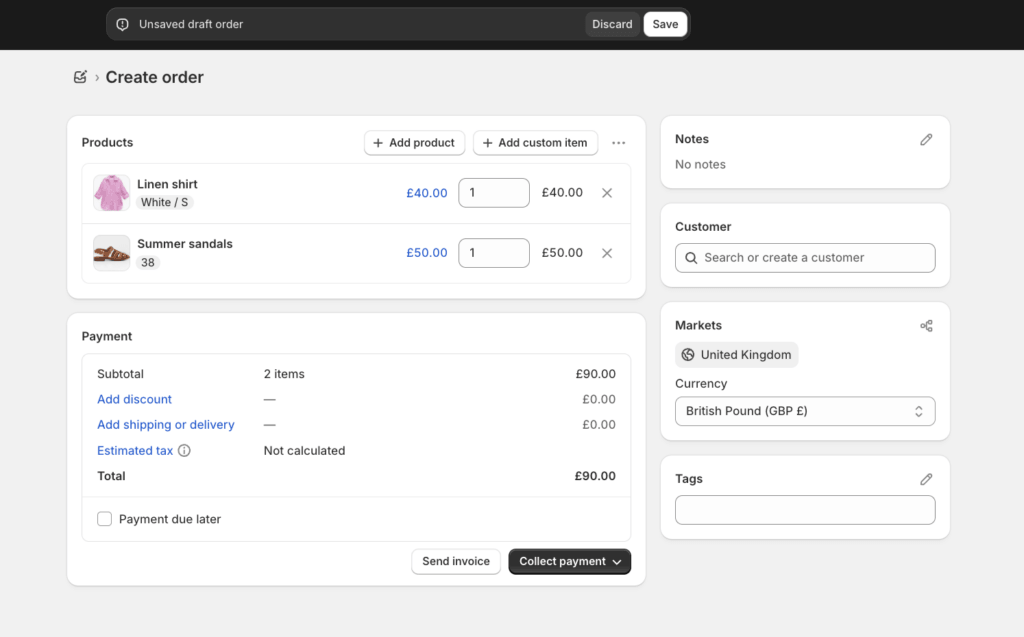
One operational detail worth knowing: draft orders created on or after April 1, 2025 are automatically deleted after one year of inactivity, per Shopify’s own documentation. If you’ve been treating drafts as a permanent quote archive, that habit needs to change.
When a Shopify Draft Order Is the Right Tool
Shopify draft orders shine in a handful of specific situations:
- Phone and email orders. A customer calls in, you build the cart, you send a payment link.
- B2B and wholesale. Negotiated pricing, custom payment terms, invoice-first workflows.
- POS cart hold. Shopify POS Pro stores can save in-store carts as drafts for later completion.
- One-off discounts and custom items. A bespoke discount or a product that doesn’t exist in your catalog.
- Manual abandoned cart recovery. Convert an abandoned checkout into a draft and follow up directly.
- Gift orders and corporate purchases. Single transaction, no recurring need.
The common thread: each of these is a discrete, low-frequency event. Shopify draft orders are excellent when the workflow is “do this thing once, then it’s done.”
Shopify Draft Order POS Workflows
The Shopify draft order POS flow deserves its own mention. Shopify POS Pro lets in-store staff save a cart as a draft, then recall it on any register for later completion. Useful for special orders, customer-specific holds, or a quote that needs manager approval. Important caveat: this is POS Pro only, and the flow still requires manual touch when the customer returns to pay. For taking actual pre-orders at trade shows or in-store events, that touch-cycle adds up fast. Our Shopify POS pre-orders guide walks through where a dedicated integration handles the same job without the manual cart-recall step.
How to Create a Shopify Draft Order
Creating a Shopify draft order is straightforward. Here’s the full flow:
- In your Shopify admin, go to Orders > Drafts, then click Create order.
- Add products from your catalog, or create a custom item with a name and price for something off-catalog.
- Assign a customer (existing or new), and add internal notes or tags as needed.
- Apply discounts at the line-item or whole-order level, with a fixed amount, percentage, or custom reason.
- Set shipping: pick from your existing rates, enter a custom shipping cost, or remove shipping for a digital or pick-up order.
- Reserve inventory if you want the items held against your stock count while the draft is open.
- Choose how the customer will pay: send invoice, accept payment manually, or mark the order as paid (for offline payments).
- Save the draft for later, or send the invoice immediately.
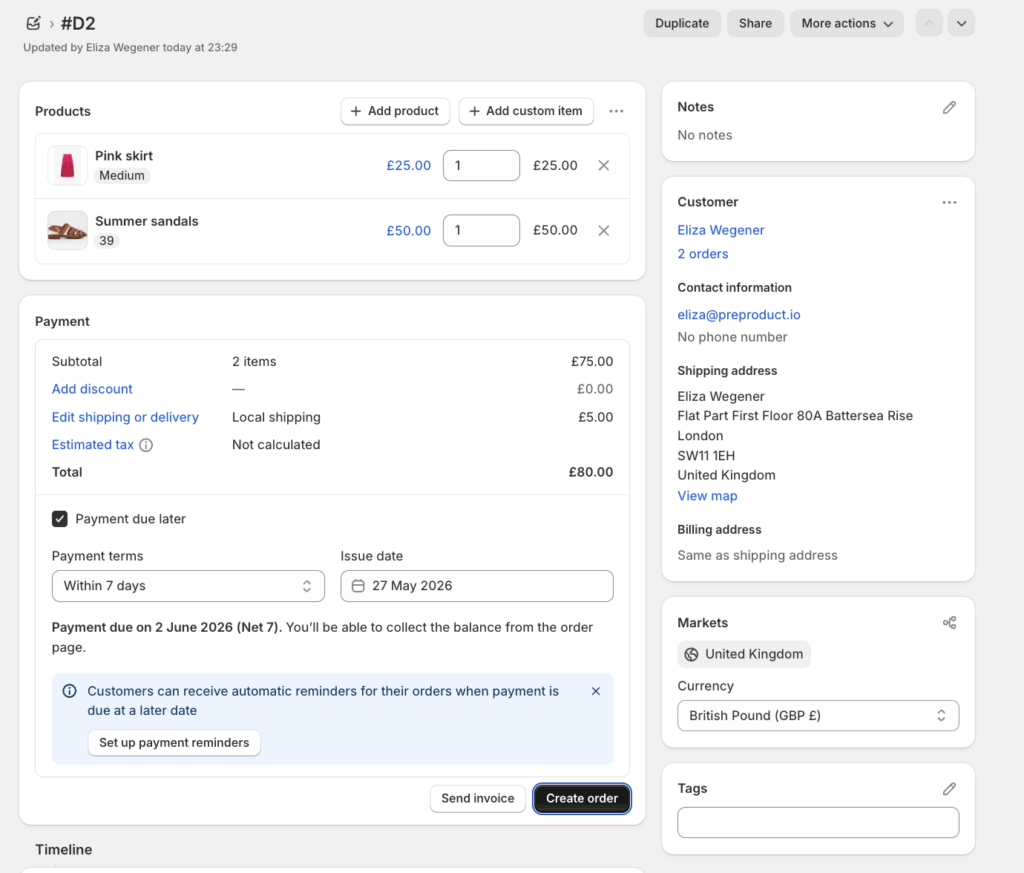
A couple of tactical notes. The reserve-inventory checkbox is easy to miss and easy to misuse. If you reserve inventory on a draft that never converts, those units stay frozen until you cancel or expire the draft. For high-velocity SKUs, that’s a real risk.
Custom-item pricing lets you handle one-off jobs (custom bundles, repair work, made-to-spec items) without polluting your product catalog. Just remember that custom items don’t link to your inventory, so they won’t decrement stock or appear in your variant-level reporting.
Sending an Invoice and Converting a Draft to a Real Order
Once your draft is built, the standard path is Send invoice. Shopify generates a secure checkout link, drops it into an email, and lets the customer pay through your normal checkout. The customer never knows they were dealing with a draft; they just see a familiar Shopify checkout.
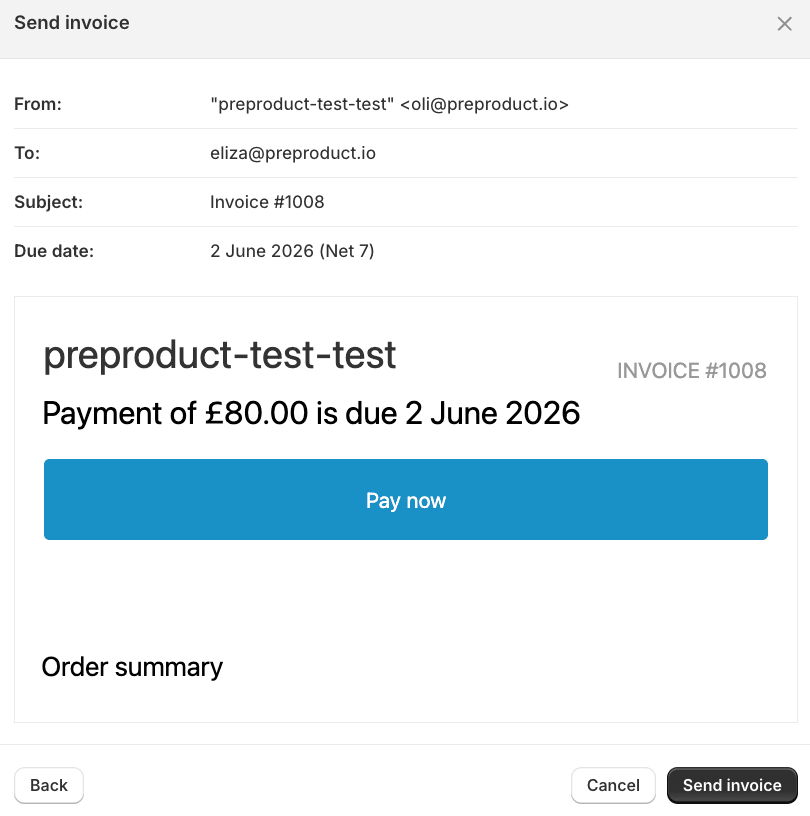
Payment terms are flexible. Shopify supports net 7, 14, 30, 45, 60, 90, or a fixed due date on the invoice itself. For international customers, the invoice uses the currency associated with their assigned market, so the price they see matches the price they pay. Useful, and not always obvious.
When the customer pays the invoice, the draft automatically becomes a regular order on your Orders page. Inventory decrements, the order enters your normal fulfilment workflow, and your existing apps and Flow triggers fire on the orders/create event as if it were a standard sale.
You can also mark a draft as paid manually. Common for cash, bank transfer, or any offline payment method. Just be aware that marking-as-paid skips the customer-facing payment step entirely, so your customer never receives the standard Shopify order confirmation unless you trigger one yourself.

Where Shopify Draft Orders Break: Pre-orders, Deposits and Charge-later
Here’s where most merchants meet the limits of the Shopify draft order model. The intuitive use case looks like this: a customer wants something that isn’t in stock, so you build a draft order, send the invoice, and ship when the goods arrive. For a single one-off pre-order, it works. For five a month, it’s still manageable. For a real pre-order campaign across hundreds of customers, it falls apart.
The specific failure points:
- No automated charge-later. Shopify draft orders charge when the customer clicks the invoice link. If the link expires before stock lands, you’re re-issuing invoices manually, and every expired link adds a fresh opportunity for a failed Shopify payment you’ll need to recover.
- No native partial payment. Want to take a 30% deposit now and the balance later? You’d need to issue two separate drafts, with no automatic relationship between them. Our Shopify split payments guide breaks down where invoice-based approaches stop short and where vaulted-card apps take over.
- No vaulted card. Even if the customer pays today, you don’t have their card on file for a future charge. Every restock requires a fresh invoice, a fresh checkout, and a fresh chance for the customer to bounce.
- No recurring or scheduled charges. Multi-step payment plans aren’t part of the draft order model.
- Manual ops scale linearly with order volume. Every draft is a touch. Every invoice is a touch. Every follow-up when an invoice expires is another touch.
A dedicated pre-order app (like PreProduct) handles the same workflow with a vaulted card. The customer goes through checkout once, their payment details are tokenised, and you charge the card later when stock arrives. No manual invoice cycle, no expired links, no second checkout for the balance.
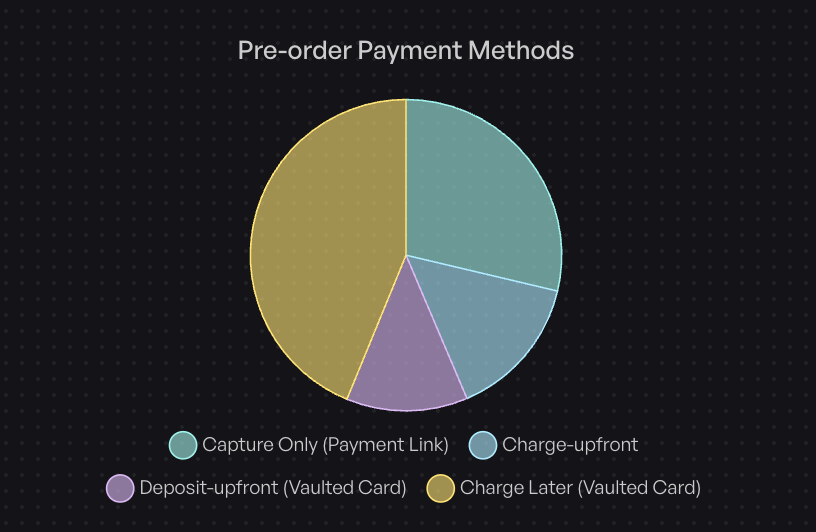
It’s worth grounding this in real merchant behaviour. Across over one million pre-orders processed through PreProduct, 43.8% of pre-order listings used charge-later (vaulted card), 28.7% used capture-only payment links, and 12.6% used a deposit-upfront model with the balance charged later on the vaulted card. That’s 85.1% of pre-order listings using a method other than charge-upfront, workflows that draft orders don’t natively support. And the average cancellation rate across the dataset sits at 5.4%, which is hard to beat with a manual invoice flow where customers have more chances to drop off.
If you want to see the full landscape of options, our pre-order payment models guide walks through each model in detail, including when each one fits.
Custom Orders, Made-to-order and the Shopify Draft Order API
Made-to-order workflows are where the draft-order question gets interesting. There’s no single right answer; the right tool depends on whether the workflow is truly bespoke or actually a repeatable pattern wearing a custom hat.
For fully bespoke jobs (one-off pricing, unique materials, never-to-be-repeated specs), Shopify draft orders are great. You can capture the custom price, the custom item description, the negotiated payment terms, and send the invoice. It’s a single transaction with a clear endpoint.
For repeatable made-to-order products (a fashion brand running build-to-order in standard sizes, a furniture maker with a fixed configurator, a beauty brand doing limited drops), draft orders start to feel like duct tape. You’ll end up rebuilding the same draft over and over, or scripting it via the API. At that point, a pre-order app with vaulted-card deferred charges handles the same job without manual cycles. You list the product as a pre-order, the customer goes through your normal checkout once, and you charge when production completes.
For developers building custom workflows, Shopify exposes draft orders through the GraphQL Admin API. The draft order Shopify API surface covers everything you can do in the admin, plus a few things you can’t. The DraftOrder object covers the data model, and mutations like draftOrderCreate, draftOrderUpdate, and draftOrderComplete let you build full lifecycles in code. Common patterns include programmatic invoice generation from CRM events, automated quote-to-order flows for B2B, and bulk draft creation from external order systems.
One practical note from the other side: PreProduct doesn’t use draft orders at all. We use vaulted cards and deferred charge. The reason is the same reason most pre-order apps avoid drafts: draft orders force the customer to re-engage with checkout for every charge, and that re-engagement is where customers drop off. Keeping the customer in a single checkout flow, then charging from the tokenised card later, removes a friction point that compounds across thousands of pre-orders.
Frequently Asked Questions
How do I turn a Shopify draft order into a real order?
When a customer pays the invoice you sent, the draft automatically converts to a regular order. You can also mark a draft as paid manually if the customer paid offline. Both routes land the order on your standard Orders page.
How do I send a Shopify draft order to a customer?
From the draft order screen, click Send invoice. Shopify generates a checkout link, attaches it to an email, and lets the customer pay through your normal checkout. You can edit the email subject and message before sending.
How do I export Shopify draft orders?
Go to Orders > Drafts, click Export, then choose your export scope (current page, all drafts, or selected drafts) and format (CSV). Useful for finance reconciliation or piping drafts into an external system.
Can customers create draft orders themselves?
No. Only merchants can create Shopify draft orders from the admin. Customers can’t initiate a draft from the storefront. Some third-party apps offer customer-facing “request a quote” workflows that create a draft on the backend, but the native Shopify behaviour is merchant-only.
Do Shopify draft orders reserve inventory?
Only if you tick the reserve-inventory checkbox when creating the draft. Be careful with this on high-velocity SKUs: a reserved unit on an unconverted draft is a unit you can’t sell to anyone else until the draft is paid, cancelled, or expired.
What happens to old draft orders?
Draft orders created on or after April 1, 2025 are automatically deleted after one year of inactivity. Older drafts persist unless you delete them. If you’ve been using drafts as a quote archive, switch to a dedicated CRM or notes field.
Do Shopify draft orders support deposits or partial payments?
Not natively. You can apply a discount and call it a “deposit,” but Shopify doesn’t track the remaining balance or auto-charge it later. For real deposit workflows with the balance charged later on a vaulted card, you need a dedicated app. Our Shopify deposits guide covers the options.
Can I use Shopify draft orders for pre-orders?
For one-off pre-orders, yes. For an actual pre-order campaign with more than a handful of orders, no. The manual invoice cycle doesn’t scale, and you lose the vaulted-card mechanics that let you charge when stock lands, by hand or on automation. Our guide to pre-orders on Shopify covers the full picture.
When to Step Up From Shopify Draft Orders
Shopify draft orders are excellent for the workflow they were built for: one-off, merchant-initiated, negotiated sales. Phone orders, wholesale invoices, POS holds, custom one-off jobs. If that’s your situation, you don’t need anything more sophisticated than the standard draft order flow.
The line gets crossed when the same workflow starts repeating. Five or more pre-orders a month, regular deposit-then-balance patterns, weekly invoice cycles for made-to-order products. At that point, you’re paying for the manual touch in time that should be going to growth. The fix is a dedicated app that vaults the card at checkout and charges later, by hand or on automation, without the customer needing to click another link.
If you’re running pre-orders, deposits, or charge-later workflows, PreProduct handles the same jobs that drive merchants to a Shopify draft order in the first place, then scales well beyond them: charged when you say so, with pre-order lines held from fulfilment until stock lands. No invoice re-sends, no expired links, no manual capture cycle. Start with a single listing and see how the workflow compares.
Pre-sell With PreProduct
7 day free trial with all plansMigrate pre-orders
