How to Take Pre-orders on Shopify POS (Trade Shows, Retail & Events)
Paragon FX Group walked away from a single convention with $10,000 in pre-orders. Not website orders placed later. Not “check us out online” business cards. Actual transactions, processed in person, on the convention floor. As they put it: “We might have lost those sales if customers had to order from the website.”
Here’s the problem: if you’ve tried to take pre-orders through Shopify POS, you’ve likely discovered that it doesn’t work. Shopify’s native pre-order functionality is limited to online stores only. That means anyone selling at trade shows, conventions, pop-up shops or retail locations has been stuck telling excited customers to “visit our website later.” A Shopify pre-order app can solve the online side, but POS has remained a gap.
That friction kills sales. This guide shows you how to solve it with a working Shopify POS pre-order integration, so you can capture orders on the spot, whether you’re at Comic-Con or your own retail store.
What is a Shopify POS pre-order? A Shopify POS pre-order is an order placed through Shopify’s Point of Sale system for a product that isn’t yet available to ship. Unlike standard POS transactions that fulfill immediately, pre-orders include a fulfillment hold until stock arrives, allowing merchants to take in-person orders at trade shows, conventions and retail events for upcoming products.
Why Shopify POS Doesn’t Support Pre-orders Natively
If you’ve searched for how to enable pre-orders on Shopify POS, you’ve probably hit the same wall everyone else does. According to Shopify’s own documentation:
“Pre-order products are only supported on the Online Store and Custom Storefront sales channels.”
This isn’t a bug or a missing setting. Shopify POS does support selling plans for subscriptions, so the infrastructure exists. Pre-orders just haven’t been added to POS yet. Native support may come in the future, but even then you’d still need a pre-order app to manage the workflow: listing products, communicating with customers, triggering charges and releasing fulfillment holds.
What this means for retail merchants
For online-only stores, this limitation doesn’t matter. But if you sell in person, you’re at a disadvantage. Trade shows, conventions, pop-up events and retail stores are high-intent environments. Customers are physically present, holding your product, ready to commit. Asking them to “order online later” introduces friction that kills conversions.

Think about the typical trade show scenario. A customer loves your upcoming product. They want it. But it won’t ship for another 60 days. Without a pre-order option on your POS device, you’re stuck with awkward workarounds:
- Handing out business cards and hoping they remember to order
- Writing down names and emails manually
- Asking them to scan a QR code to your website
- Creating a “placeholder” product and hoping your fulfillment team knows not to ship it
None of these are reliable. All of them add friction. And in a busy convention environment where attention spans are short, friction means lost sales.
The Shopify Community forums are filled with merchants asking for this functionality. Posts date back to 2020, with merchants describing custom webhook solutions and manual workarounds. The demand is clear; the native solution isn’t.
How to Enable Pre-orders on Shopify POS
PreProduct bridges this gap with a dedicated Shopify POS integration that extends pre-order capabilities to your in-person sales channel. It’s the same pre-order functionality you’d use on your online store, adapted for the POS environment.
How it works
When you enable the integration, PreProduct adds a Pre-orders tile to your Shopify POS Smart Grid. This gives staff a visual indicator that pre-order functionality is available and active.
When a customer wants to pre-order a product:
- Staff adds the pre-order item to the cart (just like any other product)
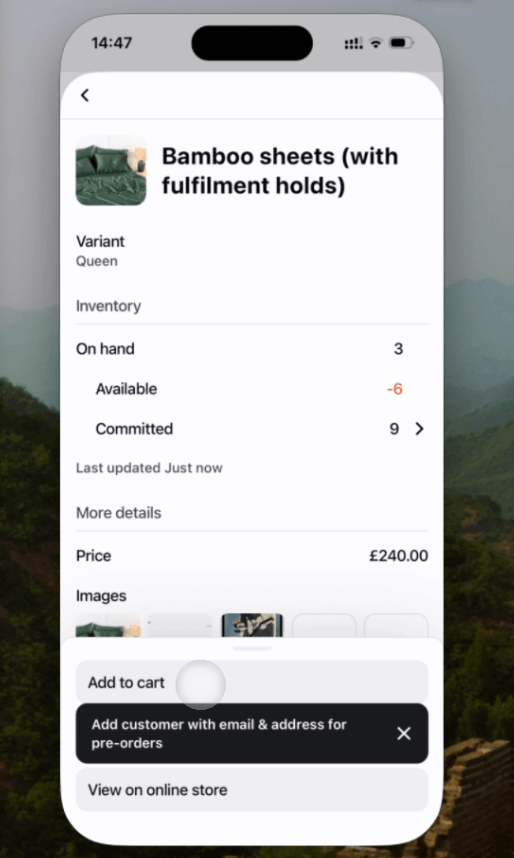
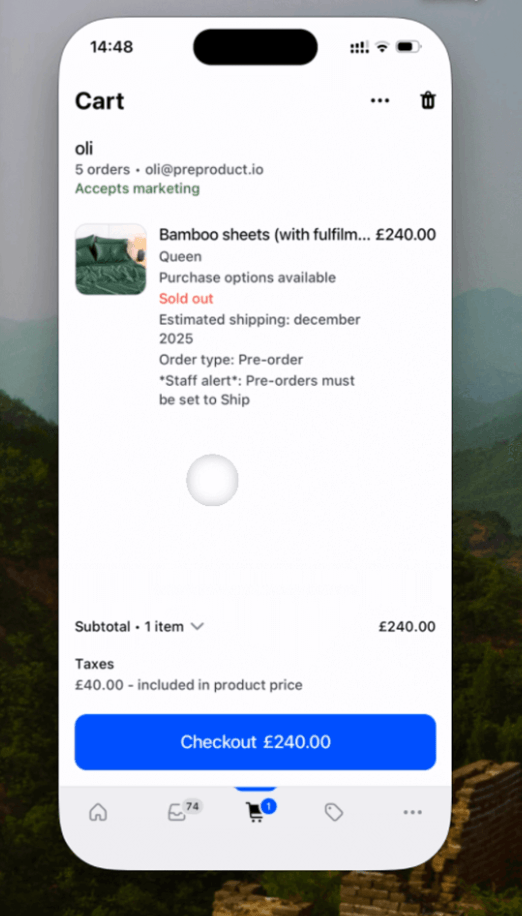
- PreProduct requires a customer profile with email and shipping address before checkout
- Staff sets the order to “ship” (PreProduct reminds them) so Shopify knows it needs fulfillment later
- The order can be paid upfront, or left unpaid for later invoicing via draft order
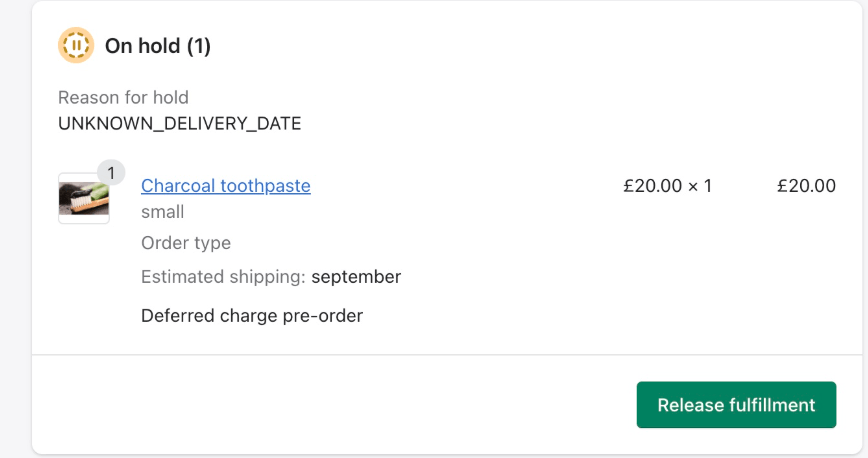
- PreProduct automatically adds a fulfillment hold to prevent premature shipping
- The pre-order appears in your PreProduct dashboard alongside online pre-orders
The experience for staff is streamlined. They see clear indicators when items are on pre-order, reminders about shipping requirements and visual cues throughout the process.
Payment flexibility
Unlike workarounds that require full payment upfront, PreProduct’s POS integration supports two payment approaches:
Charge upfront: The customer pays the full amount at checkout, just like a regular POS transaction. The fulfillment hold prevents your team from shipping before stock arrives.
Invoice later: If you’d rather collect payment when the product is ready to ship, you can leave the order unpaid in POS. PreProduct will create a draft order invoice that you can send when you trigger charges. This mirrors the charge-later pre-order payment model that 43.8% of pre-order listings use online.
What stays consistent across channels
The POS integration enforces the same rules as your online store:
- Fulfillment holds prevent orders from flowing to your 3PL or warehouse until you release them (see our guide on how to manage pre-order inventory in Shopify)
- Mixed cart policies apply; if you don’t allow customers to mix pre-orders with in-stock items online, the same rule applies in POS
- Pre-order tagging marks orders so they’re identifiable in your Shopify admin
- Customer communication flows work the same; customers receive the same emails and portal access
This means your operations team doesn’t need separate processes for online versus in-person pre-orders. Everything consolidates into a single workflow.
Best Use Cases for Shopify POS Pre-orders
Not every merchant needs POS pre-orders. But for certain business models, the ability to take pre-orders in person is a significant competitive advantage.
Taking pre-orders at trade shows and conventions
This is the highest-impact use case. Trade shows are unique selling environments: customers are physically engaged, often excited about exclusives or early access, and ready to make impulse decisions. The window is short. Once they walk away from your booth, the sale often disappears.

Paragon FX Group’s experience illustrates this perfectly. They sell collectibles and props, the kind of products that generate excitement at conventions. Their $10,000 in pre-orders came from customers who were ready to commit on the spot. Without a way to process those orders in person, they would have handed out flyers and hoped for the best.
The easier you make it to order, the more orders you’ll close. A dedicated POS pre-order integration qualifies as “streamlined.” Pen-and-paper signup sheets do not.
For high-ticket items, charging upfront secures commitment while the customer is engaged. With PreProduct’s fulfillment holds, you don’t have to worry about premature shipping.
In-person pre-orders at pop-up shops and retail events
Pop-up shops often feature products that aren’t yet available for immediate purchase. Maybe you’re showcasing a new collection that won’t ship for another month. Maybe you’re testing demand in a new market before committing to inventory.

In these scenarios, pre-orders serve two purposes:
- Revenue capture: You close sales while customers are engaged, rather than hoping they’ll remember to order online later
- Demand validation: Pre-order volume tells you which products resonate before you place production orders
For fashion brands especially, pop-ups are marketing investments. The goal isn’t just immediate sales; it’s building a customer file and validating product-market fit. Pre-orders at the event accomplish both.
Retail stores with long lead times
Some retail models involve products that can’t be fulfilled immediately. Made-to-order furniture, custom jewelry, personalized goods and specialty items often require weeks or months between order and delivery.

Without a pre-order system, these businesses typically resort to manual processes: paper order forms, follow-up calls to collect payment and spreadsheets to track fulfillment. A proper POS pre-order integration brings these transactions into your normal Shopify workflow, with automatic fulfillment holds and payment tracking.
The average cancellation rate for pre-orders is just 5.4%, meaning customers who commit tend to follow through. This makes pre-orders a reliable revenue forecasting tool for made-to-order businesses.
Setting Up Pre-orders on Shopify POS: Step-by-Step
Getting started requires a few prerequisites and configuration steps. Here’s what you need.
Requirements
Shopify POS Pro: The integration requires a paid Shopify POS plan. POS Pro enables the “Ship all items” functionality that’s essential for pre-order workflows. Without it, Shopify POS marks orders as fulfilled immediately, which breaks the pre-order process.
PreProduct app installed: You’ll need an active PreProduct subscription. If you’re already using PreProduct for online pre-orders, you’re halfway there.
Smart Grid configuration: Your POS Smart Grid must have the “Ship all items” tile enabled. This is what allows staff to mark orders for shipping rather than immediate pickup.
Enabling the integration
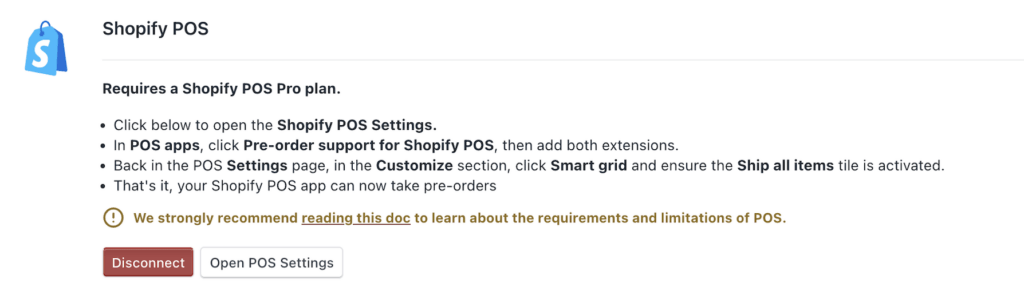
- In PreProduct, navigate to the Integrations screen
- Scroll to the Shopify POS card and click to activate
- Click Open POS Settings to access Shopify’s POS sales channel admin
- Under POS apps, find Pre-order support for Shopify POS
- Add both extensions to your POS configuration
- In the POS settings, go to Customize > Smart Grid and verify the “Ship all items” tile is active
That’s it for the technical setup. The integration is now live.
Training staff on the workflow
Staff need to understand a few key points:
Customer information is required: Before a pre-order can be added to cart, the customer must be attached to the session with both an email address and shipping address. If this information is missing, staff will see a prompt telling them to add the customer first.
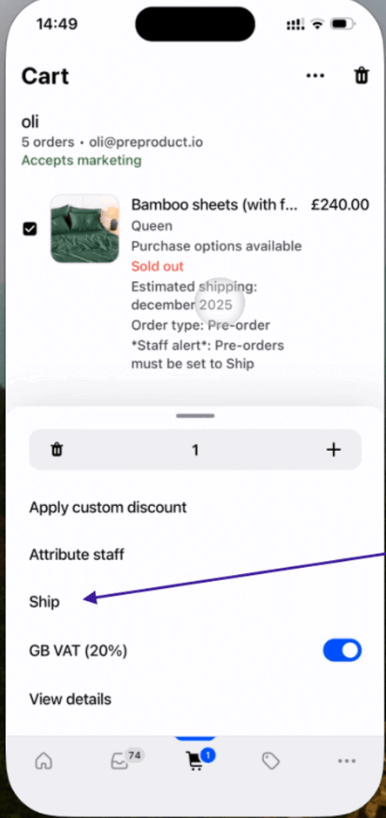
Orders must be set to “ship”: When a pre-order item is in the cart, PreProduct adds a staff note reminding them that the order contains a pre-order and needs to ship. Staff should click the “Ship all items” tile in Smart Grid, or click the line item and select “Ship” from the menu. This tells Shopify the order still needs to be fulfilled later. If they skip this step, Shopify treats it like a pickup and marks the order as fulfilled immediately.
Payment can be collected now or later: Depending on your setup, staff can process full payment at checkout or leave the order unpaid for later invoicing. Make sure they know which approach you’re using.
For the complete technical documentation, including screenshots and troubleshooting, see the full POS integration guide.
Best Practices for Taking Pre-orders in Person
Once your integration is live, a few practices will help you maximize results.
Always capture complete customer information
The integration requires email and shipping address for good reason. Without contact information, you can’t send order updates, payment reminders, or shipping notifications. Make collecting this information a natural part of the conversation, not an afterthought at checkout.
For trade shows, consider having customers fill out a brief form on a tablet before you add items to cart. This speeds up checkout and ensures you have accurate information.
Communicate lead times clearly
In-person customers may have different expectations than online shoppers. Make sure staff can clearly articulate when the product will ship, what payment will look like (upfront vs. invoiced later) and how customers will receive updates.
For longer lead times (60+ days), transparency is essential. Customers who understand the timeline are less likely to cancel or file chargebacks. The pre-order’s expected ship date should be mentioned verbally and confirmed in the order receipt. Consider building a pre-order email sequence to keep customers informed throughout the waiting period.
Choose your payment approach
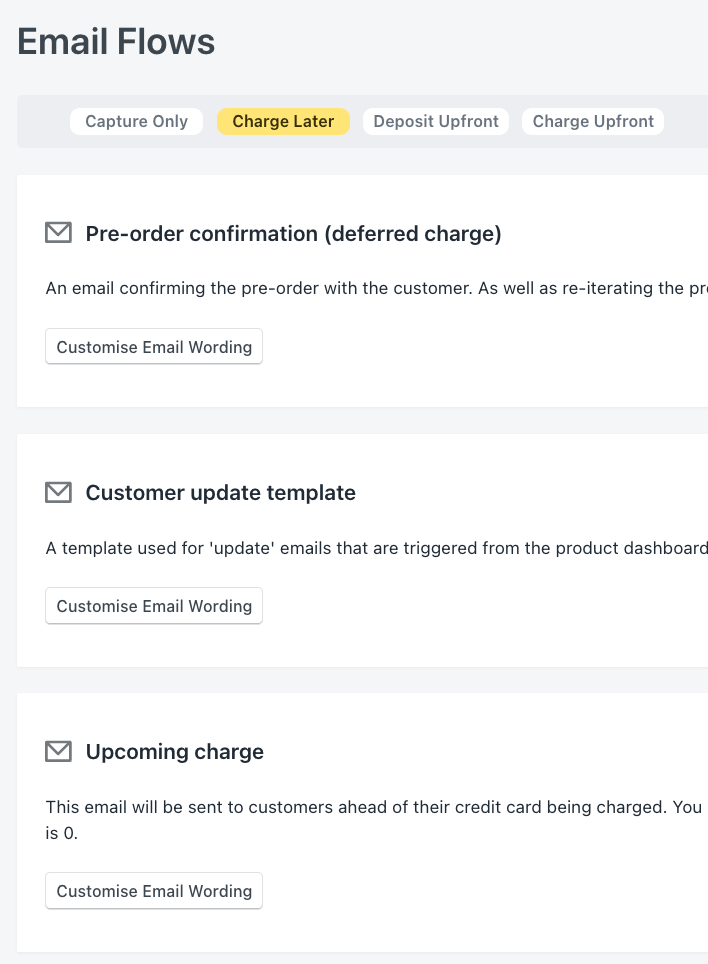
For POS pre-orders, you have two options: charge upfront or invoice later. Charging upfront locks in the sale immediately and works well for most convention scenarios. Invoicing later (via draft order) gives flexibility if customers prefer to pay when the product ships.
Track pre-order performance by channel
Once you’re taking pre-orders both online and in person, compare performance across channels. Are convention pre-orders converting at higher rates? Are in-store customers selecting different products than online buyers?
PreProduct’s dashboard consolidates all pre-orders regardless of source, making this analysis straightforward. Use the insights to inform future event participation and inventory planning.
Shopify POS Pre-order Limitations
No solution is perfect, and it’s important to understand where the POS integration has constraints.
Deferred-charge isn’t supported: Shopify POS doesn’t support purchase options, which power the deferred-charge model online. This means the “vault the card now, charge later” flow doesn’t work on POS. Instead, POS pre-orders left unpaid will receive a draft order invoice when you trigger charges. PreProduct handles this automatically, even if you have a mix of online and POS pre-orders for the same listing.
Capture-only pre-orders don’t work: If you use capture-only pre-orders online (where you send a payment link when ready), this model isn’t supported through POS.
Requires POS Pro: The free Shopify POS Lite plan won’t work. You need POS Pro for the shipping functionality that makes pre-orders possible.
Staff need to follow the prompts: Unlike online stores where the pre-order flow is automatic, POS requires staff to follow specific steps. PreProduct shows in-app messaging to guide them (reminders to add customer info, set orders to ship, etc.), but if they skip these prompts the workflow breaks.
These limitations are Shopify platform constraints, not PreProduct constraints. Until Shopify extends native pre-order support to POS, workarounds are necessary for certain functionality.
Frequently Asked Questions About Shopify POS Pre-orders
Does Shopify POS support pre-orders natively?
No. Shopify’s official documentation states that pre-order products are only supported on Online Store and Custom Storefront sales channels. POS is not included.
What payment options work with Shopify POS pre-orders?
Two options: charge upfront (full payment at checkout) or leave unpaid and invoice later via draft order. True deposit pre-orders (partial payment now, balance later via vaulted card) aren’t supported on POS due to Shopify limitations. For deposit workflows, you’d need to use your online store.
Does deferred-charge (pay later) work on POS?
Not through the standard vaulted card method. Shopify POS doesn’t support purchase options. However, you can leave orders unpaid at checkout and send draft order invoices later when you’re ready to collect payment.
Do I need Shopify POS Pro?
Yes. POS Pro is required because it enables the “Ship all items” functionality. Without this, Shopify marks orders as fulfilled immediately, breaking the pre-order workflow.
Will POS pre-orders sync with my online pre-orders?
Yes. All pre-orders appear in your PreProduct dashboard regardless of source. Fulfillment holds, tagging and customer communication work the same across channels.
Start Taking Pre-orders at Your Next Event
The gap between in-person enthusiasm and online conversion is where sales go to die. Customers who are ready to buy at a trade show, convention or pop-up shouldn’t have to navigate to your website later. They should be able to commit on the spot.
With PreProduct’s Shopify POS integration, you can capture those orders immediately. Same pre-order workflow as your online store. Same fulfillment holds. Same dashboard.
If you’re already using PreProduct for online pre-orders on Shopify, enabling POS takes minutes. If you’re new to PreProduct, the integration is included on all plans.
Don’t be the booth handing out business cards while competitors are processing orders.
Pre-sell With PreProduct
7 day free trial with all plans